


 Video Converter Ultimate
 Scherm opnemer
 Videoreparatie
Hoe u uw saaie schermachtergrond kunt veranderen in een geweldige levendige GIF
De meesten van ons gebruiken een hoogwaardige afbeelding als achtergrond en sommigen gebruiken zelfs een videowallpaper. Maar wist je dat je ook GIF’s als wallpaper kunt gebruiken om je achtergrond levendiger te maken dan ooit? Als je dus een idee wilt krijgen van hoe je een GIF als je wallpaper maakt, lees dan verder. Het kost je maar vijf minuten om te leren hoe je het instelt, en we laten je ook nog zien hoe je de perfecte GIF maakt van een video of afbeeldingen.

Deel 1. Hoe maak je een GIF als je achtergrond op iPhone
De meesten van ons hebben al een mobiele telefoon in handen, zoals een iPhone. Maar wist je dat je je saaie achtergrond veel mooier kunt maken? Ja, je wallpaper op je iPhone kan worden omgetoverd tot een magische GIF. GIF’s worden echter niet rechtstreeks ondersteund als wallpaper op iPhone‑apparaten. De mogelijke oplossing is dus om de GIF eerst naar een Live Photo te converteren en die vervolgens als nieuwe achtergrond in te stellen. Anders krijg je alleen een stilstaande afbeelding in plaats van een bewegende. In dit geval moet je de GIF omzetten naar een Live Photo door de app Convert - GIF & Live Wallpaper te downloaden en daar de conversie mee te doen. Ga daarna verder met hoe maak je een GIF je wallpaper op een iPhone door de volgende stappen te volgen.
Stappen voor het converteren van GIF naar Live Photo:
Stap 1. Download in de App Store de Convert - GIF & Live Wallpaper en open de app direct daarna.
Stap 2. Tik op Allow om de app toegang te geven tot je afbeeldingen, en selecteer vervolgens de GIF in je galerij.
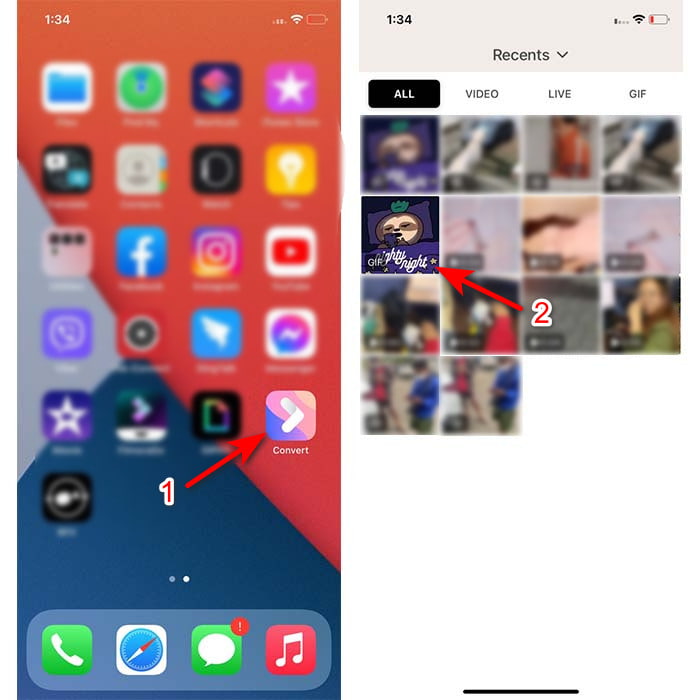
Stap 3. Klik dan op de downloadknop en stel bij opslaan in op Live Photo, klik op Save om door te gaan.
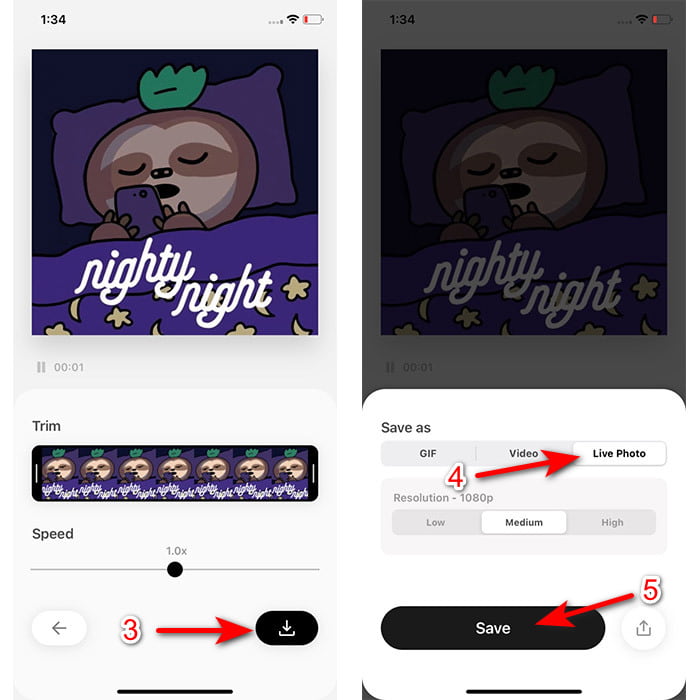
Stappen voor het maken van een live foto als achtergrond op de iPhone:
Stap 1. Tik op de app Foto’s en zoek in de bibliotheek de geconverteerde GIF die je zojuist hebt gemaakt.
Stap 2. Druk daarna op de knop Delen en zoek naar Gebruik als achtergrond.
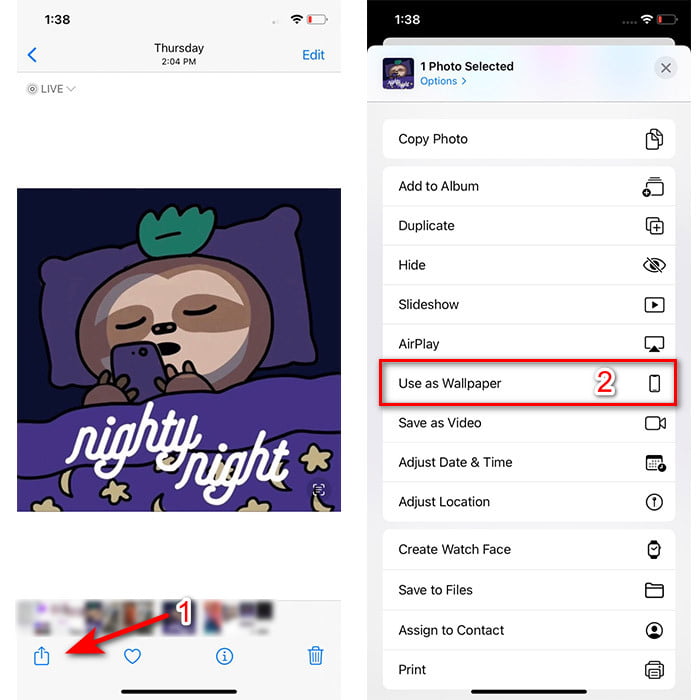
Stap 3. Druk op Live Photo om zeker te zijn dat het is ingeschakeld en klik op Stel in. Kies of je het als wallpaper voor je toegangsscherm, beginscherm of allebei wilt. Let er bovendien op dat Live Photo’s niet werken op het beginscherm, omdat je het scherm 3 tot 5 seconden ingedrukt moet houden. Daarom is het ideaal om een Live Photo op je toegangsscherm te gebruiken.
Deel 2. Hoe maak je een GIF als je achtergrond op Windows
Als je je achtergrond op Windows indrukwekkender wilt maken, volg dan de onderstaande stappen. In deze situatie kun je niet zomaar direct een GIF als achtergrond instellen, want dan krijg je enkel een stilstaand beeld. Om dat te voorkomen moet je een tool van derden gebruiken, zoals Lively Wallpaper. Laten we nu beginnen met de uitleg hoe maak je een GIF je wallpaper op Windows 10.
Stap 1. Download Lively Wallpaper uit de Microsoft Store. Start het programma zodra het downloaden voltooid is.
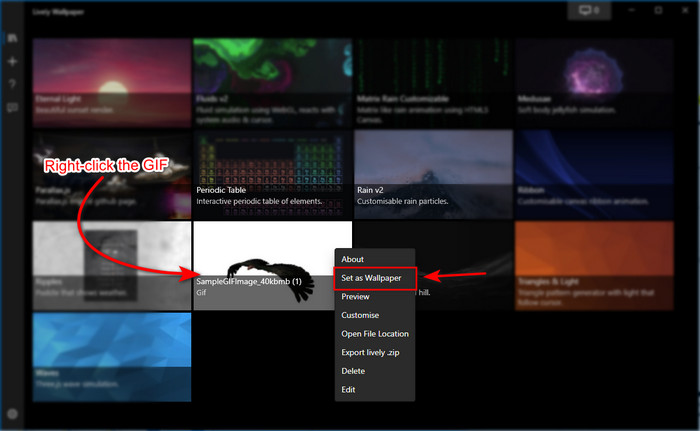
Stap 2. Klik op de +‑knop linksboven en druk op Browse. Zoek het GIF‑bestand in de map die op je scherm verschijnt en klik op Open. Er verschijnt een kleine bibliotheek; klik daar op OK en vervolgens op Save.
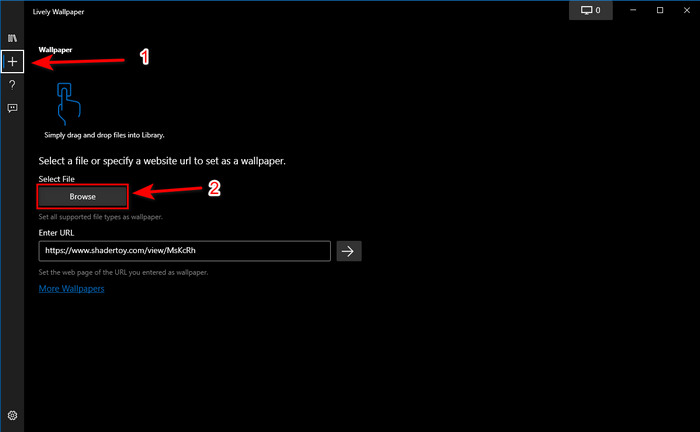
Stap 3. Zoek de GIF in de ingebouwde galerij, klik met de rechtermuisknop en kies set it as a wallpaper (als achtergrond instellen).
Deel 3. Hoe maak je een GIF van video/foto's met Video Converter Ultimate
Breng uw schermachtergrond tot leven door een geanimeerde GIF te gebruiken die is gemaakt in Video Converter Ultimate. Deze software heeft al bewezen dat het maken van een GIF eenvoudig kan, of het nu een afbeelding of video is. Bovendien is deze tool, in tegenstelling tot andere online en offline tools, zeer uniek in vergelijking met hen. Omdat de ultieme converter al alle geavanceerde functies heeft die u waarschijnlijk zou gebruiken.
Hoewel de software geavanceerde functies ondersteunt, is hij toch gebruiksvriendelijk en kan hij gemakkelijk door iedereen worden gebruikt, professional of niet. We laten je nu zien hoe je een GIF maakt voor je wallpaper op pc, Mac, Android en iPhone. Ook tonen we verschillende manieren om je te laten zien dat zelfs een video of afbeeldingen kunnen worden omgezet in een fantastische GIF met behulp van Video Converter Ultimate. Voordat we met de stappen beginnen, moet je de tool eerst op je schijf downloaden, hem installeren, snel instellen en dan op Finish klikken om verder te gaan.
Gratis downloadVoor Windows 7 of nieuwerVeilige download
Gratis downloadVoor MacOS 10.7 of nieuwerVeilige download
4 eenvoudige stappen om een geanimeerde GIF van video's te maken:
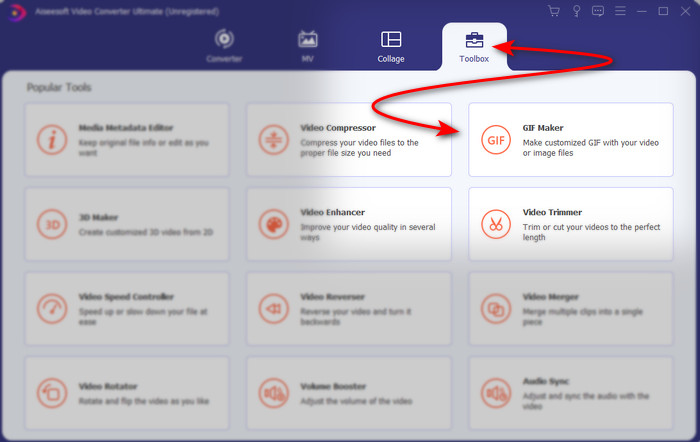
Stap 1. Start de tool en ga naar de Toolbox; daaronder vind je de GIF Maker, klik daarop om door te gaan.
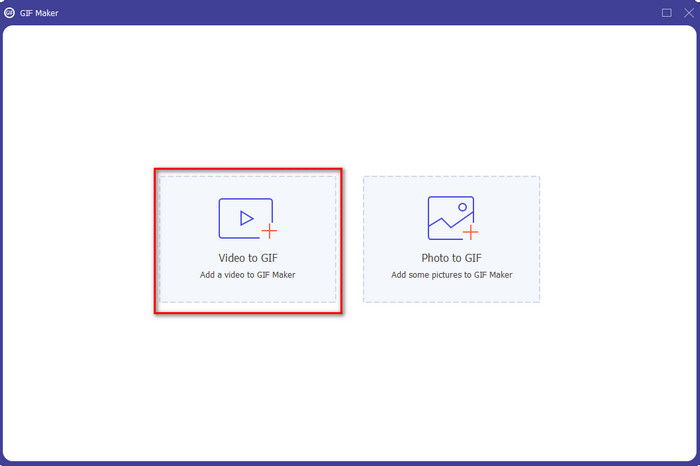
Stap 2. Klik vervolgens op Videos to GIF; zodra je klikt, verschijnt er een bestandsvenster. Selecteer de videobestand dat je in een GIF wilt omzetten en druk op Open.
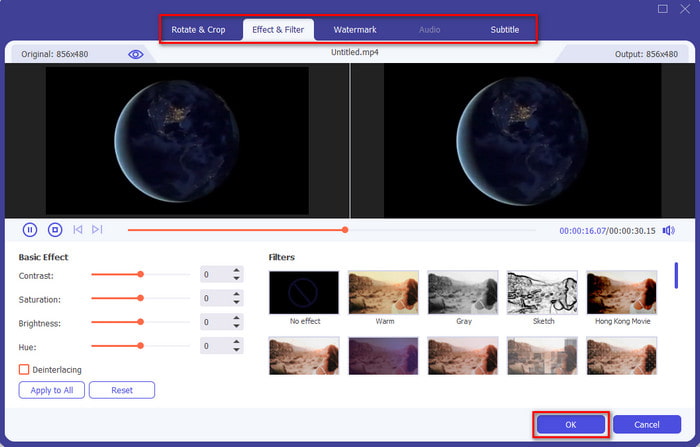
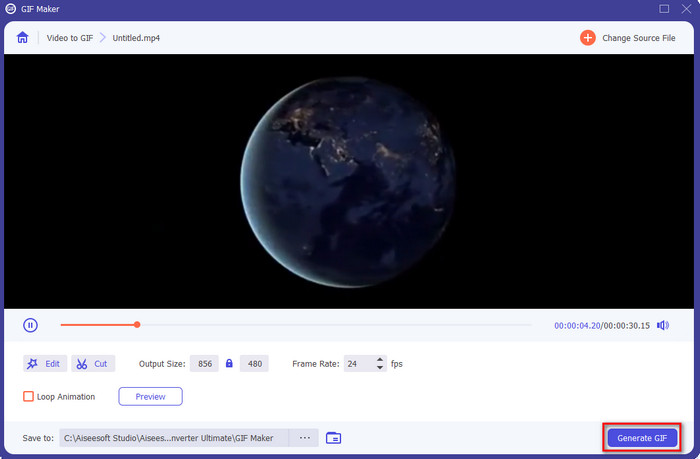
Stap 3. Klik in de interface op de knop met het toverstokje om je video te bewerken. Als je klaar bent met bewerken, klik je op OK om de aanpassingen op te slaan.
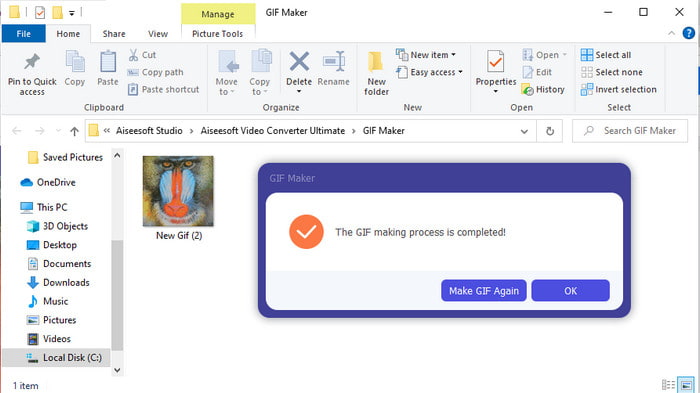
Stap 4. Klik op Generate GIF om de GIF direct op je opslag op te slaan. Zodra het converteren van video naar GIF voltooid is, verschijnt de Verkenner met het GIF‑bestand; klik erop om het te bekijken.
4 eenvoudige stappen om een geanimeerde GIF van afbeeldingen te maken:
Stap 1. Als de software volledig is geïnstalleerd, open je deze. Ga naar de sectie Toolbox en zoek daar de GIF Maker.
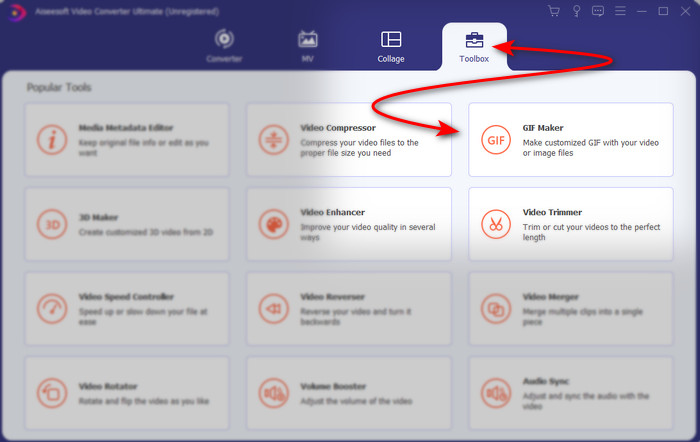
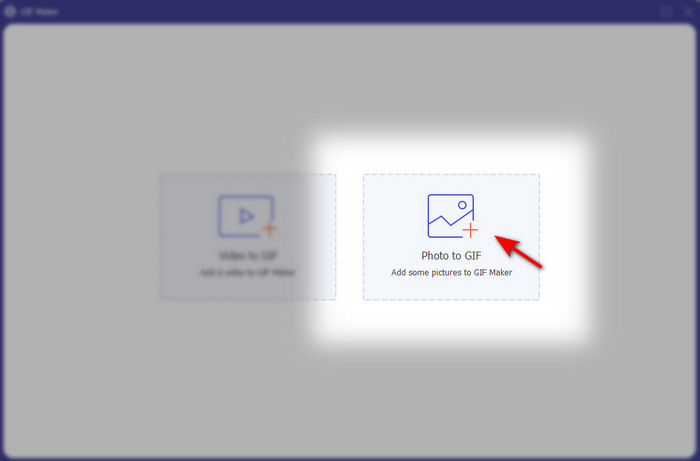
Stap 2. Om je afbeeldingen om te zetten in een geanimeerde GIF, klik je op Image to GIF. Er verschijnt een map in beeld; kies de eerste afbeelding en klik op Open.
Stap 3. De Output Setting verschijnt automatisch, klik op OK om door te gaan. Om twee of meer afbeeldingen toe te voegen, klik je op de +‑knop. Daarnaast kun je hier geen grote bewerkingen doen zoals bij video‑naar‑GIF. In plaats daarvan kun je de positie van de afbeeldingen en de duur aanpassen.
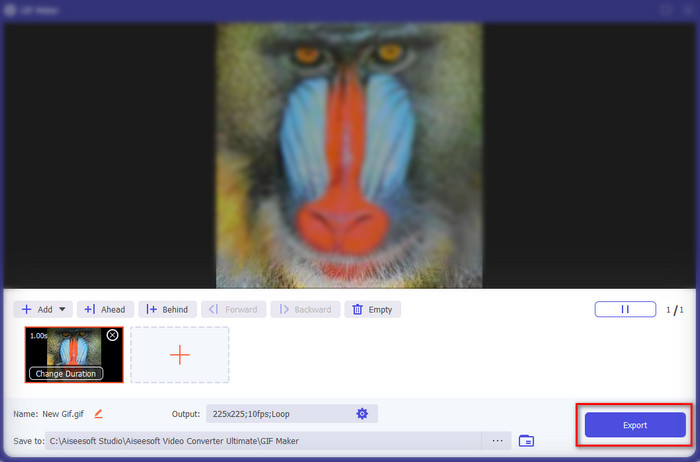
Stap 4. Als alles naar wens is ingesteld, is het nu tijd om op de knop Export te klikken om verder te gaan. Zodra het exporteren klaar is, verschijnt er een bestandsvenster met de GIF die je zojuist hebt gemaakt.
Gerelateerd:
Hoe plaats je een GIF op Instagram
Beste online GIF‑naar‑video‑converter
Deel 4. Veelgestelde vragen over Maak een GIF als achtergrond
Waarom bevriezen GIF's wanneer ze als achtergrond worden gebruikt?
Alle apparaten ondersteunen natuurlijk geen GIF als achtergrond. U kunt echter nog steeds een tool van derden gebruiken om uw GIF op uw achtergrond toe te passen.
Kan ik geanimeerde GIF's online opslaan en als achtergrond op mijn iPhone gebruiken?
Absoluut ja! Je kunt ze opslaan. Als je GIPHY momenteel gebruikt, klik dan op het weglatingsteken om het op te slaan als een live foto. Dus nu kun je de stappen voor het converteren van de GIF naar een live video overslaan en gewoon doorgaan met het gebruik van GIF om het als achtergrond hierboven te gebruiken.
Verbruikt geanimeerde achtergrond de levensduur van de batterij?
In feite is het een ja, omdat geanimeerde achtergronden of bewegende achtergronden bijna 2-4% van de batterijduur verbruiken omdat de CPU en de GPU nog steeds op de achtergrond draaien.
Gevolgtrekking
Nu we aan het einde gekomen zijn, weten we dat we een GIF als wallpaper kunnen gebruiken om onze saaie afbeelding tot leven te brengen. Natuurlijk zijn alle apps die hier zijn besproken uitstekend in wat ze doen. Met name met Video Converter Ultimate kun je eenvoudig leren hoe je GIF als je wallpaper gebruikt, ongeacht het platform. Wil je een unieke GIF maken, download deze tool dan op je desktop en probeer het zelf eens uit.
-
 Tutorial om GIF te comprimeren en de bestandsgrootte met hoge kwaliteit te verkleinen
 Hier zijn 2 eenvoudige manieren om GIF te comprimeren op je computer of mobiele telefoon. U kunt FVC Free Online Video Compressor en Photoshop gebruiken om de GIF-bestandsgrootte in verschillende opzichten te verkleinen.
-
 Maak je beste geanimeerde GIF via Online GIF Maker [2021]
 Een informatieve recensie over hoe je een GIF maakt met behulp van deze eenvoudige online GIF-makers die je al of niet op internet tegenkomt.
-
 Kies de beste GIF-cropper online en offline om GIF's bij te snijden [2021]
 Het kiezen van de beste bijsnijdtool is een must en sommige GIF-makers hebben deze functie niet geleverd. Maar wat is de beste tool voor het bijsnijden van GIF's en hoe deze te gebruiken?
