


 Video Converter Ultimate
 Scherm opnemer
 Videoreparatie
Leer hoe u audio en video correct synchroniseert in iMovie met de meegeleverde stappen
Is het niet ontzettend irritant om naar een video te kijken waarvan het geluid niet synchroon loopt? Dit overkomt de meesten van ons regelmatig. Dus als je dit probleem op je Mac tegenkomt, móét je het oplossen met behulp van iMovie. Maak je geen zorgen, je hebt geen uur nodig om te leren hoe je audio en video synchroniseert in iMovie. Je hoeft slechts 4 minuten te besteden aan het lezen van dit artikel en minder dan 3 minuten om het uit te voeren. Als je klaar bent om je audio en video weer synchroon te krijgen, gaan we nu verder met hoe je iMovie op de iPhone en Mac gebruikt.

Deel 1. Hoe audio en video te synchroniseren in iMovie op iOS
Met je iPhone kun je vrijwel alles maken wat je ook op een Mac kunt. Een goed voorbeeld is iMovie, al ziet de interface van iMovie op de iPhone er anders uit dan op de Mac. Toch kun je audio en video ook zonder Mac met elkaar synchroniseren. Wil je weten hoe je audio en video op de iPhone in iMovie synchroniseert? Volg dan de onderstaande stappen.
Stap 1. Zoek iMovie in de App Store en download het op je iPhone. Klik na de installatie op de app om deze te openen.
Stap 2. Klik vervolgens op de knop + om een video toe te voegen en druk daarna op Film. Zoek de video die je wilt synchroniseren en klik op Maak film.
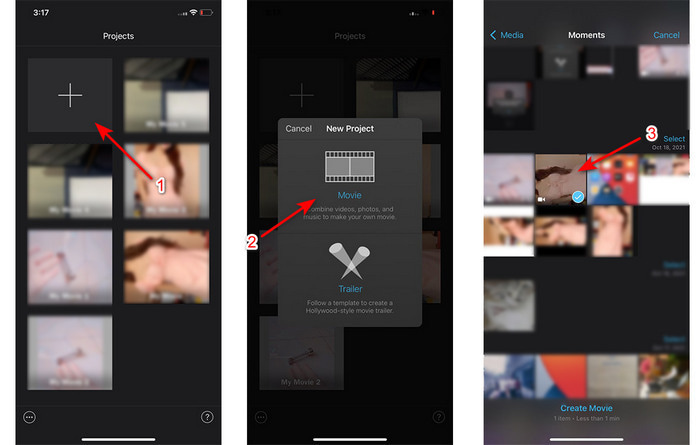
Klik dan op het +-teken om dezelfde video te zoeken, maar nu voegen we alleen het audiospoor toe. Nadat je de video hebt gevonden, klik je op de drie puntjes en kies je Alleen audio.
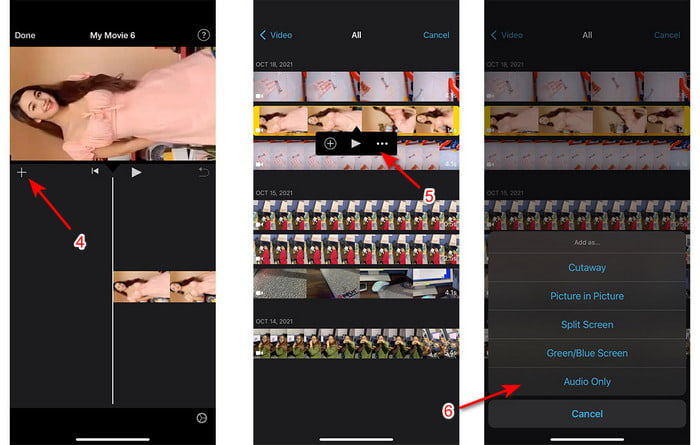
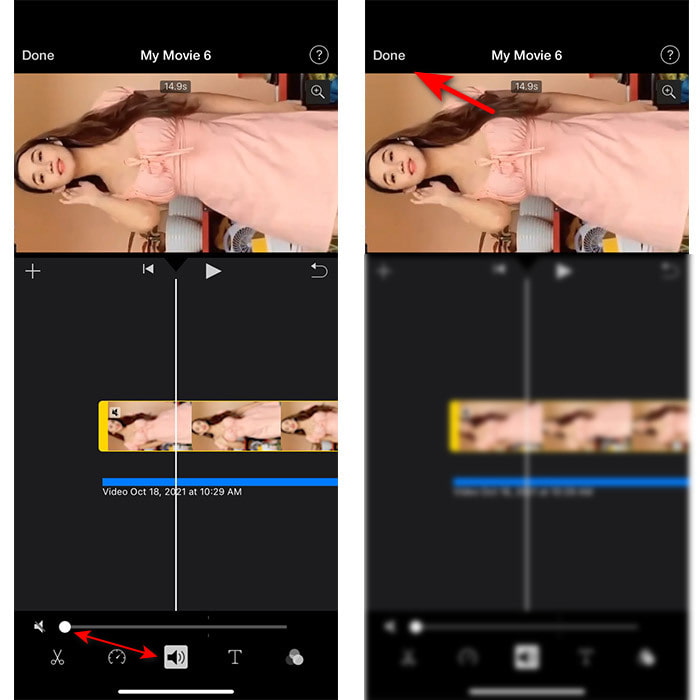
Stap 3. Tik op de video op de tijdlijn en klik op het Luidspreker-icoon en zet het volume van de video op nul. Pas vervolgens het audiobestand aan zodat het synchroon loopt met de video. Klik daarna op Gereed om je bewerkingen op te slaan.
Deel 2. Hoe audio en video te synchroniseren in iMovie op Mac
Als je alle uitgebreide bewerkingsfuncties van iMovie wilt gebruiken, kun je beter een Mac nemen. Deze software is zeer elegant en werkt uitstekend op de Mac. Wil je audio en video synchroniseren, dan kun je dat hier eenvoudig doen. Het is echter iets lastiger te gebruiken op de Mac dan op de iPhone. Wil je dus weten hoe je audio met video synchroniseert in iMovie op de Mac, volg dan de drie eenvoudige stappen hieronder.
Stap 1. Zoek iMovie via de Finder en start het programma. Zodra de tool is geopend, klik je op Archief en ga je naar Importeer media. Selecteer het bestand in de map en klik op Importeer geselecteerde.
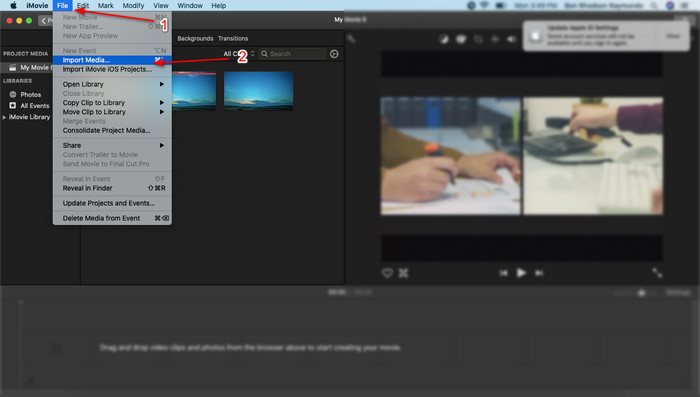
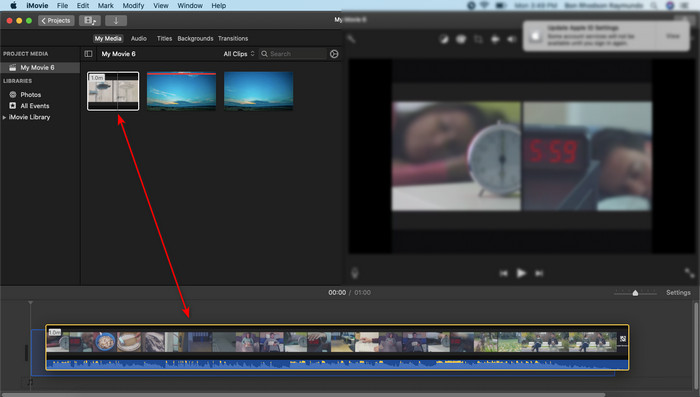
Stap 2. Sleep eerst het videobestand naar de Tijdlijn en doe daarna hetzelfde met het audiobestand.
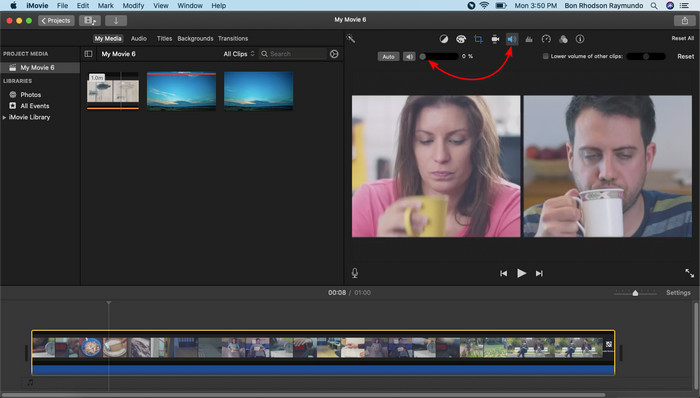
Klik op het videobestand en klik op de knop Luidspreker om het originele geluid van de video te verwijderen.
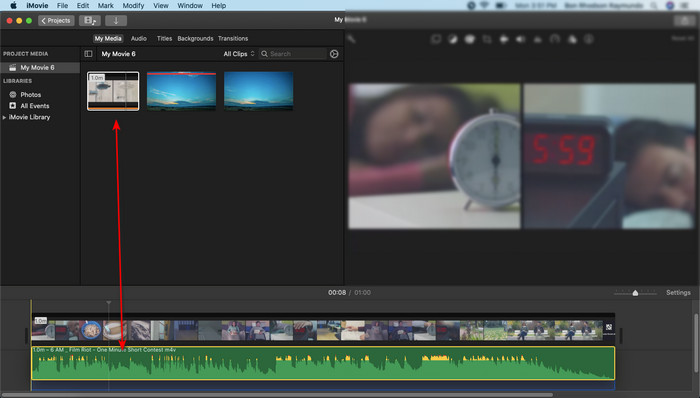
Voeg hetzelfde bestand toe, maar nu aan de audio en pas vervolgens de audio aan om deze te synchroniseren met de video.
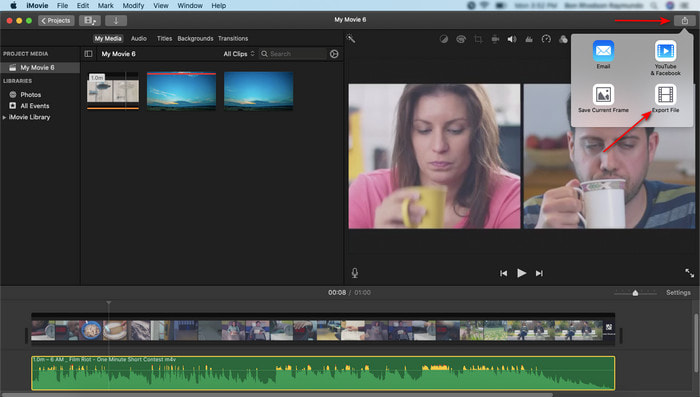
Stap 3. Om de video op de schijf op te slaan, klik je op de knop Deel en vervolgens op Exporteer bestand.
Deel 3. Hoe audio en video te synchroniseren met Windows Phenomenal Editor
Als je geen Mac of iPhone hebt, kun je je audio en video nog steeds heel effectief en zelfs veel eenvoudiger synchroniseren met Video Converter Ultimate. Deze fenomenale software is beter dan iMovie en is bovendien beschikbaar op alle platforms, behalve op mobiele telefoons. Of je nu een beginner of een professional bent, je kunt je video er fantastisch uit laten zien en zo een wow-effect bij de kijker creëren. Wil je dus leren hoe je audio en video synchroniseert in een alternatief voor iMovie, volg dan de uitgebreide stappen die de auteur speciaal voor jou heeft opgesteld en laten we verdergaan.
Stappen om audio en video te synchroniseren op Windows met Video Converter Ultimate:
Stap 1. Voordat je de tool kunt gebruiken, moet je deze eerst downloaden. Installeer hem vervolgens en klik op Voltooien om door te gaan.
Gratis downloadVoor Windows 7 of nieuwerVeilige download
Gratis downloadVoor MacOS 10.7 of nieuwerVeilige download
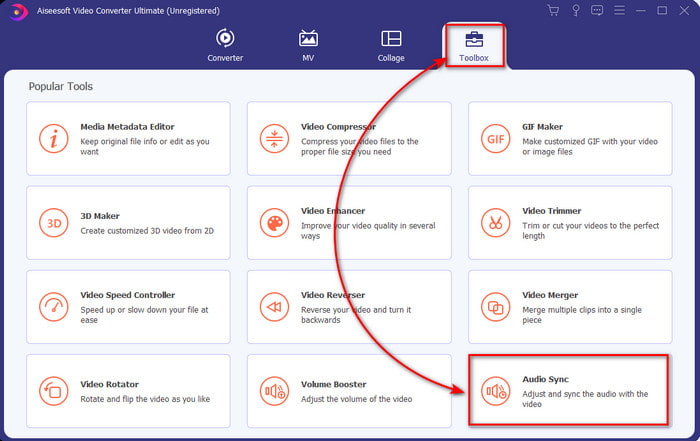
Stap 2. Na het installatieproces is het tijd om de tool te starten. Ga vervolgens naar de Toolbox en klik op Audio synchroniseren.
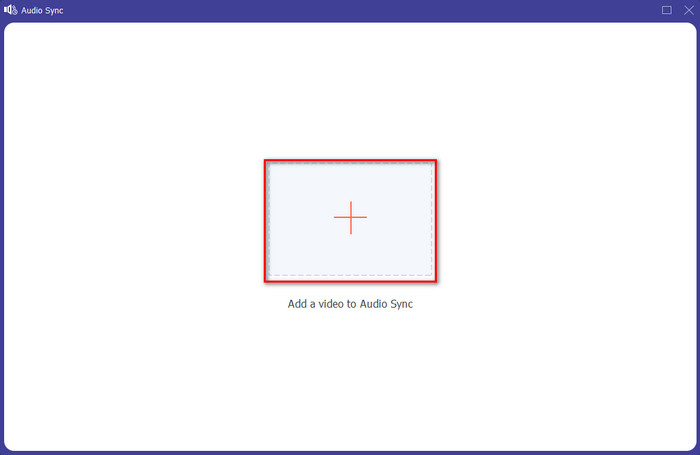
Stap 3. Om de niet-gesynchroniseerde audio toe te voegen, klik je op de knop +, selecteer je het bestand in de map en klik je op Openen.
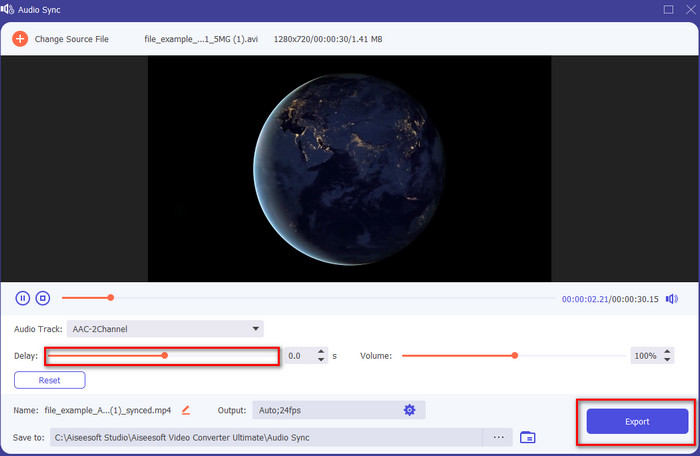
Stap 4. Pas de schuifregelaar voor de vertraging aan zodat deze overeenkomt met de video. Als je klaar bent met het afstemmen van de audio op de video, klik je op de knop Exporteren om het proces te starten.
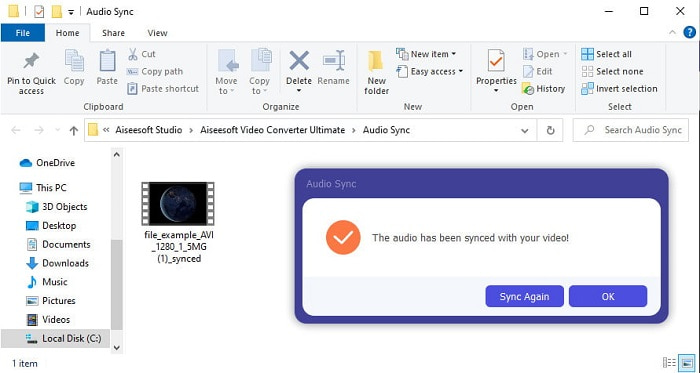
Stap 5. Zodra het klaar is, verschijnt er een map op je scherm met het gesynchroniseerde bestand. Klik op het bestand om van de synchroon lopende audio en video te genieten.
Deel 4. Veelgestelde vragen over audio- en videosynchronisatie in iMovie
Kan ik iMovie op Windows gebruiken?
Helaas kun je iMovie niet op Windows downloaden. Wel kun je een alternatief zoeken dat hetzelfde doet als iMovie of zelfs beter, zoals deze 5 vergelijkbare videobewerkers als iMovie.
Waarom wordt AVI niet ondersteund op iMovie?
AVI wordt niet ondersteund in iMovie vanwege de complexe structuur van dit formaat. De beste manier om een AVI‑videobestand te bewerken is het om te zetten naar een MOV‑bestand. Als je geen idee hebt hoe je AVI naar MOV converteert, lees dan dit artikel om meer inzicht te krijgen.
Heeft het geëxporteerde bestand in iMovie een watermerk?
Elk project dat u exporteert naar iMovie heeft tot op de dag van vandaag geen watermerk. Hoewel de tool gratis is op Apple-apparaten, zijn er geen watermerken opgenomen in de uiteindelijke uitvoer. U kunt daar echter uw eigen watermerk toevoegen als u dat wilt.
Kan ik iMovie gebruiken om een video op te nemen met de camera aan?
Eigenlijk kun je met iMovie ook heel eenvoudig je scherm opnemen. Wil je daar een idee van krijgen, klik dan op deze link om verder te gaan.
Gevolgtrekking
Nu is het duidelijk dat je je iPhone of Mac kunt gebruiken om je video en audio te synchroniseren met behulp van iMovie. Hoewel de interface en sommige functies op de iPhone ontbreken, kun je de app toch gemakkelijk gebruiken zonder dat je een expert hoeft te zijn. Wil je het echter nog eenvoudiger doen, gebruik dan Video Converter Ultimate. In plaats van ingewikkelde aanpassingen uit te voeren, kun je dit met deze software in slechts een paar klikken oplossen. Dit is dus je geluksdag, want als je de stappen volgt om audio en video te synchroniseren met de Ultimate Converter, dan verzekeren wij je van succes.
-
 Importeer en converteer AVI naar door iMovie ondersteunde indeling [2021]
 Heeft u een probleem omdat u uw AVI-bestand niet in iMovie kunt importeren? Als u dit artikel leest, heeft u al de juiste remedie voor dit probleem gekozen.
-
 Concrete tutorial - Hoe twee audiotracks samen te voegen in Audacity
 Audacity staat bekend om het bewerken van audio. Je hebt Audacity gedownload, maar weet niet hoe je audiotracks moet samenvoegen in Audacity? Dit bericht zal je vertellen hoe je tracks kunt samenvoegen in Audacity.
-
 Hoe een MP4-bestand bij te snijden zonder enige kwaliteit van de video te verliezen [2021]
 Leer hoe u MP4 kunt bijsnijden met eenvoudige stappen die alleen voor u zijn bedoeld. Dus blijf op de hoogte, want we presenteren u de beste van de beste bijsnijdhulpmiddelen die u kunt gebruiken.
