


 Video Converter Ultimate
 Nagrywarka ekranu
 Naprawa wideo
Jak usunąć znak wodny z GIF-a online [krok po kroku]
Dodanie znaku wodnego do GIF‑a stało się jednym ze sposobów na jego zabezpieczenie, ale co, jeśli musisz usunąć znak wodny, który sam dodałeś do GIF‑a? Co powinieneś zrobić? Czy twój GIF Maker ma tę funkcję? Nie ma narzędzia do usuwania znaków wodnych? Wiemy, że to kłopotliwy problem, prawda? Jednak nie musisz się martwić, bo na wszystkie te pytania za chwilę znajdziesz odpowiedź – wybraliśmy cztery narzędzia do usuwania znaków wodnych, których możesz używać offline i online. Te narzędzia zostały starannie dobrane z rynku, aby zapewnić ci to, co najlepsze, jeśli chodzi o usuwanie znaku wodnego z GIF‑a.

Rzut oka na te aplikacje
| Video Converter Ultimate | Internetowe narzędzia GIF | WatermarkRemover.io | Pixlr | PhotoShop | |
| Rozkład | 8 tys | 1080P | 5 tys. | 8 tys | 300 tys. |
| Prędkość procesu | Szybki | Średni | Średni | Szybki | Zależy od Twojego sprzętu |
| Wymagania sprzętowe | Niski | Nie dotyczy | Średni | Wysoki | Bardzo wysoki |
Część 1. Najłatwiejszy sposób na szybkie usunięcie znaku wodnego z GIF na Windows i Mac
Video Converter Ultimate może z powodzeniem pomóc ci usunąć znak wodny z GIF‑a, jeśli tylko tego chcesz. To narzędzie pozwala zarówno dodać, jak i usunąć znak wodny – zasadniczo jest to kompleksowy program, którego potrzebujesz w systemie Windows lub Mac. Co więcej, dzięki niemu możesz tworzyć własne GIF‑y i dodawać do nich wybrany znak wodny, aby je zabezpieczyć. Aby to sprawdzić w praktyce, możesz wykonać proste kroki, które podajemy – i to wszystko. Dzięki temu w mniej niż minutę będziesz mieć gotowego GIF‑a bez znaku wodnego.
Zalety Video Converter Ultimate:
◆ Najlepszym wyborem jest usunięcie i dodanie znaku wodnego do GIF-a.
◆ Przyjazny dla użytkownika graficzny interfejs użytkownika może szybko pomóc w zrozumieniu, co dzieje się z interfejsem narzędzia.
◆ Wbudowany ultraszybki proces konwersji i przyspieszenie sprzętowe mogą pomóc w błyskawicznym imporcie i eksporcie.
◆ Dostępne na wszystkich platformach, takich jak Windows i Mac, do pobrania.
◆ Ma najlepsze zaawansowane funkcje tworzenia GIF-ów, których możesz użyć na swoim pulpicie, aby stworzyć spersonalizowany GIF.
Kroki, jak usunąć znak wodny z GIF‑a za pomocą Ultimate Watermark Remover
Krok 1. Pobierz oprogramowanie na dysk swojego komputera, klikając poniższy przycisk. Następnie uruchom je i wgraj GIF‑a lub wideo.
Bezpłatne pobieranieDla Windows 7 lub nowszegoBezpieczne pobieranie
Bezpłatne pobieranieDla MacOS 10.7 lub nowszegoBezpieczne pobieranie
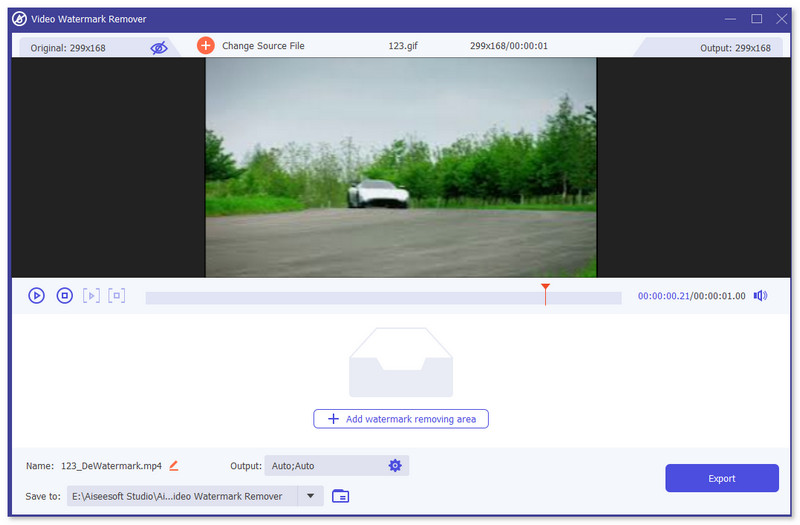
Krok 2. Otwórz narzędzie do usuwania znaku wodnego, przejdź do sekcji Toolbox i znajdź Video Watermark Remover.

Krok 3. Prześlij GIF‑a lub wideo i kliknij Export.
Powiązane:
Usuń znak wodny z pliku GIF za pomocą programu Adobe Photoshop
Jeśli masz zainstalowany na swoim komputerze Adobe PhotoShop, możesz również polegać na nim, aby usunąć znaki wodne lub cienie ze zdjęcia. PhotoShop może być uznany za jedno z najpopularniejszych i najpotężniejszych narzędzi do edycji zdjęć, które pozwala dodawać efekty, filtrować, usuwać obiekty itp. Mimo że nie jest to darmowy edytor zdjęć, daje 30-dniowy bezpłatny okres próbny. Teraz możesz postępować zgodnie z poniższym przewodnikiem, aby usunąć niechciane obiekty ze zdjęcia.
Krok 1. Uruchom program PhotoShop na komputerze. Możesz wejść na oficjalną stronę Adobe, aby bezpłatnie pobrać PhotoShop i skorzystać z bezpłatnego okresu próbnego.
Krok 2. Możesz bezpośrednio przeciągnąć i upuścić obraz file, który chcesz edytować. Możesz też kliknąć File na pasku menu, a następnie kliknąć Open, aby wybrać lokalne zdjęcie z komputera.
Krok 3. Możesz użyć narzędzia Select and Mask tool, aby zaznaczyć niechciane obiekty. Na tym etapie możesz swobodnie wybrać odpowiednie narzędzie do zaznaczenia obszaru, który chcesz usunąć.
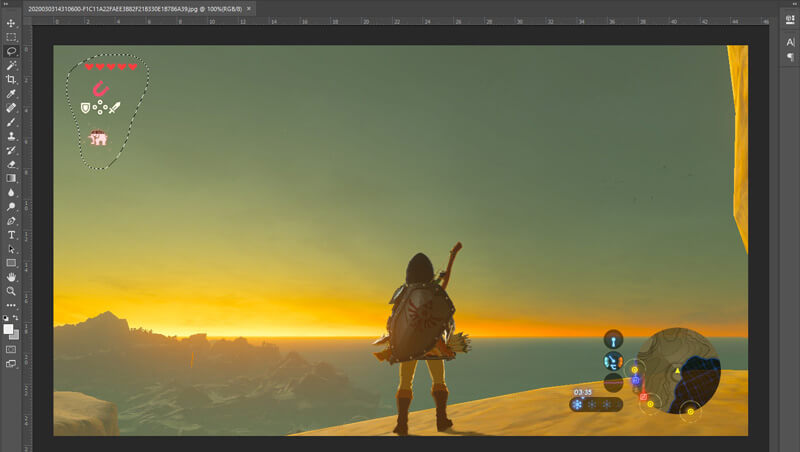
Krok 4. Teraz możesz skorzystać z narzędzia Photoshopa Content-Aware Fill, aby usunąć obiekt ze zdjęcia i zastąpić ten fragment odpowiednią treścią. Stosunkowo rzecz biorąc, jeśli nie chcesz po prostu wymazać niektórych obiektów na zdjęciu, funkcja Content-Aware Fill może zapewnić lepszy efekt końcowy.
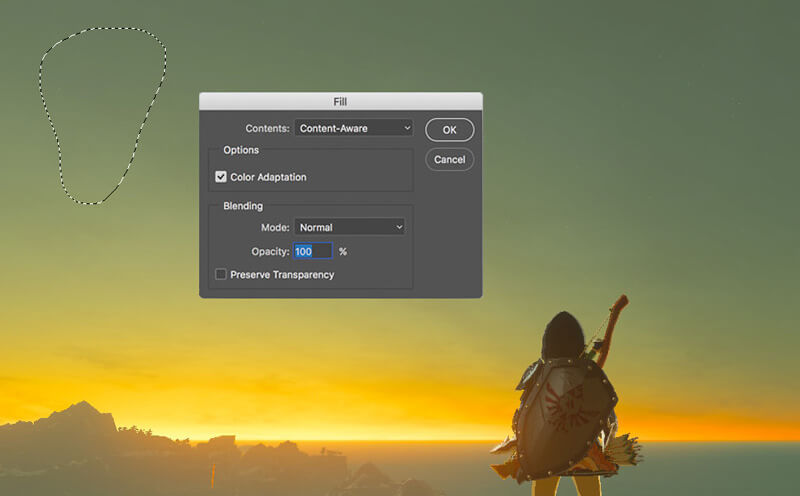
Krok 5. Po tym, jak PhotoShop usunie obiekt, możesz kliknąć File, a następnie Save, aby zapisać edytowany obraz na komputerze. Jako format wyjściowy możesz wybrać dowolny popularny format obrazu, taki jak JPG, PNG, GIF i inne. Możesz też nacisnąć Ctrl + S, aby zapisać i wyeksportować plik graficzny z PhotoShop.
Część 2. Jak usunąć znak wodny z pliku GIF online
Za pomocą tych bezpłatnych narzędzi online możesz usuwać znaki wodne z GIF-ów. Musisz jednak pamiętać, że te narzędzia nie będą działać, jeśli nie masz połączenia z Internetem, ponieważ wszystkie narzędzia są zależne od sieci. Ponadto korzystanie z nich może zająć trochę czasu, ponieważ buforuje podczas korzystania z tych narzędzi internetowych. Jeśli więc chcesz poznać darmowy program do usuwania plików GIF online, przeczytaj szczegóły poniżej.
Usuń znak wodny z GIF-a za pomocą narzędzi GIF online
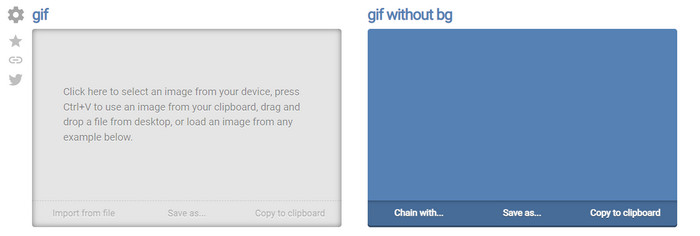
Online GIF Tools to darmowe narzędzie, którego możesz użyć do usuwania znaków wodnych z GIF‑ów. To narzędzie oferuje zaawansowane funkcje usuwania, takie jak kasowanie znaków wodnych z tła GIF‑a. Choć narzędzie jest imponujące, usuwanie znaku wodnego może być skomplikowane, ponieważ polega na eliminowaniu pikseli o konkretnych kolorach w każdej klatce.
Krok 1. Otwórz Online GIF Tools w swojej przeglądarce internetowej.
Krok 2. Kliknij Import File, aby przesłać GIF‑a. W sekcji background color kliknij options color coder, aby zlokalizować kolor znaku wodnego.
Krok 3. Kliknij Save As oraz Download, aby zapisać GIF‑a na dysku.
Usuń znak wodny z GIF-a za pomocą Watermark Remover Online
Dzięki WatermarkRemover.io twój znak wodny zostanie automatycznie usunięty z GIF‑a. To narzędzie świetnie nadaje się do bezpłatnego usuwania znaków wodnych. Użytkownicy mają mniej zachodu z usuwaniem znaku wodnego, ponieważ nie muszą nic robić – narzędzie wykonuje wszystko za nich. Jednak niektóre regiony nie mają do niego dostępu; w praktyce oznacza to, że nie możesz pobrać GIF‑a z usuniętym znakiem wodnym.
Krok 1. Uruchom WatermarkRemover.io i dodaj plik GIF, klikając poniżej logo.
Krok 2. Po dodaniu pliku proces rozpocznie się automatycznie – poczekaj na zakończenie.
Krok 3. Kliknij przycisk pobierania, aby zapisać plik na komputerze.
Usuń znak wodny z GIF-a za pomocą Pixlr

Jeśli chcesz mieć najlepsze narzędzie internetowe do usuwania znaku wodnego z GIF‑a, użyj Pixlr. W przeciwieństwie do dwóch wcześniej wspomnianych narzędzi online, to jest zupełnie inne, ponieważ oferuje wiele funkcji, które możesz wykorzystać do usuwania znaku wodnego. Choć narzędzie jest podobne do Photoshopa, niektóre jego funkcje nie są tak skuteczne jak w Photoshopie, zwłaszcza przy usuwaniu znaków wodnych z GIF‑ów, a na końcu eksportu dodaje własny znak wodny.
Krok 1. Wyszukaj Pixlr i otwórz go.
Krok 2. Kliknij Advance Editor, dodaj GIF‑a, kliknij Open Image. Po dodaniu GIF‑a kliknij ikonę droplet, aby rozmyć znak wodny, następnie wielokrotnie klikaj w miejsce znaku wodnego i upewnij się, że został usunięty.
Krok 3. Kliknij File then Save.
Część 3. Często zadawane pytania dotyczące usuwania znaku wodnego z GIF
Czy usunięcie znaku wodnego zmniejsza rozmiar pliku?
Rozmiar pliku ulegnie zmianie, ale nie będzie to miało znaczącego wpływu, ponieważ po prostu usuniesz trochę znaku wodnego z filmu. Jeśli więc oryginalny rozmiar pliku i wyodrębniony znak wodny nie są prawie takie same, problem tkwi w tym, czego użyłeś.
Dlaczego po usunięciu znaku wodnego na moim filmie jest rozmyte?
Po usunięciu znaku wodnego w Twoim filmie jest rozmycie, ponieważ jest to sposób usuwania znaku wodnego przez narzędzie. Jest to jedna z metod, które zapewniają narzędzia do usuwania znaku wodnego z dowolnego filmu lub obrazu poprzez jego rozmycie.
Czy jakość GIF zmieni się po usunięciu znaku wodnego?
Nie zauważysz zmiany jakości po usunięciu znaku wodnego z GIF-a. Ale niektóre narzędzia obniżają jakość twojego GIF-a, ponieważ nie obsługują wysokiej jakości GIF-ów. Pamiętaj więc, aby wybrać odpowiednie narzędzie, które obsługuje eksportowanie wysokiej jakości danych wyjściowych, nawet jeśli usunąłeś z niego znak wodny.
Wniosek
Podsumowując, ten wpis daje nam możliwość skutecznego usunięcia znaku wodnego z GIF‑a lub wideo, z którego korzystamy. Narzędzia, które przedstawiliśmy, są skuteczne i idealnie nadają się do usuwania znaków wodnych z naszych GIF‑ów. A jednak to wciąż Video Converter Ultimate wyróżnia się, jeśli chodzi o usuwanie lub dodawanie znaku wodnego do GIF‑a. Jeśli więc zgadzasz się z nami co do tego narzędzia, po prostu go użyj, a jeśli jeszcze nie – koniecznie je pobierz i spróbuj usunąć znak wodny z GIF‑a. Po tym narzędzie szybko ci w tym pomoże, a twoje zdanie o jego możliwościach z pewnością się zmieni.
-
 Najlepszy sposób, jak dodać znak wodny do wideo w Photoshopie na Windows i Mac
 Chcesz wiedzieć, jak dodać znak wodny do filmu w Photoshopie? W takim przypadku ten artykuł dostarczy Ci rzeczy, o których musisz wiedzieć.
-
 3 najlepsze rozwiązania dotyczące łatwego usuwania znaku wodnego z filmów
 Chcesz usunąć irytujący znak wodny z filmu? Na tym blogu możesz poznać różne pomysły dotyczące usuwania znaku wodnego z filmu.
-
 5 najlepszych sposobów na zmianę obrazu na animowany GIF [Aktualizacja 2022]
 Potrzebujesz konwertera obrazu na GIF? W tym artykule przedstawimy pięć najlepszych konwerterów, jakie możemy znaleźć na rynku. Więc dowiedzmy się o tych narzędziach, czytając ten artykuł.
