


 Video Converter Ultimate
 Gravador de ecrã
 Reparo de vídeo
Como adicionar legendas aos vídeos que você salva em sua área de trabalho
Subtitles are the best way to translate dialogues of other countries into your native language to a text. This is created for those who don't understand the dialogues of the actor or actresses. Also, they improve the overall engagement of the audience to the film, series, and movies as well. But in some cases, the video you download has no subtitles or has a separate file for it. So, the best way to add subtitles to videos is presented in this article. So, keep on reading this write-up as we provide steps on how to insert your subtitles and what are the different tools you can use.

Parte 1. 4 das melhores ferramentas que você pode usar para adicionar legendas ao seu vídeo
1. Video Converter Ultimate (Windows e Mac)
Did you know that you can add subtitles to Video Converter Ultimate? This phenomenal converter has a lot of different features that keep us amaze every time. The overall performance of this software is phenomenal in the line of converting files, editing, making, adding and more. But for now, we will now be going to explain how to add subtitles to a video on a perfect sequence of text. In addition, this tool supports all of the subtitle formats you can use to add it to your video. So, without any more delays, let's proceed on how to add the subtitles by following this step provided only for you below.
5 Easy Steps on How to Add Subtitles on your Video with the Video Converter Ultimate
Step 1. Download the software into your Windows or Mac drive. Next, install it and do the quick set-up then click finish.
Free DownloadFor Windows 7 or laterSecure Download
Free DownloadFor MacOS 10.7 or laterSecure Download
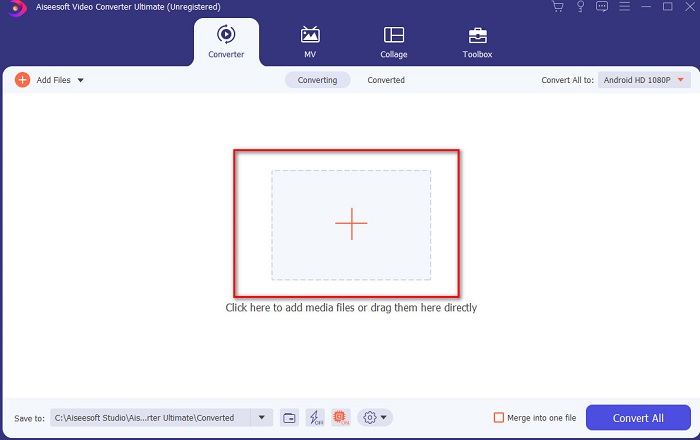
Step 2. Launch the tool, and click the plus button at the middle of the interface. Then locate the video on the folder and click Open.
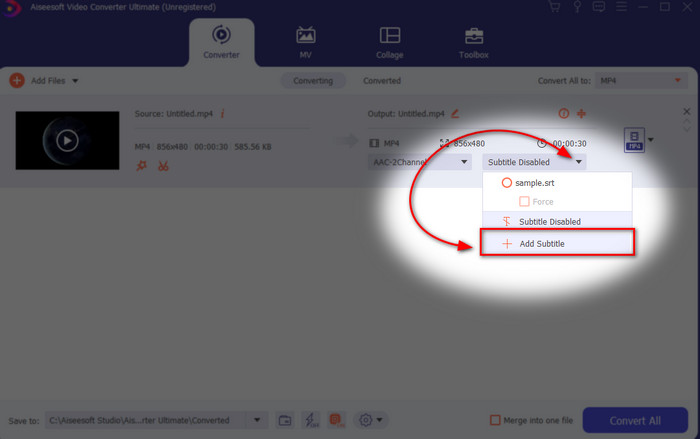
Step 3. On the interface, click the drop-down button for Subtitle and click Add Subtitle. Select the subtitle file on the file folder and click open.
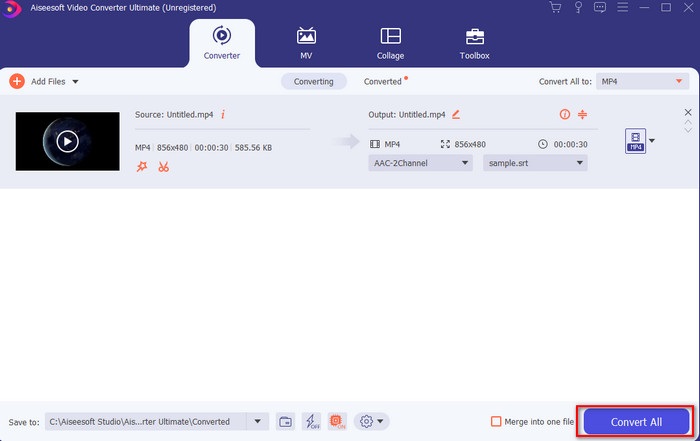
Step 4. After you add the subtitle you can now export it by clicking the Convert All.
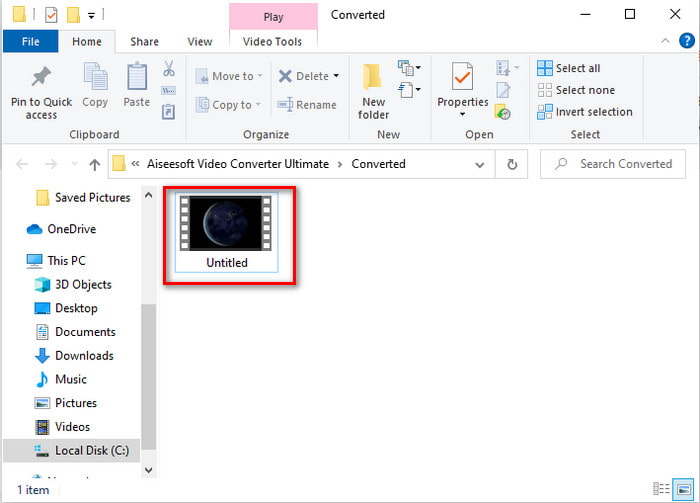
Step 5. The file explorer will pop up next to your screen with the video file that has a subtitle on it. Hit the file to watch and read the subtitle without delays.
Related:
How to Cut and Merge Songs Online
2. iMovie (Mac e iPhone)
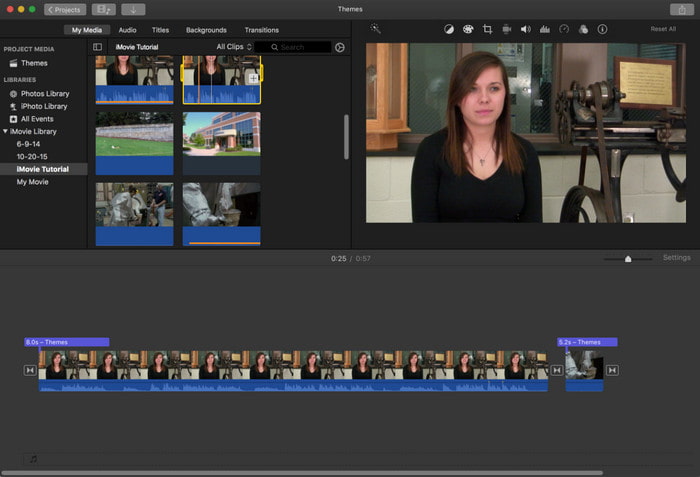
One of the best tools Apple can offer to their users, so adding subtitles to a video on iMovie is easy and free. This default tool is the best in editing and more on Mac, so adding subtitles here is easy as it is. But you can't use SRT subtitle format and add it to your video because this format is not supported by the iMovie. However, the overall performance of this Mac default editor is great to be used by anyone who is on a tight budget. Also, this tool offers a premium version that supports a lot of editing features you can use.
3. Adobe Premiere Pro (Windows e Mac)
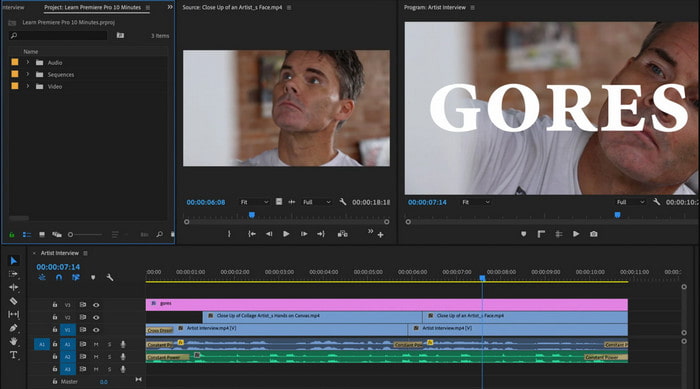
Adobe Premiere Pro offers the best editing features used by professionals in the editing industry. Also, this tool can add SRT subtitle format unlike on iMovie you can't. Moreover, this tool supports almost all of the subtitle formats you can use. Although the tool seems flawless, the price of it is enormous and if you just want to add subtitles to video on Adobe Premiere Pro this is an okay choice but not the best. Especially if you are on a tight budget and don't want to spend a lot. Also, if you are a beginner this is not the best choice because you will need a lot of time to study it first.
4. Clideo (online)
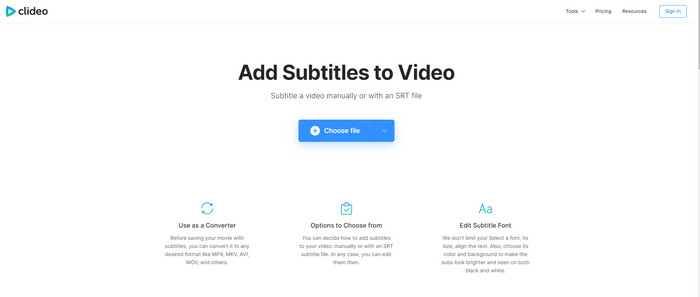
Clideo supports editing features you can use for free if you have an internet connection. This tool can be used in all devices as long as you have a browser. Although the tool is flexible the subtitle format it supports is only .srt. So, if your subtitle is not in the format of SRT then you must manually do it here which is a bit of a hassle for you. Also, the process of adding the video here will depend on your internet. With that being said, if you have a slow internet then expect a lot of time waiting than adding subtitles to video online.
Parte 2. Perguntas frequentes sobre como adicionar legendas ao vídeo
Quais são os diferentes tipos de formato de legenda?
Na web, existem muitos formatos de legendas diferentes, mas o formato de legenda mais usado que você já encontra é o formato de legenda SRT, WEBVTT e SBV. Porque esses são os formatos melhores e flexíveis que você pode usar facilmente, mas existem SSA, TTML, DFXB, TXT e muito mais. Embora funcionem muito bem, o primeiro formato de legenda mencionado é o melhor que você pode usar.
Qual é a principal diferença de Legendas e Legendas?
Embora usem o mesmo formato, ainda existem diferenças principais entre legendas e legendas. Em primeiro lugar, as legendas são incluídas no vídeo para traduzir o idioma falado do ator ou atriz para o idioma do espectador. Isso é mais comumente usado para aqueles que podem ouvir o áudio, mas não conseguem entender o que estão dizendo. Enquanto as legendas são feitas para descrever o que está acontecendo e através de texto como efeitos sonoros. Estes são feitos para aqueles que podem assistir a vídeos, mas não podem ouvir o áudio com clareza ou surdos.
Dub vs. Sub; Qual é o melhor?
Alguns outros espectadores preferem Dub do que sub, enquanto outros são vice-versa. Embora sejam uma maneira poderosa de traduzir melhor o meio para o público. Dublagem e legendas têm muitas diferenças, por exemplo, legendas são versões traduzidas do áudio e se transformam em texto no vídeo. Enquanto os dubs são usados pelos espectadores que estão tendo dificuldade em ler. Então, em vez de ler o contexto, eles usam dublagens para focar melhor no que estão assistindo. Então, sempre depende de você qual você prefere usar, se você conseguir ler enquanto assiste as legendas, é melhor, mas se você quiser ter um foco a laser no próprio vídeo, use a dublagem.
Conclusão
Finally, we now understand and learn how to add subtitle files to your video permanently. As we make your searching easier and present different solutions for you to use. Still, it is undeniable that the Video Converter Ultimate is the best choice on the list. Because it supports all of the subtitle formats for you to use. So, instead of a huge amount of money to the other tool that has the same function or even better than the other tool. Then why don't you acquire it first and try it for yourself? To know what we are talking about.
-
 Tutorial - 4 maneiras gratuitas de mesclar vídeos do iPhone em um novo
 Leia e obtenha 4 maneiras fáceis de mesclar vídeos no iPhone. Todos os modelos de iPhone e versões iOS são suportados. Você pode combinar 2 ou mais vídeos no iPhone em um novo vídeo rapidamente.
-
 Como compactar arquivos M4V para um tamanho menor (gratuito e online)
 Se você está procurando uma maneira simples de reduzir o tamanho do seu arquivo M4V, deve vir e ler este artigo. Aqui, compartilharemos a maneira mais fácil de compactar arquivos M4V com você.
-
 Compactar WebM - Como compactar arquivo WebM online
 Como comprimir arquivo WebM online? Qual é a maneira mais rápida de compactar arquivos grandes? Esta postagem mostra 2 maneiras gratuitas de compactar o WebM.
