


 Video Converter Ultimate
 Gravador de ecrã
 Reparo de vídeo
Reúna seus pensamentos sobre como acelerar um vídeo no iMovie
You love watching documentaries on your new iPhone, you always watch them because of the story it proposes. With no particular reasons, you want to compile each one of them and edit them in a fast manner. Your searching for the best app that can edit and at the same time speed up your video, so you find iMovie. But since you are just new to iPhone and to the app itself, you don't know how to use it and how to speed up a video using iMovie. Continue reading because this article provides a lot of details for you to learn more about this app.

Parte 1. Como acelerar o vídeo no iMovie
A questão de como acelerar um vídeo pode ser respondida usando os recursos do iMovie. Sua saída de vídeo de alta qualidade, vários modelos e ferramentas de acabamento à mão podem trazer o controle de velocidade de reprodução para o iPhone pela primeira vez. O iMovie também tem o poder de acelerar um vídeo como outros aplicativos. Uma de suas ferramentas pode fazer ajustes em seu vídeo junto com suas outras ferramentas disponíveis. Agora é fácil acessar os vídeos que você deseja acelerar usando este aplicativo que está disponível apenas em sistemas operacionais iOS e Mac. Agora que você conhece a ferramenta, vamos falar sobre os procedimentos que você precisa seguir.
Para usuários de iPhone
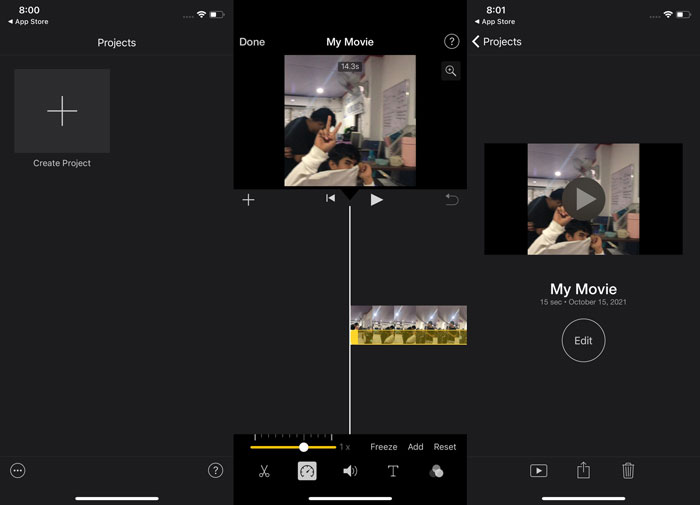
Step 1: Go to your iPhone or iPad's App Store and download the iMovie app to it. Whenever an interface overview appears, choose Continue. When you're on the Projects page, tap the + plus sign icon to begin a brand-new video clip. Continue by selecting Movie in the New Projects window
Step 2: Following the selection of a video from your camera roll, click the Create Movie button at the bottom of the screen. Tap the timeline and wait for the editing tools to appear before using the speed tool, which looks like a speedometer. To fast-forward or rewind your video, simply move the yellow bottom Slider. You have the option of speeding things up by up to two times or slowing them down by an eighth of their original speed.
Step 3: When you're done, go to the upper left corner of your phone's screen and click Done. In order to save your finished video, go to your Share menu and choose where you want to store it from the options that appear.
Para usuários de Mac
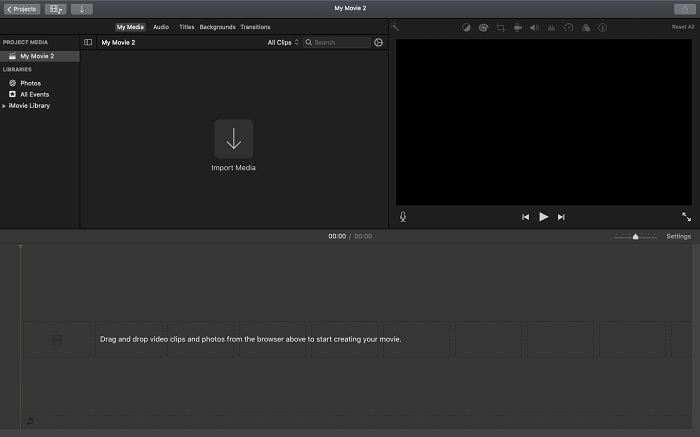
Step 1: Select a clip in the timeline in the iMovie app on your Mac and then change the clip's speed.
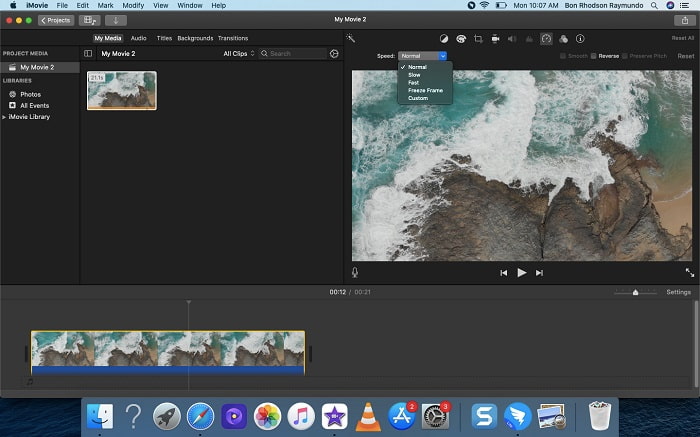
Step 2: By clicking on the Speed button at the top side of the interface, you can reveal the speed settings. Simply choose between Slow and Fast speeds from a speed button to fine-tune your download speed.
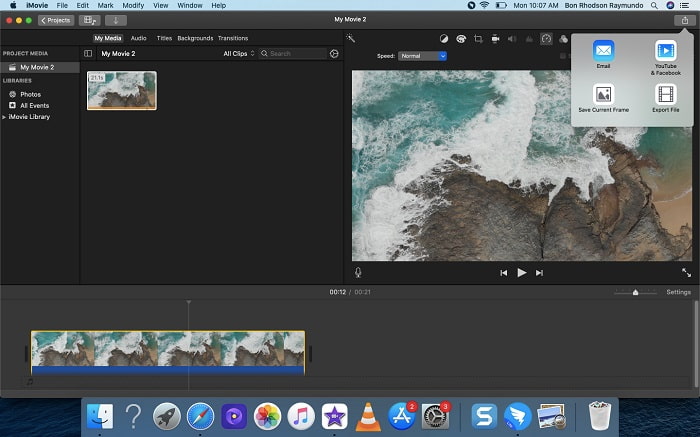
Step 3: Click the Upload icon on the upper top corner of the interface to export the file on your desktop.
Parte 2. Outra maneira mais fácil de acelerar o vídeo
Using an iPhone or other online apps only available on the iPhone as an editor of your video can be difficult if you want to speed up your video's playback rate. Video Converter Ultimate will be the best option for you to consider, as it will allow you to speed up your video permanently. You can adjust the playback speed of your video with this tool which you can get for free. It has different featured tools including Video Speed Controller that can make your video speed up its playback speed on a high-quality output and very fast conversion. To know more about the details, the following are the steps you must take:
Step 1: To save the software to your computer, click Free Download. After that, customize the software by installing it.
Free DownloadFor Windows 7 or laterSecure Download
Free DownloadFor MacOS 10.7 or laterSecure Download
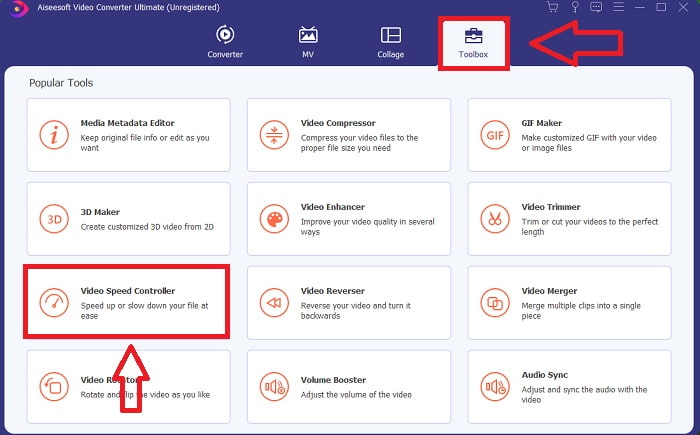
Step 2: After launching the software for the first time after installation, select the Toolbox feature and then the Video Speed Controller feature.
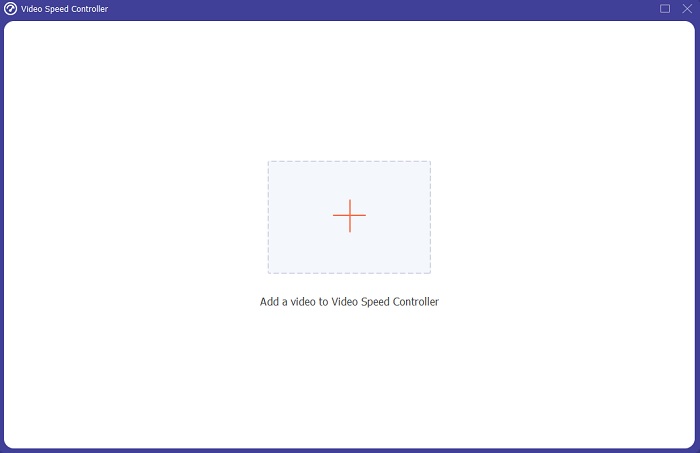
Step 3: To begin with the editing phase, you can now upload a video file from your computer by clicking the + sign that will appear after you proceed clicking the Video Speed Controller tool.
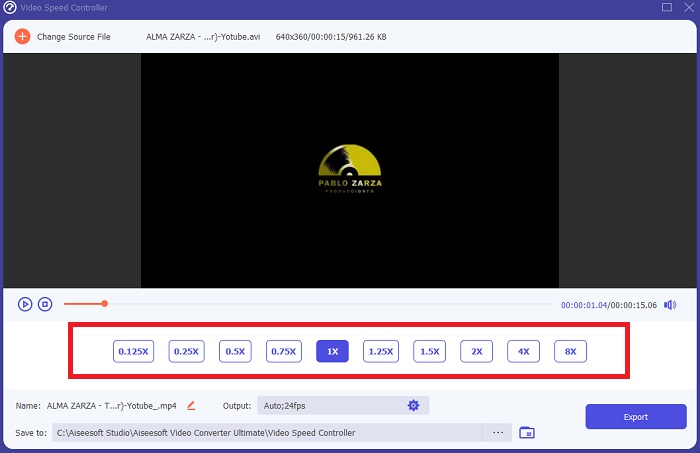
Step 4: You can now speed up a video faster than the iMovie, because this tool will leave you choices to pick on how fast are you going to apply the speed multiplier to your video. You can also play the preview of your video after choosing your preferred speed adjustment to know if it satisfies you.
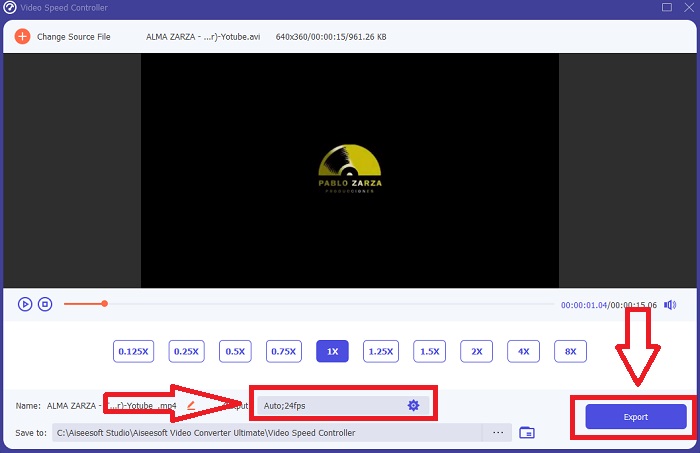
Step 5: You can choose your desired output by changing the format, resolution, and quality of your video clip after you've finished adjusting the playback speed of your video clip, among other things. When you're ready to save your work, select Export and specify a location.
Related:
Parte 3. Perguntas frequentes sobre como acelerar vídeos
E se eu enviar um vídeo rápido e receber um vídeo lento para reduzir o tamanho do vídeo?
Não, afeta apenas a apresentação dos dados e não a quantidade de dados em si. No entanto, é possível reduzir o tamanho do vídeo fazendo com que ele seja executado em uma taxa de quadros menor. Com menos quadros por segundo, mantém a mesma velocidade do original. 60 versus 30 quadros por segundo tem um impacto significativo no tamanho do arquivo de vídeo. Devido às variações quadro a quadro sendo consideradas durante a codificação de vídeo. Reduza a resolução do vídeo, por exemplo, de 1080p para 720p, para reduzir ainda mais seu tamanho. O tamanho do arquivo será significativamente reduzido por causa disso.
Quais são suas opções para acelerar a reprodução de vídeo em um Mac?
Para aumentar a velocidade de reprodução em duas ou mais vezes (5 ou mais), clique no botão avançar ou retroceder até que o vídeo seja reproduzido na velocidade desejada, como 30 ou 60 vezes. Enquanto o vídeo está sendo reproduzido, você pode alterar a velocidade de reprodução em incrementos de 1,1x clicando com a tecla Option pressionada no botão avançar ou retroceder.
Como faço para alterar permanentemente a velocidade de reprodução de vídeo?
Think about how many steps it takes to change the playback speed of your videos. Even though video tools and video editors are readily available online, you're still on the lookout for the best tool to fix playback speed issues with your video clip. Numerous web tools are available on the internet, some of which are free to use but require payment to unlock all features. Video Converter Ultimate, a free program for speeding up videos, is your best bet in making your playback speed permanently changed.
Conclusão
In conclusion, iMovie is a great app available on iOS system devices like Mac and iPhone to resolve the problem of the playback speed of a video. It is accessible to an extensive number of users, it is convenient, and it is free. Yes, it is great for editing the playback speed; how about the other key video factors? That's why we recommend the Video Converter Ultimate to use as the best software to use in fixing the playback speed of a video; not just that, it also has a lot of features that can help you make an outstanding video you can never imagine.
-
 Android DVD Player - Como reproduzir vídeos em DVD em celulares Android
 Como reproduzir arquivos de DVD em celulares Android? Existe algum reprodutor de DVD Android? Neste artigo, você aprenderá três maneiras de reproduzir vídeos em DVD em celulares Android com ou sem o driver externo.
-
 Os 10 melhores leitores MP4 Android gratuitos para reproduzir vídeos HD / 4K
 Embora os celulares Android tenham os players padrão para reproduzir vídeos MP4, eles não suportam o ajuste das configurações de reprodução e outras funções. Assim, você pode aprender sobre os 10 melhores players de MP4 Android neste artigo.
-
 Samsung Video Player travado: os 5 melhores players de vídeo para Samsung
 Quando você reproduz vídeos por meio do reprodutor de vídeo Samsung padrão, pode descobrir que ele sempre travará. Para ter uma experiência de visualização suave e melhor, você pode aprender sobre os 5 melhores reprodutores de vídeo para Samsung neste artigo.
