


 Video Converter Ultimate
 Gravador de ecrã
 Reparo de vídeo
Como fazer vídeo em câmera lenta com o melhor conceito fornecido
We all wanted to make slow motion videos because of slow-motion videos we learn how to appreciate details after details that can be caught by our devices in a short manner of time. We conceptualize slow motion as one of the many ways of recording memories other than capturing videos in a normal speed. However, in other devices there are no instant slow motion video recordings available. And it's so hard to find the best solution that concerns most of the people who don't have this kind of feature on their devices. Read this article to learn how to make slow motion videos.

Parte 1. Como fazer vídeo em câmera lenta no Windows
A software like Video Converter Ultimate is able to do anything an editor can wish for a free-to-use software like this. It is available in Windows and Mac, but it always stands out in every software available in Windows. It can edit your video to the next level and has a feature called Video Speed Controller that can adjust the playback speed of your video or convert video to slow motion. This software is accessible and compatible with a large number of formats. Here are the steps provided to use the software properly:
Step 1. To save the software to your PC, click Free Download. After you download it to your desktop, install the software and prepare for launching the software.
Free DownloadFor Windows 7 or laterSecure Download
Free DownloadFor MacOS 10.7 or laterSecure Download
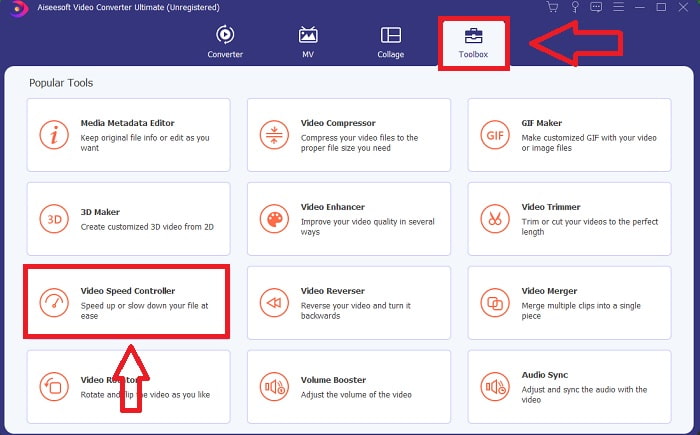
Step 2. After installing the software, launch the software and select the Toolbox option and then proceed with clicking the Video Speed Controller to begin editing the playback speed of the video.
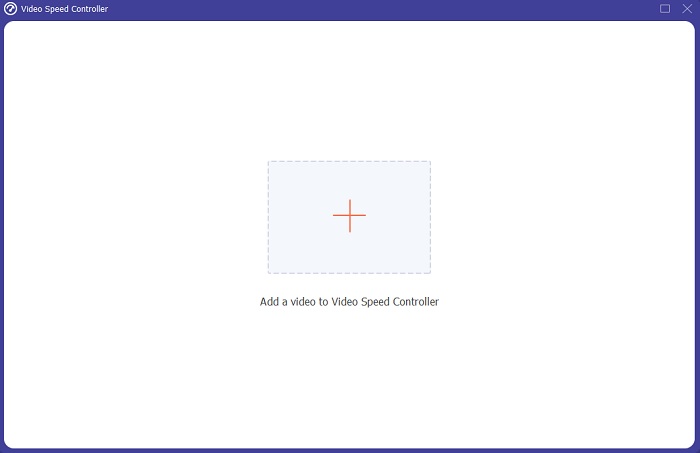
Step 3. Add any file by clicking the + icon in your preferred location, and then modify the video clip.
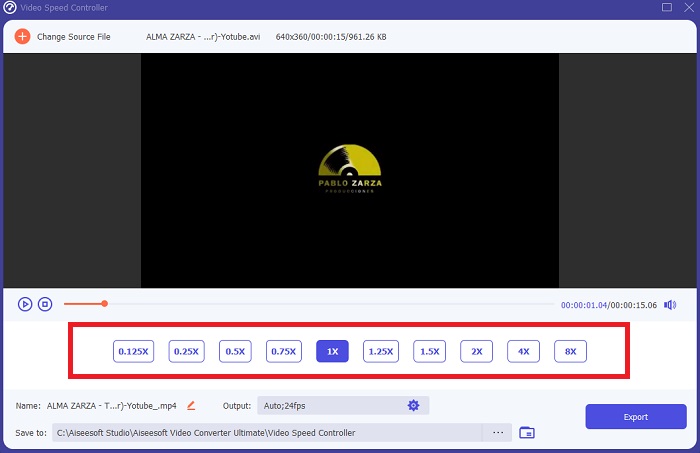
Step 4. Change the playback speed by specifying how many times the video's frame rate will increase or decrease.
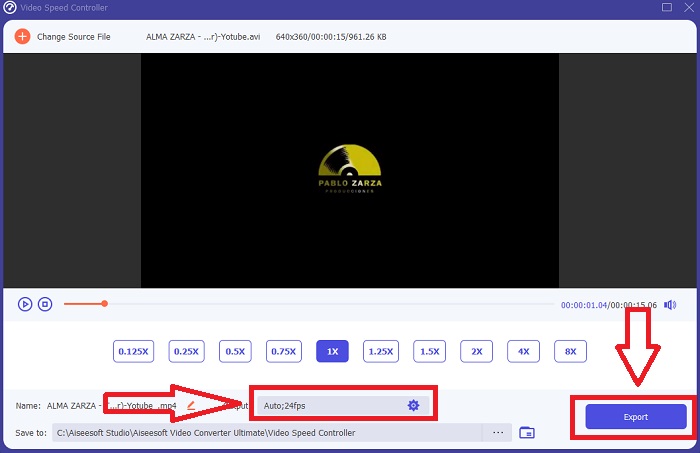
Step 5. After you've finished adjusting the playback speed of your video clip, you can select your desired output by changing the format, resolution, and quality, among other things. When you're ready, click Export and select a location to save your work.
Prós
- É um software gratuito para download disponível no Windows e Mac.
- Possui muitas ferramentas que ajudam a editar um vídeo e podem ser usadas com facilidade.
Contras
- Ele pode ser comprado para desbloquear os recursos exclusivos, mas não é tão caro.
Related:
Parte 2. Como fazer vídeo em câmera lenta no Mac
Create Hollywood-style trailers with iMovie on your Mac in 4K resolution. After editing your videos, give them the finishing touches with animated titles, music, filters, and effects. Make a polished, professional video with Apple's iMovie software and share it with your family and friends. It's not difficult at all. If you use iMovie's various templates and finishing tools, your video will look better. With this new feature, you can alter the speed at which your Mac plays back video or even create slow-motion video since most editors have to prioritize the issues presented, the steps to take with this tool on a Mac to reach your desired speed.
Step 1. Open the iMovie app on your Mac and select a video clip to work with from the Timeline panel.
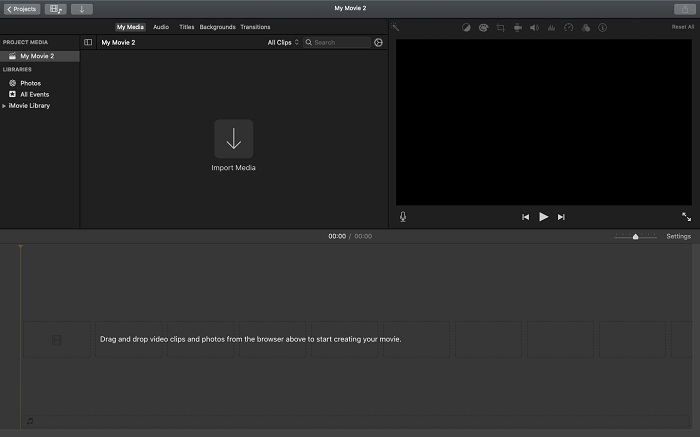
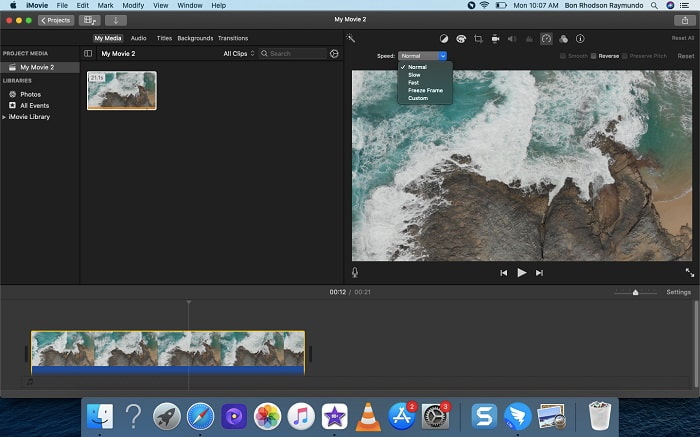
Step 2. By clicking the Speed button in the interface's upper left corner, you can see the speed settings. You can choose between Slow and Fast download speeds from a speed button to fine-tune the download.
Step 3. Click the Upload icon in the interface's upper-right corner to save the file to your computer's hard drive.
Prós
- É um software gratuito para download no Mac.
- Ele pode mostrar a faixa do videoclipe que pode ajudar a editar facilmente.
Contras
- Alguns dos recursos são baseados profissionalmente; carece de ferramentas que ajudem um vídeo a aumentar todo o seu potencial.
- Você não pode personalizar a velocidade de reprodução do seu vídeo usando este software porque você escolherá apenas as opções fornecidas.
Parte 3. Como fazer um vídeo em câmera lenta online
Método 1. Use VEED
If you're looking for the simplest online tool you can use to make a slow motion video, VEED is the right choice to use. But in order for it to work, you'll need a strong internet connection since it is a webtool and it's only available online. With its accessible interface and user-friendly tools you can make slow motion videos at ease. One of the main features can slow down the speed of a video, for you to make a slow motion video you need to decrease the normal speed of your video, and with the help of VEED, you don't have to worry about the procedure in executing it. To help you in your journey with this web tool, here are the steps provided for you:
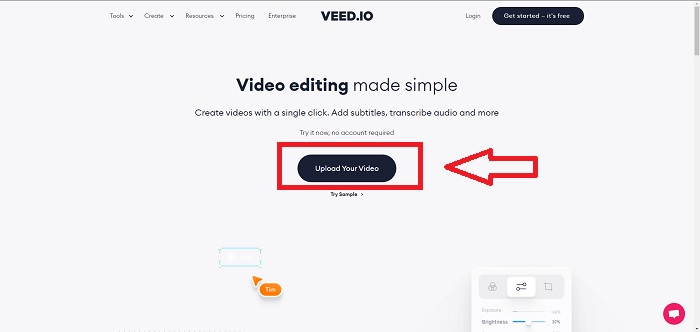
Step 1. By clicking the Upload Your Video button, you can send a video file from your computer to the server's storage area network.
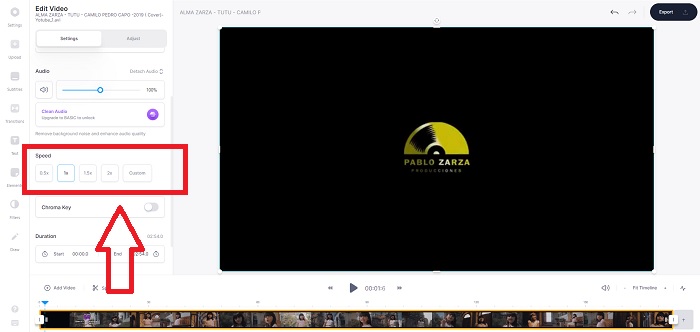
Step 2. A video track appears when you hover your mouse over the webtool's editing interface. Look for and click on the Speed option to change the playback speed. Selecting Custom lets you play your video clip at a custom speed regardless of whether or not the speed you prefer is an option.
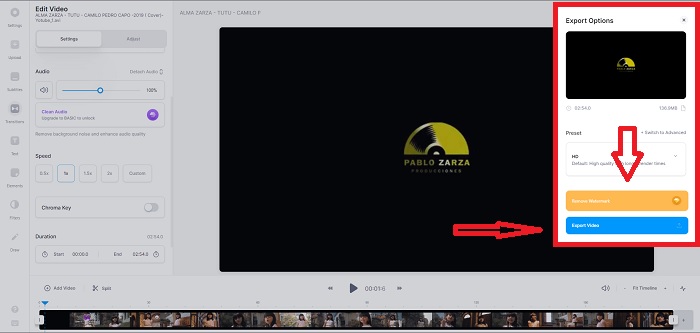
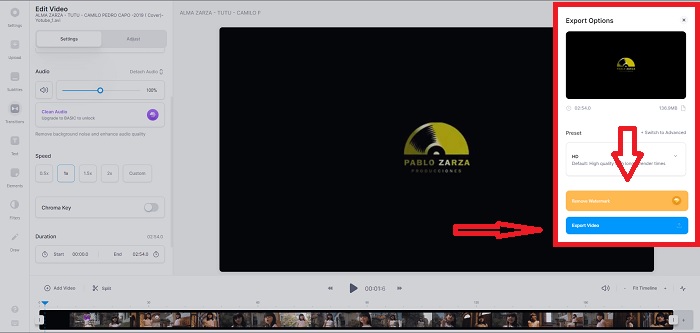
Step 3. After you've edited the video to the speed you want. Click Export to continue in the export tab. Meanwhile, you can upgrade the webtool's premium version and select the video quality you want, as well as get rid of the watermark. You can now export the video to your computer once everything has been settled.
Prós
- Possui tutoriais para ajudar no uso da ferramenta web.
- É uma boa ferramenta da web que contém informações sobre ferramentas, preços, recursos e empresas.
Contras
- Ele só tem um pequeno número de ferramentas a serem usadas.
Método 2. Use InVideo
InVideo is an online tool that makes a better video performance than any other online tools with the help of its creative templates and various tools if offered. This online web service is considered an MP4 slow-motion converter with one of its key features in editing a video and its compatibility to convert anything that is MP4 format video clip. InVideo serves as the backrest of every editor when they are having trouble choosing the right web tool to use in order to make slow-motion videos. To help you furtherly with the issue, here are the steps to follow:
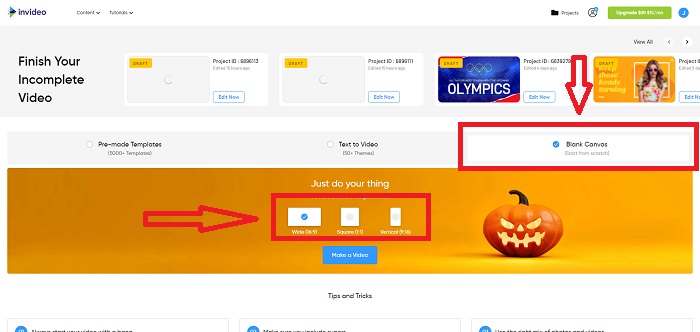
Step 1. To use the web tool, you'll need to sign up for an account. Choosing a template to work with is the next step in the process. To begin uploading, click the Upload button in the upper-left corner of the interface. The upload will start.
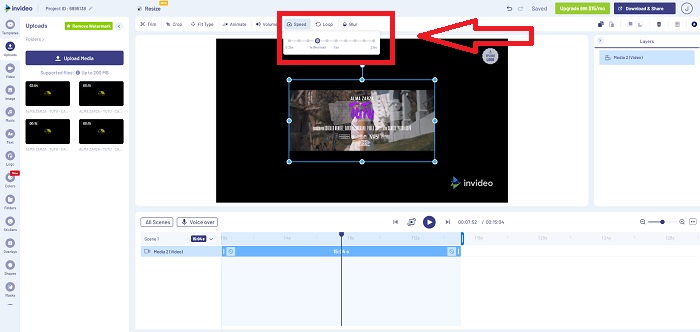
Step 2. Click the Speed tab in the interface's upper-right corner and drag it to the track to edit the playback speed of your video clip. Simply click and drag Slider to change the playback speed.
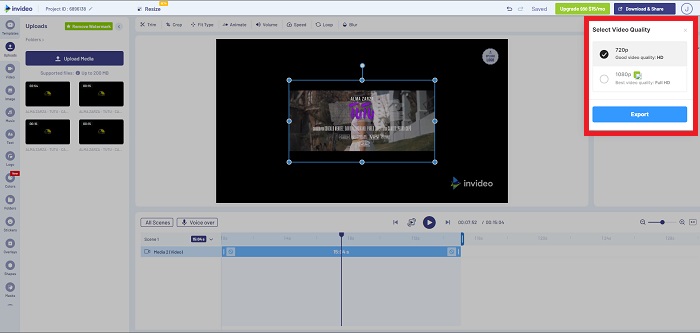
Step 3. Download and share your work when you're done editing, then upgrade to Premium to get even better results.
Prós
- Possui templates customizados disponíveis para serem usados gratuitamente.
- Ele contém recursos profissionais.
Contras
- Ele precisa ser comprado para desbloquear todos os recursos.
Método 3. Use Typito
If you're wondering what online editor can resolve the issue of putting a video in slow motion, try to use Typito. Typito makes it easy to create eye-catching videos that will help your video stand out from the other video and the crowd. Canva is exactly what it sounds like but in a video-editing manner. This web application isn't just for professionals. Use it for school projects or semi-professional multimedia projects. You'll also need an email address to use and convert your video clip in the desired adjustments.
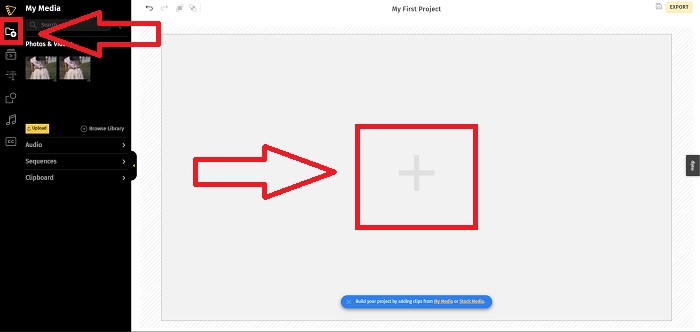
Step 1. Drag and drop media files from your computer's desktop or click on the folder icon to add them.
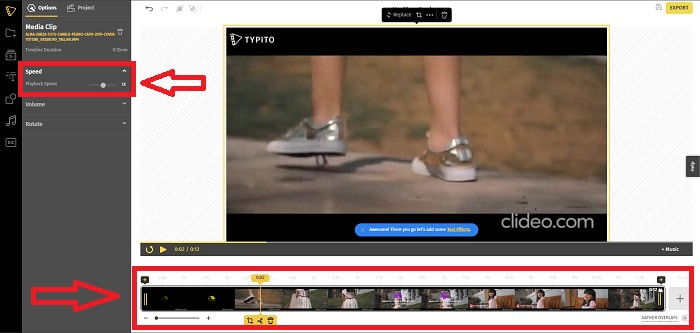
Step 2. To begin editing your video, go to the video track and select the video file. Then click Add Projects. To change the playback speed of a video, locate the Speed feature in the interface's left corner and use the Slider to change the speed of the video.
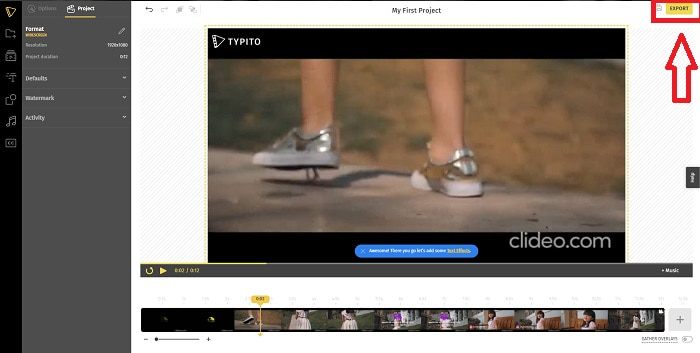
Step 3. By clicking Export in the top right corner of the interface, you can download the converted file to your desktop. Download it when you're done if it's ready.
Prós
- É uma ferramenta online fácil de usar.
- Ele contém formatos e modelos para usar na edição do seu vídeo.
Contras
- A interface da ferramenta web é muito simples.
- Tem poucas ferramentas disponíveis.
Parte 4. Perguntas frequentes sobre como fazer um vídeo em câmera lenta
Perco a qualidade do vídeo se diminuir a velocidade?
Não, o mesmo que aumentar a velocidade de reprodução do seu vídeo; abrandar o seu vídeo não perde a qualidade do seu vídeo. Por alguma razão, alguns dos vídeos ficam um pouco com falhas depois de reduzir a velocidade de reprodução do vídeo, pois a qualidade do vídeo já é monótona e baixa. Além disso, se você intensificar para diminuir a velocidade de reprodução do seu videoclipe, a taxa de quadros será dividida pela metade, causando um atraso e diminuindo a qualidade.
Qual aplicativo é melhor para vídeo em câmera lenta?
Video Converter Ultimate is the best free-to-download converter or editor available in Windows and Mac. It also has features that can enhance and improve your video, and it is accessible to every user who will use the converter.
O Google Fotos é o melhor aplicativo para converter vídeos em câmera lenta para velocidade normal?
Como se poderia imaginar, existem algumas desvantagens em utilizar este aplicativo gratuito. Em primeiro lugar, a velocidade de processamento de vídeo é relativamente lenta, principalmente ao editar um videoclipe longo. Além disso, se você dividir o vídeo antes de alterar a velocidade de reprodução, o áudio de fundo ou a narração de voz serão silenciados. Independentemente disso, é um ótimo aplicativo Android gratuito. Você ainda pode usar aplicativos de terceiros, mas a maioria dos convenientes de usar não é gratuita.
Conclusão
Therefore, to end this article with a blast, making a slow-motion video will just be like a piece of cake using the solutions mentioned above. The Video Converter Ultimate can be considered a slow-motion video editor that still makes the slow-motion task more effortless and manageable than ever. The number of features available in this software manages to be called a professional-wise editor you will use.
-
 [Resolvido] Como corrigir vídeos que não estão sendo reproduzidos no iPhone com etapas detalhadas
 Vídeos locais na galeria não podem ser reproduzidos em seu iPhone por meio do reprodutor de vídeo padrão? Vídeos online do YouTube que não rodam no iPhone sempre acontecem? Aqui estão 5 soluções para ajudá-lo neste artigo.
-
 5 métodos viáveis para corrigir o QuickTime não pode abrir arquivos MOV
 O formato MOV é criado principalmente para reprodução no QuickTime Player. No entanto, às vezes você pode achar que eles não jogam nele. Saiba como corrigir o QuickTime não reproduzirá arquivos MOV desta postagem.
-
 Como converter arquivos MKV para jogar no PS3 sem problemas [Resolvido]
 Quer reproduzir vídeos MKV em seu PS3? No entanto, o PS3 não pode reproduzir arquivos MKV diretamente. Este artigo mostrará maneiras de converter vídeos MKV em formatos de vídeo compatíveis com o PS3 para jogar no PS3 sem complicações.
