


 Video Converter Ultimate
 Gravador de ecrã
 Reparo de vídeo
Adobe Premiere: Explore o conceito de câmera lenta
The concept of slow-motion becomes natural in every video not because of the degraded speed of the video but because of the purpose of giving essentials to details. It is more fulfilling and conforming to know all the details about how it will happen or how it is done. With the help of Adobe Premiere, you will be going to have the idea of editing and slow-motion making, but it would be much more challenging for every beginner. Continue reading to know all the details that concern Adobe Premiere.

Parte 1. Como produzir vídeos em câmera lenta no Adobe Premiere
Video editing software such as Adobe Premiere Pro is widely used on both Mac OS and Windows computers. Editing videos, commercials, other films, television, and online video projects are all possible with Premiere Pro CS6 or higher. It is a feature-rich video editing software application that is also available as part of the Adobe Creative Cloud suite of software applications. Premiere Pro is frequently used in conjunction with other software such as After Effects and Photoshop on creative projects.Adobe Premiere is also known for making incredibly improved edits in its scene, especially in adjusting the playback speed of a video. It can make excellent slow-motion videos in different ways possible and produce very excellent output. But as the introduction said, Adobe products like Adobe Premiere might be complex software to make slow-motion videos, especially for beginner editors. Here are the sample tutorials in the procedure on how to make slow-motion videos on this software given.
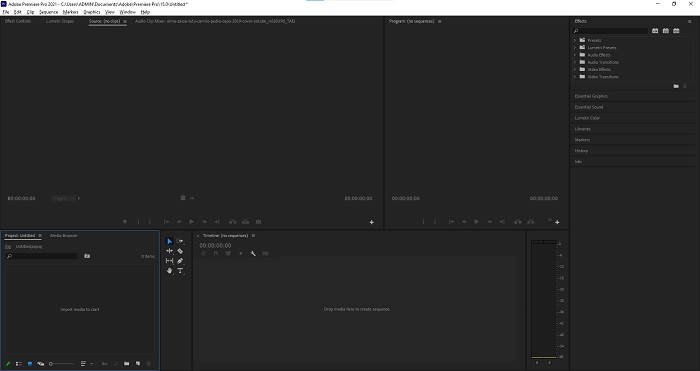
Step 1: Open Adobe Premiere and then click the Import media to start at the bottom left corner of the interface to transfer the video files from your computer to the software, or you can simply drag them. The other option is you can locate File menu tab at the top left corner and navigate Import.
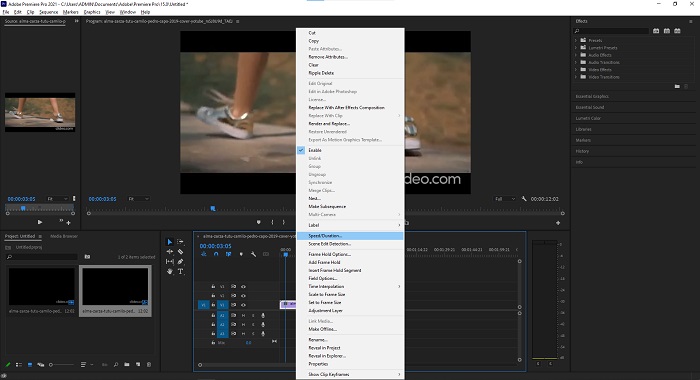
Step 2: Click the imported files twice or simply drag them to the video track. To adjust the speed of the video file, right-click the video file on the video track. Locate the Speed/Duration and click it. After that, make it slow-motion by decreasing the normal speed percentage, which is 100.
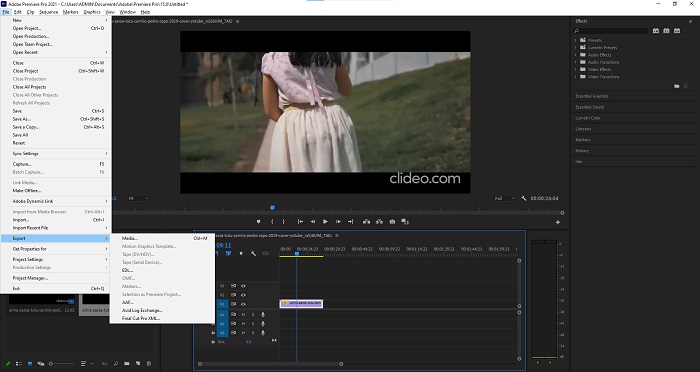
Step 3: Save the converted video by navigating the File menu tab to the top left corner. Then, click Export and choose which kind of output you want your video file to be converted.
Parte 2. Como fazer vídeos em câmera lenta off-line usando o Video Converter Ultimate
Unlike the Adobe Premiere Pro that is so complicated to use because of its various tools that seem unfamiliar to every beginner user. Video Converter Ultimate is the best and user-friendly software everyone can use and offers incredible tools to edit videos. One of its featured tools, Video Speed Controller, has the ability to make a slow-motion video with excellent video quality in just less than a minute speed of conversion. For you to get experienced with the most helpful software that can resolve your problem, here are the presented steps you need to follow:
Step 1: You can download the Video Converter Ultimate by clicking the Free Download button. Once the download is complete, locate it on your desktop and launch it afterward.
Free DownloadFor Windows 7 or laterSecure Download
Free DownloadFor MacOS 10.7 or laterSecure Download
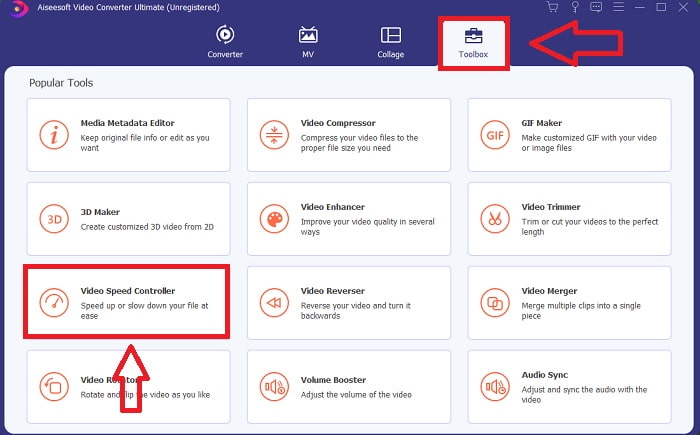
Step 2: You must run the software after it has been installed on your computer's desktop. The program's interface will appear when you first run it. Choose Video Speed Controller under the Toolbox tab.
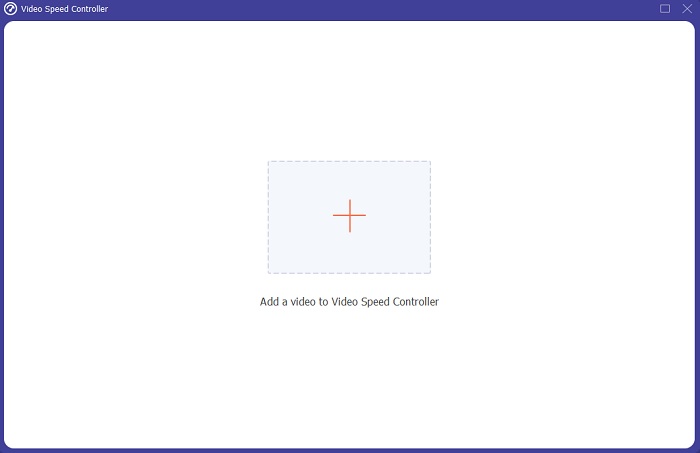
Step 3: To change the playback speed of your video clip, simply drag or click the + button when adding files from your computer.
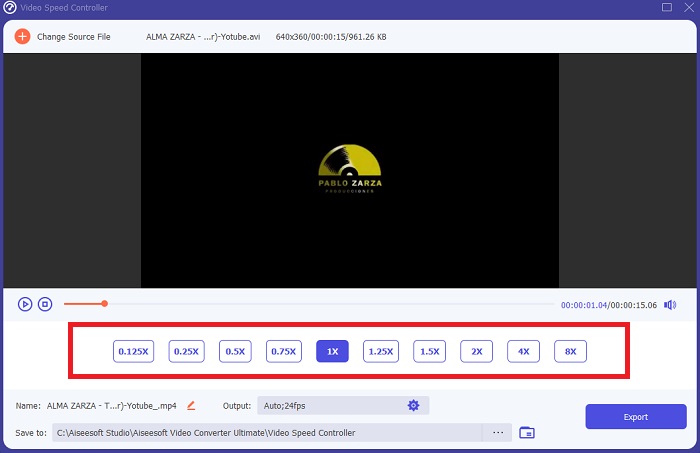
Step 4: Select the types of speed that you will use to edit the playback speed of your video clip or create a slow-motion video from your normal speed video to begin editing the playback speed of your video clip.
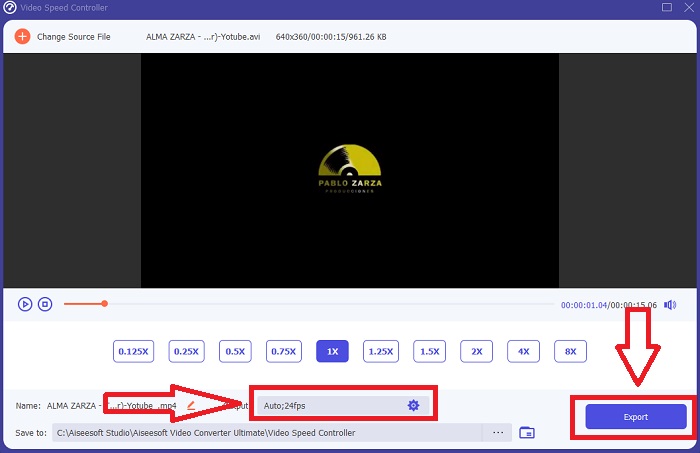
Step 5: When you're done adjusting the playback speed of the video, the file is ready to upload, and before that you can consider changing the quality of the output by adjusting the resolution, frame rate, etc. Click the Export, if the file is settled.
Related:
Parte 3. Como fazer vídeos em câmera lenta online usando Kapwing
Quickly speed up or slow down videos with this free online video accelerator. You don't need a lot of video editing experience to create compelling slo-mo, time-lapse, and hyperspeed videos that you can post to YouTube or share on social media. Upload a video or enter a URL to get started. In addition to AVI and MP4, Kapwing also supports MP4, MOV, and 3PG video file formats. As low as 0.25x is available for slow-motion video; the fastest speed available is 4x. Seatback and relax as you read the procedures on how to use this online tool.
Step 1. Open any online browser and search for Kapwing. At the interface, you can now start by clicking Get Started. Or you can proceed with selecting your video clip by clicking Upload File. Also, there is another choice where you can put any video links from other websites and proceed with editing.
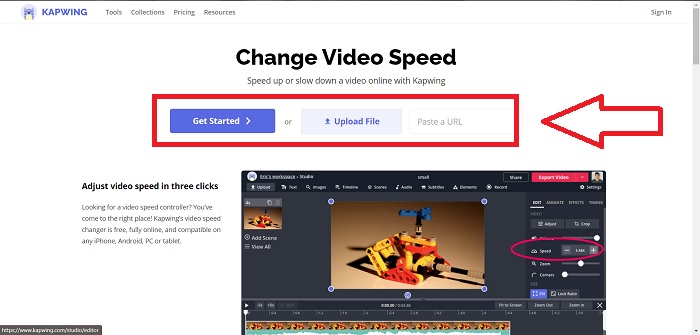
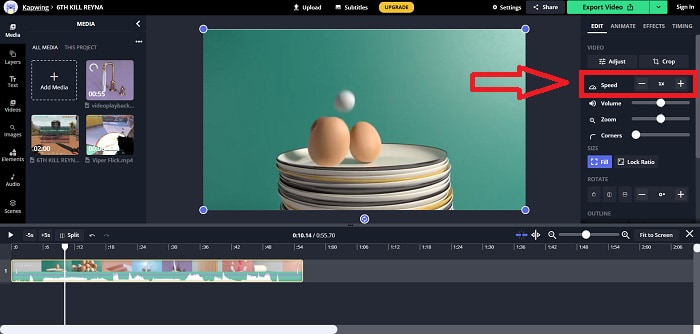
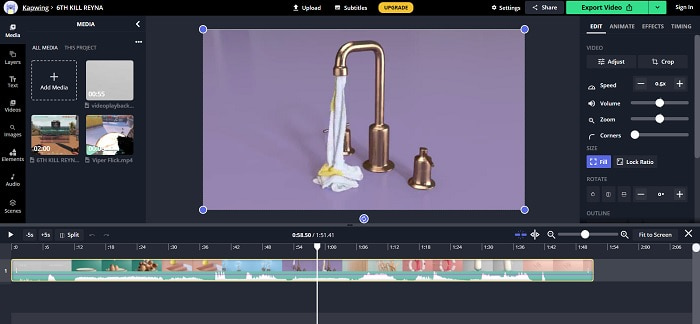
Step 2. Click the video on the video track, navigate the Speed edit tab, and make it slow motion by clicking the - sign. It will decrease the video speed by .25.
Step 3. To upload your converted video, click Export Video and transfer it to your desired computer destination.
Parte 4. Perguntas frequentes sobre como fazer vídeos em câmera lenta no Adobe Premiere
Quais formatos são compatíveis com o Adobe Premiere Pro?
Com o Adobe Premiere Pro, você pode trabalhar com uma ampla variedade de formatos de vídeo, como MP4, AVCHD / H.264 / H.265, MPEG-1 e MPEG-2, MOV, FLV e AVI.
60fps é bom para câmera lenta?
Um fator importante que afeta a aparência geral de um vídeo é sua taxa de quadros, que também influencia o quão realista o vídeo parece. Essa ideia tem uma forte conexão com a forma como percebemos naturalmente o universo. A criação de vídeos em câmera lenta ou a gravação de imagens de videogame exige taxas de quadros superiores a 30 fps. Com o avanço da tecnologia, mais smartphones agora são capazes de gravar vídeo a 60 quadros por segundo.
O que fazer se o Adobe Premiere Pro não estiver funcionando?
As preferências do Premiere Pro podem ser redefinidas para seus valores padrão para corrigir falhas, que a Adobe recomenda com frequência. Suas preferências são "descartadas" quando você faz isso. Isso irá restaurar suas configurações para as configurações originais de fábrica. Você pode fazer isso pressionando e segurando a tecla Alt enquanto inicia o Premiere Pro.
Conclusão
Levando tudo em consideração, aprendemos que por melhor que seja o Adobe Premiere Pro, ele não pode ser o software recomendado para alguns usuários que não têm experiência em edição. Recomendamos usar Video Converter Ultimate por suas ferramentas de recursos acessíveis que podem aparar, cortar, colocar filtros, mesclar, etc. Uma de suas ferramentas úteis disponíveis no Controlador de velocidade de vídeo é que ele pode fazer vídeos em câmera lenta ou ajustar a velocidade de reprodução de o vídeo. As ferramentas online podem ser uma plataforma mais fácil de usar do que o Adobe Premiere Pro. No entanto, ele não pode produzir uma saída de melhor qualidade do que o Video Converter Ultimate.
-
 6 Melhores fusões AVI: Como juntar arquivos de vídeo AVI no Windows e Mac
 Quando você deseja juntar vídeos AVI para um DVD, você pode aprender sobre os recursos dos 6 melhores usuários AVI incluindo ferramentas online gratuitas, bem como os programas de desktop do artigo.
-
 [Guia] 2 métodos definitivos para juntar-se a vídeos MXF da Sony X70
 Se você fez alguns vídeos MXF da Sony X70, quais são os melhores métodos para juntar arquivos MXF? Aqui estão os 2 métodos eficientes para combinar os vídeos com alta qualidade.
-
 Como recortar e mesclar músicas online - 4 maneiras que você deve conhecer
 Quando você deseja cortar e mesclar músicas online para criar uma peça musical, você pode aprender mais sobre as 4 melhores ferramentas online para recortar as músicas e combinar os arquivos do artigo.
