


 Video Converter Ultimate
 Gravador de ecrã
 Reparo de vídeo
Como transformar seu papel de parede chato em um GIF animado incrível
Most of us use a high-quality image as a background and some are using video wallpaper. But did you know that you can use GIFs as a wallpaper to make your background livelier than ever? So, if you want to have an idea on how to make a GIF as your wallpaper then proceed below. It will only take you five minutes to know how to set-it up and we will even teach you to make the perfect GIF through video or images.

Parte 1. Como fazer um GIF como seu papel de parede no iPhone
Most of us already have a mobile phone in our hands, like an iPhone. But did you know you can turn your plain background into a much better one? Yes, your wallpaper on your iPhone can be turned into a magical GIF. However, GIFs are not supported to be applied as a wallpaper on iPhone devices. So, the possible solution to that is to convert the GIF to Live Photo first, then insert it to become a new background. Otherwise, you will only get a still image instead of moving one. In this case, you'll need to convert the GIF to Live Photo by downloading the Convert - GIF & Live Wallpaper and convert it. Then proceed on how to make a GIF your wallpaper on iPhone by following the steps next.
Passos para converter GIF em Live Photo:
Step 1. On the App Store, download the Convert- GIF & Live Wallpaper and then immediately open it.
Step 2. Click Allow to access your images by the app and select the GIF and select the GIF in the gallery.
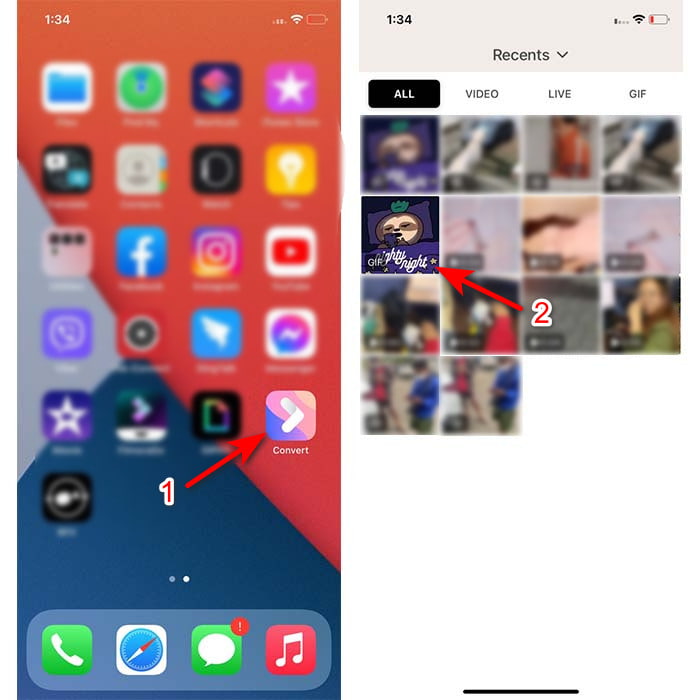
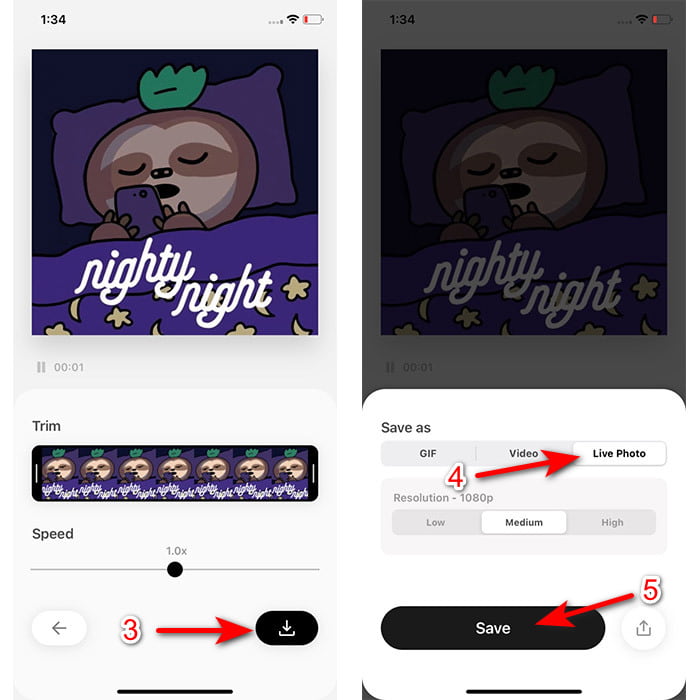
Step 3. Then click the download button and set the save as to Live Photo, click Save to proceed.
Passos sobre como fazer uma foto ao vivo como papel de parede no iPhone:
Step 1. Click the Photo and locate in the library the converted GIF you've made.
Step 2. Then press the Share button and look for the Use as Wallpaper.
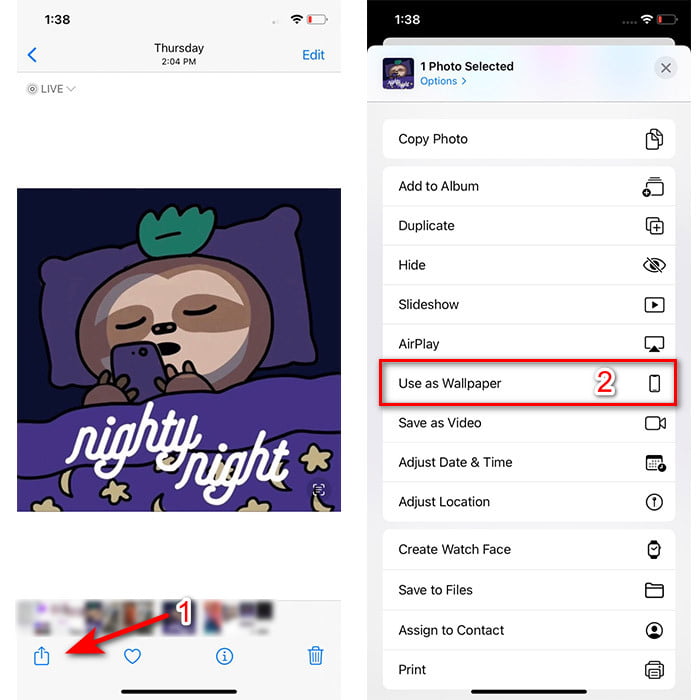
Step 3. Press the Live Photo to make sure it is on and click Set. Choose whether you like it to be wallpaper on your Lock Screen, Home Screen or both. Additionally, Live Photos don't work on the Home Screen because you will need to press the screen for 3 to 5 seconds. So, it is ideal to have a live photo on your Lock Screen instead.
Parte 2. Como fazer um GIF como seu papel de parede no Windows
If you're looking to make your background on Windows more awesome than try to follow the steps below. Although in this situation, you can't just add GIF directly on your background because you will only get a still image instead. And to avoid that to happen you will need to use a third-party tool like the Lively Wallpaper. And now, let's start the journey on how to make a GIF your wallpaper on Windows 10.
Step 1. Download the Lively Wallpaper from the Microsoft Store. Then launch it after the downloading process.
Step 2. Click the + button at the upper left side and press Browse. Locate the GIF file on the folder that will pop-up on your screen and click open. A mini library will show and click OK then Save
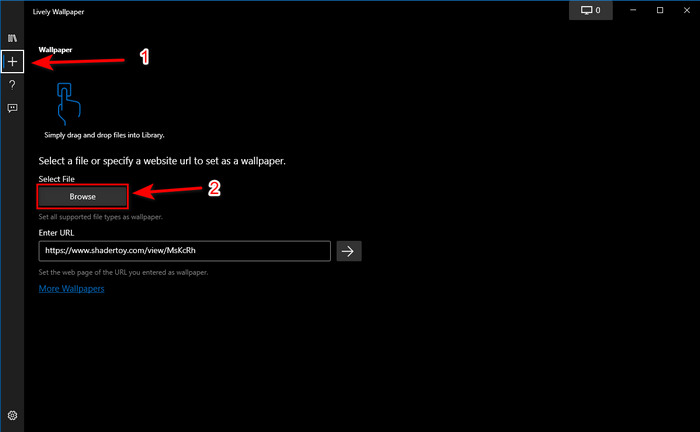
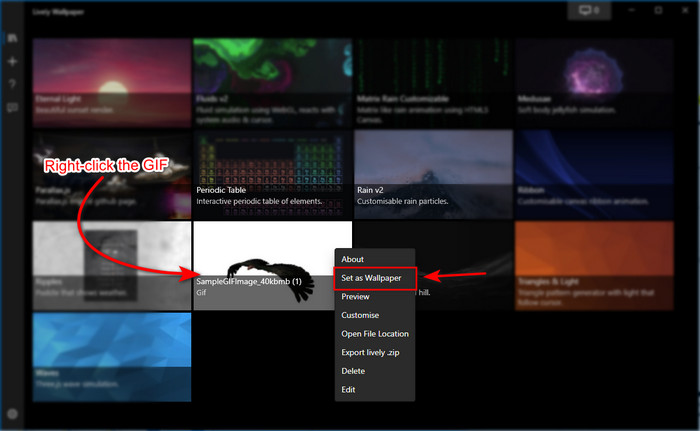
Step 3. Find the GIF on the built-in gallery then right-click the mouse and set it as a wallpaper.
Parte 3. Como criar um GIF de vídeo / fotos com o Video Converter Ultimate
Dê vida ao plano de fundo da tela usando um GIF animado criado no Video Converter Ultimate. Este software já provou que fazer um GIF pode ser facilmente feito seja uma imagem ou um vídeo. Além disso, ao contrário de quaisquer outras ferramentas online e offline, esta ferramenta é muito única em comparação com elas. Porque o conversor final já tem todos os recursos avançados que você provavelmente usaria.
Although the software supports advanced tool features and yet it is user friendly, it can be easily used by anyone, pro or not. So now, we will teach you how to make a GIF for your wallpaper for PC, Mac, Android and iPhone. Also, we will present different ways to show you that even a video or images can be turned into a magnificent GIF with the help of the Video Converter Ultimate. Before we proceed to the steps it is a must to download the tool first on your drive, install it next and do the quick set-up then click finish to proceed.
Free DownloadFor Windows 7 or laterSecure Download
Free DownloadFor MacOS 10.7 or laterSecure Download
4 etapas fáceis para fazer um GIF animado a partir de vídeos:
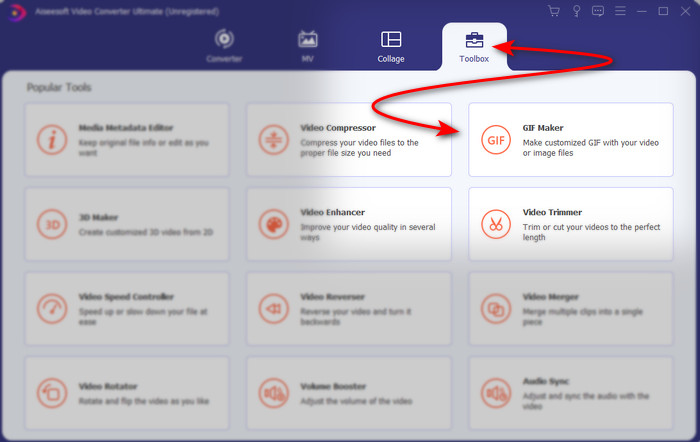
Step 1. Launch the tool and locate the Toolbox, under it is the GIF Maker, click to proceed.
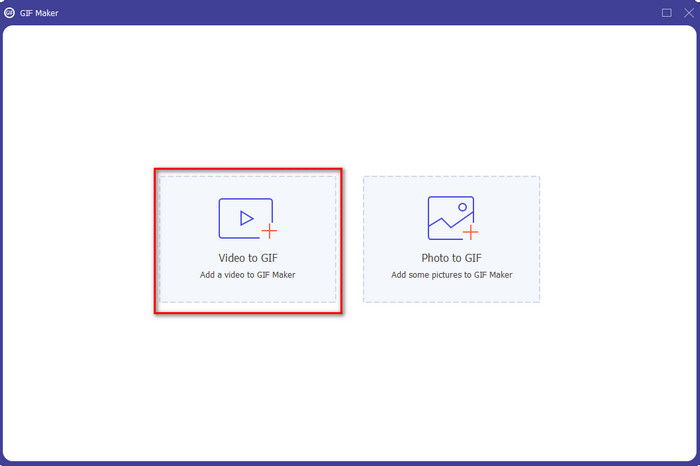
Step 2. Click the Videos to GIF next then a file folder will pop-up as soon as you click it. Hit the video file you want to be turned into a GIF and press Open.
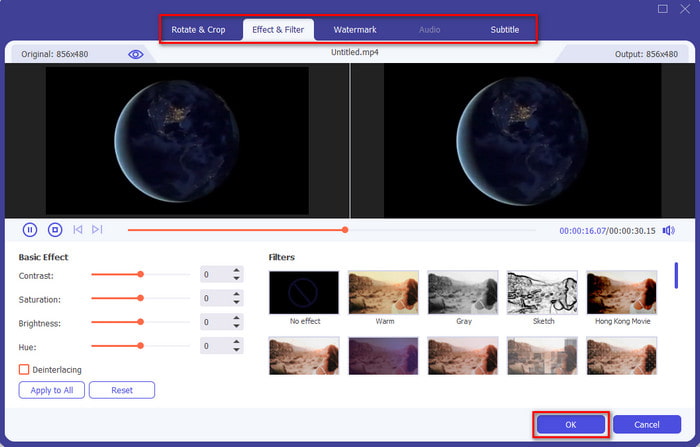
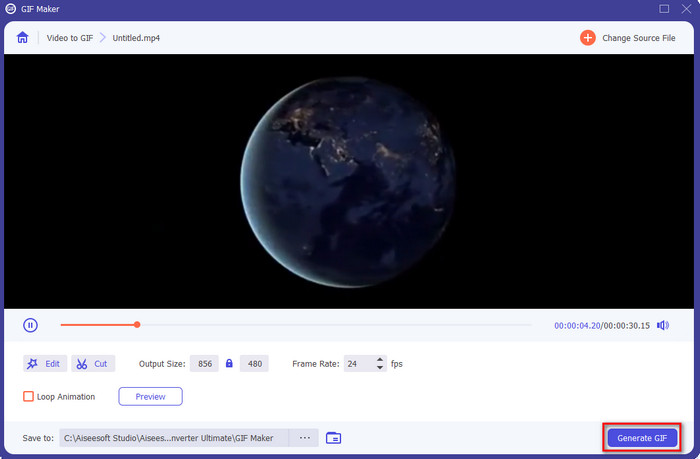
Step 3. On the interface, click the wand button to edit your video. After editing is done, click the OK to save the modification you’ve made.
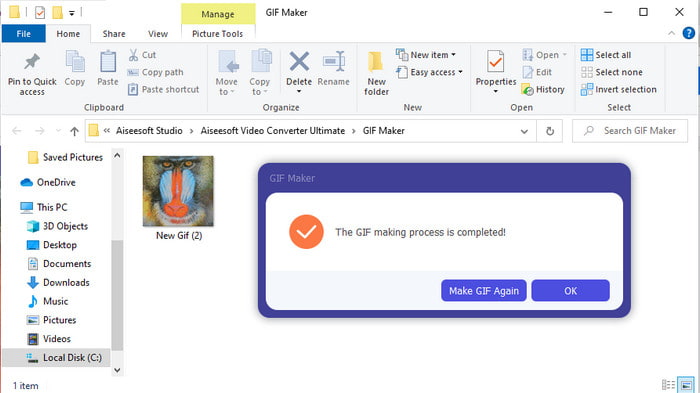
Step 4. Click Generate GIF to save the GIF to your storage immediately. After the converting video to GIF is done the file explorer will show into the screen with the GIF file, click it to watch.
4 etapas fáceis para fazer um GIF animado a partir de imagens:
Step 1. if the software is completely installed then open it. Go to the Toolbox section and find the GIF Maker there.
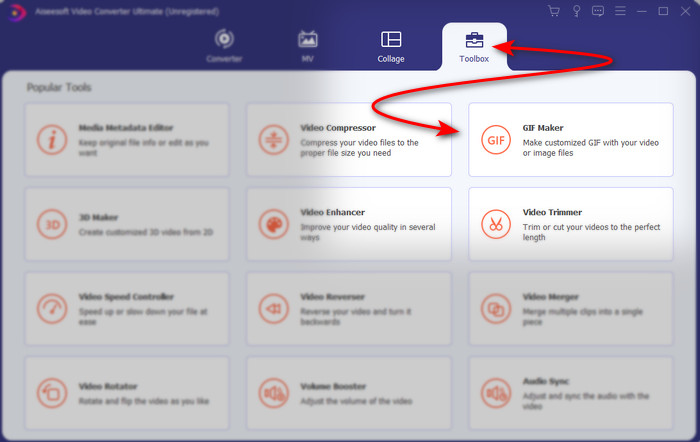
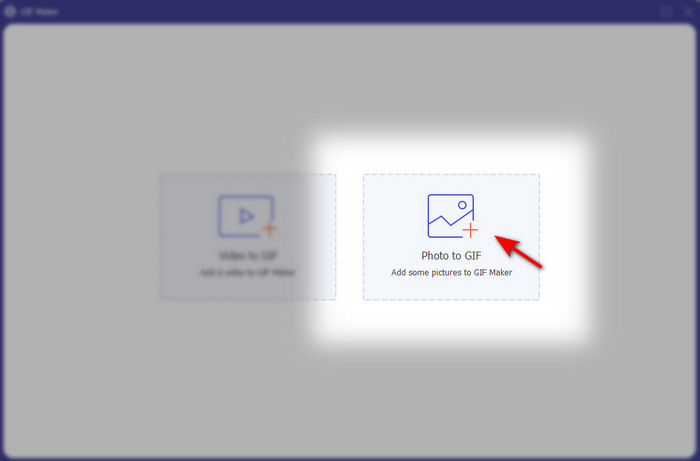
Step 2. To turn your images into an animated GIF, click the Image to GIF. A folder will show next to your display and choose the first image then click Open.
Step 3. The Output Setting will show automatically, click OK to proceed. To add two or more images, click the + button. Additionally, in here you can’t do major editing like the video to GIF provides. So, instead you can adjust the position of the images and the duration.
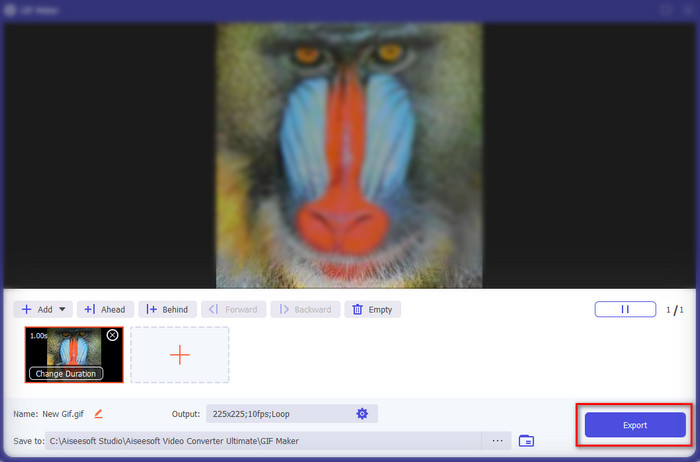
Step 4. If everything is already settled, it is not the time to click the Export button to proceed. If exporting is done, a file manager will pop-up next with the GIF file you've made earlier.
Related:
How to Post a GIF on Instagram
Best Online GIF to Video Converter
Parte 4. Perguntas frequentes sobre como fazer um GIF como seu papel de parede
Por que os GIFs congelam quando usados como plano de fundo?
Todos os dispositivos não suportam GIF como plano de fundo naturalmente. No entanto, você ainda pode usar uma ferramenta de terceiros para aplicar seu GIF em seu plano de fundo.
Posso salvar GIFs animados online e usá-los como papel de parede no meu iPhone?
Absolutamente sim! Você pode salvá-los. Se você estiver usando o GIPHY, clique nas reticências para salvá-lo como uma foto ao vivo. Agora, você pode pular as etapas de conversão de GIF em um vídeo ao vivo e apenas prosseguir com a forma de usar o GIF para usá-lo como fundo acima.
O papel de parede animado consome bateria?
Na verdade, é um sim, porque papéis de parede animados ou papéis de parede em movimento consomem quase 2-4% da duração da bateria porque a CPU e a GPU ainda estão funcionando em segundo plano.
Conclusão
As we come to an end, we found out now that we can use a GIF as a wallpaper to make our plain image come to life. Of course, all of the apps presented here are great in their own line of job. Just like the Video Converter Ultimate with this software you can easily learn how to use GIF as your wallpaper no matter what the platform is. So, if you want to create a unique GIF then download this tool on your desktop and try it for yourself.
-
 Tutorial para compactar GIF e reduzir o tamanho do arquivo com alta qualidade
 Aqui estão duas maneiras fáceis de compactar GIF em seu computador ou telefone celular. Você pode usar o FVC Free Online Video Compressor e o Photoshop para reduzir o tamanho do arquivo GIF em diferentes aspectos.
-
 Crie seu melhor GIF animado por meio do criador de GIF on-line [2021]
 Uma revisão informativa sobre como fazer um GIF usando esses simples criadores de GIF online que você já encontra ou não na web.
-
 Escolha o melhor GIF Cropper online e offline para cortar GIFs [2021]
 Escolher a melhor ferramenta de corte é uma obrigação e alguns dos criadores de GIFs não forneciam esse recurso. Mas qual é a melhor ferramenta de recorte GIF para usar e como usá-la?
