


 Video Converter Ultimate
 Gravador de ecrã
 Reparo de vídeo
Maneiras mais convenientes de como converter MP3 em M4R para dispositivos Apple
Have you ever thought of turning your favorite music into your ringtone on your iPhone? Would that be even possible? Definitely, it is. You just need to convert the file to do so. Why do we need to convert it first? Because we can set it up as a ringtone? Mainly because to set a specific file as a song ringtone, it must be in M4R format. That said you need to find the best MP3 to M4R iTunes converter that works for you. This article offers different methods on how you can convert your MP3 file, more so do batch convert MP3 to M4R by reading through the content below.

Parte 1. A maneira mais viável de converter MP3 em M4R
Video Converter Ultimate é de longe a ferramenta mais convincente que você pode usar para converter MP3 em M4R. Não apenas um único arquivo, mas também pode fazer a conversão em lote de MP3 para MP4. É um conversor que pode produzir vídeos HD e áudio sem perdas. Na verdade, é ideal e recomendado que converta o arquivo sem perder sua qualidade original. A velocidade é 30x mais rápida do que o conversor normal que existe. Além disso, se você estiver convertendo uma lista de reprodução para salvar em seu telefone, esta ferramenta pode fazer o trabalho para você. Sem esforço e sem suor. Enquanto isso, aqui estão alguns dos outros recursos que você também pode aproveitar além da conversão de áudio. Além disso, um guia passo a passo foi escrito abaixo para sua referência, caso você decida usá-lo.
◆ Editar metadados.
◆ Aceleração GPU de alta velocidade.
◆ Suporte técnico em tempo real.
◆ Suporta compressão de vídeo.
Step 1. To use it, get the app by clicking the download button below. Once the app is downloaded on your Windows or Mac, launch it.
Free DownloadFor Windows 7 or laterSecure Download
Free DownloadFor MacOS 10.7 or laterSecure Download
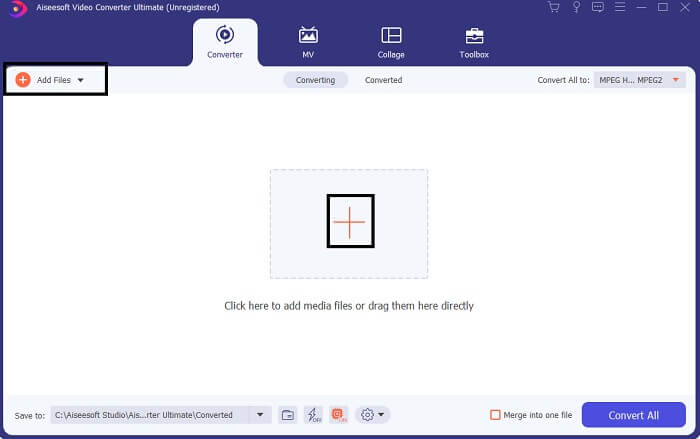
Step 2. From the main interface of the tool, you will see two options to upload the file. Either you click the Plus Sign icon from the center or click the Add Files button from the upper left side. Choose the target file and upload it.
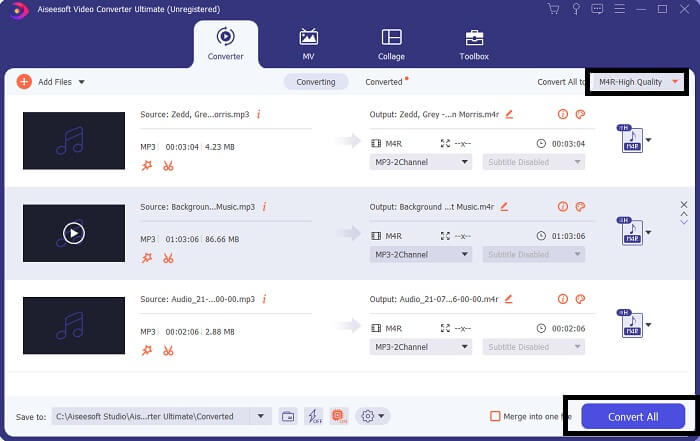
Step 3. To get your desired output, change the format by clicking the drop-down menu located at the upper right side of the interface.
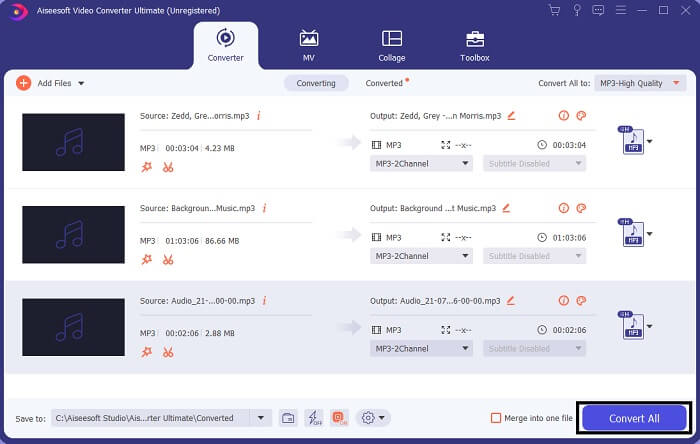
Step 4. Finally, click the Convert All button at the bottom right side of the main interface. Then wait until the file is converted.
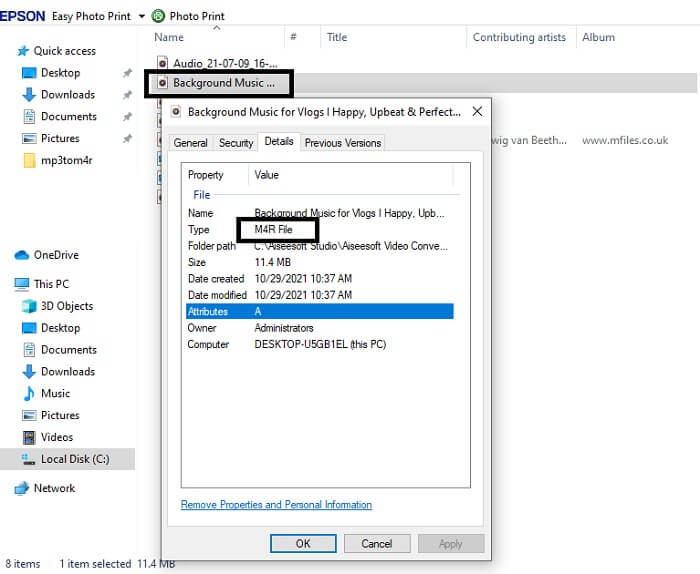
Step 5. Finally, open the folder where the audio output is saved and transfer it to your iPhone. You can use a transfer tool or app to do so. You can find recommendations over the internet. You just need to search and the process of making it as the ringtone of your iPhone.
Parte 2. Algumas das melhores ferramentas para converter MP3 em M4R online
Conversor de áudio online gratuito FVC
A premium tool to convert is good but nothing beats a practical tool. Considering your need, FVC created a free version of the tool. FVC Free Audio Converter is your free access tool anytime and anywhere. All you need is a working internet and a supported browser. This MP3 to M4R iPhone ringtone converter is able to produce high-quality lossless audio. The output is satisfying and without having to spend money on it. Wait, there is more, did you know this can also do batch conversion? Yes, you can! Also here are some notable features you will also get if you use it. On the other hand, a guide is also written for your convenience.
◆ O arquivo convertido tem qualidade semelhante ao original.
◆ 100% grátis e seguro de usar.
◆ Sem limite de tamanho na conversão.
◆ A conversão em lote é suportada.
Step 1. To access the tool, visit the official website of the FVC Free Audio Converter.
Step 2. From there, click on Add Files to Convert. For a first user, you have to allow access by clicking Open FVC Launcher. Then a window will appear on your screen allowing you to locate the file that you want to convert.
Download the Desktop Version to convert files in batch.
Step 3. After uploading the file, you will see another window pop. At the bottom part change the file format of the output file by ticking M4R.
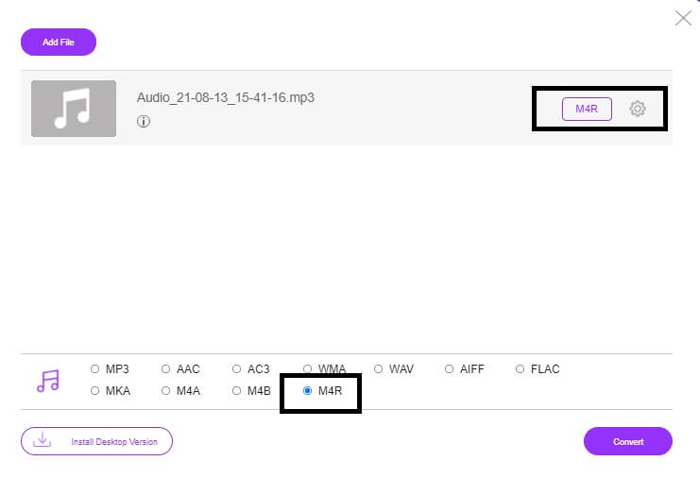
Step 4. Then click on the Convert button to begin the conversion.
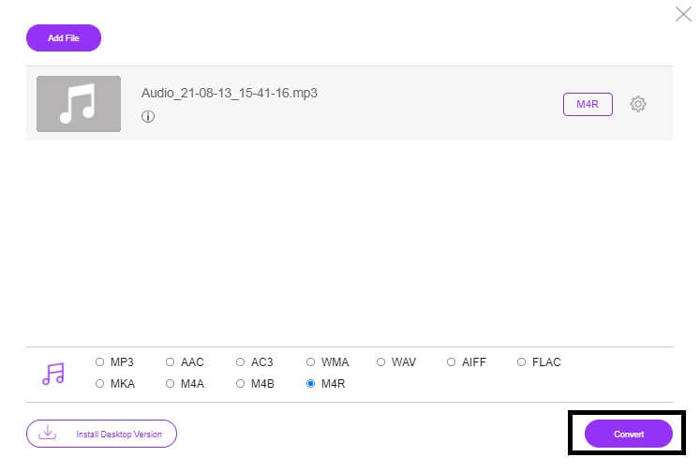
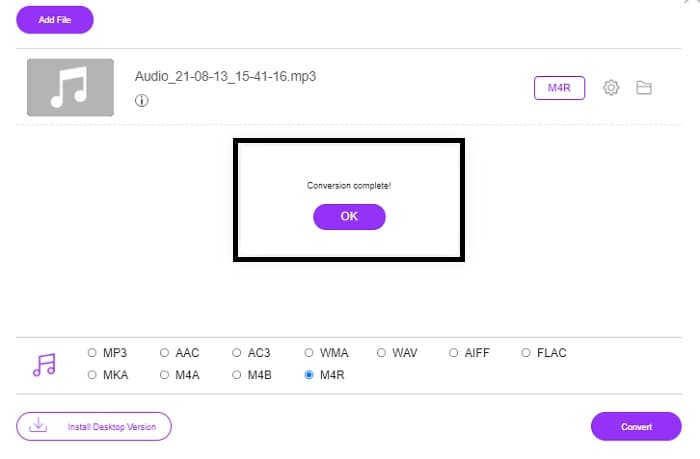
Step 5. Finally, select a folder where you can save the file, and automatically the file will be saved. Then transfer it to your iPhone. Know that you can do batch convert so do not limit yourself.
Related:
M4ROnline por File Converter
Simple yet reliable, that is how its users describe this online tool. By default, this is specifically made to convert Mp3 to M4R. As the name implies it this is what this tool is made for. It works from different web browsers so you won't have to download or purchase it. If you visit the website, you will notice the simplicity of the tool interface. It is very straightforward where you just have to click the Browse button to begin the uploading and converting process. If you want to try it, it is recommended to visit the official website and experience it. Hence, this tool is a good alternative. You can also check the step by steps below to know the process of using the tool.
Step 1. The first thing you gotta do is go to the official page M4R Online then click on Browse.
Step 2. Choose the file from your folder and click the Upload File button.
Step 3. Once you see the completed message, click the file to download it.
Online-convert.com
This is a tool providing service for quite some time now. It is safe to say that many found this online tool very helpful for their converting needs. Or else it will not be existing until this very moment if it's not proven helpful. Upon visiting the home page of the site, you will see all tools available to use. From Audio converter, video converter, image converter, document converter, Ebook converter all together from the home page. Compiling them makes it easier for the user to find the necessary tools he/she needs. It then deserves to be added to this list of MP3 to M4R iTunes converters. On the other hand, here is how you can use the tool for your reference.
Step 1. Visit the official site of the tool and choose Audio Converter.
Step 2. Click the drop Drop down and choose the format output then click on GO.
Step 3. A new window will then appear. From there click the Choose Files button and upload the file. To start the conversion process click the Start Conversion. Once the file is ready, the file is automatically downloaded on your PC.
MP3 vs. M4R
O formato MP3 foi lançado em 1993 pelo Moving Picture Experts Group (MPEG). Era o padrão para armazenar música, pois podia compactar áudio em um tamanho muito menor do que outros formatos não compactados. Ainda é amplamente utilizado hoje em dia, especialmente para distribuição de áudio online.
Um arquivo M4R é usado para salvar um toque personalizado do iPhone criado com o Apple iTunes. Normalmente, você pode ver esse formato ao transferir um toque do computador para um dispositivo iOS. Os arquivos M4R criados com o iTunes geralmente incluem proteção de direitos autorais.
Parte 3. Perguntas frequentes sobre a conversão de MP3 em M4R
O que é M4R?
É uma extensão de arquivo criada especificamente pela Apple e usada estritamente como toque de celular para iPhone e outros dispositivos da Apple. Isso é tão bom quanto M4A e MP4 quando se trata de qualidade.
Existe um conversor de MP3 para M4R além do iTunes?
Definitivamente, existem. Você pode escolher uma das ferramentas acima ou considerar o uso do Windows Media Player copiando. Se não quiser passar por todos os processos, basta usar as ferramentas gratuitas disponíveis online. Eles convertem diretamente o áudio para o formato desejado, em vez de passar pelo longo processo de extração.
Por que preciso converter meu arquivo de MP3 em M4R para usá-lo como toque?
É uma obrigação. Para ser considerado um arquivo como toque, o arquivo deve estar, por padrão, no formato M4R para ser reproduzido como toque.
Conclusão
Com tudo isso, certamente você pode contar com as ferramentas listadas acima. Você só precisa acessar qual ferramenta pode ser útil para você, dependendo de suas necessidades. Se você é um estudante e um cidadão comum que deseja converter e deseja converter MP3 em M4R no Mac gratuitamente ou em qualquer dispositivo que estiver usando, consulte as ferramentas gratuitas. Para uso profissional, é recomendável usar o Video Converter Ultimate. Você pode sempre voltar a esta página se quiser saber mais sobre mais ferramentas para converter.
-
 [Gratuito e online] 3 métodos para converter MP3 em MP4 com imagem
 Como converter MP3 para MP4 em alta qualidade? Este post mostra 3 métodos eficientes e gratuitos para mudar de MP3 para MP4 com imagens no Windows e Mac.
-
 Descubra como converter MP3 para o formato WAV
 Você quer saber como converter MP3 para WAV? Determine quais ferramentas produzem a conversão de melhor qualidade que você pode obter.
-
 Diretrizes sobre como converter M4A em WAV [PC e Mac]
 Saiba mais sobre como converter M4A para WAV com etapas detalhadas e diferentes ferramentas à sua escolha.

