


 Video Converter Ultimate
 Gravador de ecrã
 Reparo de vídeo
Como converter DivX para MOV online ou offline: métodos diferentes que você deve conhecer
Digital video has come a long way since it was first introduced commercially in 1986 with the Sony D1 format. As technology improved over the years, various video formats were introduced. Every video clip you view on your smartphone, computer, television, or tablet has a unique file format. You must grasp how each video format works if you want your videos to function effectively on any platform. A video format for web development, for example, will vary from the one you use for social media. Two of those formats are the DivX and MOV, which have differences separating them from various other formats. So in this article, we focus specifically on these two – their comparisons and provide the most straightforward steps on converting DivX to MOV for your convenience.
Parte 1. DivX VS. MOV
If you are an avid video consumer, you are likely to have encountered a variety of video formats. Some of them, such as MP4, AVI, and MKV, may be recognizable to you, while others may be unfamiliar. Though not entirely new, DivX has been around for a long time; the only difference is that few people have used it. Short for Digital Video Express, DivX is a lossy video compression program that may reduce video files to a fraction of their original size with minimum quality loss. On the other hand, MOV is a video format developed by Apple. It's a sort of file container that can accommodate a variety of video and multimedia types. Because Apple built it, it can only be used with Apple devices or video players such as Quicktime.
MOV files often include video files with high bitrates and little to no compression. They're of excellent quality, but they're somewhat large. MOV files take up a lot more RAM on a computer since they are high-quality video formats.
Parte 2. Melhor maneira de converter DivX para MOV offline
Converting videos from one format to another is quite confusing for beginners, especially if there is little to no known software or programs and no familiarity with video formats. There are many ways to do so, both offline and online. But if we are talking about the most convenient way for everyone, FVC Video Converter Ultimate is the way to go. Not only is it free to download, but it also contains a lot of features that you can satisfy your editing needs. It is fast, and it supports various formats, so converting DivX videos to MOV is easy. To use this software, follow these simple steps:
Step 1: To start the process, click the Free Download button for Windows or Mac, depending on your operating system. A .exe file is going to be downloaded to your desktop. Once done, open it and start installing the software.
Free DownloadFor Windows 7 or laterSecure Download
Free DownloadFor MacOS 10.7 or laterSecure Download
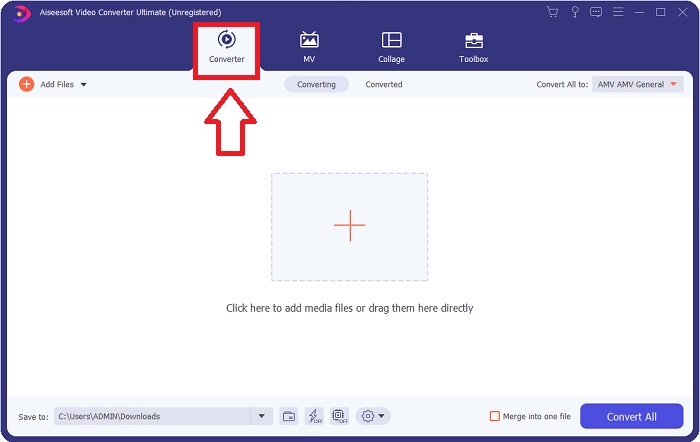
Step 2: Once installed, launch the software, and an interface will appear and it will direct you to the default tab which is the Converter feature.
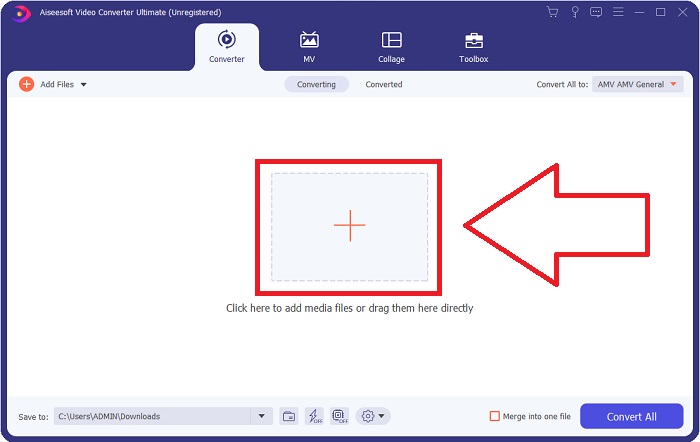
Step 3: From there, a + button will appear in the middle. Click on it to import the video you wish to convert. You can also drag and drop videos from there.
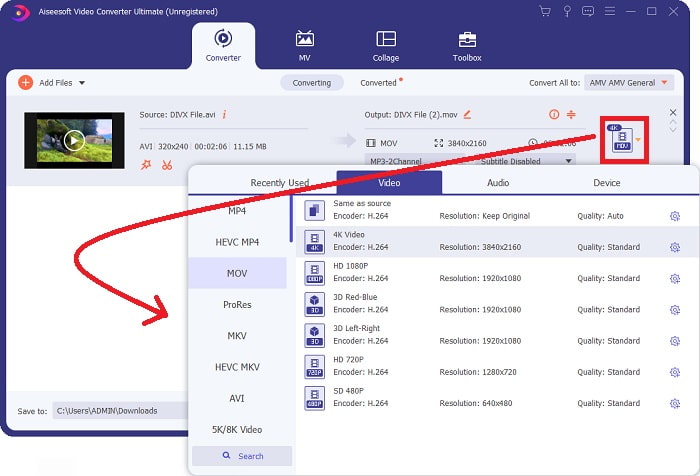
Step 4: Once your video is imported, an icon on the right will show the current format of your video. Besides it, there is a drop-down arrow that you can click to show all the available formats you want your video to be converted to. In this case, choose MOV. There are different tabs on the pop-up menu. You can choose to edit the video further. You can choose which resolution and audio quality perfectly suit your needs. For more options, click the gear icon on the right of the selected resolution or quality. Click Create New to keep your changes.
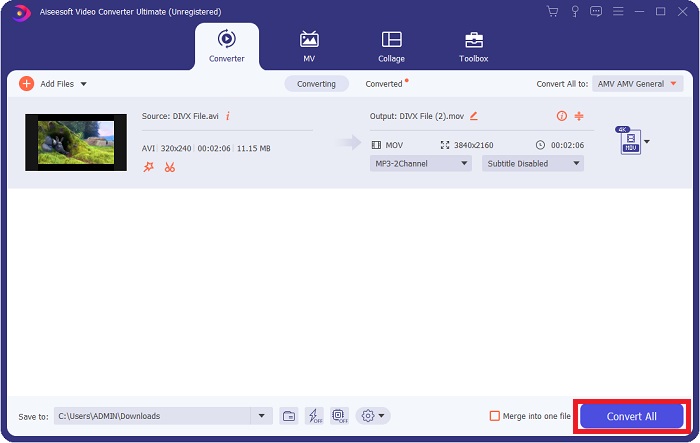
Step 5: If you are satisfied with all the changes you have made, click Convert All on the window's lower right corner to start exporting your video.
Parte 3. Como Converter DivX para MOV Online
Método 1: freeconvert.com/video-converter
Esse método é uma alternativa que você pode usar se não quiser instalar o software de exportação. É fácil, pois a única coisa a fazer é acessar este site e começar a editar seu vídeo. Esta ferramenta da web também pode suportar vários formatos para converter para outro.
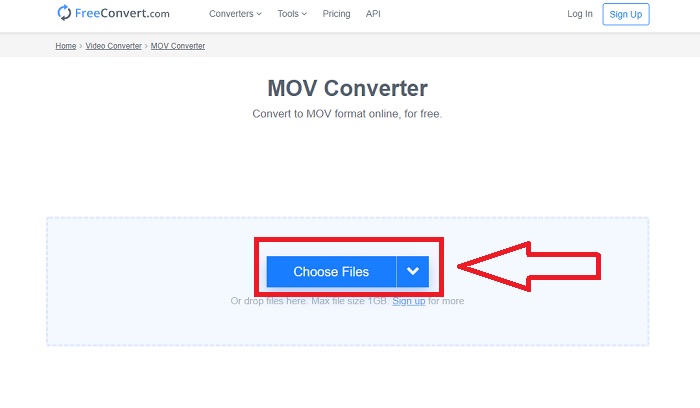
Step 1: To begin, click the Choose Files on the middle of the page. From there, you can now import the video you wish to convert.
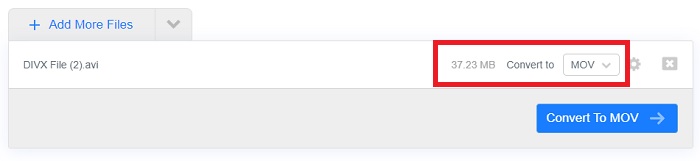
Step 2: If the file is successfully imported, you can now choose which video format you want your video to be converted to by clicking the drop-down arrow. Also, it provides more options for you to edit by clicking the gear icon beside the file format. To save the changes, click Apply Settings on the lower right corner.
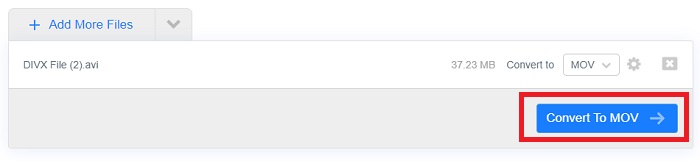
Step 3: Once satisfied with all the changes you have made, you can click Convert to MOV to start converting and wait for it to finish. After it is done, click Download MOV to export your converted video completely.
Método 2: onlinefreeconvert.com/divx-to-mov.html
Use esta ferramenta da web gratuita se você não quiser complicações ao converter seu vídeo. Esta ferramenta oferece apenas a opção de formato e resolução do arquivo para mantê-lo simples e fácil de usar. Para usar este conversor online, continue com as etapas fornecidas:
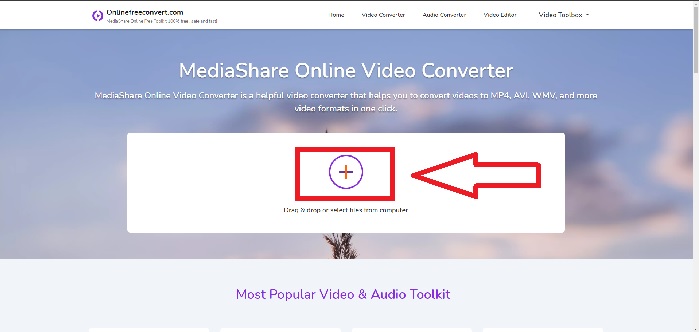
Step 1: Click the + button on the middle of the page to select files from your computer, or you can drag and drop the video you wish to convert.
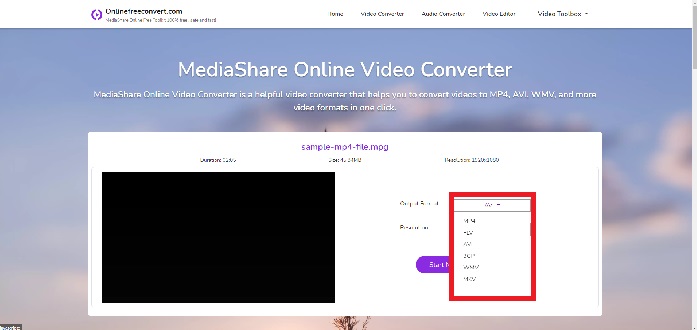
Step 2: From there, you can now choose which file format and resolution you want for your video. There are two drop-down arrows on the right of your file to do so.
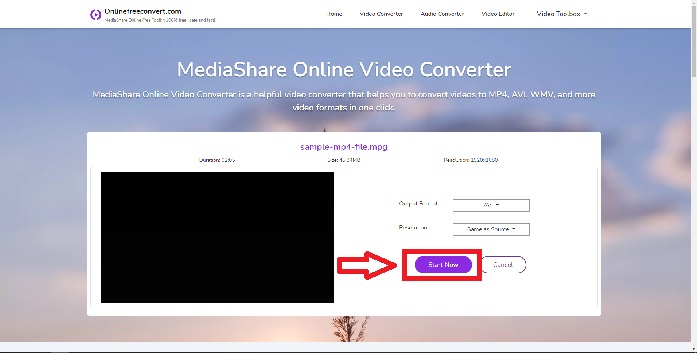
Step 3: Once done, you can click the Start Now button below it to start the conversion, then click Download Now to export to your desktop.
Método 3: convertio.co/divx-mov/
Esta ferramenta da web oferece mais formatos de arquivo, especificamente exclusivos para você escolher. Use isso para converter e editar perfis de vídeo, taxa de quadros, orientação e muito mais. Para saber mais sobre esta ferramenta online, aqui estão as etapas para ajudá-lo a navegar:
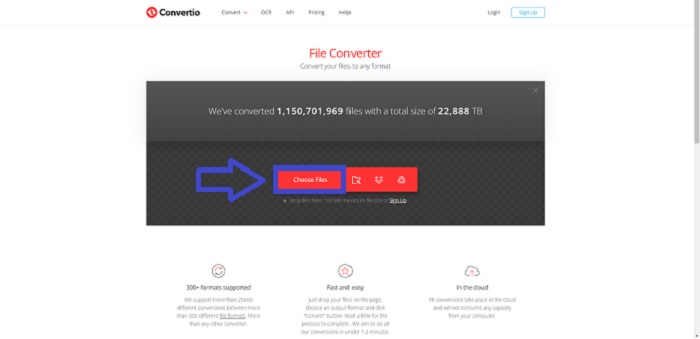
Step 1: Import your video by clicking the Choose Files on the main interface of the page, or you can drag & drop your files. It is highlighted in red, so it is quick to spot.
Step 2: Select which format you want your video converted to from the given file formats on the drop-down arrow. From there, you can also search for your desired format to save time. A gear icon will appear on the side to further edit your video. It includes a lot of options to choose from for both video and audio. Click Okay to keep the changes made.
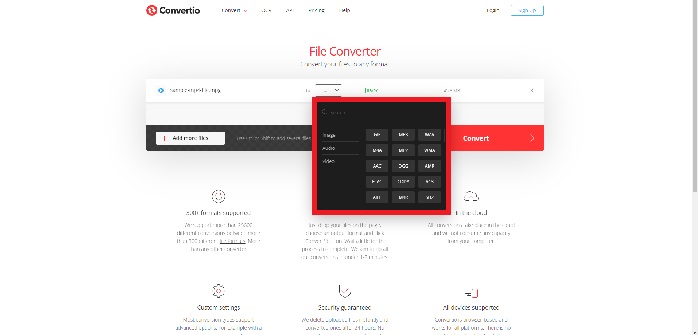
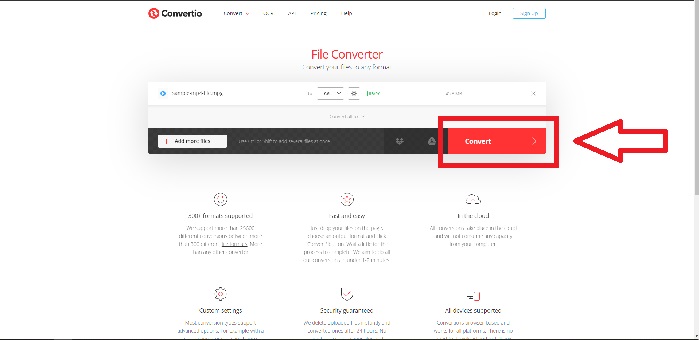
Step 3: You can add more files to convert simultaneously by clicking the Add More Files and repeating step 2. Once satisfied, start converting by clicking the Convert button highlighted in red and waiting for it to finish. Click Download to export your converted video.
Parte 4. Comparação de DivX e MOV
| Recurso | DIVX | MOV |
| Liberado para uso público em | 1986 | 1998 |
| Dispositivo de suporte | Apenas suporte para DivX Codec | Suporte apenas para Apple |
| Extensão | .divx | .mov |
| Desvantagens | Não é tão boa qualidade quanto outros formatos | Não altamente compressível |
| Tamanho do arquivo | Tamanho muito pequeno | Maior e requer mais espaço |
| Codec | Vídeo | Vídeo |
Parte 5. Perguntas frequentes sobre a conversão de DivX para MOV
Por que os formatos importam?
O formato de vídeo é significativo para edição de vídeo por vários motivos. Você pode determinar quanto espaço de armazenamento será necessário para o vídeo que deseja filmar se souber em que formato uma câmera grava. Você deve saber o formato da filmagem para determinar se as ferramentas de edição ou correção de cores podem lidar com isso diretamente ele precisará ser transcodificado.
Quando devo usar MOV?
A reprodução de vídeo é excepcionalmente de alta qualidade com arquivos MOV. MOV é a melhor opção se você estiver editando em um ambiente profissional para cinema e televisão. Editores profissionais preferem codecs (compressão/descompressão) que o MOV suporta. O MOV é benéfico, pois pode conter materiais mistos, como imagens, vídeos e animações em 360 graus. Ele também contém todas as informações de vídeo e áudio. Isso torna a edição do arquivo muito mais simples.
DivX é de boa qualidade?
DivX is a video encoding format that works with a certain type of MPEG-4 file and was frequently used to rip DVDs before the advent of high-definition video. Actually, since 2009, DivX Plus has supported the generation of the highest-quality HD video, H. 264, in the most common container, MKV, using the most recent version of the software. To play your DivX files, click here to get powerful DivX players available.
Conclusão
A conversão de vídeo, em geral, oferece muitas opções para você escolher. Ele pode estar online por meio de uma ferramenta ou software da Web que você precisa instalar para converter offline. Embora existam muitos desses que você pode encontrar na internet, ainda pode confundir aqueles que não são alfabetizados tecnologicamente. É por isso que este artigo fornece todas as melhores opções para você experimentar online e offline sem problemas. Mas para maior conveniência, o Video Converter Ultimate é o caminho a percorrer, pois é um conversor e editor tudo-em-um que você pode estar procurando há muito tempo.
-
 Como converter AVI em MOV com etapas e ferramentas fáceis
 Você quer saber como converter AVI em um MOV jogável? Você deve seguir este artigo para saber como fazê-lo e dicas para ter uma conversão bem-sucedida.
-
 Os 6 principais conversores de MP4 para DivX para transcodificar MP4 para DivX com facilidade
 Quando você precisar fazer backup de arquivos MP4 em um DVD ou reproduzi-los em uma smart TV com alta qualidade, você pode aprender mais sobre os 6 melhores conversores MP4 para DivX gratuitos neste artigo.
-
 3 maneiras mais fáceis de converter FLV em DivX no desktop ou online
 Você pode converter FLV para DivX gratuitamente? A resposta é sim e simples. Este guia mostrará três métodos gratuitos para fazer o trabalho no Windows e no Mac facilmente.
