


 Video Converter Ultimate
 Gravador de ecrã
 Reparo de vídeo
Prática excepcional que fala sobre como converter M4V para MOV
As an MPEG-4 file extension, M4V is similar to MP4. An Apple iTunes store movie or video can be encoded with this app. The main difference between M4V and MP4 is that M4V is protected and may only be played on a computer with an iTunes license. But what if you need to convert it to MOV to watch it on your video player? What are you going to do? Here are the best and hot picks you need to see to convert M4V to MOV.

Parte 1. Uma Visão Geral de M4V e MOV
Apple created the M4V video format, which is used to distribute videos via iTunes in its native format. Aside from the possibility of including Apple's DRM protection, it's virtually identical to MP4 video. iTunes stores video material, like TV series, movies, and music videos, which are well-protected with this video format. M4V files also allow for the creation of chapter information. Apart from iTunes and Apple QuickTime player, most video players can play DRM unprotected M4V files. Video Studio Pro can also open M4V files, which provides a long-range editing capability.
However, MOV is a QuickTime video format developed by Apple and used in the QuickTime framework of Mac OS X. The Windows platform also supports this multimedia container's capacity to store several tracks, each one containing a specific sort of data (audio, video, subtitles). Video editing programs can benefit significantly from separating media data from media offsets, abstract data references, and track edit lists. It's common practice to distribute movies and videos over the internet in MOV container format.
Parte 2. Como alterar M4V para MOV offline
In searching for the best converter you can use offline, this software is what you want. Video Converter Ultimate is the best and most recommended software you can use in converting formats like M4V to MOV. It is available in both Windows and Mac. Also, it is free to download. It is the fastest converter you can imagine because it can convert large file sizes of video format that other software and online converters cannot. It also supports various formats like even the most unfamiliar video formats you can only see on this software. With the excellent quality output and many more available tools to improve your video, everyone should use this. Without further ado, here are the procedures you should consider:
Step 1. To get started, simply click on the Free Download icon to the right to begin the download. Once the download is complete, you can choose to download the software on either Windows or Mac. First, you must install the software on your computer's desktop and then click Start Now to begin using it.
Free DownloadFor Windows 7 or laterSecure Download
Free DownloadFor MacOS 10.7 or laterSecure Download
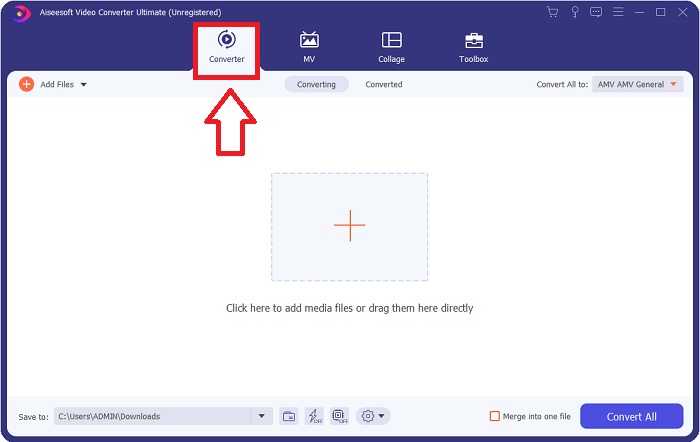
Step 2. Open the software you've just downloaded. When you open the software for the first time, a window with the Converter interface will be displayed. Enter your video file here and begin the conversion process.
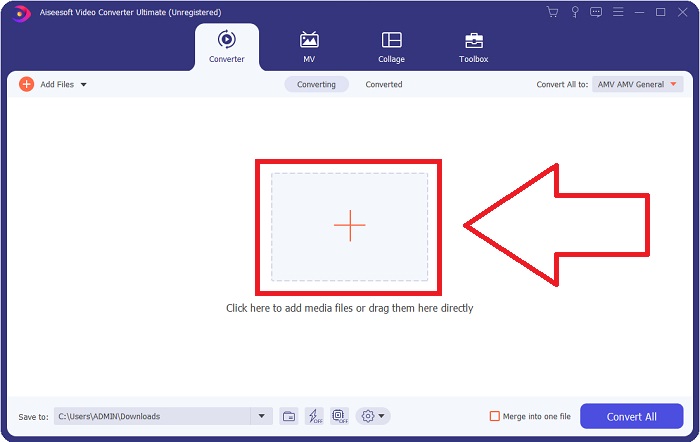
Step 3. Begin the converting process by importing your files into the converter. The video file you want to convert can be dragged and dropped onto the + icon.
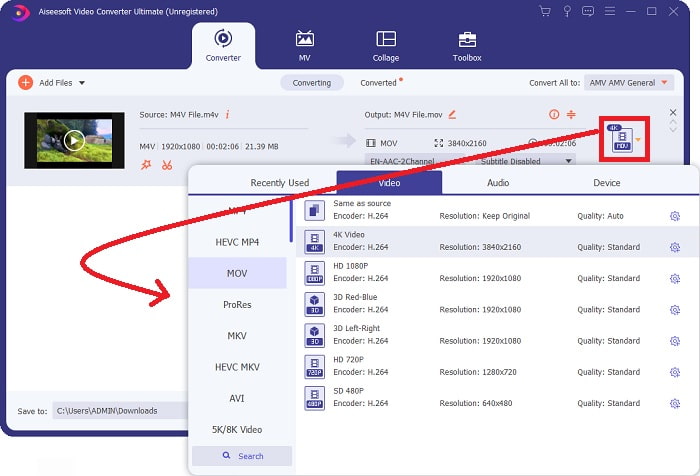
Step 4: An options menu appears in the screen's upper-right corner; click on a video format from the list to select it. Select the MOV format from the drop-down option. Once you've picked a MOV file, there are a variety of video quality options. But if your chosen video output isn't listed, you can alter the quality settings to suit your requirements. The gear icon allows you to change the display's resolution, frame rate, and audio quality. Click the Create New button to save your changes.
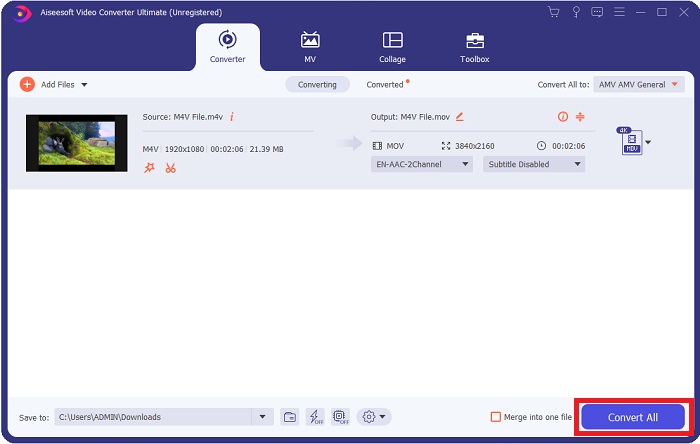
Step 5. To begin transferring the video to your computer, select Convert All when you are finished editing the video, and it is ready to be converted.
Parte 3. Outras maneiras de converter M4V para MOV Online
Método 1. Use o conversor de vídeo gratuito
Use this online version of Video Converter Ultimate if you don't have time to download it. On the internet, FVC Free Video Converter Online is the best web application for quickly and easily transcoding between many different types of video formats. It's suggested for new users since it has no restrictions on the file formats it may support, unlike online converters. Follow these steps to learn more about this web-based tool.
Step 1. By clicking on this link, you will be directed to the main website of the FVC Free Video Converter Online.
Step 2. To get the launcher for your computer, click the Add Files to Convert option to the right if this is your first time using it. When it has been downloaded a second time, it will automatically launch. After the file has been downloaded a second time, navigate it in your folder and click Open to open it.
Download the Desktop Version to convert files in batch.
Step 3. Choosing the MOV format from the Video menu below and clicking on it will start the conversion process before it even starts.
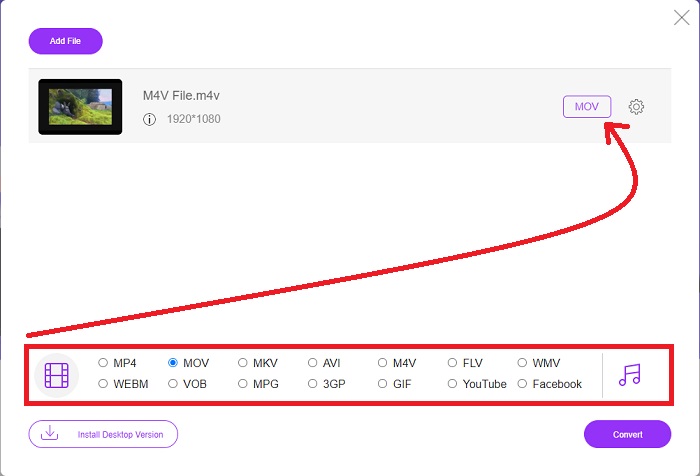
Step 4. Click Convert to begin the process of converting one format to another after you've selected a format to convert.
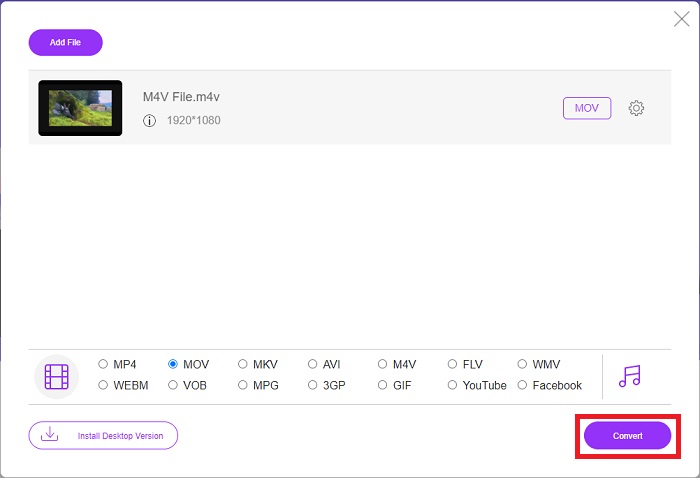
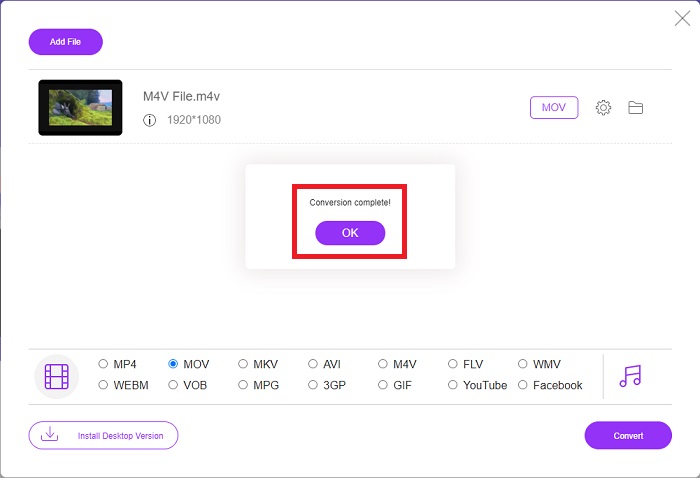
Step 5. It will just take a few minutes for the converted file to appear in a file folder, which you can then open to begin watching it.
Método 2. Use ConvertFiles
ConvertFiles é um poderoso conversor de arquivos online que pode converter entre uma variedade de formatos de arquivo. Documentos, fotos, apresentações, arquivos, arquivos de áudio e vídeo em mais de 200 formatos são suportados. Aqui estão as etapas fornecidas que você precisa para aprender sobre esta ferramenta online.
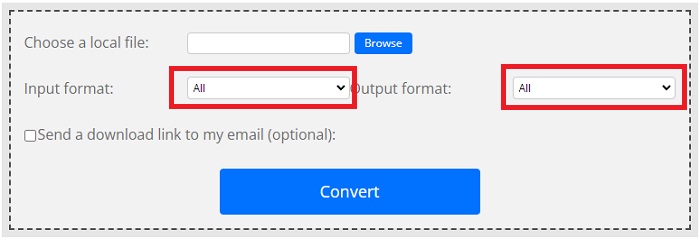
Step 1. Search ConvertFiles to any web browser, and then click the main website. After you click it, you will proceed to the interface of the website. Click Browse to navigate the files from your local disk that you need to convert.
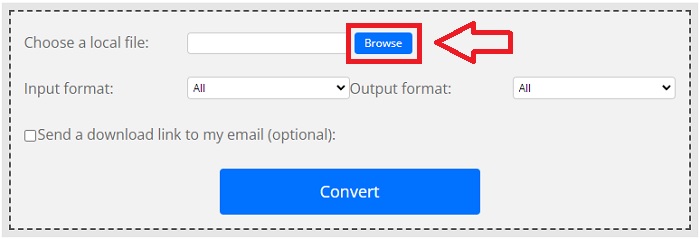
Step 2. Set the input and output format of the video file.
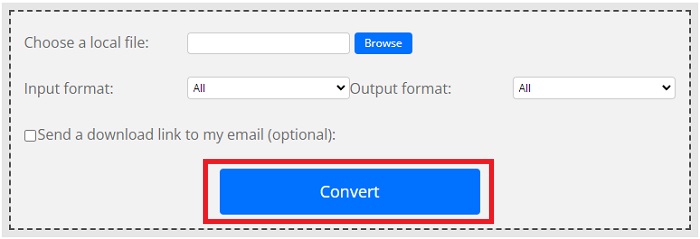
Step 3. To convert your file, click Convert and wait for the process to finish, and click Download.
M4V vs. MOV
O M4V é desenvolvido pela Apple, que também usa MPEG 4. Os arquivos M4V são frequentemente usados para armazenar os vídeos baixados da loja Apple iTunes, como videoclipes, episódios de TV, etc. Você pode encontrar alguns arquivos M4V protegidos contra cópia, pois usa Proteção de direitos autorais FairPlay DRM da Apple.
O formato MOV pode ser usado para armazenar um filme, programa de TV, videoclipe curto ou filme caseiro. Na verdade, ele é salvo no formato de arquivo QuickTime (QTFF), que foi introduzido pela Apple em 1991. Os arquivos MOV são frequentemente usados quando as pessoas desejam salvar um vídeo com alta qualidade.
Parte 4. Perguntas frequentes sobre conversão de M4V para MOV
Qual é melhor, MP4 ou MOV?
Files in MP4 format are often more compressed and more diminutive in size, but files in MOV format are typically higher in quality but larger in file size. MOV files are preferable for video editing on a Mac since they are mainly intended for QuickTime instead of other video formats. Continue learning more details about MP4 vs MOV.
Por que o arquivo MOV é tão grande?
QuickTime is an editable codec that is being converted by iMovie from the source media. The data used by the camera is exceptionally compressed, making it unsuitable for post-production processing in most cases. A significantly higher data rate and more excellent storage space are required by the format and codec utilized. Click here to learn how to compress MOV files.
Para que serve o MOV?
No caso da extensão de arquivo MOV, refere-se a um arquivo Apple QuickTime Movie que foi colocado em um arquivo contêiner QuickTime File Format (QTFF) (arquivo contêiner). Um arquivo MOV pode incluir áudio, vídeo e texto no mesmo arquivo usando faixas diferentes, ou as faixas podem apontar para dados salvos em outro arquivo que não está incluído no arquivo MOV.
Conclusão
All things considered, despite all the online web tools introduced above, connectivity issues are one of the main factors in converting a video may be interrupted. That's why using software that is free to download, like Video Converter Ultimate, is the best recommended you should consider. There's a lot of featured tools this converter has other than converting your video file in a too fast manner. In addition to that, it supports massive video formats, so you wouldn't have to worry about converting unfamiliar files so that you can enjoy this video at best with excellent output possible.
-
 6 maneiras de converter gratuitamente M4V em MP4
 Este post é o guia detalhado para converter M4V em MP4 para qualquer jogador. Você pode mudar de M4V para MP4, até mesmo os arquivos M4V protegidos, para que você possa reproduzir vídeos M4V sem limite.
-
 Conversor M4V para MP3 - 4 melhores métodos para extrair MP3 de arquivos M4V
 Quando você deseja extrair o áudio MP3 de vídeos M4V com facilidade, você pode aprender mais sobre os 4 melhores conversores de M4V para MP3 para obter os arquivos de áudio desejados do artigo.
-
 [Guia] Como converter vídeos M4V em GIFs animados no Windows / Mac
 Se você deseja fazer arquivos GIF animados de seus vídeos M4V favoritos, você pode aprender sobre 2 maneiras fáceis e eficientes de converter vídeos M4V em GIFs com configurações personalizadas.

