


 Video Converter Ultimate
 Gravador de ecrã
 Reparo de vídeo
Ferramentas úteis que você precisa saber que converte SWF para MOV [Resolvido]
Video and vector-based animations can be found in SWF files, which are created with Adobe Flash software. ShockWave Format is another name for Small Web Format, which is the complete abbreviation. SWF files are commonly used to distribute multimedia material over the internet in an effective manner. Small web applications benefit from ActionScripts, which can be stored in this format. If you're wondering if there's a free SWF to MOV converter because you can't play a file with the given format. This is the perfect article for you, for it presents the best and most efficient tools you can use in converting video files. Let's get started!
Parte 1. Prefácio: SWF e MOV
SWF is a file type used to transfer text, video, vector graphics, and ActionScript over the internet. Adobe Flash Player is required to use SWF files. The SWF file format is intended to be a resource-efficient transfer format that may be used not just for transmitting graphics but also for anti-aliasing and on-screen display, among other things. Anti-aliasing is vital for the quick rendering of bitmaps and their associated properties, such as interactive buttons, shading, and animation.
However, MOV files are encoded using Apple QuickTime Movie encoding guidelines and data compression standards, and video files produced in this format have the.mov extension. Standard and compression criteria for digital movies and other video clips were developed exclusively by Apple. Because these MOV files are encoded with cross-compatibility support, they may be played on Mac and Windows-based digital video players, as well. Windows Media Player is also incorporated with playback functionality for these MOV files, which can be opened and viewed using Apple QuickTime Player or VLC Media Player on both Mac and Windows platforms.
| Extensão de arquivo | SWF | MOV |
| Tipo de arquivo | Filme em Flash de Ondas de Choque | Apple QuickTime Movie |
| Desenvolvido por | Adobe Systems | maçã |
| Prós | A animação da Web é possibilitada pelo uso de um formato visual livremente programável. Como os gráficos são baseados em vetores, eles podem ser redimensionados sem dificuldade. carregado em pouco tempo; | Cada arquivo possui componentes de áudio e vídeo de alta qualidade que são salvos em trilhas independentes e podem ser editados tanto por tempo quanto por conteúdo. Os arquivos podem ser visualizados por vários players de vídeo gratuitos diferentes. |
| Contras | Uso intensivo da CPU; um vídeo SWF não pode ser reproduzido até que o plug-in do Flash seja instalado no computador; é preciso software caro para fazer, entre outras coisas; | O ambiente QuickTime oferece desempenho mais estável; no entanto, um codec específico pode ser necessário para abrir um arquivo a.mov. |
Parte 2. 3 ferramentas eficazes para usar na conversão de SWF para MOV
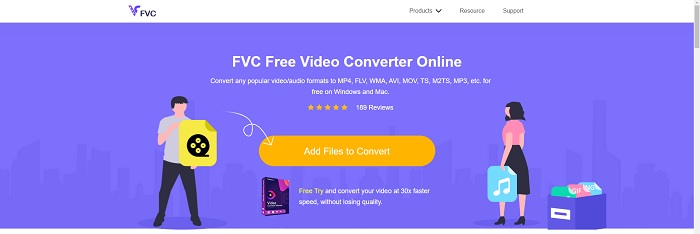
Opção 1. Conversor de Vídeo Online Grátis
It is possible to convert a wide variety of video and audio formats with FVC Free Video Converter Online. High-definition video can be readily converted to codecs like MP4, FLV, and WMV without sacrificing quality. You don't have to worry about losing quality when converting many films or audio files. This free video converter tool is well-known for its conversion and editing capabilities, which allow users to customize their videos to their hearts' content.
Prós
- Ele suporta vários formatos de arquivo de vídeo.
- As saídas convertidas são de alta qualidade.
Contras
- Como é uma ferramenta da Web online, ela precisa de uma conexão mais rápida para converter vídeos de tamanho grande.
Opção 2. Conversão Online Grátis
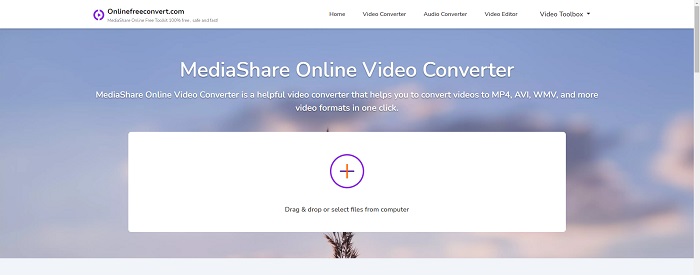
Ao transcodificar seu vídeo, este aplicativo online gratuito é a melhor opção. Este aplicativo oferece duas opções para manter as coisas simples e fáceis de usar: tipo de arquivo e resolução. Siga as instruções na tela para utilizar este conversor online.
Prós
- Possui uma interface acessível e amigável.
- Oferece outras ferramentas que podem melhorar a qualidade do vídeo.
Contras
- Não tem muitos formatos de vídeo que suporta.
Opção 3. Qualquer conversão
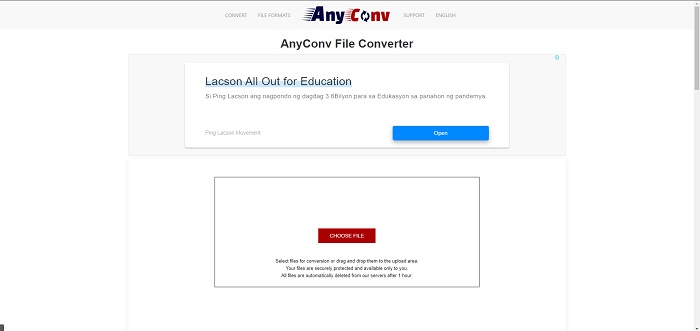
AnyConv é um conversor online com uma interface de usuário holandesa. Até a edição comercial deste aplicativo é gratuita. AnyConv também inclui uma restrição de conversão de 60 arquivos por hora. Usando o conversor online, você pode converter arquivos de até 50 MB de tamanho e escolher entre mais de 300 formatos de saída diferentes.
Prós
- Possui uma ampla gama de formatos; ele suporta até mesmo os formatos que não são de vídeo e áudio, como documentos.
- Ele fornece instruções para usar este conversor.
Contras
- Mostra anúncios que não ajudam ou não se adequam ao processo de conversão ou ao próprio conteúdo.
Parte 3. Como converter SWF para MOV no Mac
This post proposes Video Converter Ultimate for Mac users who want to convert SWF to MOV. Both Windows and Mac versions of this software are available for free download. A wide spectrum of people can utilize it because it features an easy-to-use tool and a simple interface. With this program, you can convert files from one video format to another in about one minute, which sets it apart from other conversion applications and internet resources. Additionally, this software has a number of additional features that can help you improve your video even further. Assuming you've read through the description of the software, let's get started:
Step 1. To begin the download procedure, simply right-click on the Free Download icon that has been supplied below. This software is compatible with machines running both the Windows and Mac operating systems. After you have finished downloading the software, you can install it and begin using it by selecting the Start Now button on the software's main screen.
Free DownloadFor Windows 7 or laterSecure Download
Free DownloadFor MacOS 10.7 or laterSecure Download
Step 2. After you have downloaded the software, you should launch it. This information will be displayed in a window when the software is opened for the very first time.
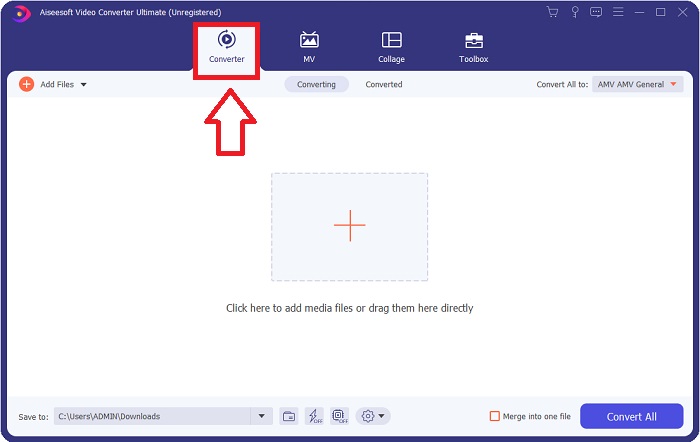
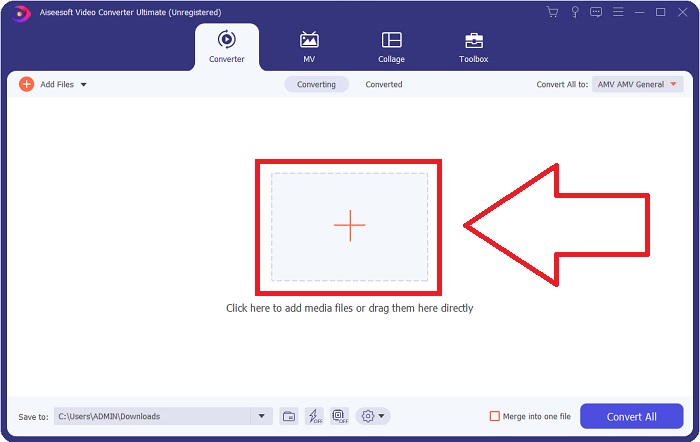
Step 3. The conversion procedure begins with the loading of the files that you wish to convert into the converter. Drag and drop the video you desire to convert onto the + sign to begin the conversion process.
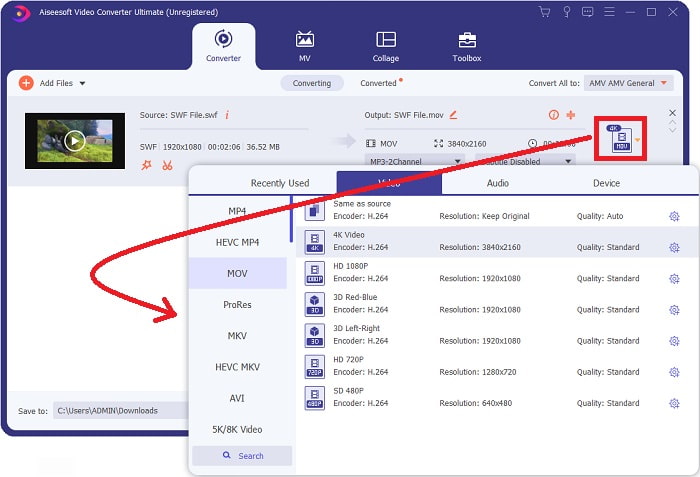
Step 4. An options menu appears in the upper-right area of the screen, from which you can choose a video format. Select MOV as the video format from the drop-down selection that appears. Depending on the MOV file you've selected, you'll be able to select from a variety of video quality options. If your desired video output isn't available, you can adjust the quality settings in Windows. You can adjust the display's frame rate and audio quality by selecting the gear icon in the upper right corner. Use the Create New button to save your changes after you've made them.
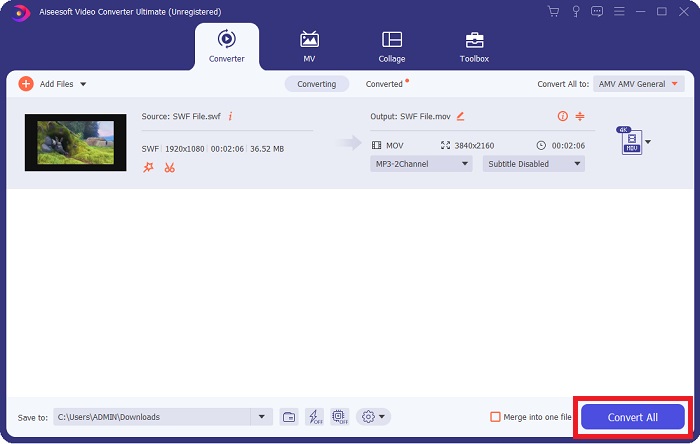
Step 5. When you've finished editing the video, and it's ready to be converted, click Convert All to begin the process of conversion.
Related:
Parte 4. Perguntas frequentes sobre conversão de SWF para MOV
O SWF é um formato de vídeo?
Animações de vídeo e vetoriais podem ser encontradas em arquivos SWF, que são criados com o software Adobe Flash. No entanto, também é conhecido como Shockwave Format, que é a abreviação completa de SWF. Originalmente desenvolvido pela Macromedia, este formato de arquivo agora pertence à Adobe.
Os arquivos SWF são seguros?
Especificamente, o Flash é propenso a uma ampla variedade de diferentes tipos de vulnerabilidades. Devido ao fato de que o arquivo SWF é baixado para clientes e executado em seus computadores, seu servidor não é um perigo. No entanto, mesmo que você tente verificar se há malware nos arquivos SWF, você receberá apenas uma proteção mínima.
Qual navegador ainda suporta o Flash 2021?
O Adobe Flash será preterido no Firefox 84, o próximo grande lançamento do navegador. Para melhorar a velocidade e a segurança, o Firefox 85 (com lançamento previsto para 26 de janeiro de 2021) removerá o suporte ao Adobe Flash.
Conclusão
To conclude, all the things that have been discussed in this article must be finalized in using the software that has been mentioned above. Video Converter Ultimate makes you convert video files easily and can give you quality work overall. Other than the other tools or software available on the internet this software can give you an accessible feeling with a masterpiece.
-
 SWF para MP4: Converta gratuitamente SWF para MP4 Online e PC
 Como abrir arquivo SWF sem Adobe Flash Player? Pegue os 3 principais conversores de SWF para MP4 gratuitos para alterar gratuitamente de SWF para MP4 online e no PC / Mac em 3 etapas.
-
 [2 Soluções] Como converter arquivos SWF em GIF de forma fácil e gratuita
 Se você não conseguir exportar o formato GIF por meio do software Flash, tente primeiro salvar os arquivos no formato SWF. Em seguida, você pode aprender duas maneiras fáceis de converter arquivos SWF em GIF neste artigo.
-
 Melhor conversor de GIF para converter GIF animado em formato MOV [2021]
 Converta seu GIF para o formato MOV sem esforço, sem afetar a qualidade do arquivo de vídeo. Com etapas e ferramentas diferentes também.
