


 Video Converter Ultimate
 Gravador de ecrã
 Reparo de vídeo
Ferramentas offline e online na conversão de TRP para FLV que você deve conhecer
TRP is a file format for storing recorded television files. Because few players can handle this file type in its original version, you may need to convert your file to another format before viewing it. To support the conversion of TRP files to FLV files, you'll need to employ the right software tool. Luckily, doing this is much easier by using our software or its online counterpart that will cause you no inconvenience during the whole conversion process. Follow the steps that we will provide to convert your TRP videos to FLV format successfully.

Parte 1. Método offline para converter TRP em FLV
A TRP file format is mostly uncommon to all video consumers and not frequently used by creators. With this fact, most software and online tools do not support this type of video file. That is why Video Converter Ultimate is one to consider in times of any need to convert videos from one format to another. This software can convert your TRP file to any format of your choice in one click.
Esta ferramenta de conversão de vídeo fornece recursos avançados de edição e possui uma interface gráfica simples de usar, mesmo que você não tenha conhecimentos ou habilidades técnicas. Com a ajuda deste aplicativo, você pode converter arquivos e se beneficiar de tempos de conversão super rápidos e saída de alta qualidade. Aqui nós fornecemos os passos simples que você deve seguir:
Step 1: Download the .exe file by clicking the Free Download button below according to what OS you are using. When you finish downloading, open it and start the installation process. Wait for it to finish installing, then launch the software.
Free DownloadFor Windows 7 or laterSecure Download
Free DownloadFor MacOS 10.7 or laterSecure Download
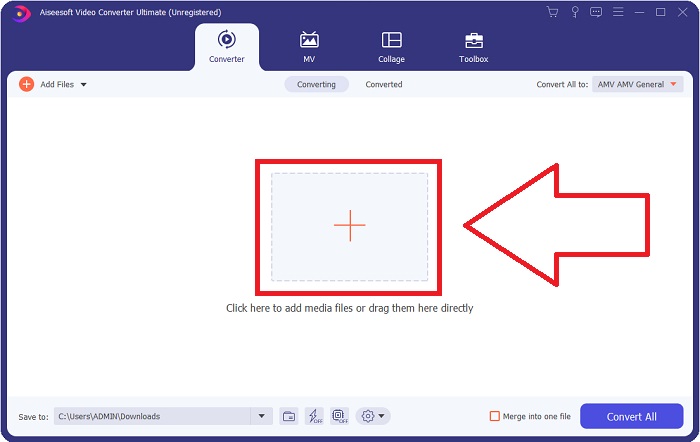
Step 2. An interface will appear once the software starts. From there, click the + button in the middle and begin importing the video file you wish to convert or just drag and drop the file.
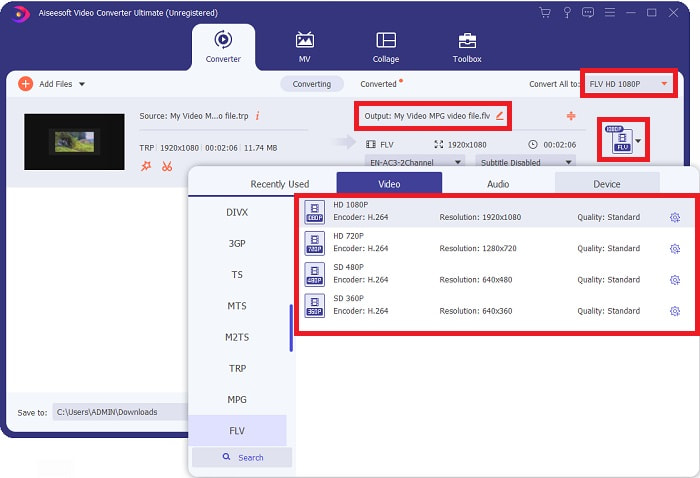
Step 3: You will see the current format of your video's current format on the right side of the file. To choose which format the video will be converted to, click on it, and all the available formats will appear. Look for FLV or just type it in the search bar. There are also video qualities on the right for you.
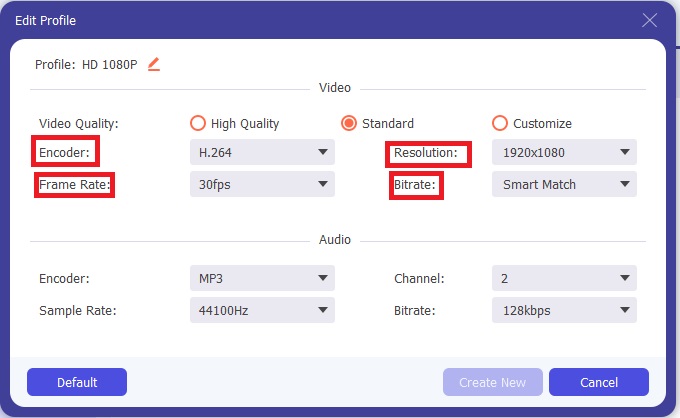
Step 4: For the additional functions we are talking about, click on the gear icon on the right of the video quality you chose, and another interface will appear. From there, you can edit a bunch of video and audio settings that suit your needs. Click the Create New button to keep the changes.
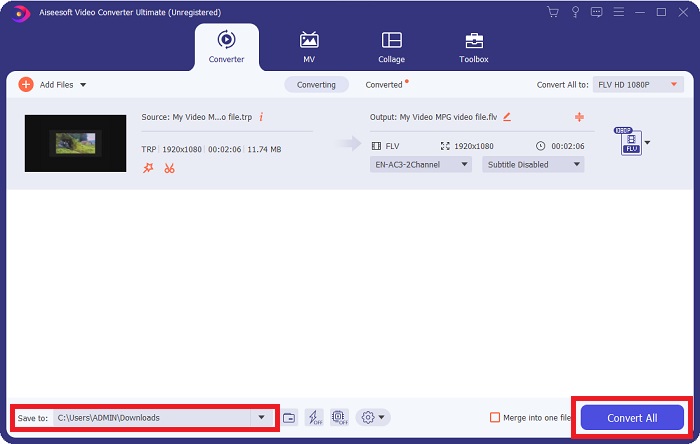
Step 5: Once you finish adjusting with all the editing, click the Convert All button on the bottom right corner of the interface to start the conversion process and wait for it to finish.
Parte 2. Método Online para Converter TRP em FLV
Converting video files is another thing to consider if you want to get the job done by visiting a web tool and not installing the full software. In this case, we also have the online counterpart of the software - FVC Free Video Converter Online. It still provides the additional options on the software but not all the features. However, it still does its purpose in a considerable amount of time needed to do so. To use this web tool, follow the steps below:
Step 1: Go to the converter properly by clicking this link. From there, you can start by downloading the launcher you need to import your files. Click the Add Files to Convert button in the middle of the page to begin the process.
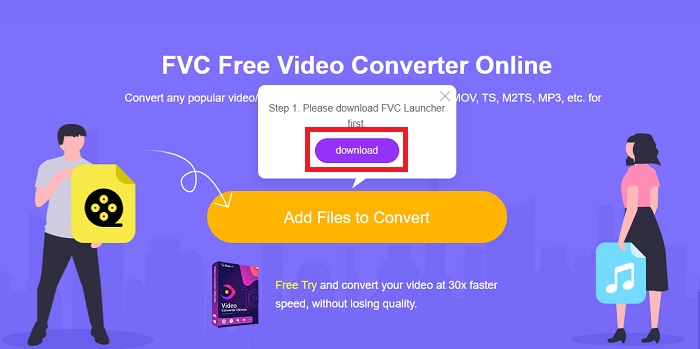
Step 2: Click the said button again and upload the video file you wish to convert. After you import a file, a new interface will appear that shows all the available formats for you to choose. In this case, select FLV.
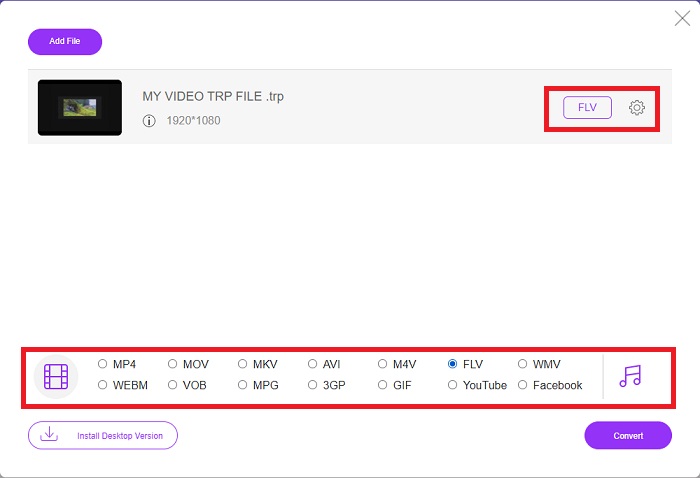
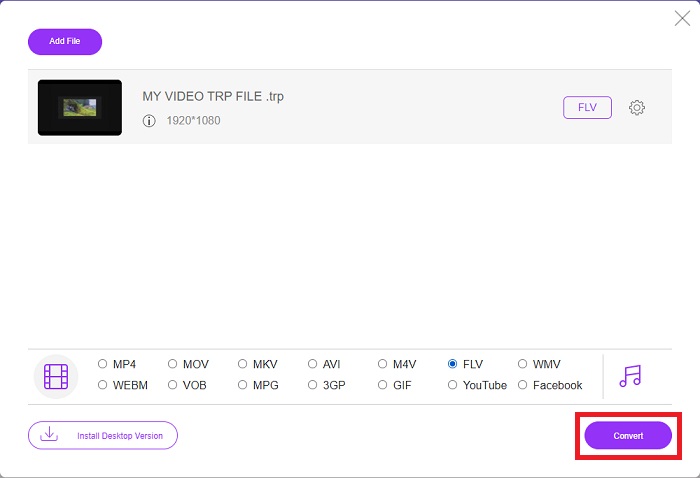
Step 3: For the additional options, just like in the software itself, click on the gear icon on the right. The video and audio settings will appear to further edit your video in terms of resolution, frame rate, and many more. Once done, click OK to save the changes. Finally, start the conversion process by clicking the Convert button in the lower right corner.
Related:
Parte 3. Conhecimento estendido de TRP e FLV
Para saber mais sobre os dois formatos mencionados, fornecemos uma breve informação, bem como uma comparação dos dois.
Os arquivos TRP geralmente estão associados ao VLC da VideoLAN. A extensão de nome de arquivo TRP pode ser coletada com MPEG-2 Parte 1 contendo filmes de alta definição. Os arquivos TRP podem conter e armazenar pacotes de dados enviados como vídeo e áudio digital em redes de transmissão de vídeo digital, frequências de rádio ou dispositivos de gravação linear, como gravadores de vídeo. Vários fluxos de áudio e vídeo, bem como código de correção de erros, estão incluídos em um arquivo TRP. Os usuários também podem incluir metadados como tempo de captura, identificação da câmera e fonte no conteúdo do arquivo.
Por outro lado, um arquivo com a extensão .flv significa Flash Video. A extensão de arquivo FLV refere-se a um arquivo de vídeo ou áudio enviado pela Internet usando o Adobe Flash Player ou o Adobe Air. O Flash Video tem sido o principal formato de vídeo para quase todos os vídeos incorporados na Internet, incluindo vídeos no YouTube, Hulu e vários outros sites. Provedores de streaming e desenvolvedores de software, por outro lado, abandonaram o Flash em favor do HTML5 e outros formatos desde a descontinuação formal da Adobe.
| TRP | FLV | |
| Extensão de arquivo | .trp | .flv |
| Desenvolvedor | Equipe do Projeto VideoLAN | Adobe Systems Incorporated |
| Programas de apoio | ◆ SMPlayer ◆ VLC Media Player ◆ Apple QuickTime Player | ◆ RealPlayer ◆ Apple QuickTime Player ◆ Mplayer ◆ VLC Media Player |
Parte 4. Perguntas frequentes sobre conversão de TRP para FLV
Como abrir o formato de vídeo TRP usando o VLC?
Depois que o VLC Media Player estiver instalado em seu computador, localize o arquivo de vídeo TRP em seu disco rígido e selecione-o com o botão direito do mouse. Selecione 'VLC media player' no menu suspenso 'Abrir com'. O sistema abrirá o arquivo de vídeo que será reproduzido a partir deste programa assim que for iniciado.
Como faço para converter um arquivo FLV para o Windows Media Player?
Você deve primeiro selecionar o arquivo FLV que deseja converter. Você pode escolher WMV como o formato para o qual deseja converter seu arquivo FLV. Para converter seu arquivo FLV, selecione 'Converter' no menu suspenso.
Posso jogar TRP em qualquer lugar?
A conversão de TRP para MP4, AVI, MOV, MKV, FLV, WMV e outros formatos amplamente conhecidos é uma opção sugerida se você deseja reproduzir arquivos TRP em qualquer lugar e em qualquer dispositivo ou reprodutor de mídia.
Conclusão
No geral, o Video Converter Ultimate e sua contraparte de ferramenta online é o que você procura para realizar todo o processo de conversão, fornecendo todos os recursos necessários de que você precisa. Não causa nenhum inconveniente, além de estar disponível a qualquer hora do dia se você tiver o software instalado em sua área de trabalho. Você nunca saberá quando precisará de um conversor como este, por isso recomendamos o uso deste software para sua facilidade.
-
 Guia mais fácil sobre como converter TRP para AVI no Windows e Mac
 Talvez você não esteja familiarizado com o formato de vídeo TRP e se pergunte como converter TRP para AVI? Leia este artigo mais para conhecer os detalhes que dizem respeito ao problema.
-
 3 soluções para converter MTS em FLV grátis e online
 Quer converter MTS para FLV? Aqui estão três softwares de conversão de MTS para FLV gratuitos que você pode tentar converter MTS para FLV no Mac OS X e Windows 10/8/7.
-
 Melhores maneiras de converter VOB em FLV [gratuito e online incluído]
 Quer converter um arquivo VOB em um arquivo FLV? Você pode completar a tarefa facilmente com conversores de desktop ou online. Leia este guia e aprenda como transformar VOB em FLV com facilidade e rapidez.
