


 Video Converter Ultimate
 Gravador de ecrã
 Reparo de vídeo
3 maneiras eficazes de transformar M4V em MKV no Mac/Windows/Linux sem perda de qualidade
Preciso ativar os vídeos M4V que baixei no iTunes. Tem alguma ideia de como converter M4V para MKV no Mac e depois usá-lo na minha TV?
This problem is widespread, especially on M4V videos downloaded on iTunes because this format is under Apple's Fair Play Policy, and it is protected. Therefore, you can't play the .m4v videos instantly on other devices without converting them. This article will provide facts about the converters you can use and succeed in converting the M4V format. Without any more delays, let's start to learn the efficient method of changing M4V to MKV on Mac or Windows.

Parte 1. Converta o iTunes M4V para MKV no Mac e Windows [Mais escolhidos]
There are many free M4V to MKV converters on the market that you can download, and one of them is the FVC Video Converter Ultimate. But this ultimate tool provides a more effective conversion than the other converters due to its lightning speed conversion, unlimited upload to convert, and intuitive interface. Are you amazed at the ultimate converters? Or do you want to know more about the converter? In that case, here below are the key features you will see if you attain this converter.

FVC Video Converter Ultimate
Mais de 2.999.368 downloads- Ele pode converter vários iTunes M4V para MKV ou em mais de 200 formatos de mídia, como MOV, AVI, MP4, etc.
- Com a conversão ultrarrápida, seu processo de conversão de seu M4V em um instante
- Recursos avançados de edição estão disponíveis para tornar seu vídeo ainda melhor.
- Defina recursos incríveis para compactar, redimensionar, criar GIF, etc., na Caixa de ferramentas.
Free DownloadFor Windows 7 or laterSecure Download
Free DownloadFor MacOS 10.7 or laterSecure Download
Não é incrível como todos esses recursos podem estar em uma ferramenta? Não vamos perder mais tempo e determinar como esta ferramenta converte efetivamente seu iTunes M4V para MKV seguindo as etapas abaixo.
Step 1. First, download the ultimate converter on your drive by clicking the download button below. Choose the platform you are currently using, follow the installation process, press Start Now to proceed. Remember, you will need to be more familiarized with the tool's interface to avoid difficulties.
Free DownloadFor Windows 7 or laterSecure Download
Free DownloadFor MacOS 10.7 or laterSecure Download
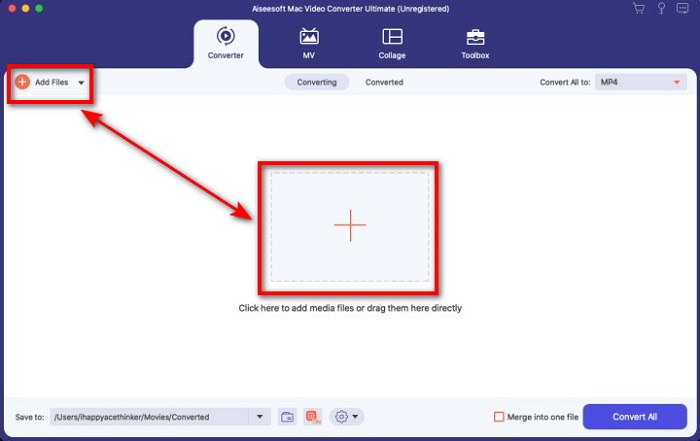
Step 2. Upload the M4V File on the interface by clicking the Add Files or the + button. After that, a computer folder will open on your screen, browse the .m4v File, and press Open.
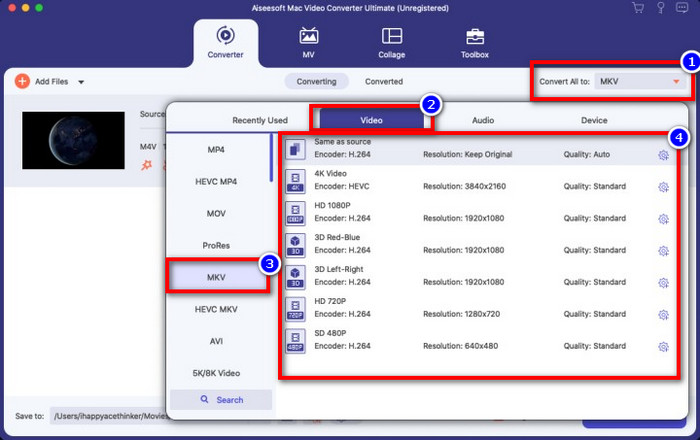
Step 3. Pick out the MKV format under the Convert All to and click it.
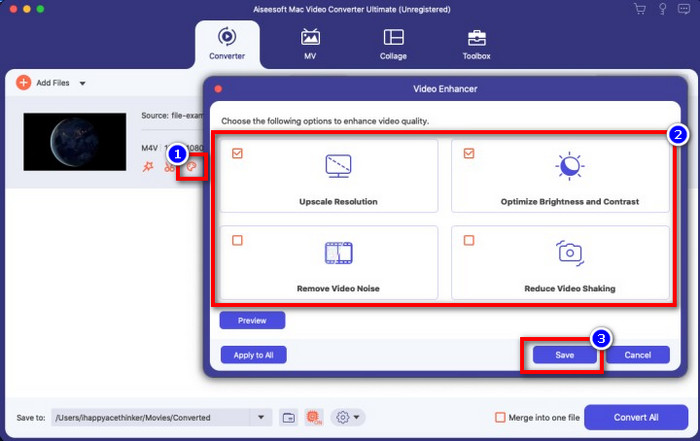
Optional. The effectiveness of this is, without a doubt doing great so far. But did you know that this tool also offers video enhancers? If you click the enhance video option, a dialog box will display; tick the box you want to improve on your video, and to apply it click Save.
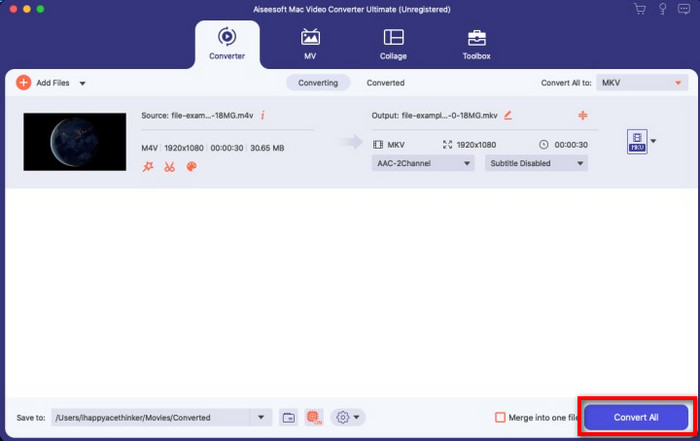
Step 4. By clicking the Convert All button, converting will begin within a short period. Here it is; with that, the file extension of your video is now .mkv.
Parte 2. Converter M4V para MKV Online
Doesn't want to pay to convert M4V files; instead, want to convert M4V to MKV online? If that is the case, FVC Free Video Converter Online is an online converter that guarantees your converting process efficiency even on the web. A converter can finish the job without purchasing the converter itself or even downloading it. Also, there are no ads or even registration needed to use this. Even though the converter is free, the features presented here only focus on converting. Unlike the ultimate tool, it provides wide-scale and amazing features. Furthermore, if you need to convert your M4V files online, use this converter and copy the steps below.
Step 1. Kindly click this link to open the FVC Free Video Converter Online.
Step 2. Press Add Files to Convert option to launch and upload the M4V File you need to convert.
Download the Desktop Version to convert files in batch.
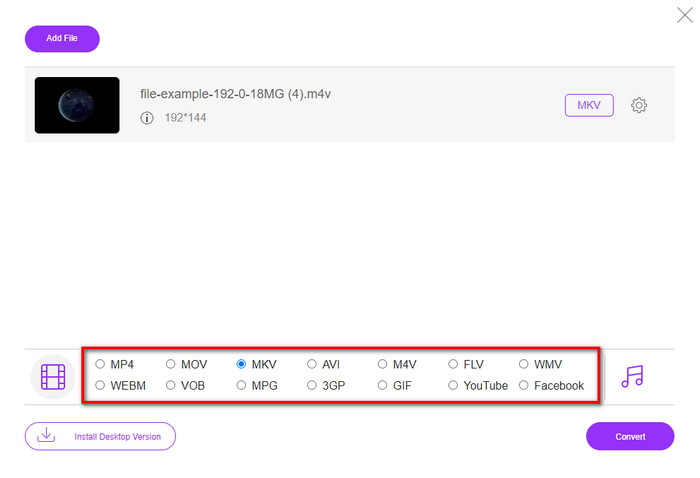
Step 3. Select the MKV format below or the other format you want to have.
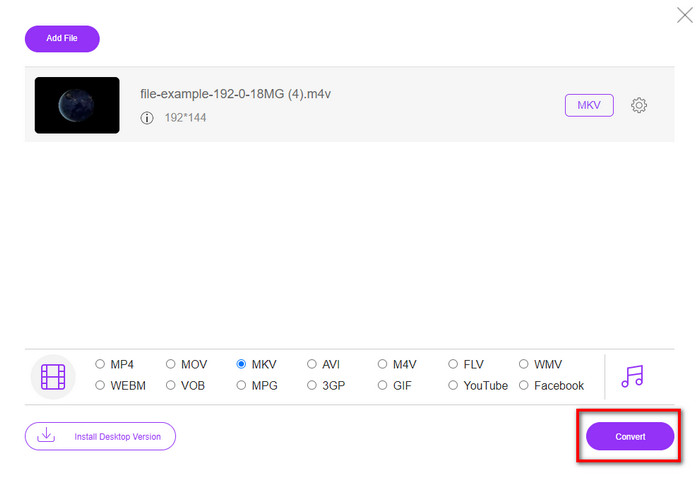
Step 4. Hit Convert for the process to begin.
Parte 3. Converta M4V para MKV gratuitamente
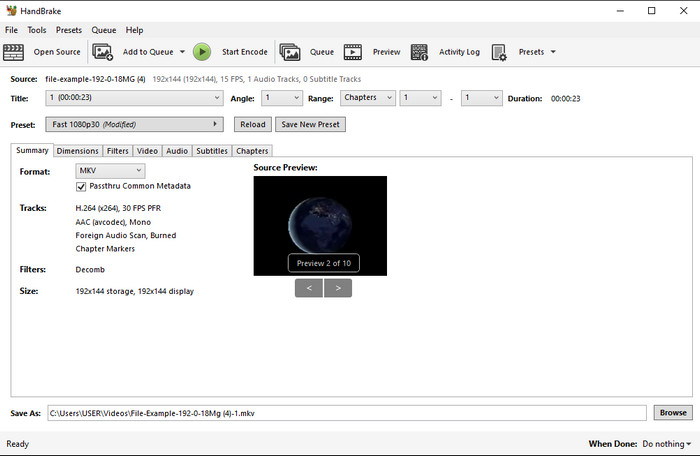
Handbrake provides a swift and efficient converting process like the other converter presented here. However, the format this tool supports is limited, which means you have no less choice option of choosing which format you want it to be. But if you want to use and convert M4V to MKV in Handbrake, apply the steps below.
Step 1. Download the Handbrake on your desktop. Upload the .m4v file by dragging and dropping it on the interface. You can also click File, locate the file on the computer folder, and press Open.
Step 2. Click Format and choose MKV.
Step 3. Click Start Encode for converting the process to begin.
Parte 4. Quais são as semelhanças e diferenças entre M4V e MKV
Antes de compararmos M4V e MKV, vamos descobrir as semelhanças entre esses dois formatos. M4V e MKV são contêineres para conteúdo e elementos de mídia. Além disso, esses dois formatos são conhecidos por armazenar uma das melhores qualidades de vídeo, como vídeos em HD ou 4k. E também são grandes para conter elementos como metadados. Além disso, os detalhes seguintes abaixo são a diferença entre os dois formatos.
M4V é muito semelhante ao formato MP4; no entanto, este formato está sob proteção contra cópia DRM, o que significa que você não pode usá-lo livremente. Mas nem todos os arquivos M4V têm proteção da Apple porque alguns dos arquivos M4V para download têm uma licença não autorizada, portanto, certifique-se de baixar o arquivo .m4v no iTunes para evitar o vírus malicioso que infectará seu sistema. Embora o formato tenha uma limitação, você ainda pode usar esse formato em vários players de mídia para assistir ao vídeo baixado no iTunes. Além disso, se você precisa de um design protegido no Mac, esse formato é a melhor escolha.
Pelo contrário, o MKV é específico para conter vários conteúdos e elementos de mídia em um arquivo. Esse recurso está disponível apenas em MKV, pois esse formato é gratuito e é mais flexível que o M4V. Além disso, existem muitas razões para alterar M4V para MKV no Mac ou Windows, e uma delas é tornar o arquivo de vídeo irrestrito.
M4V vs. MKV
O M4V é desenvolvido pela Apple, que também usa MPEG 4. Os arquivos M4V são frequentemente usados para armazenar os vídeos baixados da loja Apple iTunes, como videoclipes, episódios de TV, etc. Você pode encontrar alguns arquivos M4V protegidos contra cópia, pois usa Proteção de direitos autorais FairPlay DRM da Apple.
O formato de contêiner multimídia Matroska, lançado em 2002, é um formato de código aberto que pode incluir várias faixas de vídeo, áudio, imagem e legendas. Assim, você pode usá-lo para armazenar clipes de vídeo curtos, programas de TV e filmes facilmente. É bastante popular para legendas de fãs de anime.
Parte 5. Perguntas frequentes sobre a conversão de M4V para MKV
Qual é melhor para edição, M4V ou MOV?
The two said format is one of the Apple formats, so you will notice that there is no significant gap between M4V and MOV. However, MOV is much better at editing because this format often contains a series of video playback that is the best choice for professional editing. Maybe you think you should make your M4V into a MOV for editing purposes. If so, click this link to know more about converting M4V to MOV with a comprehensive understanding of it.
M4V e MP4 são iguais?
M4V e MP4 são muito idênticos no sentido de estrutura e qualidade de vídeo. Mas por causa da proteção Apple Plays, o M4V tem um pequeno escopo de suportes, e você não pode simplesmente reproduzir um vídeo ou editar na extensão .m4v.
Quais são os players de mídia que suportam M4V?
Not many media players support this type of format because of the DRM protection. So if you are looking for an MKV player, you will spend a lot of time and test it out, which consumes a lot of time. But if you read this article, you can download or use the top 5 MKV media players available on all platforms.
Conclusão
The three tools presented in this article will surely give you the effective conversion you want to have by following the steps. Although the converters have a lot in common, they still have a lot of differences as well. If you read the details we presented above, you will know many about the three tools. Suppose you want to have an excellent conversion in a one-go and still achieve the efficiency of the conversion, we would recommend the FVC Video Converter Ultimate. Sounds unbelievable? Indeed it is, so download it on your desktop to try it yourself.
-
 Conversor M4V para MP3 - 4 melhores métodos para extrair MP3 de arquivos M4V
 Quando você deseja extrair o áudio MP3 de vídeos M4V com facilidade, você pode aprender mais sobre os 4 melhores conversores de M4V para MP3 para obter os arquivos de áudio desejados do artigo.
-
 [Guia] Como converter vídeos M4V em GIFs animados no Windows / Mac
 Se você deseja fazer arquivos GIF animados de seus vídeos M4V favoritos, você pode aprender sobre 2 maneiras fáceis e eficientes de converter vídeos M4V em GIFs com configurações personalizadas.
-
 3 Programa de conversão de vídeo usado para converter iTunes M4V para AVI no Mac
 Não tem ideia de como converter MKV para formato AVI? À medida que continuarmos lendo este artigo, conheceremos as 3 ferramentas que podem ajudá-lo a converter esse formato de arquivo.

