


 Video Converter Ultimate
 Gravador de ecrã
 Reparo de vídeo
 Secure Download
Como adicionar facilmente uma marca d'água a um vídeo | 3 melhores métodos
Watermarks play an essential part in our published digital content, and they serve as an identity and a layer of protection against unauthorized use. So, if you’re a content creator who posts videos and you want your videos not to be used without your permission or credit, adding a watermark is a simple yet effective solution. Therefore, in this article, we’re going to help you add a watermark to a video in three different ways. So, if you’re now ready, let’s get into it.

Parte 1. Adicionar uma marca d'água ao vídeo | Solução definitiva
The ultimate solution to add a watermark to a video is by using the FVC Screen Video Converter Ultimate. With this tool, users can easily add a watermark to their videos using the Video Watermark tool. Yes, this video converter tool has a Toolbox that contains various tools that users can use whenever they need a solution for any audio and video problem they may encounter.
Principais características
• Suporta mais de 1000 formatos de entrada, atendendo a praticamente todos os tipos de vídeos.
• Permite aos usuários adicionar uma marca d'água de imagem a um vídeo.
• Permite aos usuários adicionar uma marca d'água de texto a um vídeo.
• Permite a personalização e edição básica da marca d'água adicionada.
• Suporta diversas opções de saída de vídeo.
Veja como adicionar uma marca d'água a um vídeo usando o FVC Video Converter Ultimate:
Step 1. First, you need to download and install the FVC Video Converter Ultimate on your computer. Please note that it is compatible with both Windows and macOS.
Free DownloadFor Windows 7 or laterSecure Download
Free DownloadFor MacOS 10.7 or laterSecure Download
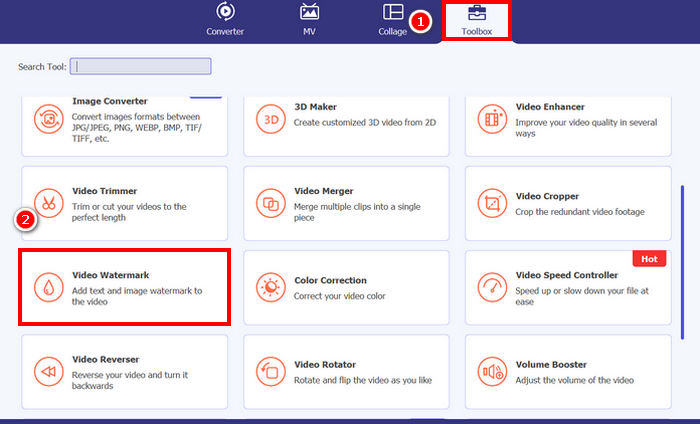
Step 2. Launch the tool, click on the Toolbox tab, and from there, select Video Watermark.
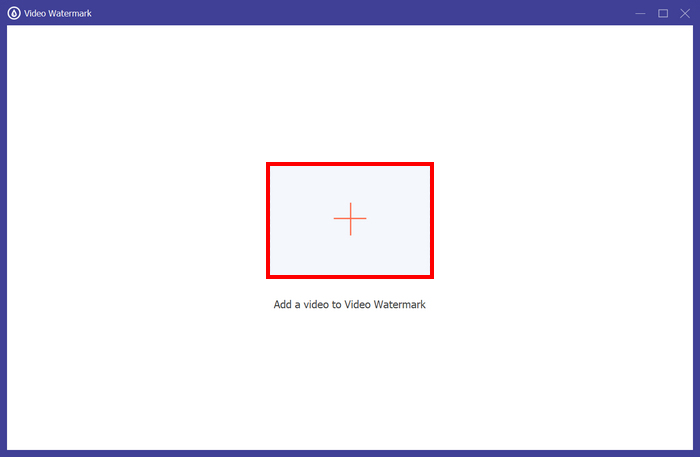
Step 3. After that, click on theAdd a Video to Video Watermark and select the video that you want to add an image watermark to.
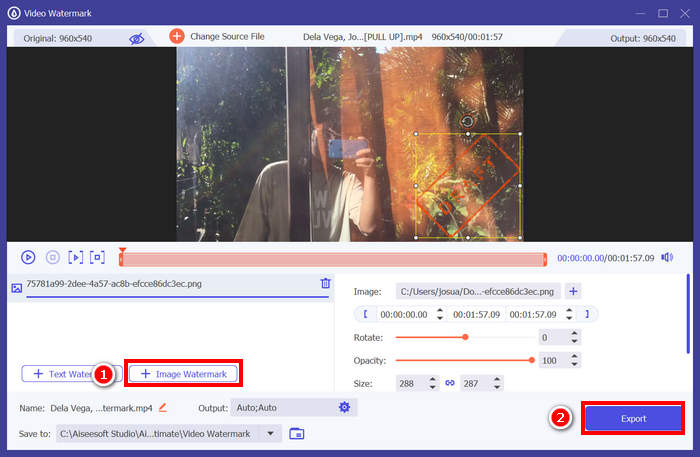
Step 4. Now, choose + Image Watermark to add the image that you want to use as a watermark for your video. From there, you can adjust it. Once done, click the Export button.
Com o FVC Video Converter Ultimate, você pode adicionar facilmente uma marca d'água a um vídeo, seja ela de texto ou de imagem. Além disso, ele oferece recursos básicos de edição, como ajustar a opacidade, o tamanho e até mesmo rotacionar a marca d'água. Por fim, a interface é muito simples e intuitiva, permitindo que até mesmo iniciantes aprendam a usá-lo facilmente.
Parte 2. Como adicionar uma marca d'água a um vídeo no Canva?
Canva is a popular editing tool, and for sure, you’ve heard about it. But did you know that this tool can be used to add a watermark to a video? Yes, with its user-friendly interface and powerful drag-and-drop features, Canva makes it easy to upload your logo or custom watermark and place it exactly where you want on your video. Below is the step-by-step guide on how you can add a watermark to a video using Canva:
Step 1. First, you need to have a Canva account. You can sign up or log in with your Google account.
Step 2. Next, open your Canva and click on Create a Design and select the Upload option to import the video file that you want to watermark.
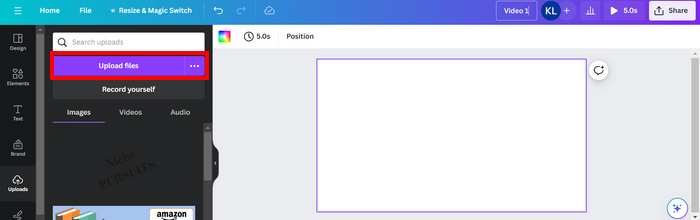
Step 3. Now, do the same with your watermark, upload it, and drag it to the video. Once in position, you can make the watermark larger or smaller and edit the color and its transparency.
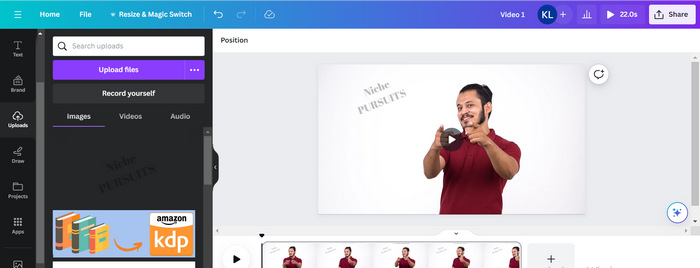
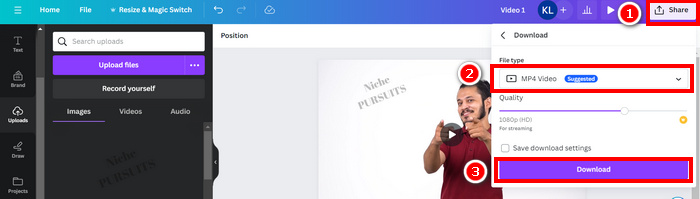
Step 4. Play your video to preview if the watermark is showing on the video. If everything is working well, click the Share button and download the file as an MP4 video file by clicking the Download button.
Note: In case your watermark image is too vibrant or dark for your video, you can adjust its transparency so it blends more naturally with the footage without overpowering the visuals or distracting viewers.
Parte 3. Adicione uma marca d'água de texto a um vídeo online [Grátis]
Se você prefere um método gratuito e online para adicionar uma marca d'água a um vídeo, o echowave.io pode ser uma ótima opção. Essa plataforma online oferece recursos intuitivos que permitem aos usuários criar, editar e visualizar conteúdo de áudio e vídeo. Além disso, com essa ferramenta, os usuários podem aproveitar o recurso de edição, onde é possível adicionar uma marca d'água de texto. Abaixo, segue um guia passo a passo sobre como adicionar uma marca d'água de texto a um vídeo online:
Step 1. First, on your Chrome, look for echowave.io.
Step 2. Next, once you’re on the interface of the tool, click the Create Watermarked Video.

Step 3. After that, click on the Upload Photo, Video, or Audio to upload the video that you want to watermark.

Step 4. Lastly, on the left panel of your screen, click on the Text to add and compose the text watermark that you are going to make. But first, you need to select what format you want to use. After that, type the text. Once done, you can adjust where you want to position your watermark, and when it’s all good. Click the Export button to save the file.
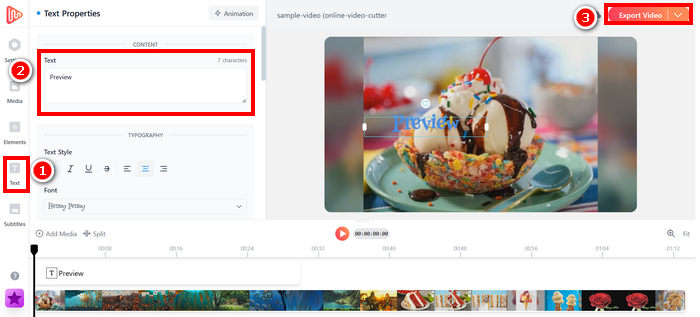
Embora adicionar uma marca d'água a um vídeo usando o echowave.io seja simples e fácil para iniciantes, a ferramenta às vezes pode apresentar lentidão, mesmo ao processar vídeos curtos ou arquivos pequenos.
Click here to read more about adding watermark to GIF if interested.
Parte 4. Perguntas frequentes sobre como adicionar uma marca d'água a um vídeo
É ilegal cobrir uma marca d'água?
Sim, é ilegal. As marcas d'água são frequentemente usadas como forma de proteção de direitos autorais, indicando a propriedade ou autoria do conteúdo. Ocultá-las ou removê-las intencionalmente pode violar as leis de direitos autorais e acarretar consequências legais, especialmente se o conteúdo alterado for redistribuído, reutilizado ou usado para fins comerciais.
Como adicionar uma marca d'água em um vídeo no DaVinci Resolve?
Para adicionar uma marca d'água no DaVinci Resolve, importe seu vídeo e a imagem ou texto da marca d'água. Posicione o vídeo na linha do tempo e arraste a marca d'água para cima dele, em uma faixa separada. Use o painel Inspector para redimensionar, mover e ajustar a opacidade. Quando tudo estiver correto, exporte o vídeo com a marca d'água incluída.
Como adiciono uma marca d'água a um vídeo no Lightroom?
Para adicionar uma marca d'água a um vídeo no Lightroom, comece abrindo o Lightroom e selecionando a imagem que deseja marcar. Em seguida, clique na aba Lightroom na parte superior da tela e escolha Editar Marcas d'água no menu suspenso. Na janela Editor de Marca d'água que aparece, digite o texto desejado para a marca d'água na caixa localizada abaixo da imagem de pré-visualização. A partir daí, você também pode personalizar o estilo, a fonte, o tamanho e o posicionamento da sua marca d'água.
Conclusão
Adding a watermark to a video is really a thing, and learning how to do it is essential for protecting your content and showing ownership. While there are many tools available, FVC Video Converter Ultimate offers a simple and efficient way to add a watermark in a video. It’s, indeed, a practical choice for beginners who want a quick solution, but exploring other tools like Canva or online editors can also be helpful depending on your needs.
-
 5 maneiras de remover uma marca d'água de um vídeo de maneira profissional
 Precisa remover uma marca d'água de um vídeo para torná-lo profissional? Bem, leia este artigo enquanto adicionamos um tutorial sobre como fazer isso!
-
 2 ótimos aplicativos que você pode usar para remover marca d'água de vídeos MP4
 Este artigo oferece maneiras simples e fáceis de remover a marca d'água dos vídeos MP4 usando seus dispositivos como Windows e Mac
-
 Remova a marca d'água Animotica em vídeos exportados com 3 maneiras comprovadas
 Você já se perguntou se é possível remover a marca d'água do Animotica nos vídeos que você exportou? Este artigo fornece um como fazer.
