


 Video Converter Ultimate
 Gravador de ecrã
 Reparo de vídeo
3 maneiras fáceis de avançar um vídeo no seu iPhone
Quer acelerar a reprodução de vídeo no iPhone gratuitamente, mas não sabe como?
After recording, while the basic editing, you often need to change the video playing speed. When it comes to speeding up a video on iPhone, you can rely on the built-in editing features in the Photos app, official video editor, iMovie, or some third-party video speed changer tools. This post will share 3 effective methods to fast forward a video on iPhone.

Parte 1. Como avançar um vídeo em câmera lenta no iPhone com o aplicativo Fotos
O iOS vem com alguns recursos básicos de edição para usuários de iPhone e iPad editarem diretamente um vídeo ou uma foto. Quando você deseja avançar um vídeo em câmera lenta em seu dispositivo iOS, pode usar o editor integrado no aplicativo Fotos para alterar facilmente a velocidade de reprodução do vídeo. Observe que esse método funciona apenas para alterar a velocidade do vídeo de câmera lenta para uma velocidade normal.
Step 1. Open the Photos app on your iPhone, tap Albums on the bottom screen, scroll down to the Media Types option, and then choose the Slo-mo. Here you can find the slo-mo video that you want to fast forward.
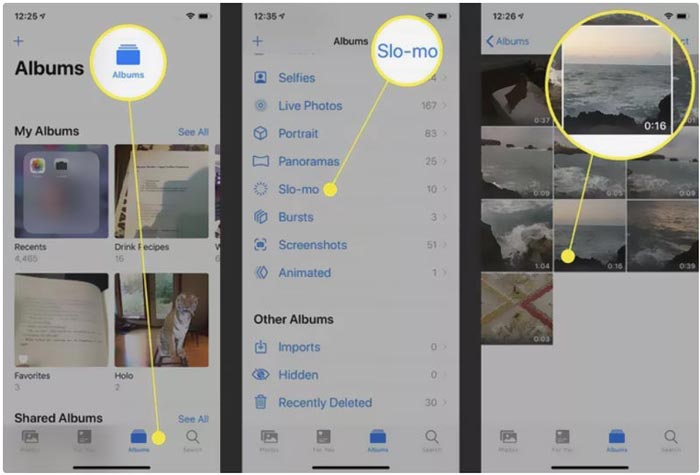
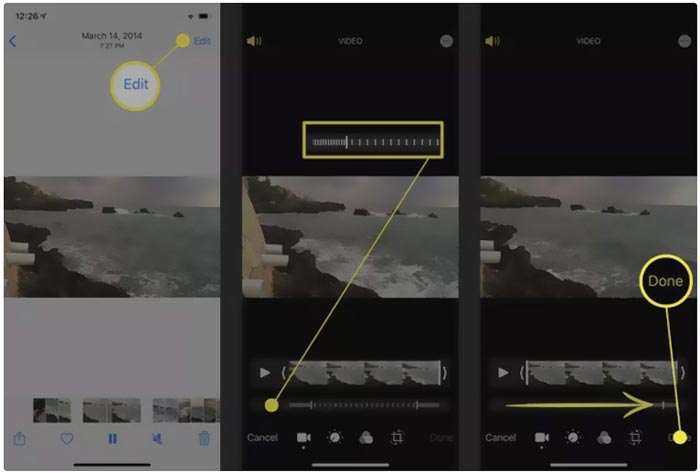
Step 2. Open the slo-mo video, and tap the Edit in the top-right corner to display more editing options.
Step 3. A set of vertical lines will appear under the slow motion video. Now you can tap on the lines and freely fast forward the video speed. After that, you can tap Done to confirm your operation and save the change.
Parte 2. Como avançar um vídeo no iPhone e iPad usando o iMovie
iMovie is the official video editor for iOS and macOS devices like iPhone, iPad, and Mac. It is equipped with many commonly-used editing features. You can easily fast forward or slow down a video on iPhone using iMovie.
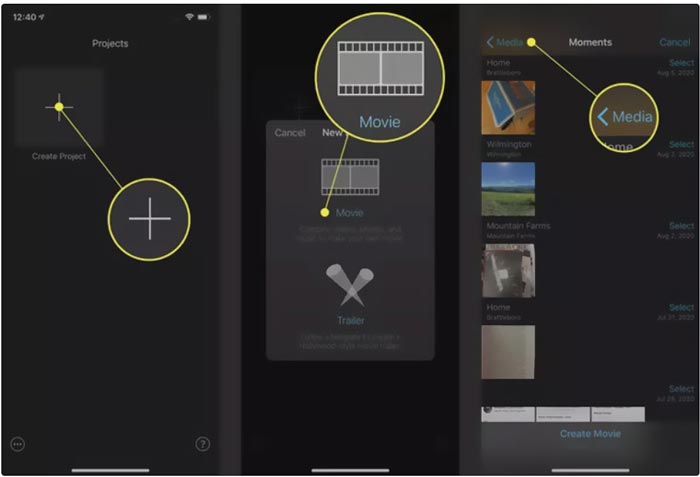
Step 1. To fast forward a video on your iPhone using iMovie, you should free install the app from App Store and then create a new project for the video speed changing. Select and load the video you want to speed up to the created project.
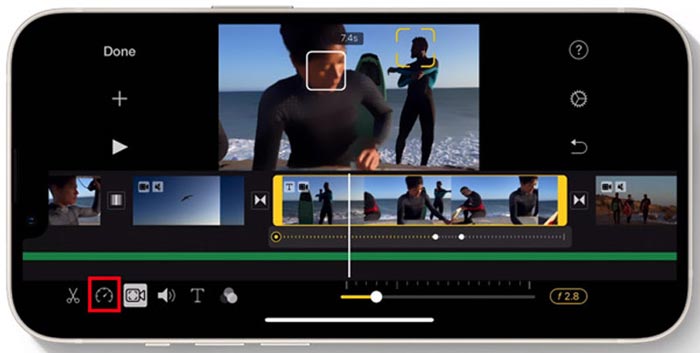
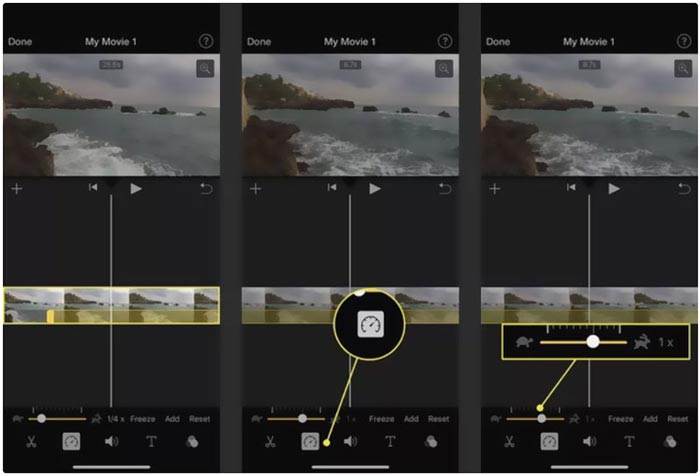
Step 2. Highlight the video clip on the timeline to reveal editing options at the bottom of the iPhone screen. You can tap on the second clock icon to access the playback speed controls. Now you can easily increase the video playback speed by dragging the bar to the right.
Parte 3. Como avançar um vídeo gravado pelo iPhone
For these videos captured by your iPhone, you can choose to edit them on your computer and handily change the playing speed. Here we introduce you to the all-featured video editing and converting software, Video Converter Ultimate to change the video speed.

FVC Video Converter Ultimate
Mais de 5.689.200 downloads- Ofereça a ferramenta Video Speed Controller para avançar rapidamente ou em câmera lenta de um vídeo.
- Suporta todos os formatos de vídeo populares, incluindo MP4, MOV, AVI, FLV e MKV.
- 10 opções de mudança de velocidade de reprodução de vídeo para acelerar ou desacelerar um vídeo.
- Várias funções de edição para editar vídeo, efeitos de imagem/som personalizados e melhorar a qualidade.
Free DownloadFor Windows 7 or laterSecure Download
Free DownloadFor MacOS 10.7 or laterSecure Download
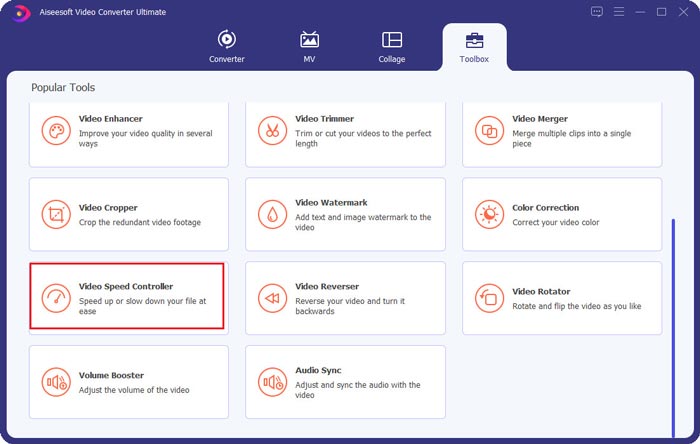
Step 1. Download and open this Video Converter Ultimate on your Windows 11/10/8/7 PC or Mac. Click on the Toolbox to access more tools. Locate and open the Video Speed Controller to fast forward a video.
Step 2. Add your video by clicking the big plus icon. After that, you have 10 options to fast forward or slow motion the video speed. With the built-in media player, you can directly view the speed changing. You can speed up a video to 1.25X, 1.5X, 2X, 4X, or 8X speed based on your need.
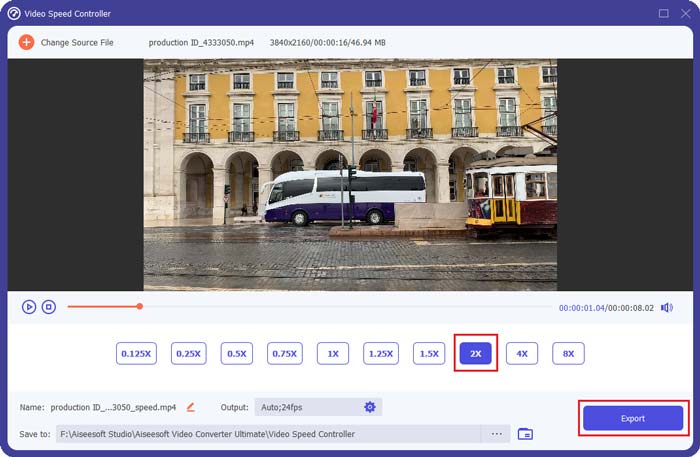
Step 3. When you are satisfied with the video playback speed, you can simply click on the Export button to save the edited video on your computer.
Related:
2 Effortless Ways on How to Speed up a Video on TikTok
6 Trendy Video Speed Controllers to Speed up or Slow-down Videos
Parte 4. Perguntas frequentes sobre como alterar a velocidade de reprodução de vídeo no iPhone
Como avançar um vídeo no iPhone online?
Quando você precisa acelerar um vídeo no seu iPhone, você pode usar alguns modificadores de velocidade de vídeo online como Clideo, Kapwing, Media.io e muito mais para fazer o trabalho facilmente.
Posso avançar um vídeo no aplicativo TikTok?
Sim. Você pode abrir o aplicativo TikTok, tocar e segurar o vídeo que deseja acelerar até ver mais menus aparecerem na tela inferior. Agora você precisa rolar esses menus da direita para a esquerda para encontrar a opção Velocidade. Escolha e use-o para avançar rapidamente o vídeo do TikTok.
Posso avançar um vídeo no meu iPhone mais de 2X?
O iMovie só permite acelerar a velocidade do vídeo para 2X. Quando você deseja avançar uma velocidade de reprodução de vídeo mais de 2X em um iPhone, você precisa confiar em alguns aplicativos de terceiros. Além disso, você pode optar por copiar o vídeo do iPhone para um computador e, em seguida, confiar no Controlador de velocidade de vídeo recomendado para ajustar a velocidade do vídeo.
Conclusão
This post covers how to fast forward a video speed on iPhone using the Photos app, iMovie, and third-party video speed changer. You can select your preferred method to speed up or slow down the video playback speed.
-
 Os 8 principais conversores de resolução de vídeo para uso em multiplataformas [atualizado em 2022]
 Você não tem idéia do melhor conversor de resolução de vídeo no seu dispositivo? Em caso afirmativo, você pode ler este artigo na íntegra para saber mais sobre os conversores de vídeo disponíveis.
-
 As 3 principais maneiras de adicionar filtros em GIF com os melhores editores de GIF [Favoritos]
 Você quer saber como adicionar um filtro ao GIF para torná-lo melhor? Neste blog, você aprenderá facilmente as diferentes técnicas para adicionar filtros aos seus GIFs.
-
 Os 6 principais aplicativos de filtro de vídeo que você pode baixar no Android e iPhone [2022]
 Você quer ter os melhores aplicativos móveis de filtro de vídeo? Bem, nós lhe daremos o que você quer. Este artigo apresentará uma revisão dos 6 aplicativos de filtro mais recentes que você pode baixar.
