


 Video Converter Ultimate
 Gravador de ecrã
 Reparo de vídeo
3 maneiras de adicionar plano de fundo à foto online, no iPhone, Android e computador
While editing a picture, you often need to remove the original background and add a different one to it. For the picture with a transparent background, you can easily change the background using an image editor. While in most cases, you have to remove the current background first, and then add a new one to the photo. Are you looking for a good image editor app to add background to a photo?
Este post mostra 3 métodos eficazes para adicionar um plano de fundo a uma foto. Se você deseja adicionar um plano de fundo branco a uma foto diretamente online, adicionar um plano de fundo a uma foto em um iPhone ou alterar o plano de fundo da imagem em um dispositivo Android, siga o método específico para fazer isso.

Parte 1. Como adicionar gratuitamente um plano de fundo a uma foto online
To quickly add a background to a photo, you can try some online image editors first. Here we strongly recommend the easy-to-use Free Background Remover Online for you to remove the original background of your picture and add a different background to it. This free image background changing tool supports all frequently-used image formats like JPG, PNG, GIF, and more. It gives you a simple way to add white background to a photo or replace the current background with a different picture.
Step 1. Open your web browser like Chrome, Safari, Yahoo, IE, or Firefox, and go to this free photo background changer site. When you get to the page, you can simply click on the Upload Portrait button to select and add your photo for later editing.

Step 2. With advanced AI technology, it will automatically select the main object of your uploaded picture. Then you can use the Keep or Erase feature to do further editing.
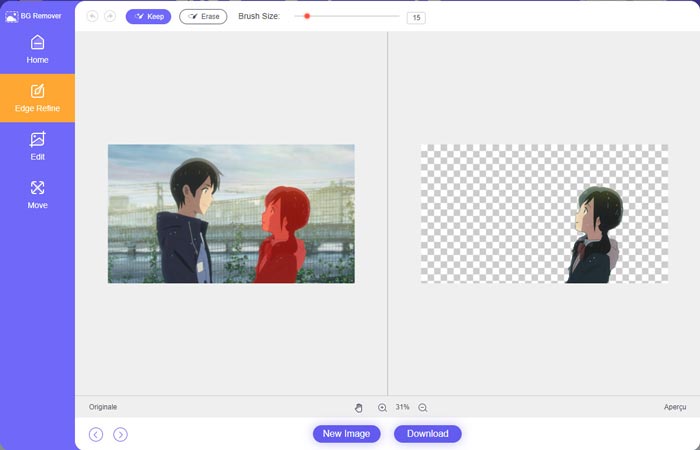
Step 3. Click the Edit option on the left, and then you can choose to change the background color, or add a background to the photo. During this step, you can also rely on its Crop feature to customize the image size according to your need.
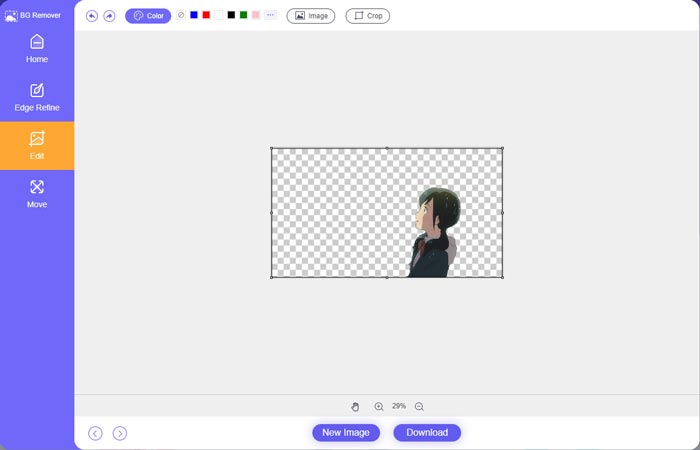
Step 4. After you add a suitable background to the photo, you can click on the Download button to save it on your computer. Your edited image file will be saved in PNG format by default.
Parte 2. Como adicionar um plano de fundo a uma foto usando o Adobe Photoshop
O Adobe Photoshop é um dos editores de imagens mais famosos que traz muitos recursos para você editar imagens, efeitos personalizados e fazer outras operações. Se você tiver o Photoshop instalado em seu computador, poderá optar por adicionar plano de fundo à foto no Photoshop.
Step 1. Open the Photoshop software on your computer and add your photo to it. You can freely download the latest Photoshop version from the official Adobe website. Note that Adobe only offers a 7-day free trial for you to use Photoshop.
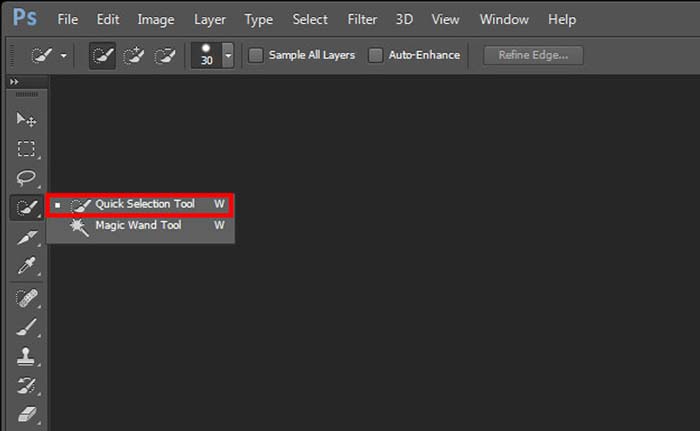
Step 2. When your photo is loaded to Photoshop, you can click on the icon of Quick Selection Tool or Magic Wand Tool on the left toolbox to select the background you want to change.
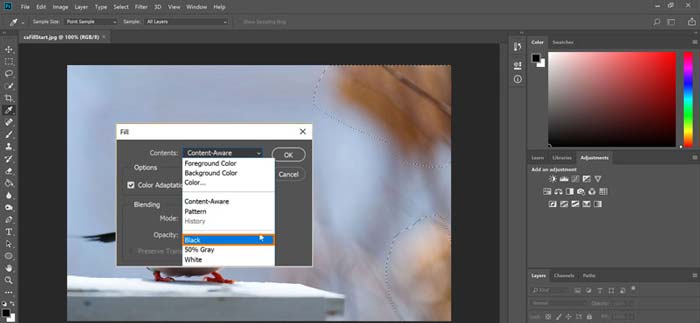
Step 3. After selecting the photo background, you can right-click on it and choose the Fill option. Now you can simply add white background to the photo or change the background to another color like black, blue, gray, or another color you need.
Step 4. If you want to add a new picture as the background, you should remove the selected background first. You can press the Delete key on your keyboard to get rid of the current background. Then you can add the image file to Photoshop and drag its layer under the background layer. By doing so, you can easily replace the original background with a new picture.
Step 5. After you add a background to a photo in Photoshop, you can click on the top File menu and then choose the Save As option from the drop-down list. Select the right image format for this photo and save it on your computer.
Parte 3. Como adicionar um plano de fundo a uma foto no iPhone e no telefone Android
Quando você deseja adicionar plano de fundo a uma foto em um telefone iPhone, iPad ou Android, precisa encontrar um bom aplicativo de edição de plano de fundo de imagem.
LightX is an all-featured photo editor app for both iOS and Android users. It offers a convenient way to remove unwanted background, add new background to photo, add different effects, create high-quality selfies, and more directly on your phone. Many advanced image editing tools are designed in LightX app, such as color mixing, customized photo saturation, contrast, hue, curves, and more. You can download it from the App Store or Google Play Store.
Step 1. Install and open the LightX app on your iPhone, iPad, or Android phone. Give this app the authority to access the photos on your device. Add your photo to it for further background editing.
Step 2. To remove the current photo background and change it to something else, you can swipe left to arise many different options. Under the Creative, you can choose the Cutout feature to add background to the photo. Now you need to manually select the main object and erase the original background.
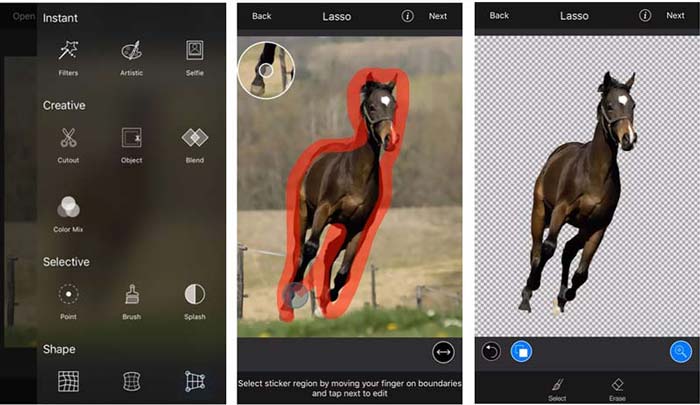
Step 3. After removing the background, you can tap Next in the top-right corner to move on. Then you can use its Crop feature to resize the picture. Tap Done to confirm your operation. After that, you can tap the BG Image on the bottom screen to add a different background to the photo. You can freely adjust the effects of the new background according to your need.
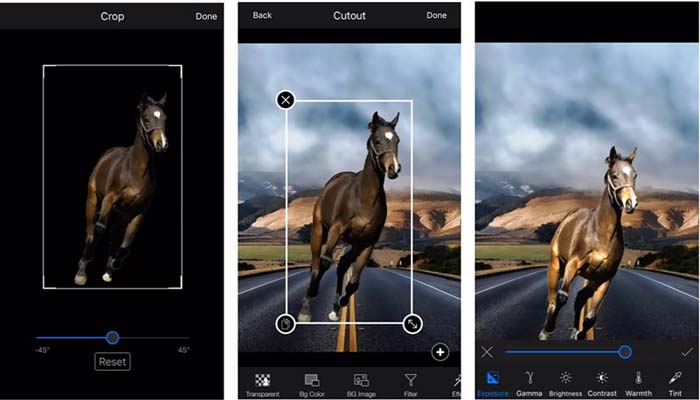
Esteja você usando um dispositivo iOS ou Android, siga etapas semelhantes para adicionar um plano de fundo a uma foto usando o aplicativo LightX. Observe que, como usuário do iOS, você precisa pagar $3.99 por este aplicativo de adição de plano de fundo. Se você for um usuário do Android, poderá instalá-lo na Google Play Store. Para atualizar para uma versão premium, você precisa pagar o mesmo preço.
Related:
What Is Video Resolution: In-Depth Insight of Resolution & More
6 Favorite Choice Snapchat Animated Snapchat Filters on Snapchat
Parte 4. Perguntas frequentes sobre como adicionar um plano de fundo a uma foto
Como adicionar um plano de fundo diferente a uma foto no meu Mac?
You can use the first 2 methods to simply change your photo background on a Mac. Besides the recommended Free Background Remover Online and Adobe Photoshop, you can also rely on some other image editors to add a new background to your photo.
Como mudar o papel de parede em um iPhone?
O iOS oferece uma maneira simples de alterar o papel de parede em um iPhone ou iPad. Você pode acessar o aplicativo Configurações, tocar na opção Papel de parede e, em seguida, tocar em Escolher um novo papel de parede.
Posso adicionar um plano de fundo a uma foto ao vivo no meu iPhone?
Não. O iPhone não oferece uma maneira direta de alterar o plano de fundo de uma foto ao vivo. Você só tem permissão para cortá-la, aplicar filtros, ajustar efeitos e alterá-la para uma imagem estática.
Conclusão
Esta postagem compartilha 3 métodos úteis para adicionar plano de fundo a uma foto. Quando você precisar remover o fundo da foto original e adicionar um novo a ele, poderá selecionar seu editor de imagens preferido para fazer isso.
-
 As 3 principais maneiras de adicionar filtros em GIF com os melhores editores de GIF [Favoritos]
 Você quer saber como adicionar um filtro ao GIF para torná-lo melhor? Neste blog, você aprenderá facilmente as diferentes técnicas para adicionar filtros aos seus GIFs.
-
 3 maneiras mais fáceis de adicionar marca d'água a um GIF online e offline
 Adicionar uma marca d'água a um GIF pode ser tão fácil quanto 1-2-3 se você usar corretamente a ferramenta certa. As ferramentas no mercado são muito amplas, mas apresentaremos as três ferramentas nas quais você pode confiar.
-
 5 melhores maneiras de alterar a imagem para GIF animado [atualizado em 2022]
 Precisa de um conversor de imagem para GIF? Este artigo fornecerá os cinco melhores conversores que podemos encontrar no mercado. Então, vamos descobrir essas ferramentas lendo este artigo.
