


 Video Converter Ultimate
 Gravador de ecrã
 Reparo de vídeo
Aprenda a editar tags iD3 no iTunes [maneira mais rápida e fácil]
iTunes is multi-purpose software that you can use as a media player, media library, manage utility, client app for Apple devices. Initially, the software will only focus on a collection of purchasable kinds of music. However, the demand for other features expanded, so the software did a massive upgrade on its system. Like that, the tool can now do other things as mentioned above. So, if you want to know how to edit iD3 tags on iTunes, this is the right post for you; keep on reading to learn more about it.

Parte 1. Maneiras eficazes de editar tags ID3 no iTunes usando 3 métodos diferentes
Você pode usar três métodos diferentes para editar metadados do iTunes no Mac se não souber como editar os metadados usando o iTunes. Você pode conferir os passos abaixo e escolher qual método deseja usar; garantimos que você terá os metadados atualizados usando o iTunes para nenhum dos três que você escolher.
Método 1. Use o Edit no iTunes
Step 1. Open the iTunes app on your Mac.
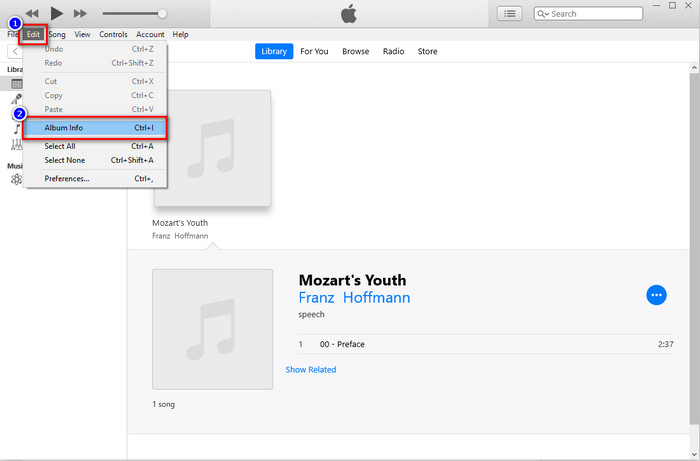
Step 2. Click the media file once, click Edit, and click the Album Info under it.
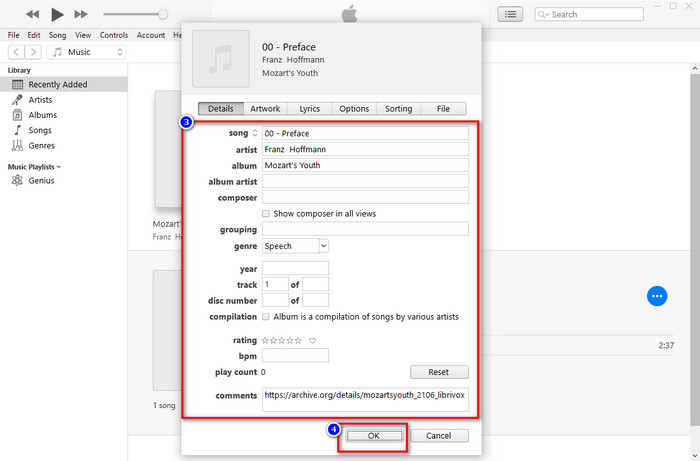
Step 3. A new panel will show where you can change the tags on the files on your screen. If you've edited the information, you can now click OK to save the changes you've made.
Método 2. Use o botão direito do mouse no iTunes
Step 1. Launch iTunes and find the media file.
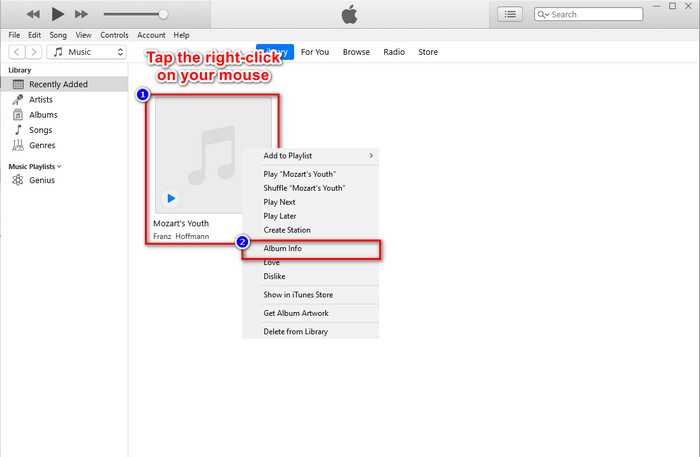
Step 2. Instead of going to Edit, you can press the right-click of your mouse and click the Album Info.
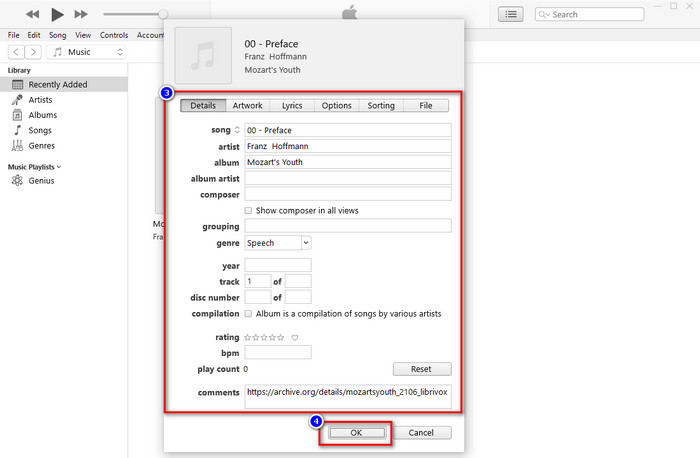
Step 3. Change the metadata on the panel by filling the textbox to update metadata on iTunes, and if you are done, you can now click OK to save.
Método 3. Use os três pontos no iTunes
Step 1. Look for iTunes on the Finder, and click it to open.
Step 2. Once you've launched the software, click the file once. A three-dots will show on your screen, click it, and select Album Info.
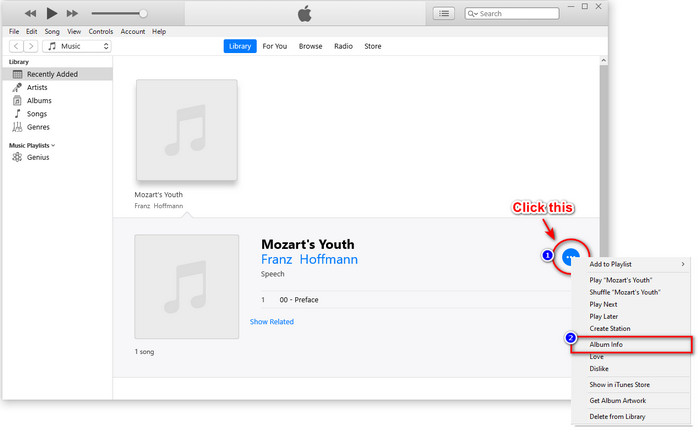
Step 3. A panel will show onto your screen to fill the critical data you need as your iD3 tag, then press OK if you want to save the changes.
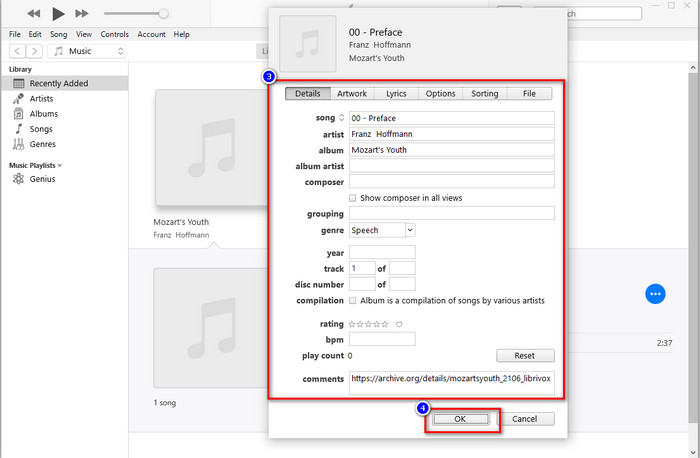
Se você perceber, não há uma mudança significativa nos métodos, mas ainda incluímos todos eles para você escolher. Embora o iTunes esteja disponível no Mac, a versão de atualização do Mac não suporta mais o iTunes; então o que você deve usar? Felizmente, incluímos software que você pode usar em vez de corrigir metadados do iTunes no Mac. Para saber mais sobre essa alternativa de software, você pode continuar lendo a parte 2 abaixo e aprender como usá-la.
Parte 2. Alternativa definitiva para editar metadados MP3 no Mac sem o iTunes facilmente [recomendado]
Nativamente, o iTunes é ultrapassado por três recursos distintos na Apple: música, podcast e shows ou filmes. Então agora, na versão moderna do Mac, você não pode usar o iTunes porque eles o substituíram. Então, o que você deve fazer para editar metadados MP3 no Mac sem o iTunes? Ainda é possível? Bem, com a ajuda da ferramenta final, tudo é possível.
FVC Video Converter Ultimate is the best alternative you can use to change the metadata on your Mac or Windows. With this tool, you can easily upload your MOV, M4V, WMV, FLV, RMVB, MP4, and 1000+ more formats. Even if you have the most uncommon format, this tool supports that format of yours. Another fantastic thing this tool offers that you can't have on iTunes is all on the Toolbox related to videos. If you want to use this wonderful tool on your Mac to change your metadata, you can read the tutorial below and follow it accordingly.
Step 1. Kindly click the download button below and choose the Mac, but you must click the appropriate button if you are a Windows user. After that, install and follow the process quickly, then open now the tool.
Free DownloadFor Windows 7 or laterSecure Download
Free DownloadFor MacOS 10.7 or laterSecure Download
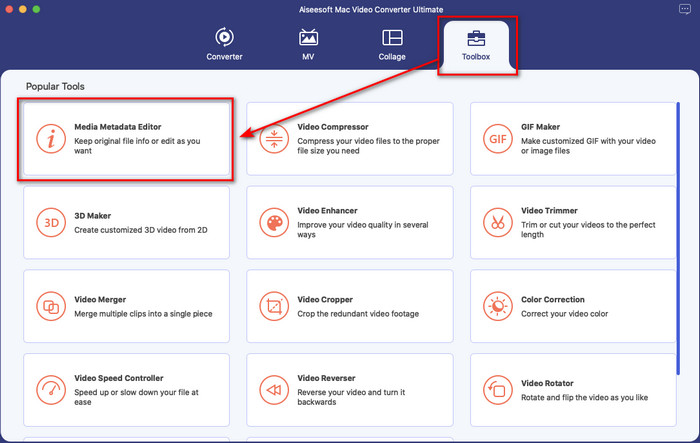
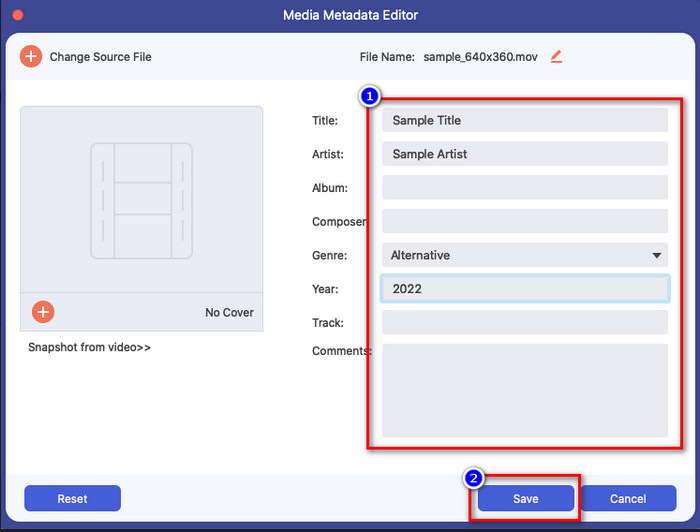
Step 2. Open the Toolbox of the ultimate tool and locate the Media Metadata Editor there.
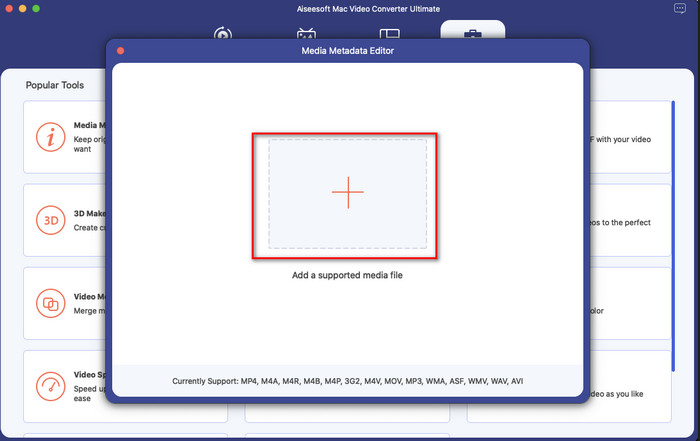
Step 3. Click the + button then a file folder will show on your Mac screen; select the media file, click it, and hit Open to proceed.
Step 4. Fill the metadata of each textbox accordingly, then hit Save to apply all of the metadata you've added using the ultimate software. Easy isn't it? Thanks to the ultimate tool, you can use this freely at a low cost instead of the iTunes music metadata editor.
Prós
- Ele oferece a você o upload de qualquer arquivo de mídia que você tenha facilmente.
- Um dos melhores editores de metadados de 2022, de acordo com as avaliações.
- É capaz de fazer edição de vídeo e áudio, bem como converter.
- Está disponível em todos os sistemas operacionais, como Windows 10/11 ou macOS.
Contras
- Não é embutido, então você precisará baixar a ferramenta.
- A compra é essencial para liberar todo o potencial do software.
Parte 3. Perguntas frequentes sobre como editar tags iD3 no iTunes
Por que não consigo encontrar o iTunes no meu Mac?
Se a versão do seu Mac for 10.14 ou superior, o iTunes não estará disponível porque o aplicativo integrado é separado em três ferramentas diferentes: programas ou filmes, música e podcast. No entanto, você ainda pode usar o iTunes na versão 10.13 ou inferior do Mac.
O iTunes oferece suporte ao sistema operacional Windows na alteração de metadados?
Felizmente, você pode baixar o iTunes no sistema operacional Windows se quiser na sua área de trabalho. Portanto, se você for usar os metadados de alteração do iTunes no Windows, siga as mesmas etapas acima. Mesmo que as imagens sejam ferramentas no Mac, ainda é possível copiar as etapas acima para alterar facilmente os metadados em seu arquivo de mídia.
Meus arquivos no iTunes são removidos?
O nome da marca foi alterado, mas o arquivo que você tem no iTunes está no aplicativo Apple Music. Além disso, o cartão-presente do iTunes ainda pode ser usado para comprar algumas músicas na nova loja de música. Embora músicas, podcasts e filmes sejam divididos, sua função ainda é a mesma, mas sua GUI é muito melhor agora do que o iTunes anterior.
Quando é o primeiro lançamento do iTunes?
Era 9 de janeiro de 2001; A Apple abriu o melhor reprodutor multimídia que contém diferentes arquivos de mídia, como música, vídeo e podcasts.
Conclusão
Now that we know how to edit id3 tags on iTunes, it is time to do it by following the steps above. If you are not satisfied using iTunes or can't find it, we suggest you use the best alternative that you can find, which is the FVC Video Converter Ultimate. With this tool, you can easily add or remove the metadata on any video or audio protected by DRM on Apple. So, if you want to know it better, you must download it now and try it yourself.
-
 Revisão completa dos metadados do FFmpeg sobre uso e funcionalidade
 Quer saber como usar o editor de metadados FFmpeg? Certamente, o software não é fácil de usar, mas com este artigo, você pode realizá-lo com facilidade.
-
 Como visualizar facilmente metadados de fotos e vídeos no iOS
 Quer saber como ver metadados no iPhone e iPad? Então, ler este artigo pode ajudá-lo a resolver esse problema sem esforço.
-
 4 Editores de metadados de audiolivros sugeridos em 2022
 Se você não tem nenhuma ideia sobre o editor de tags de Audiobook, este artigo o ajudará. Conheça melhor lendo cada detalhe abaixo e as ferramentas a serem usadas.
