


 Video Converter Ultimate
 Gravador de ecrã
 Reparo de vídeo
 Secure Download
Maneiras fáceis de acelerar seu vídeo no Sony Vegas
Sony Vegas is a full-packed tool that you can use for professional editing. This tool allows you to do many things to your video output. But not just that, Sony Vegas can also speed up or slow down your video to have a perfectly transitioned video output to share with your friends. So, if you are wondering how to speed up the video in sony vegas, read this article until the end.

Parte 1. Sony Vegas - A melhor ferramenta de edição para você
If you are looking for the best editing software with many tools, this tool is the answer. Sony Vegas is editing software that is widely known on the internet. This editing software is best used for TV shows, movies, and music videos. In addition to that, it has many advanced features to use, like adding subtitles, adding filters and effects, and optimizing images. Also, it offers multi-cam editing, image stabilization, and masking.
E se você tiver um vídeo com resoluções 4k, 8k e HD, essa ferramenta pode funcionar com isso. Embora essa ferramenta tenha uma interface de software difícil de usar, ela se torna intuitiva quando você a entende. Além disso, se você está procurando uma ferramenta que possa acelerar seu vídeo, essa ferramenta é a melhor para você. Se você quiser saber mais sobre essa ferramenta, leia os recursos abaixo.
Features:
- Possui recursos avançados de edição, como adicionar legendas, adicionar filtros e efeitos ao seu vídeo.
- Pode suportar vídeos em HD, 4k e 8k.
- Suporta um plug-in Open FX.
- Possui excelentes efeitos de áudio e vídeo.
- Disponível em quase todas as plataformas de mídia, incluindo Windows e Mac.
Parte 2. 3 opções sobre como acelerar o vídeo no Sony Vegas
Como mencionado acima, o Sony Vegas também pode acelerar ou desacelerar seu vídeo. Existem três maneiras fáceis de acelerar seu vídeo usando o Sony Vegas. Portanto, leia esta parte de forma abrangente para saber como acelerar seu vídeo no Sony Vegas.
Opção 1. Use a taxa de quadros de reprodução
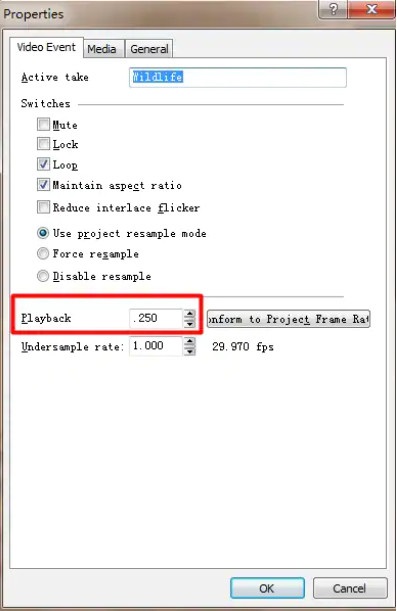
The first option that you can use is to set the playback frame rate of your video. First, you need to open Vegas Pro on your computer and then go to Properties. On the properties, you will see the Playback option. Adjust the playback frame rate of your video by clicking the up and down button. Then click OK to apply.
Opção 2. Ajuste a velocidade
Se você está se perguntando o que é velocidade, velocidade é a taxa e a direção de um objeto. Este método irá ajudá-lo a saber como ajustar a velocidade do seu vídeo usando o Sony Vegas.
Right-click the video that you want to speed up, and then, on the drop-down menu, click Insert/Remove Envelop. And then select Velocity.
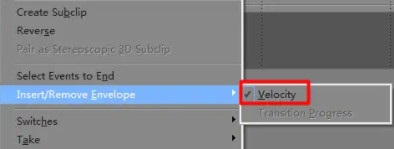
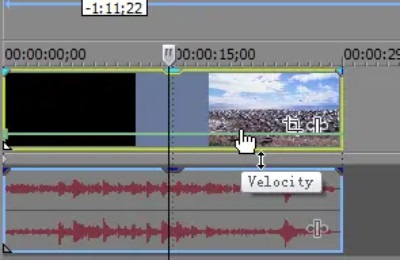
E então, arraste o envelope na velocidade desejada. Quando você arrasta o envelope para cima, a velocidade fica mais rápida e seu vídeo fica mais lento quando você arrasta o envelope para baixo.
Opção 3. Trim Alongamento
Este é o mais fácil de fazer sobre as três opções. Pressione a tecla Ctrl e arraste qualquer extremidade do seu vídeo; será mais lento quando você esticar seu vídeo. Mas quando você compacta seu vídeo, sua velocidade se torna mais rápida.
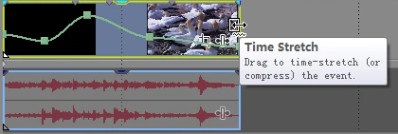
Para verificar se as alterações foram aplicadas, acesse as propriedades e verifique a taxa de reprodução do seu vídeo.
Parte 3. 2 Maneiras mais fáceis de acelerar seu vídeo
Embora o Sony Vegas tenha muitos recursos avançados de edição para usar, e muitos editores profissionais o usem, as pessoas estão tendo dificuldade em entender a interface da ferramenta. Portanto, procuramos uma ferramenta popular de troca de velocidade de vídeo na Internet com uma interface de software fácil de usar. Aqui estão as três ferramentas mais convenientes de usar para acelerar seu vídeo.
FVC Video Converter Ultimate
FVC Video Converter Ultimate is the best software application for changing the speed of your video. This software application is an offline tool with many features like video watermark remover, video reverser, audio sync, etc. It supports many file formats found on the internet, including MP4, AVI, WMV, MOV, FLV, and 1000+ more formats.
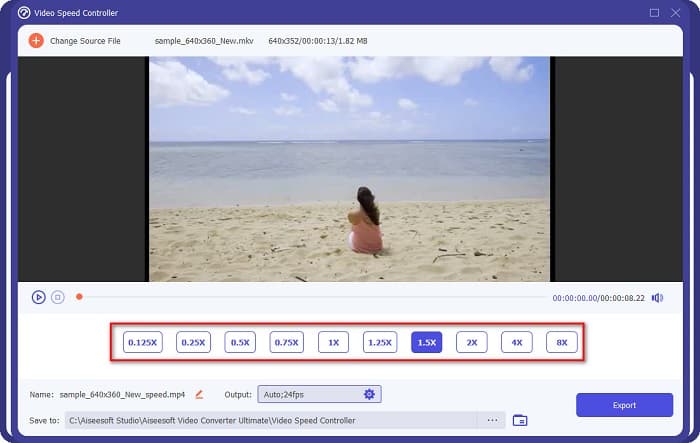
Além disso, possui uma interface de usuário simples, tornando-se uma ferramenta amigável para iniciantes. Além disso, pode alterar a velocidade do seu vídeo em 0,125x, 0,25x, 0,5x, 0,75x, 1,25x, 1,5x, 2x, 4x e 8x. Portanto, se você estiver interessado em usar essa ferramenta, siga as etapas simples fornecidas abaixo.
Step 1. To download FVC Video Converter Ultimate, click the Download button below. Then follow the installation process and run the app.
Free DownloadFor Windows 7 or laterSecure Download
Free DownloadFor MacOS 10.7 or laterSecure Download
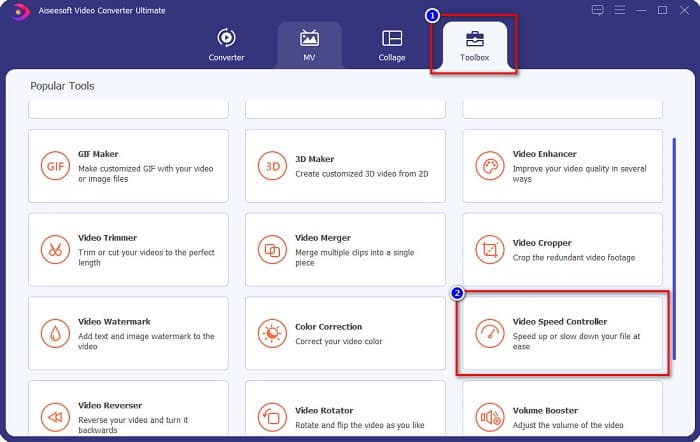
Step 2. Next, click the Toolbox panel located above the software’s first interface. And then click the Video Speed Controller.
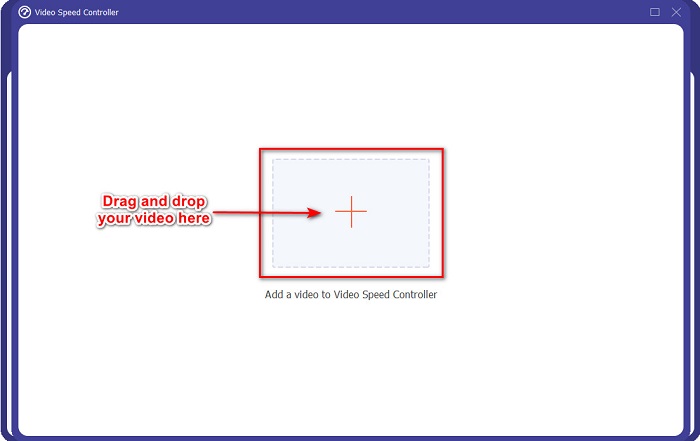
Step 3. And on the following interface, click the + sign button, or drag and drop your video on the plus sign button.
Step 4. And then, select the speed you want for your video by choosing from the video speed options below the preview of your video. But if you like to speed up your video faster, select from 1.25x to 8x speed.
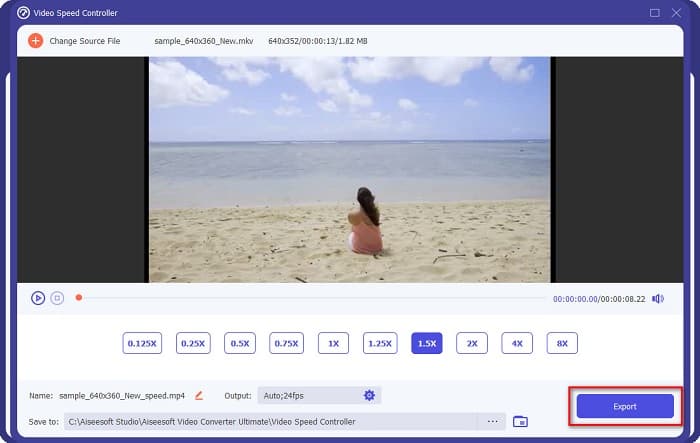
Step 5. Finally, click the Export button to apply the change to your video speed.
Prós
- Tem muitos recursos avançados como Criador de GIF, Criador 3D, fusão de vídeoetc.
- Ele suporta vários formatos de arquivo, incluindo MP4, WebM, WMV, M4V, MKV, AVI e mais de 1000 formatos.
- Possui uma interface de software fácil de usar.
- Disponível em todas as plataformas de mídia cruzada, incluindo Windows e Mac.
Contras
- Compre o aplicativo antes de acessar seus recursos especiais.
Fastreel
Fastreel is an online tool that allows you to change the speed of your video by 0.25 to 4x speed. This tool also has an easy-to-operate user interface and has a high-security level. Moreover, this tool allows you to save your video output automatically on your files, with a watermark.
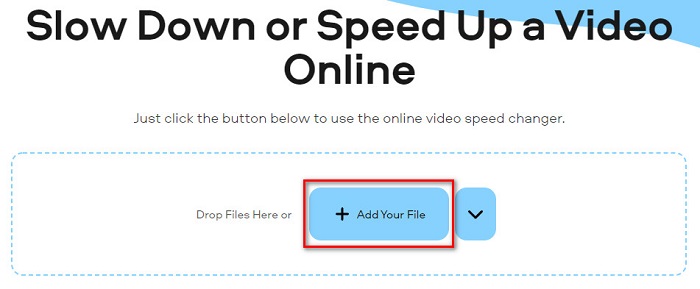
Step 1. On your browser, search Fastreel video speed changer. Then, click the Add Your File button to upload your video. Your computer files will appear where you will select the video you want to upload.
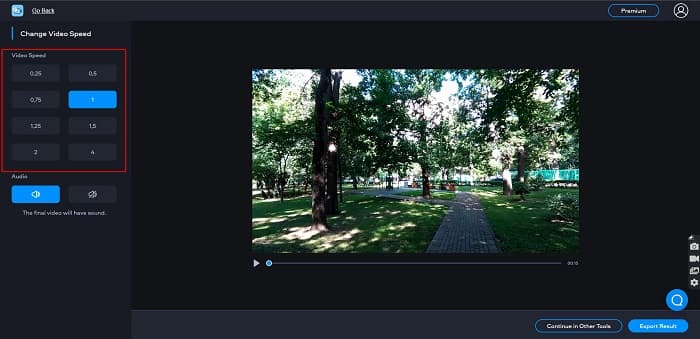
Step 2. Next, select the video speed you want on the left side of the software interface.
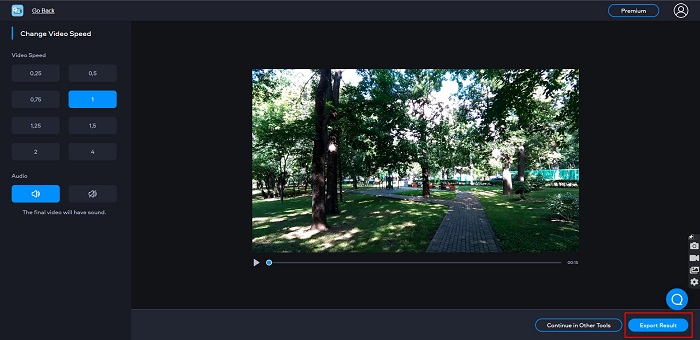
Step 3. Lastly, click the Export Result to change the speed of your video.
Prós
- Tem uma GUI simples.
- É gratuito e seguro de usar.
Contras
- Você pode experimentar um processo de carregamento lento quando a conexão com a Internet estiver lenta.
Parte 4. Perguntas frequentes sobre o Sony Vegas Speed Up Video
O Sony Vegas tem uma avaliação gratuita?
Sim. O Sony Vegas tem uma versão de avaliação gratuita por 30 dias. Quando a avaliação gratuita de 30 dias expirar, você deverá comprar o aplicativo para usá-lo continuamente; custa $16,67 por mês.
Qual é melhor, Sony Vegas ou Filmora?
Muitos profissionais dizem que o Filmora é melhor que o Sony Vegas porque o Filmora tem uma interface de usuário mais fácil que o Sony Vegas. Editores profissionais também dizem que o Filmora pode produzir resultados de melhor qualidade do que o Sony Vegas.
Alterar a velocidade do vídeo no Sony Vegas afeta a qualidade do seu vídeo?
Não. Alterar a velocidade do vídeo no Sony Vegas não afetará a qualidade do seu vídeo.
Conclusão
All in all, the question of Sony Vegas how to speed up video is answered. Sony Vegas is one of the best video editing software. Many people use this tool because of the great features it has. However, if you want a video speed changer that is more convenient and easier to use, try FVC Video Converter Ultimate, which many people also recommend.
-
 [4 maneiras] Como acelerar facilmente seus vídeos online
 Quer acelerar um vídeo online? Leia este artigo para saber mais sobre como acelerar um vídeo das diferentes maneiras possíveis.
-
 Maneiras mais fáceis de acelerar vídeos no formato MP4 [Offline e Online]
 Quer acelerar o seu vídeo, mas está no formato MP4? Este artigo pode ajudá-lo a saber as diferenças em como acelerar seu vídeo online ou offline.
-
 [Gratuito e pago] Modificador de velocidade GIF: melhores escolhas de 2021
 Você está insatisfeito com o GIF que criou on-line por ser entediante e lento? Este será o seu dia de sorte, pois apresentamos um artigo sobre o modificador de velocidade GIF e os detalhes que o ajudam a usá-lo e dominá-lo.
