


 Video Converter Ultimate
 Gravador de ecrã
 Reparo de vídeo
 Secure Download
Como desacelerar um vídeo no Snapchat como um profissional [Resolvido]
One of the best filtering apps you can download for free on your device is Snapchat. Other than filters you can apply on video, users ask how to slow down a video on Snapchat to make a slow-motion effect on the video you take. With this app, you can shoot a slow-mo video to make it look impressive and unique compared to the other users using the same application. Want to know the secret on how to do it? No need to worry because we got your back.
Este artigo se concentrará no modificador de velocidade que você pode usar para maximizar o vídeo que deseja em câmera lenta. Então, o que você está esperando? Continue lendo este artigo para saber mais sobre os efeitos de desaceleração do Snapchat.

Parte 1. Como diminuir a velocidade de um vídeo no Snapchat facilmente
Como você desacelera um vídeo no Snapchat? Se você tem a mesma pergunta até agora, este passo é para você porque você pode encontrar o modificador de velocidade no Snapchat. Para obter o resultado desejado, abaixo estão os passos simplificados a seguir.
Step 1. Download Snapchat on your device and open it.
Step 2. Tap on your screen the photo icon and allow the app to have access to your library that has a photo on it. After you allow it, you must choose the video you want to slow down on the list that will show; tap it.
Step 3. After you've opened the video, tap Edit to use the speed modifier available on Snapchat.
Step 4. Swipe it to the left or right until you find the snail icon. This icon means the video speed will be slower than the original. Still, if the icon is in rabbit, it will preview the video fast. After that, save the video that is in slow-mo.
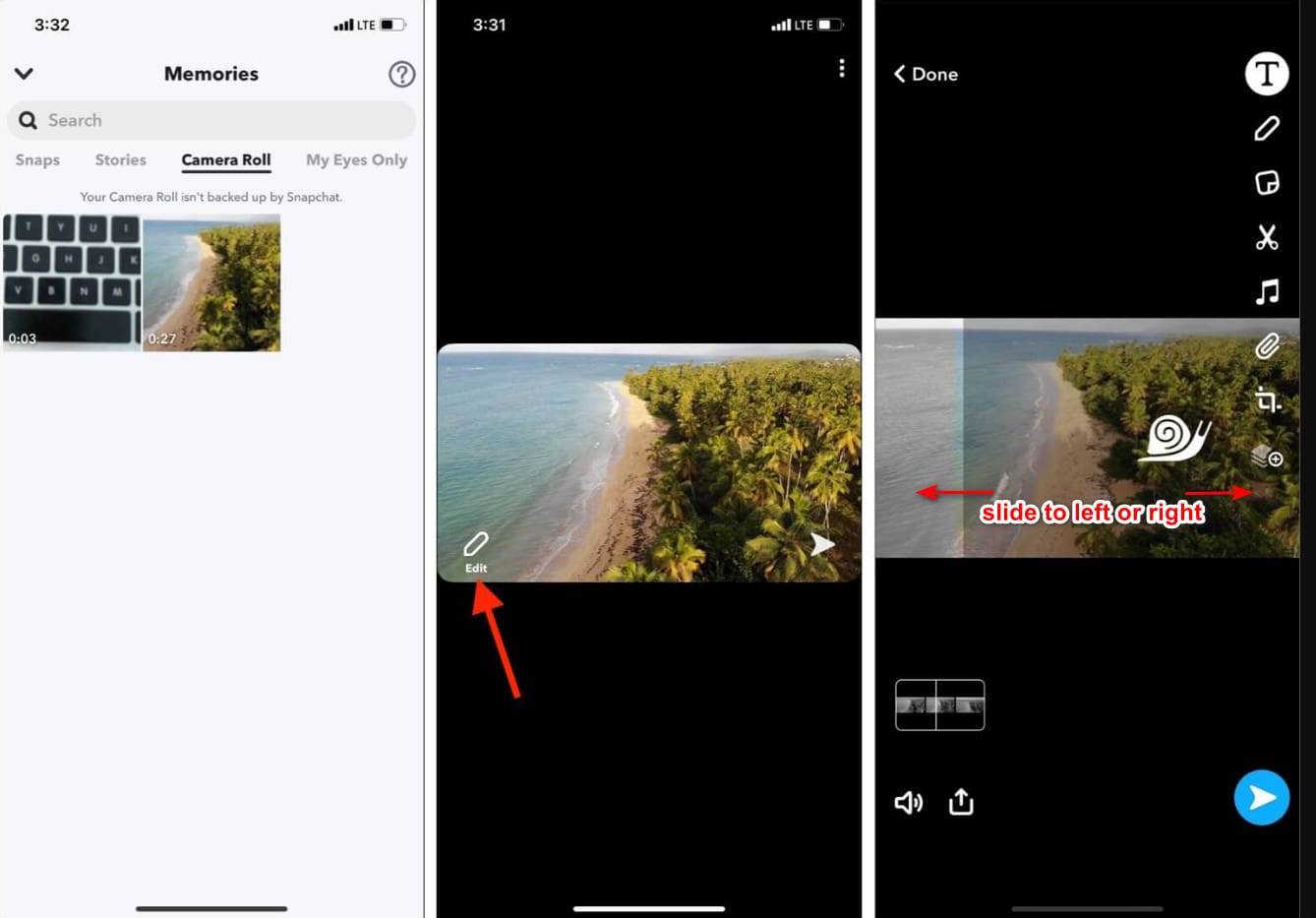
Embora o aplicativo tenha um modificador de velocidade integrado, a velocidade de reprodução que ele suporta é apenas um único movimento. Isso significa que você não tem a opção de alterar a câmera lenta de acordo com sua preferência, o que é frustrante, especialmente se a câmera lenta não for o que você deseja. Mas a próxima ferramenta pode ajudá-lo a alterar a velocidade de reprodução em câmera lenta de acordo com seus desejos, e não fornecerá um movimento de velocidade única como no Snapchat. Para saber isso, você deve ler os seguintes detalhes na parte 2.
Parte 2. Como colocar um vídeo em câmera lenta no Snapchat de forma eficaz no Windows e Mac
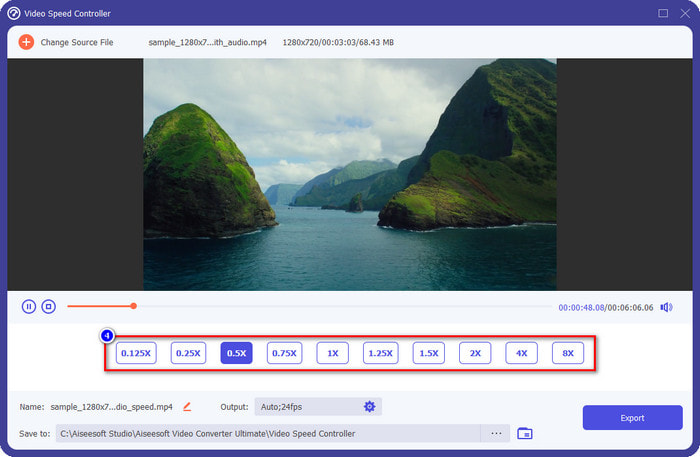
As we introduce to you how to put a video in slow motion on Snapchat, you can see that the slow-motion it provides isn't as slow as the majority want. So, instead of relying on the built-in speed controller, which you can use on Snapchat, why don't you try using the FVC Video Converter Ultimate? Because it gives you the chance to change the video speed, you have it quickly according to your preferences. With the help of its speed controller, you can import a regular speed video here and turn it into a slow-mo video. You can have the video as slow as 0.75x, 0.5x, 0.25, or 0.125; choose either of the options and watch it on the sample preview to check if that is your preferred slow-mo speed.
Além de seus recursos de controlador de aceleração, você também pode usar este software para adicionar filtros e efeitos como o que você pode ter no Snapchat. Embora seja compatível, não é tão amplo quanto o aplicativo de filtragem que você pode ter no seu dispositivo. Além disso, você pode fazer edição avançada aqui que não pode fazer no Snapchat. Como reforço de volume, sincronização de áudio, remoção da marca d'água, adição de metadados e muito mais. Apesar de ser uma ferramenta definitiva, o software não está disponível em dispositivos móveis. Ainda assim, você pode baixá-lo no seu Windows e Mac. Então agora, se você decidir usar essa ferramenta, pode ler e seguir o tutorial para alterar a velocidade do vídeo.
Step 1. By clicking the download button presented below, you can have the ultimate speed changer on your Windows and Mac. Install the software promptly, and launch it to change the playback speed of your video.
Free DownloadFor Windows 7 or laterSecure Download
Free DownloadFor MacOS 10.7 or laterSecure Download
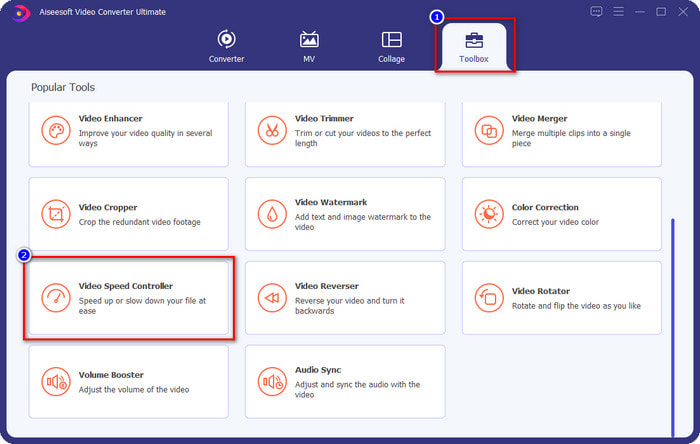
Step 2. You will see four different sections on the interface that you can use; click Toolbox and look for the Video Speed Controller on the included list.
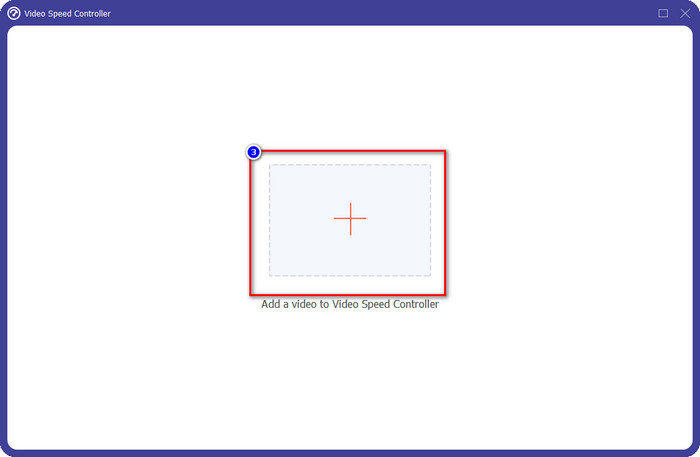
Step 3. Press the + button to open the folder, upload the Snapchat video or any video you want to slow-mo, and click Open.
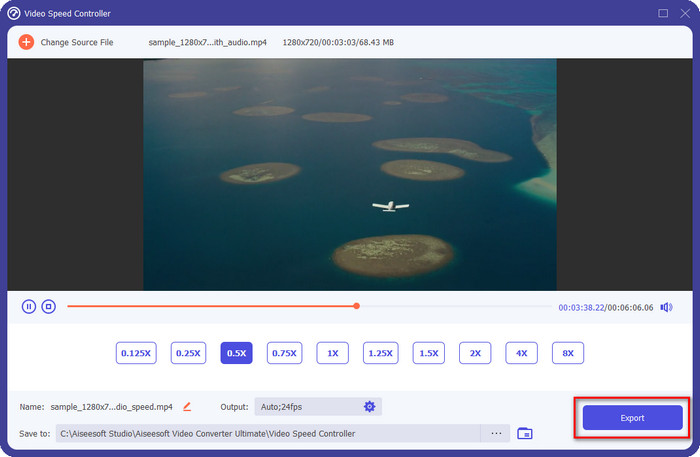
Step 4. Once you are on the new interface where you can edit the speed, click the desired slow-mo speed you want to apply to your video. You can choose which slow-mo speed you want to have, and it will play on the preview box.
Optional: If you want to do an advanced output change, you can click the Output. This section allows you to change the format, resolution, framerate, quality, zoom mode, etc.; click OK to apply the changes you've added.
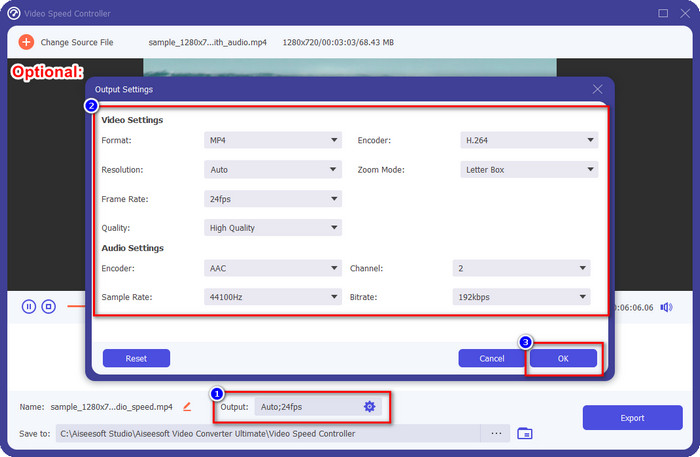
Step 5. Click the Export button if you are ready to convert the video's playback speed. You will now have the video on a slow-mo; you can now share the video or use the slow-mo video you've exported here.
Related:
Parte 3. Perguntas frequentes sobre como desacelerar um vídeo no Snapchat
A exportação de vídeo em câmera lenta no Snapchat terá uma marca d'água?
Você pode exportar livremente o vídeo em câmera lenta no Snapchat sem a marca d'água da saída final. Mesmo que você queira adicionar uma, você não tem permissão para adicionar uma marca d'água do Snapchat no vídeo.
Posso alterar a velocidade do vídeo mesmo que não tenha feito no Snapchat?
Você pode, mas se você apenas permitiu, porque se você não permitiu que o aplicativo tenha acesso à sua Galeria ou Fotos, você não pode alterar a velocidade do vídeo que deseja. Para ver o vídeo que você não fez no Snapchat, você pode acessar o Rolo da Câmera em vez dos Snaps e Histórias.
Existem limitações para desacelerar um vídeo no Snapchat?
Até agora, não há nenhuma limitação se você quiser desacelerar o vídeo usando o Snapchat. Além das opções de velocidade em câmera lenta, não há mais. Então, suponha que você tenha um vídeo que deseja desacelerar. Nesse caso, este aplicativo pode ajudá-lo a concluir a tarefa facilmente sem baixar extensões adicionais para alterar a velocidade.
Conclusão
Do you need a helping hand to teach you how to slow down a video on Snapchat? You already get the help you need by reading this article. Suppose you still think that the Snapchat built-in speed controller isn't enough for your need. In that case, you must use a video speed controller, like FVC Video Converter Ultimate, to have full control over the speed of the video. You can drop us a message if you have a question about it so that we can help you and let's solve the problem together.
-
 Como diminuir a velocidade de um vídeo: dicas perfeitas [Desktop/Celular]
 Você está cansado de procurar as melhores ferramentas que ajudam a desacelerar um vídeo online? Leia este artigo específico para você se iluminar com as informações listadas abaixo.
-
 Como alterar o vídeo em câmera lenta para velocidade normal [etapas fáceis]
 Quer saber como reverter um vídeo em câmera lenta que você baixou da Internet ou gravou acidentalmente em câmera lenta? Aprenda a converter vídeo em câmera lenta para velocidade normal no Mac, Windows, iOS e Android.
-
 Tudo que você precisa saber sobre como fazer vídeos em câmera lenta
 Você deseja fazer vídeos em câmera lenta como um editor profissional, mas não sabe qual software ou aplicativos deseja usar? Leia este artigo para saber todos os detalhes que você precisa.
