


 Video Converter Ultimate
 Gravador de ecrã
 Reparo de vídeo
 Secure Download
Como adicionar câmera lenta e rápida em um vídeo no Windows e Mac
By applying a slow and fast motion to a video, you can easily create an illusion that can make your video look something new in the eye of the human. Even if you are using a smartphone or DSLR, you can quickly shoot a video in different motions according to your preference, but not all devices support an editor that can quickly change the motion. Due to its effect on us, the demand for the tool to change speed became widely spread immediately. But which one should you choose? To know which is our best pick, you must continue reading as we further explain the two motions you want to attain.

Parte 1. Qual é o melhor | Câmera rápida x câmera lenta
Depois de gravar um vídeo, existem três tipos de movimentos: normal, rápido e lento. Na maioria das vezes, alteramos a velocidade para a reprodução desejada por algum motivo. No entanto, não abordaremos as razões por que usamos um efeito de câmera lenta rápido em um vídeo. As informações a seguir fornecerão uma prévia do que torna o efeito diferente um do outro e seu uso.
| Movimento rápido | VS. | Câmera lenta |
| Devido ao seu movimento rápido, a duração do vídeo, se for definida nessa velocidade, é naturalmente curta, pois é reproduzido rapidamente. | Duração do vídeo | Ao contrário daqui, quando você altera a velocidade natural do vídeo para câmera lenta, a duração do vídeo é maior porque está em estado de câmera lenta. |
| Em movimento rápido, o FPS de projeção é muito maior que o FPS de captura. Ao contrário do movimento normal, a velocidade que ele fornece é igual ao FPS de projeção e captura. | FPS do vídeo | Apesar de suportar um FPS de captura mais alto do que a aceleração, podemos ver que o FPS de projeção é menor pois é sacrificado depois que você diminui a velocidade. |
| A maioria da cinematografia usa uma velocidade de movimento mais rápida do que a câmera lenta porque é excelente para ação necessária por ação. E isso nos poupa tempo quando assistimos a um vídeo ou filme nesse movimento. | Usado para | Mesmo que você possa assistir a um vídeo com mais detalhes nessa velocidade de movimento do que o primeiro, podemos ver que a duração que ele fornece é muito longa e o tamanho do arquivo fica maior que o anterior. |
Agora que conhecemos os diferentes efeitos de câmera lenta e rápida criados na edição, é hora de saber qual é o melhor controlador de velocidade que podemos usar. Se você não tem um editor de velocidade de vídeo profissional, a próxima parte é descobrir; continue lendo este artigo para saber mais.
Parte 2. Melhor controlador de velocidade de vídeo em câmera lenta e rápida que você deve ter na área de trabalho
A powerful speed controller is a must to have, especially if you want to manipulate the speed of the video effectively and efficiently, like what the FVC Video Converter Ultimate provides. With its video speed options, you can easily apply the speed you've chosen, as slow as .125x or as fast as 8x that the other video editor doesn't provide. Also, you can upload any video type you want to speed up in here. This tool doesn't particularly limit you from changing the motion of the video you have. Indeed, this fast and slow-motion video tool is a must to have, so if it caught your attention, you must read and follow the tutorial we added next to have it and learn how to use it.
Step 1. To have the best software on your desktop, you can click the download button below to download it on your Windows and Mac directly. After downloading, install the software, follow the easy to do set-up process in a minute, and then open it.
Free DownloadFor Windows 7 or laterSecure Download
Free DownloadFor MacOS 10.7 or laterSecure Download
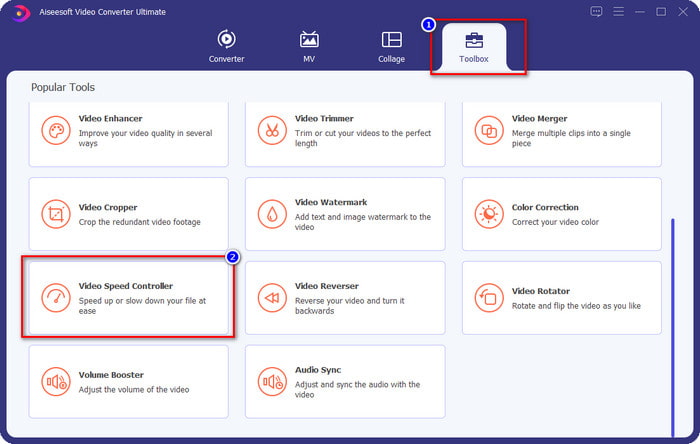
Step 2. Open the Toolbox, look for the Video Speed Controller feature, and click it.
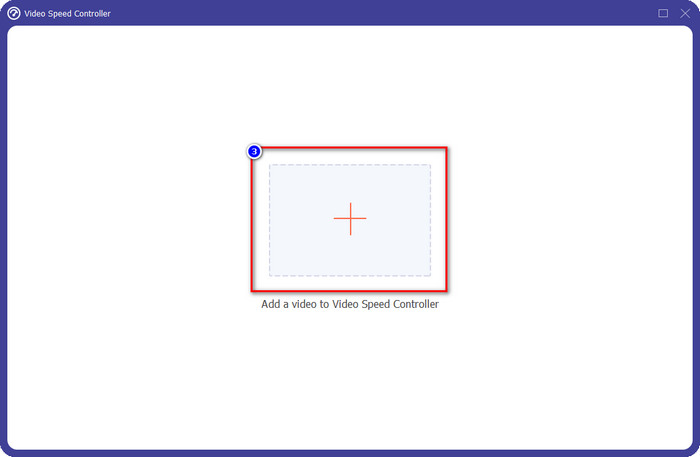
Step 3. Click the + button, look for the video you want to change the motion, and click Open to upload it here.
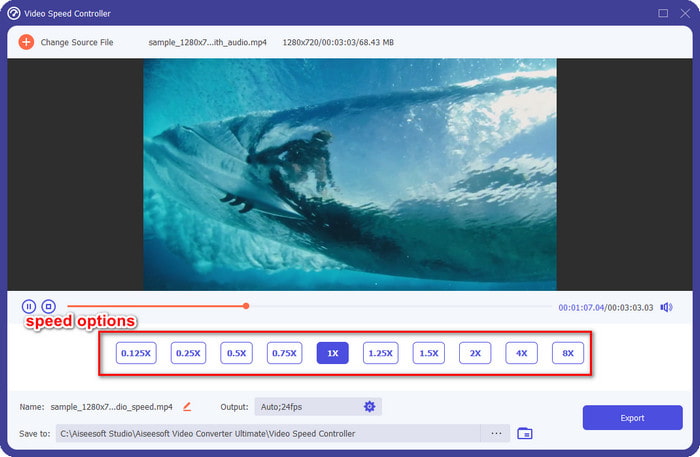
Step 4. Once you upload the file, a window on where the speed controller tool will open on your display, choose the speed you want to apply to your video by selecting the video speed option available on this software. You can click each one of them and see the sample preview with the speed of that play on the screen.
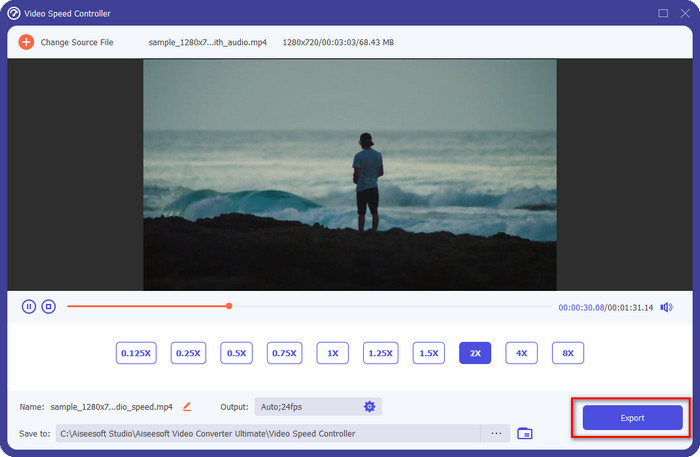
Step 5. To save the video, you change the speed and click Export. As easy as that, you have now changed the video's motion with this ultimate software on Windows or Mac.
Parte 3. Perguntas frequentes sobre câmera rápida e lenta
Posso assistir a um vídeo rápido e em câmera lenta em uma área de trabalho?
Com diferentes players de mídia, você pode alterar facilmente a velocidade do vídeo que está assistindo para torná-lo mais lento ou mais rápido, de acordo com suas preferências. Você pode tê-lo em sua área de trabalho pressionando o controlador de velocidade embutido no Blu-ray Player, VLC Media Player, Quicktime, Windows Media Player e no outro media player. Mas lembre-se, isso não alterará permanentemente a velocidade do vídeo, portanto, se quiser, leia a ferramenta que apresentamos neste artigo.
Por que usar um efeito de câmera rápida e lenta se tornou necessário?
Ao alterar a velocidade do vídeo, você pode acessar facilmente alguns efeitos que os outros efeitos e filtros não são capazes de fazer. Portanto, se você é um editor e deseja experimentar outros efeitos, é obrigatório tentar usar o controlador de velocidade e alterar a velocidade do vídeo. Não há necessidade de ser um profissional porque é fácil e certamente pode tornar seu vídeo incrível.
Existem limitações para alterar a velocidade de reprodução?
We cannot hide that there are limitations on the playback speed. Although it is easy to apply to any video, if it is played too fast, you will see some freezing on the video that you can’t revert. Same as when you slow-mo, the frame of each video the over slow-mo might drop, and it can become very laggy. To avoid this thing to happen, you must consider and carefully change the playback speed of the video.
Conclusão
All things in slow and fast motion are considered, and the details above are based on the references we researched and the experience of changing the video speed. Although it is easy to add the speed, we must consider learning them first before we do the changing of speed. Without professional expertise and an ultimate tool, applying the speed of our choice has never been easy. Suppose you download the FVC Video Converter Ultimate; you will have the best speed controller and an all-in-one tool. Yes, that is right, there are many things this software offers; if you want to know more about it, then downloading is the best way to ensure if it has more than what we said in this article.
-
 Principais fatos que você deve saber sobre QuickTime Slow Motion
 Você já tentou usar o QuickTime Media Player para reproduzir vídeo em câmera lenta? Leia este artigo para saber mais sobre o excelente serviço deste reprodutor de mídia.
-
 5 criadores de vídeo em câmera lenta profissionais para Windows/Mac/online
 Quer saber como fazer seu vídeo rodar em câmera lenta? Então leia este artigo para descobrir quais são os 5 criadores profissionais de vídeo em câmera lenta.
-
 Melhores maneiras de usar o iMovie para fazer vídeos em câmera lenta [Resolvido]
 Você já usou o aplicativo iMovie para converter seu vídeo de velocidade normal em câmera lenta? Esta é a oportunidade de saber mais sobre este aplicativo, então continue lendo.
