


 Video Converter Ultimate
 Gravador de ecrã
 Reparo de vídeo
 Secure Download
4 melhores conversores gratuitos de MP4 para MKV para transformar arquivos MP4 em MKV com cliques
Se você quiser adicionar legendas a um vídeo MP4, é melhor converter MP4 em MKV. MKV é um arquivo de vídeo Matroska que suporta um número ilimitado de faixas de áudio, imagens e legendas. Não é difícil converter arquivos MP4 em MKV. Você pode aprender mais detalhes sobre os 4 melhores métodos do artigo. Além disso, aqui está um método definitivo para adicionar as legendas e editar o vídeo com a facilidade que você deve conhecer.

Parte 1: 3 melhores métodos para converter MP4 em MKV
Parte superior 1: Como converter MP4 em MKV online gratuitamente
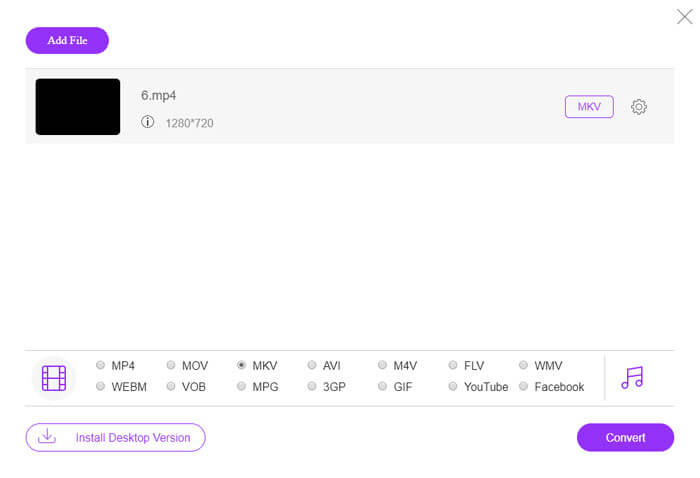
When you want to convert MP4 files to MKV online, FVC Free Online Video Converter is a versatile video converter to convert most of the video formats, such as MP4, MKV and more for free. It also enables you to tweak the video and audio settings for the output. Moreover, it supports batch conversion that you can convert a bunch of videos or audio with ease.
- 1. Converta MP4 para MKV, AVI, FLV e mais outros formatos / predefinições de mídia.
- 2. Ajuste o codec de vídeo, a taxa de quadros, o formato de vídeo e também o formato de vídeo.
- 3. A conversão é direta, sem marca d'água ou outras restrições.
- 4. Fornece uma interface fácil para converter arquivos MP4 em MKV em 3 etapas.
Step 1. Go to FVC Free Online Video Converter, you can click the Add Files to Convert button to add the MP4 file into the program. If it is the first time you use the online MP4 to MKV converter, you should download the installer beforehand.
Download the Desktop Version to convert files in batch.

Step 2. Once you have imported the MP4 videos, you can choose the MKV option as the output format. You can click the Gear icon to tweak the video and audio settings, such as the video encoder, frame rate, resolution, and more other settings.

Step 3. After that, you can click the Convert button to convert MP4 to MKV with the desired quality. It takes a few seconds to get the desired MKV on your computer. You can preview the output video before saving it to your computer accordingly.
Top 2: Como converter MP4 em MKV com o VLC Media Player
VLC Media Player is more than a media player for MKV files, it also has its own set of codecs for most of the video and audio formats. If you do not have an MKV as output, you can also search for some plugins to convert MP4 to MKV files with VLC as below.
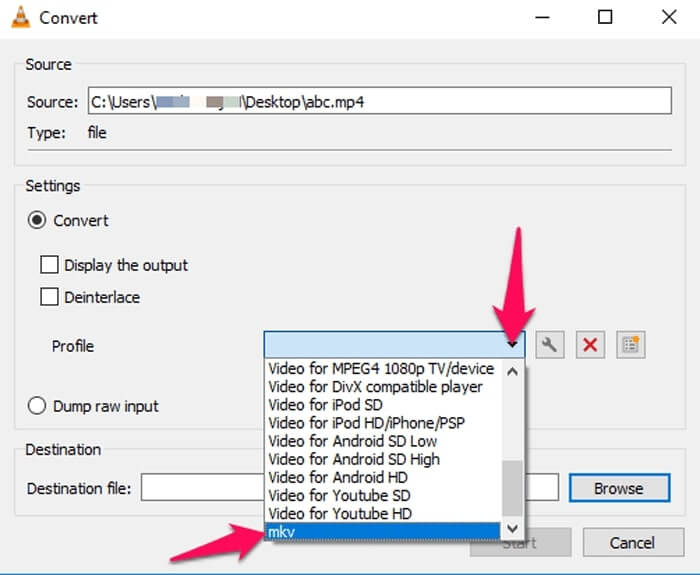
Step 1. Launch the VLC Media Player and launch the program on your computer. Click the Media menu and choose the Convert/Save... option to import the MP4 file you need to convert.
Step 2. In the Open Media window, click the File option followed by the Add icon. Select the MP4 file in your folder. After that, choose the Convert button from the Convert/Save dropdown menu.
Step 3. After that, you can choose the MKV as the output format. Click the Browse option to set a destination for the converted file. Then choose the Start option to convert MP4 to MKV.
3 principais: como converter MP4 em MKV de um URL
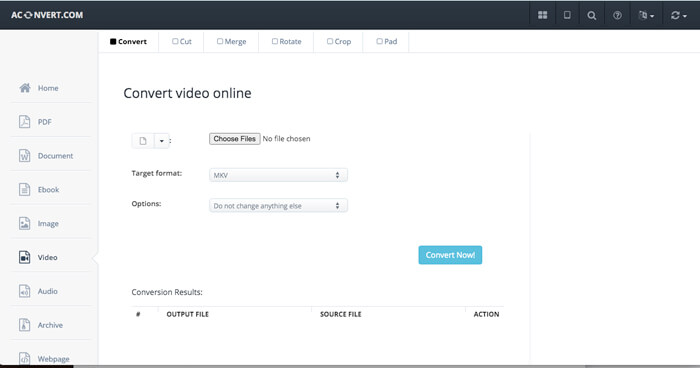
É possível converter um MP4 online para MKV diretamente? AConvert tem uma série de vídeo para conversor online MKV, onde você pode inserir a URL do vídeo para converter para o formato desejado. Claro, também permite que você ajuste as configurações de vídeo.
Step 1. Go to aconvert.com on any of your browser, you can choose the Convert menu from the upper left corner. Click the arrow to select the Online File option from the drop down list.
Step 2. Click the Target format as MKV format. Then click the Options to adjust the video size, video bitrate, frame rate, video aspect and more other settings for converting MP4 to MKV.
Step 3. After that, click the Convert Now! button to start batch conversion. The output files will be listed in the Conversion Results section that you can download it to your computer.
Parte 2: O método definitivo para converter MP4 em MKV
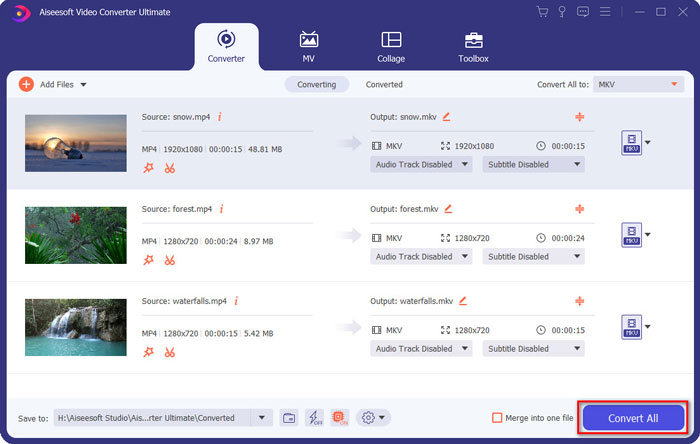
Existe um método para converter MP4 para MKV com legenda diretamente? FVC Video Converter Ultimate é um conversor de MP4 para MKV definitivo que permite ajustar as configurações de vídeo / áudio, editar os arquivos de vídeo, adicionar uma faixa de legenda / áudio e até mesmo extrair arquivos de DVD com facilidade.
- 1. Converta MP4 em MKV em um processo em lote com a qualidade original.
- 2. Ajuste a taxa de quadros, a qualidade do vídeo, o código do vídeo e mais outros.
- 3. Edite os vídeos com clipe, gire, apare, corte, comprima, filtros de vídeo, etc.
- 4. Media player integrado para qualquer formato de vídeo HD 4K / 1080p e arquivos de DVD.
Free DownloadFor Windows 7 or laterSecure Download
Free DownloadFor MacOS 10.7 or laterSecure Download
Step 1. Download and install the program on your computer, you can click the Add File and select the Add File or Add Folders or directly drag multiple video and audio files to this program.

Step 2. After that, you can select the MKV file as the output and adjust the profile settings according to your need, such as the resolution, frame rate, audio codec and more other settings.

Step 3. When you need to add the subtitles or audio tracks, you can click the audio channel or the subtitle to choose the desired one before clicking the Convert All button to convert MP4 to MKV.
MP4 vs. MKV
Lançado pelo Moving Picture Experts Group (MPEG) em 2001, o formato MP4 pode ajudá-lo a salvar dados de vídeo, áudio, legenda e imagem em faixas separadas. É a abreviação de MPEG-4 Part 14. Além disso, é um dos formatos mais populares usados para streaming e compartilhamento de vídeos.
O formato de contêiner multimídia Matroska, lançado em 2002, é um formato de código aberto que pode incluir várias faixas de vídeo, áudio, imagem e legendas. Assim, você pode usá-lo para armazenar clipes de vídeo curtos, programas de TV e filmes facilmente. É bastante popular para legendas de fãs de anime.
Parte 3: Perguntas frequentes sobre como converter MP4 em MKV
1. Qual é a vantagem do MKV?
Semelhante ao formato de arquivo MP4, MKV é outro formato de contêiner geral. Ele pode conter várias faixas diferentes, cada uma usando um formato de compressão diferente. Você pode editar as legendas, como SRT, PGS / SUP, VobSub e SSA. Ao converter MP4 para MKV, você sempre pode personalizar os vídeos com a legenda desejada e a trilha de áudio de acordo.
2. Como editar arquivos MKV com facilidade?
Claro, você pode simplesmente usar um conversor profissional de MP4 para MKV para editar as configurações de vídeo / áudio, ou mesmo editar a trilha de áudio e as legendas, como o FVC Video Converter Ultimate. Além disso, você também pode usar o MKVToolNix de nível básico gratuito para editar e gerenciar as legendas no Windows, Mac e Linux com facilidade.
3. O que é importante para converter MP4 em MKV?
Se você precisar converter MP4 em MKV, preste atenção ao tamanho do vídeo de saída. Normalmente, o arquivo MKV é muito maior que o MP4, especialmente quando você precisa adicionar as legendas e faixas de áudio. Quando você usa os conversores de vídeo online, pode não conseguir converter todos os vídeos MKV corretamente.
Conclusão
Quando você deseja localizar os vídeos de streaming online, você pode aprender mais detalhes sobre os melhores métodos para converter MP4 em MKV com facilidade. Basta verificar os 3 métodos online mais usados, bem como a solução definitiva do artigo. Se você tiver alguma dúvida sobre a conversão de arquivos MP4 em MKV no Windows e Mac, pode deixar um comentário no artigo.
-
 Como converter M2TS em MKV sem perder qualidade
 Quer converter M2TS em MKV mantendo a qualidade original? Esta postagem mostra métodos gratuitos e online para alterar M2TS para MKV sem perdas.
-
 MKV vs MP4: Quais são as diferenças e como converter
 Como escolher entre MKV e MP4? Qual formato é o melhor formato para qualidade de vídeo? Neste artigo, faremos uma comparação detalhada entre MKV e MP4 para ajudá-lo a fazer uma escolha.
-
 Como converter MP4 em WMV para Mac / Windows
 Esta postagem mostra como converter vídeo MP4 para o formato WMV no Mac ou Windows. Também ofereceremos várias opções, incluindo software de desktop e conversores on-line baseados na web. Pronto para conhecer as melhores ferramentas de conversão de MP4 em WMV?

