


 Video Converter Ultimate
 Gravador de ecrã
 Reparo de vídeo
 Secure Download
Como remover marca d'água do vídeo usando o Final Cut Pro & Ultimate Tool
Watermarks, logos, and stamps are the ones that are added to the photography once you export if the editor or the tool you use to shoot is the free version of it. It is common knowledge to know how to easily remove them on your desktop to make the video even more eye-catchy without the watermark. Mac users do have a bit of a problem removing these marks that are left on the video. There is limited watermark remover available on this OS, and some do fail to remove the watermark. But do not worry because Final Cut Pro and the FVC Video Converter Ultimate are here to help you manage the watermark at once and for all. The information that we list below will give you a detailed tour of how to remove watermark from video using Final Cut Pro and the ultimate software.

Parte 1. Como remover marca d'água do vídeo usando o Final Cut Pro [completo com etapas]

O Final Cut Pro é um editor baseado em Mac que você pode usar para remover a marca d'água, transformar e elevar o vídeo. Essa ferramenta é comumente comparada ao Adobe Premiere Pro porque funciona bem para tornar o vídeo fantástico. Se você deseja ter uma saída profissional no Mac, este é o seu editor ideal. Com seu desempenho e eficiência no Mac, não resta dúvida sobre por que essa ferramenta se tornou um dos principais editores de vídeo em dispositivos Apple e por que se tornou a escolha mais favorável para edição do que o iMovie. Para ensinar você a usar o Final Cut Pro para remover a marca d'água, siga o passo a passo abaixo.
Step 1. You can visit its official website on your Safari and download it there and ensure to download the SpliceX's plug-in because it is important if you are going to use the Final Cut Pro on Mac.
Step 2. On the section above, click the File, then Open to upload the video with the watermark you save on the local drive.
Step 3. Drag the video file you uploaded to the timeline to start removing the watermark of the video.
Step 4. On the right side of the interface, click the crop icon. But this time, you will need to exclude the video and only the place there to the watermark. Then click Done to save.
Step 5. Go to Effects, click Blur, then select the effect you want on the pre-installed effect available. Drag the effect you choose to apply on the timeline. Adjust the Blur Boost according to your preference, and after that, you can save the video without the watermark.
Parte 2. Uma maneira muito mais fácil de remover a marca d'água do vídeo usando o removedor profissional de marca d'água
Se você acha que o Final Cut Pro é difícil de usar, você deve tentar usar a versão muito mais fácil para conseguir remover a marca d'água, que é o FVC Video Converter Ultimate. Essa ferramenta remove a marca d'água do vídeo que você possui, como o que o Final Cut Pro traz para você, mas de uma maneira muito mais fácil. Tornou-se popular remover a marca d'água em um vídeo porque é fácil de usar e pela eficiência que oferece aos usuários. E você não precisaria baixar plug-ins para usar esta ferramenta.
Além disso, ele suporta funções adicionais, como edição de vídeo, como cortar, aparar, mesclar, apertar e muito mais. Então, se você instalar este software no seu Mac, você não vai se arrepender porque agora você tem uma ferramenta multifuncional que é muito mais barata que o Final Cut Pro. Para ensinar um usuário de Mac como você a remover uma marca d'água no Final Cut Pro da maneira mais fácil, siga as etapas a seguir.
Step 1. To download the Mac version of this tool, click the Mac download button, and wait for the downloading process. After downloading the software, install it next to your desktop by clicking the file. Follow the installation process that will show, and click Start Now to open the ultimate watermark remover.
Free DownloadFor Windows 7 or laterSecure Download
Free DownloadFor MacOS 10.7 or laterSecure Download
Step 2. Now that the software is launched click Toolbox on the upper section, then open the Video Watermark Remover on the available setlist.

Step 3. Click the + icon to upload the video with a watermark. Please select the file on the folder that will show on your screen and press Open to upload it successfully.
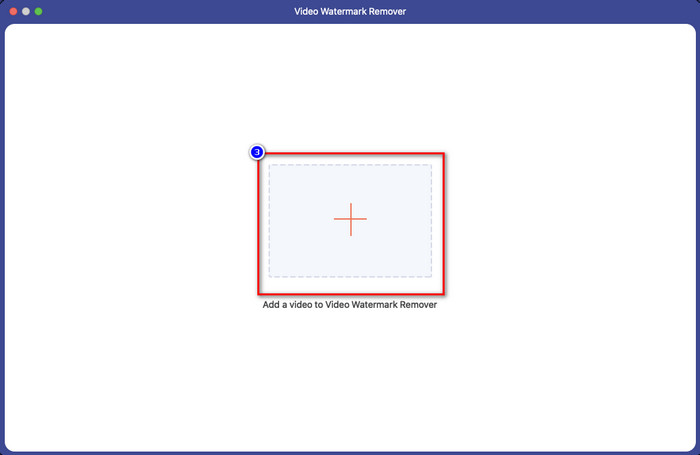
Step 4. Press the Add Watermark Removing Area to start removing any watermark on your video.
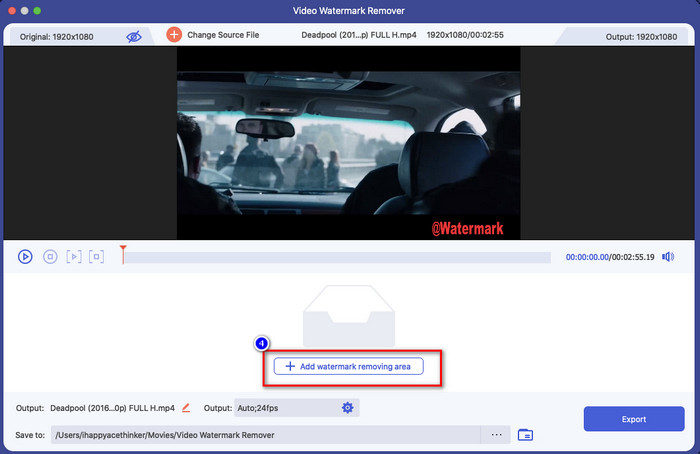
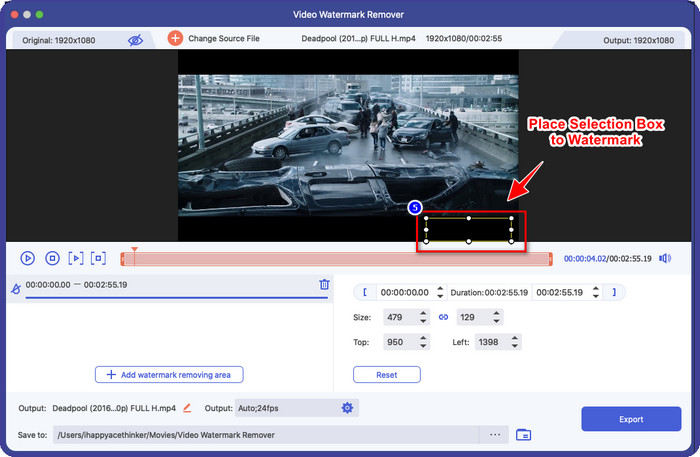
Step 5. After you've clicked it, a new window will this time; you must place the selection box in the area with a watermark. You can adjust the selection box by dragging the dots to resize it.
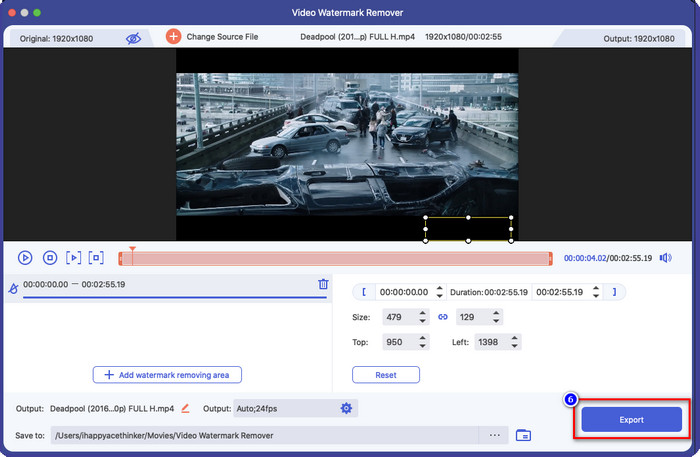
Step 6. As easy as that, you can now click Export to download the video without the watermark. Easy right? That is how to remove a watermark from a video using the Final Cut Pro best alternative.
Relacionado:
How to Remove Photobucket Watermarks
How to Remove Watermark on GIF
Parte 3. Perguntas frequentes sobre como remover marca d'água de um vídeo no Final Cut Pro
Quanto custaria comprar o Final Cut Pro?
Mesmo que o Final Cut Pro seja um pagamento único, seu custo é extremamente alto, mas seus recursos e funções de edição são altamente antecipados se você tiver isso. Se você tiver um orçamento de $299, poderá ter a versão premium e usá-la para sua satisfação.
Quanto tempo dura a avaliação gratuita do Final Cut Pro?
Você tem uma avaliação gratuita de 90 dias para experimentar e decidir se esta ferramenta é a ferramenta certa para você; com este período, você pode experimentar como a ferramenta funciona profissionalmente.
A avaliação gratuita do Final Cut Pro tem marca d'água?
Se você não comprou uma chave de licença para este software mesmo usando sua versão gratuita, haverá uma marca d'água deixada em sua saída final. Portanto, se você quiser evitar que isso aconteça, é melhor comprar o aplicativo ou usar um removedor de marca d'água que não deixe marca d'água como o software definitivo.
Conclusão
De fato, o Final Cut Pro pode remover a marca d'água em qualquer vídeo que você tenha sempre que precisar. Além do recurso de remoção de marca d'água, você também pode aproveitar a funcionalidade geral que este editor de vídeo profissional possui. No entanto, o custo é muito alto e alguns usuários acham difícil lidar com esse software. Então, adicionamos a melhor alternativa que você pode usar se não quiser gastar muito, e é fácil de usar; essa é a ferramenta final. Esperamos ter ajudado os usuários de Mac a resolver seu problema de marca d'água com a ajuda dessas duas ferramentas. Se você tiver outras dúvidas sobre este tópico, pode nos enviar um e-mail, e certamente responderemos imediatamente.
-
 Maneiras fáceis de remover marcas d'água de fotos de formatura
 Quer saber as melhores maneiras de remover marcas d'água de fotos de formatura? Ao ler este artigo, você poderá saber como remover marcas d'água em fotos de graduação facilmente.
-
 Como remover a marca d'água Lumion no Windows e Mac facilmente
 Precisa remover a marca d'água Lumion para apresentá-la profissionalmente? Bem, existem ferramentas que você pode usar para ajudá-lo a se livrar da marca d'água que deixa.
-
 Como remover a marca d'água Weibo em vídeos e imagens facilmente
 Tendo problemas para remover a marca d'água Weibo em vídeo e imagem exportados? Nesse caso, você deve um removedor de marca d'água que listamos abaixo que pode ajudá-lo.
