


 Video Converter Ultimate
 Gravador de ecrã
 Reparo de vídeo
 Secure Download
Como remover a marca d'água no SmartDraw com 2 maneiras possíveis
If you need an easy and powerful way to create a charting, drawing, and mapping, then present them enterprise-grade quality, then use the SmartDraw. You can use your imaginations and turn them into reality with the help of SmartDraw. Is the tool free? You can use the seven days free trial it supports to use the tool for free with a watermark on it. Dealing with a watermark on exported file could be a pain for you. Here, we introduce you to this blog post as we present only the best tool you can find on the market that works efficiently on removing the watermark. Remain and read the information below to learn how to remove the watermark in SmartDraw in two effective ways.

Parte 1. Como remover marca d'água no Smart Draw comprando uma chave de licença [versão oficial]
Como remover a marca d'água do SmartDraw? É a primeira forma que apresentaremos a você, e é comprando a chave de licença para esta ferramenta. Esta plataforma oferece diferentes tipos de planos que você pode obter que beneficiarão seu fim. Além disso, você não pode comprar o acesso de um mês a esta ferramenta, portanto, se você planeja comprar sua chave de licença, será cobrado mensalmente, mas o total que você pagará está em sua versão anual. Se você aprecia o desempenho desta ferramenta e deseja comprá-la, pode seguir as etapas que adicionamos abaixo.
Passos sobre como remover marca d'água no SmartDraw com uma chave de licença:
Step 1. Open the official website of SmartDraw, and ensure that you access the right website to have a secured transaction.
Step 2. On the website, click the Buy to see the available plans.
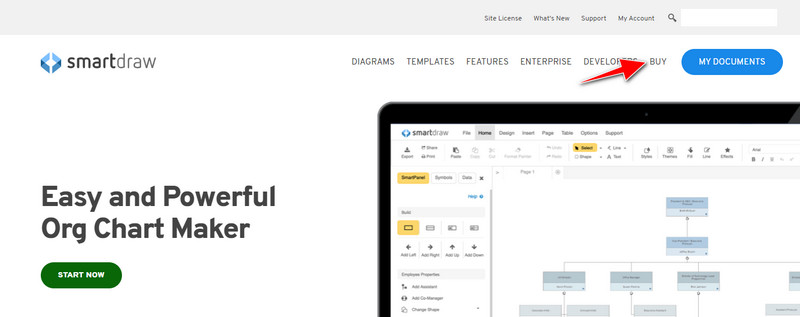
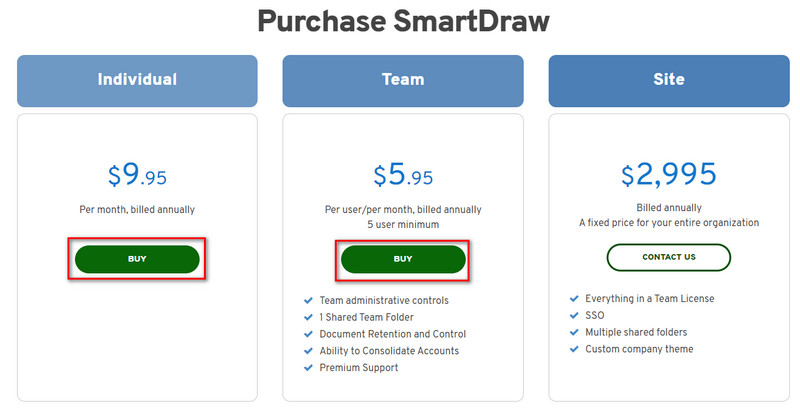
Step 3. You can purchase the SmartDraw as an Individual, Team, or Site. Click Buy Now if you are going to purchase the version of it on Individual and Team.
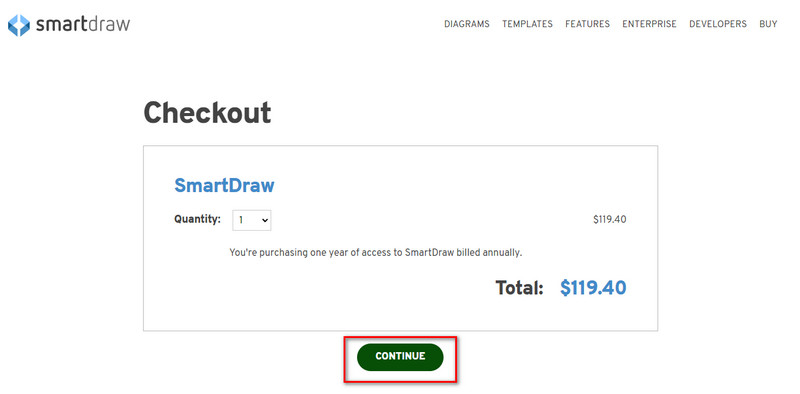
Step 4. On the right side of it, you will see the total bill of the tool after an annual; click Continue to process.
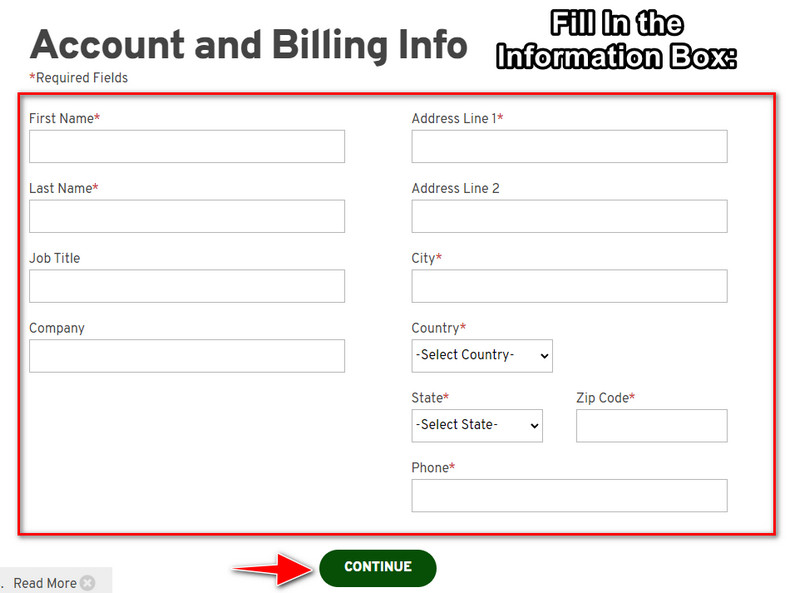
Step 5. Add your account and billing information that it needs to fill in; then press Continue to proceed to get the license key.
Parte 2. Como remover a marca d'água no Smart Draw gratuitamente usando o serviço da Web [sem custo]
How to remove the watermark from the SmartDraw trial version without buying? Then you will need to use the FVC Free Watermark Remover Online. This watermark remover is ready to be used by you. You wouldn’t need the expertise to remove the watermark on your image because using this tool won’t be troublesome to handle. Even though you are an expert, you can still use this software to remove unwanted watermarks or objects on your image. Thru the help of this watermark remover, there will be no stain on your image that it can’t remove. Want to try this software instead of purchasing the license key? If so, stick to this tutorial we add below to remove the watermark on images effectively.
Passos sobre como remover a marca d'água do SmartDraw no gráfico ou diagrama gratuitamente:
Step 1. Instead of searching the web tool on your web browser, you can click this link to open it, which will open a new tab on your search engine.
Step 2. Using your mouse, drag and drop the image graph or diagram you’ve created on SmartDraw so that you can upload it.
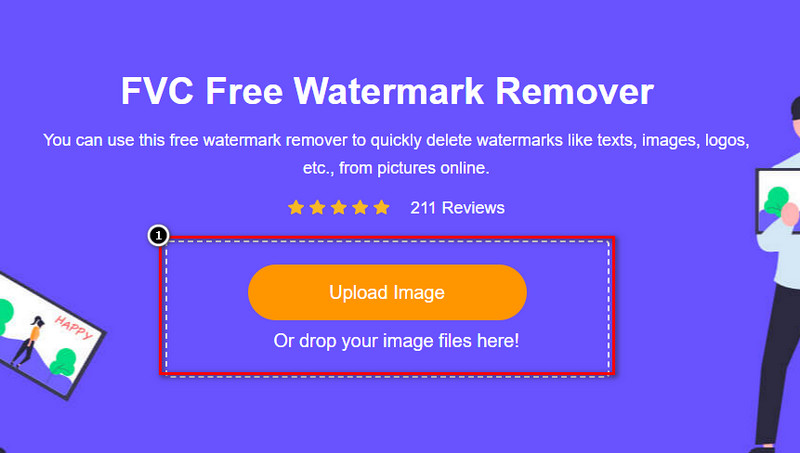
Step 3. Now that the watermark remover online is launched, choose the tool you want to highlight the watermark on the image.
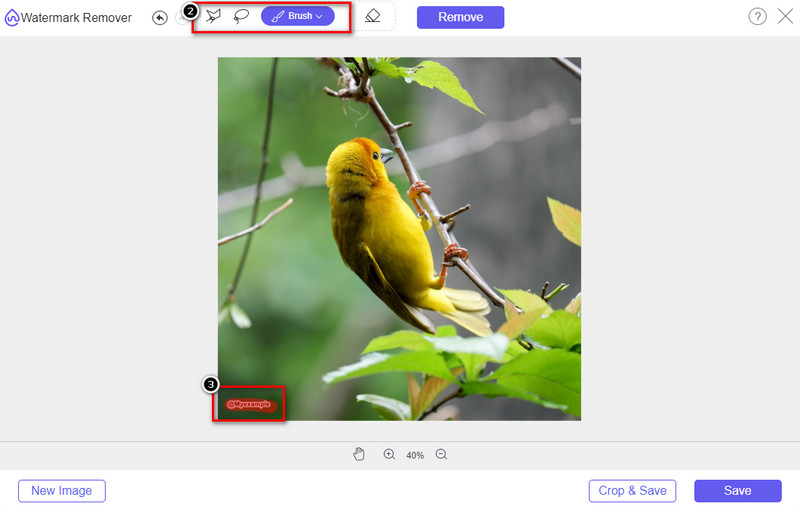
Step 4. After highlighting the watermark or logo on your upload image, press Remove.
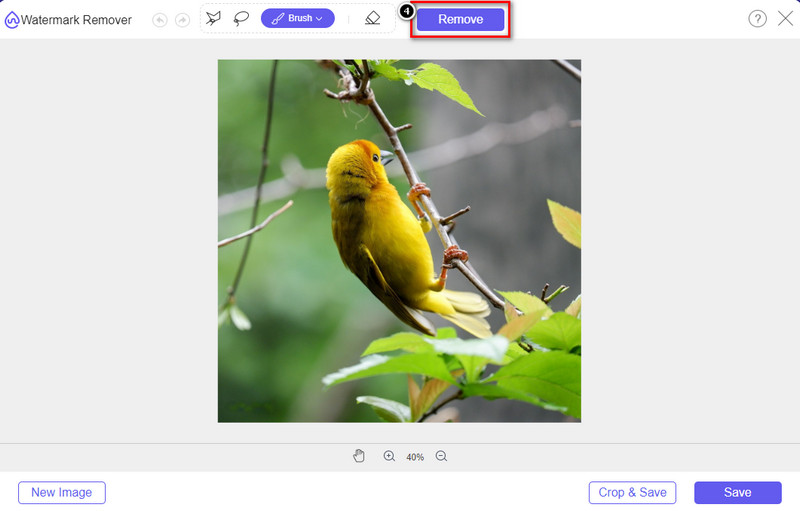
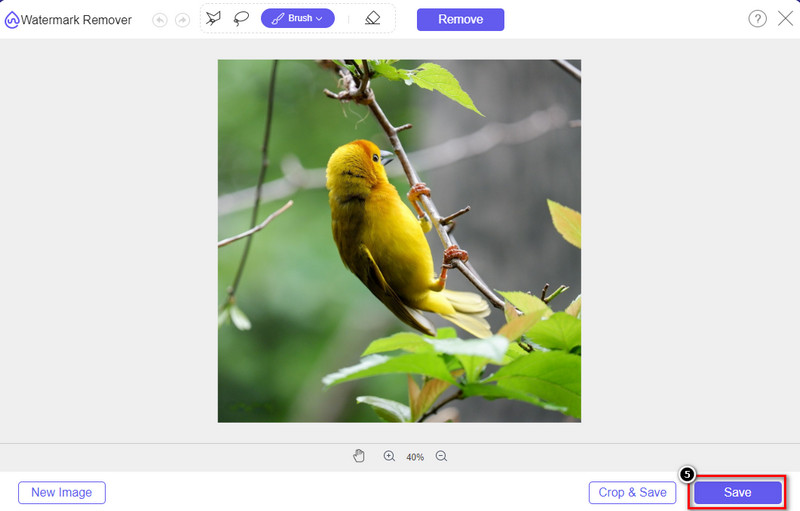
Step 5. Wait for the process to remove the watermark, and click Save to download the graph o diagram you upload. A folder will show on your screen; now check the version of the graph or diagram you’ve created without the watermark.
Advantages of Using the FVC Free Watermark Remover Online:
◆ O download do aplicativo não é necessário porque ele está disponível na web.
◆ Suporta uma ampla variedade de imagens e pode remover marcas d'água com eficiência.
◆ É um removedor de marca d'água dedicado que produz uma saída de alta qualidade.
◆ Nenhuma marca d'água é adicionada à saída final após a exportação.
◆ Sem limitação de quantas vezes usar e tamanho do arquivo.
Parte 3. Parte Adicional – Como Fazer Gráficos, Gráficos ou Diagramas no SmartDraw com Passos Detalhados
A parte anterior ensina como se livrar da marca d'água SmartDraw. Nesta parte, ensinaremos como fazer um gráfico, um gráfico e um diagrama com a ajuda do SmartDraw; você pode seguir as etapas que adicionamos abaixo para saber como fazê-lo.
Step 1. Go to its official website to create a graph, chart, or diagram.
Step 2. Now that you’ve opened the official website click Start Now and open your account.
Step 3. On the left side, choose what type of template you want to have or create.
Step 4. Add the information to each flow chart. There will be additional options you can use on the left part of the website.
Step 5. Click the Export button choose what type format you want to have, and click it to begin the process. If you are using the free version, there will be a watermark; you can copy the steps in part 2 to remove the watermark.
Further Reading:
How to Remove B612 Watermark from Your Images
How to Remove the WOW Slider Watermark for Free
Parte 4. Perguntas frequentes sobre como remover a marca d'água do SmartDraw
O SmartDraw pode exportar imagens PNG?
Sim, você pode ter um gráfico transparente no formato PNG. No entanto, ele adicionará uma marca d'água se você usar a versão gratuita. Você pode comprar a versão oficial, então haverá uma marca d'água na imagem exportada.
Quanto é o preço do SmartDraw?
Se você estiver prestes a adquirir um plano no SmartDraw, poderá adquirir o plano a partir de $ 5.95. Você pode conferir os outros preços que ele fornece no site oficial.
Qual é a vantagem de comprar a versão premium do SmartDraw?
Você pode obter controle de administrador de equipe, pasta de equipe, suporte premium e exportar imagens sem marca d'água para planos individuais. Para outras vantagens premium, você pode obter, visite o site oficial e veja quais recursos e funções você pode obter.
Conclusão
Agora que você sabe como salvar o SmartDraw sem marca d'água com as duas maneiras que adicionamos. Ou você compra ou usa uma ferramenta para remover a marca d'água no arquivo exportado. Se você não gosta de adquirir a ferramenta, deve usá-la, pois é a ferramenta web mais eficiente para eliminar a marca d'água. Se você acha que este artigo o ajudou a resolver o problema, avalie-nos com 5 estrelas.
-
 4 melhores maneiras de remover a marca d'água do GIF [online e offline]
 Precisa remover marca d'água do GIF? Com a ferramenta deste artigo, você aprenderá os diferentes estilos com os diferentes removedores de marca d'água disponíveis em sua plataforma.
-
 5 maneiras mais fáceis de remover metadados em qualquer arquivo de mídia
 Como remover metadados? É difícil fazê-lo? Preciso comprar ou usar uma ferramenta gratuita para remover tags? Todas essas perguntas têm respostas neste artigo.
-
 Excelente removedor de marca d'água do Photobucket online e offline
 Aprenda como remover a marca d'água do Photobucket de suas fotos usando esses incríveis removedores de marca d'água do Photobucket. Leia este artigo para aprender as maneiras.
