


 Video Converter Ultimate
 Gravador de ecrã
 Reparo de vídeo
 Secure Download
Corrija surpreendentemente a qualidade da imagem usando as ferramentas mais fantásticas
Having a low-quality image is quite disturbing. If you also have a low-quality image, you need to improve the quality of your image. But how can you do that? There are many image upscaler that you can use on your computer to increase the quality of your image. And if you are asking how to fix the quality of your image, then we will help you with that. Read this whole article to learn how to fix picture quality quickly.

Parte 1. Como corrigir a qualidade da imagem online grátis
Há toneladas de upscaler de imagem que você pode baixar no seu PC. No entanto, você precisa comprá-los antes de melhorar a qualidade da sua imagem. E se você estiver procurando por um upscaler de imagem gratuito, temos a ferramenta certa. Leia esta parte completamente para aprender como melhorar a qualidade da imagem gratuitamente usando as duas ferramentas online mais fantásticas.
Upscaler de imagem gratuito FVC
FVC Free Image Upscaler is a free online application that will help you fix the quality of a picture. This online tool is beginner-friendly because it has an easy-to-use software interface. Additionally, it can give you four results to 2x, 4x, 6x, and 8x magnification, providing excellent results. Also, you do not need to be anxious about the safety of your data because FVC Free Image Upscaler assures you that it is safe to use. What’s even magnificent about this tool is that it uses AI Technology which recognizes the blurred parts automatically. Furthermore, this tool perfectly lets you fix the lost pixels, color textures, and other details. If you want to use this tool to improve the quality of your image, read the instructions below.
Como corrigir a qualidade da foto online usando o FVC Free Image Upscaler:
Step 1. On the browser you use, search FVC Free Image Upscaler on the search box. Tick this link to go directly to their main page.
Step 2. On the main user interface, click the Upload Photo button to upload the image you want to upscale. Your computer files will prompt where you will select your low-quality image and upload it.
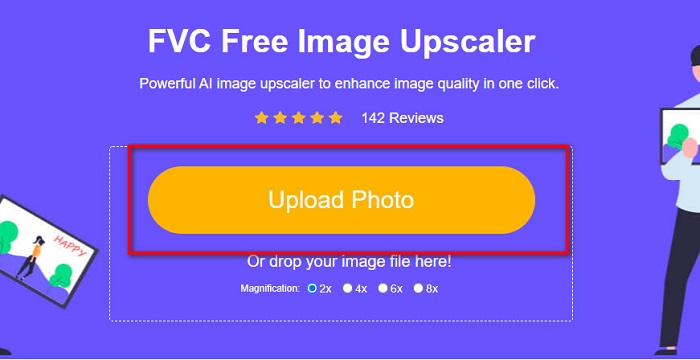
Step 3. Next, select the magnification that you want for your image. The bigger the magnification, the better the quality. You can choose between 2x, 4x, 6x, and 8x.
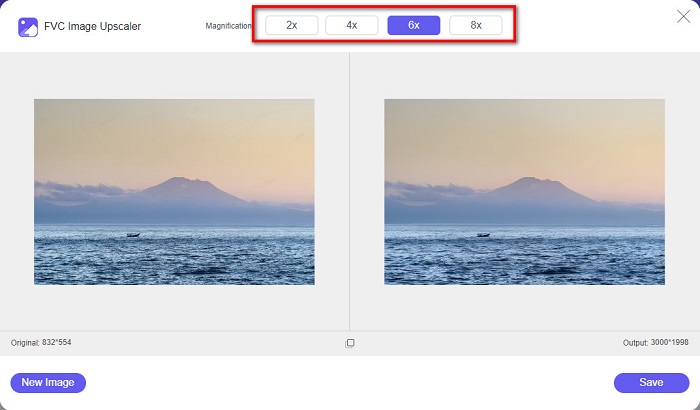
Step 4. And then, press the Save button to save your improved image on your computer folders.
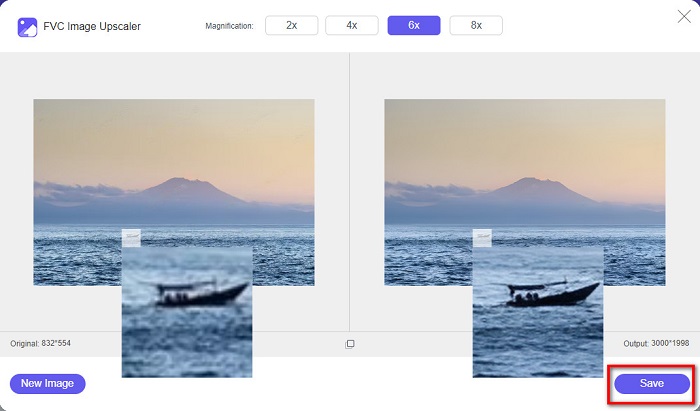
Simple, right? As easy as A-B-C, you can fix picture quality using FVC Free Image Upscaler.
Icons8.com
Icons8.com is another online image upscaler accessible on almost all web browsers, including Google, Firefox, and Safari. This online application is easy to use because it has a simple user interface. Also, this online tool uses AI technology that automatically detects the image's blurred parts. Moreover, your images can be upscaled up to 7680 x 7680px. But it leaves a watermark on its output. Nonetheless, it is still an effective tool to upscale your image.
Como corrigir uma imagem de baixa qualidade no Icons8.com:
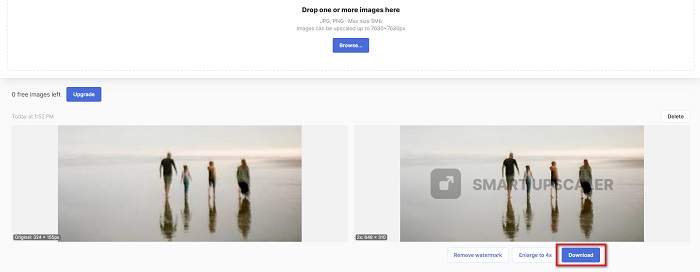
Step 1. Open your browser, and search Icons8.com on your browser. Then on the main interface, click the Browse button.
Step 2. Since Icons8.com also uses AI Technology, it automatically detects the blurred part of your image.
Step 3. Finally, tick the Download button to save your image on your computer.
Parte 2. Como corrigir imagens de má qualidade no Photoshop
Não é difícil melhorar a imagem de sua qualidade. Mas usar o Photoshop para aprimorar sua imagem pode ser bastante desafiador por causa de sua interface e funções. Mas não se preocupe, pois vamos te ensinar como usar o Adobe Photoshop para melhorar a qualidade da sua imagem.
Adobe Photoshop is excellent in photo editing and photo manipulation. This editing software is being used by many professional editors worldwide. In addition, it has many advanced editing tools you can use to edit your image. Also, Adobe Photoshop is downloadable on all cross-media platforms, including Windows, Mac, and Linux. Moreover, you can edit banners, logos, brochures, and more using this editing app. And what many users do not know is that it can also improve your image quality. Although you must purchase it before downloading it, Adobe Photoshop is worth your money.
Como corrigir fotos de baixa qualidade no Photoshop:
Neste tutorial, melhoraremos a qualidade de uma imagem ampliando-a para ver sua resolução.
Step 1. Download Adobe Photoshop on your computer. Follow the installation process, then run the app on your computer.
Step 2. Open your low-resolution image on Adobe Photoshop. Here is a sample image that is zoomed in at 100%. As you can see, the image has a low resolution.
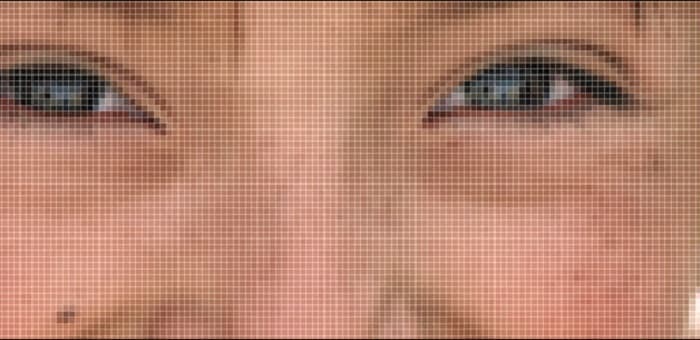
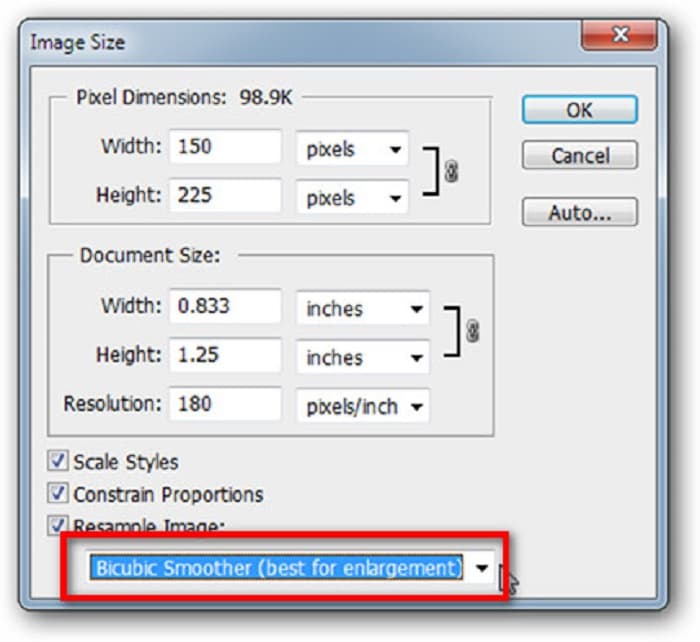
Step 3. And then, go to Image > Image Size. Then, change the type of anti-aliasing to enlarge and smooth your image on the Resample Image. Change it to Bicubic Smoother, which is best for enlargement.
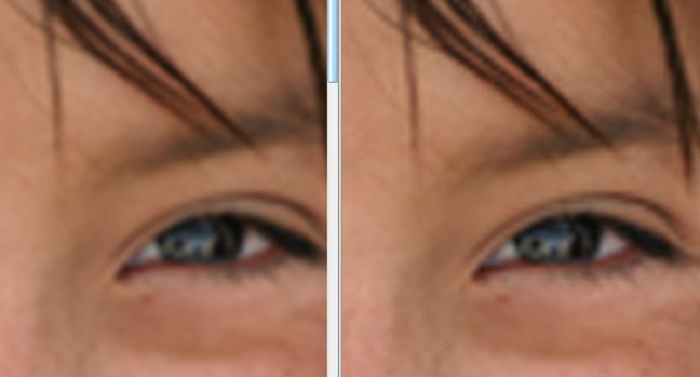
Step 4. You can see the difference between the two images below when changing it to the Bicubic Smoother version. Altering the anti-aliasing makes a huge difference in the smoothness of your image.
Step 5. Now, we will improve the enlarged image by changing its details. Most Photoshop users do not go beyond RGB and CMYK. And today, we will be using a different color mode, Lab Color. Go to Image > Mode > Lab Color.
Step 6. Next, make sure you open a panel by going to Windows > Channels > Lightness channel. You can also click the hide layer icon beside the a and b channels.
Step 7. When selecting the Lightness channel, go to Filter > Smart Sharpen > Sharpen to add the Smart Sharpen filter.
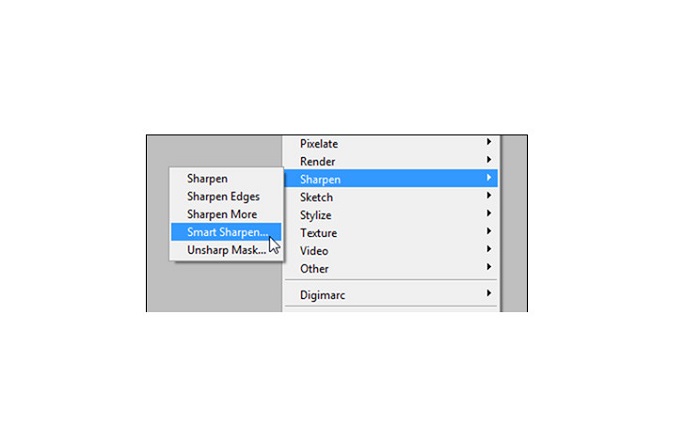
Step 8. And then, you can adjust the settings of your photo and find your desired output. Always remember that you need to keep the Remove settings to Gaussian Blur.
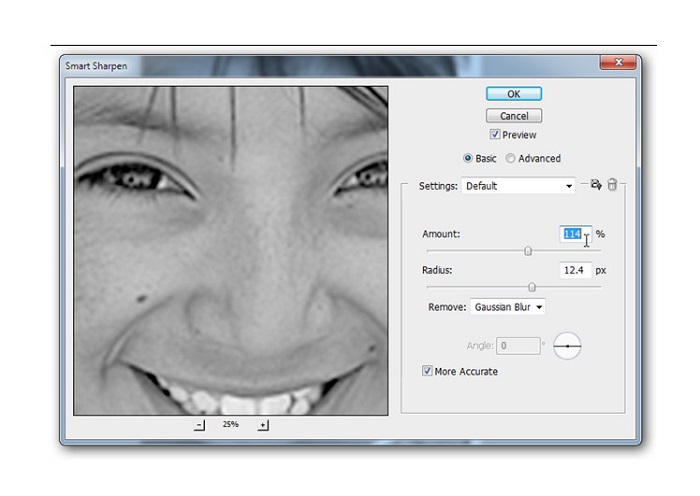
Step 9. You can choose to maintain your picture in Lab Color or revert it to RGB. And that’s it! Here is the result of your image. You will notice that the image quality is improved and has a richer texture.
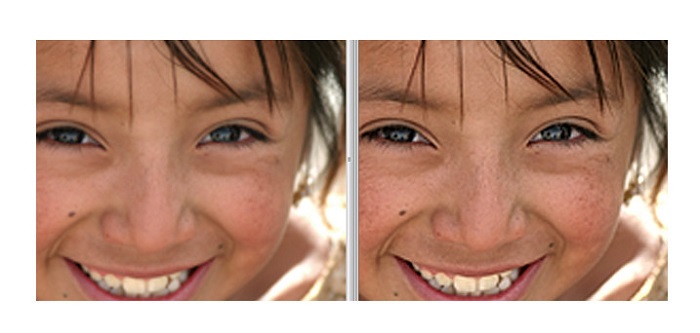
E voilá! Seguindo o guia acima sobre como corrigir fotos de baixa qualidade no Photoshop, você pode melhorar a qualidade da sua imagem.
Parte 3. Perguntas frequentes sobre como corrigir a qualidade da imagem
Posso melhorar fotos de má qualidade no iPhone?
Sim. Você pode baixar muitos aplicativos no seu iPhone que o ajudarão a melhorar a qualidade da sua imagem. Um dos melhores aplicativos de upscaler de imagem é o Remini, um aplicativo fácil de usar.
Posso alterar a resolução de imagens JPEG?
Você pode alterar a resolução de qualquer formato de imagem que deseja aumentar. Você pode usar as ferramentas mencionadas acima para melhorar a qualidade da sua imagem JPEG.
Como corrigir a qualidade da imagem no Instagram?
To fix the quality of your pictures on Instagram, change the plug-in’s Image Resolution setting to be larger image size to display the image at the correct resolution. You can do these by going through these locations: Instagram Feed > Customize > Posts > Photos > Image Resolution.
Conclusão
We hope that we answered your query on how to fix picture quality. You can choose among the tools presented above which is best. Adobe Photoshop might be a more professional tool, but it is not a user-friendly tool. So, if you want an easy-to-use free image upscaler, use FVC Free Image Upscaler.
-
 Como converter imagem de baixa resolução em alta resolução online
 Se você deseja aprender a converter imagens de baixa resolução em imagens de alta resolução online, este artigo é para você. Leia completamente para saber como.
-
 Remova a marca d'água DaVinci Resolve em vídeos exportados com o tutorial completo
 Para remover a marca d'água Davinci Resolve você precisará usar uma ferramenta ou adquirir a versão oficial dela, continue lendo isso para saber mais.
-
 Como se livrar da marca d'água do Power Director gratuitamente [completo]
 Como se livrar da marca d'água do Power Director gratuitamente? As melhores ferramentas para eliminar a marca d'água estão aqui, então aprenda-as lendo isto.
