


 Video Converter Ultimate
 Gravador de ecrã
 Reparo de vídeo
 Secure Download
Adobe Resize Images - Maneiras mais fáceis de redimensionar uma imagem online e offline
If you want to resize images on Adobe, then we have the solution you are looking for. Adobe is a famous name for image and video editing applications. Adobe has many applications where you can enhance, trim, edit, and many more; name it! Adobe has almost all apps for video and photo editing. But did you know that Adobe also has an application where you can resize an image? You read that right! Adobe Express is an online tool for image resizing. And if you want to resize offline, you can use Adobe Photoshop. We will discuss below the tools and teach you how to resize images using Adobe Express and Adobe Photoshop.

Parte 1. Como redimensionar imagem no Adobe Express Online
Se você gosta de usar um redimensionamento de imagem online, existem muitas ferramentas que você pode pesquisar na internet. No entanto, pesquisar na internet às vezes não será a melhor escolha, pois existem ferramentas que não fornecem resultados de grande qualidade. Além disso, muitas pessoas estão pesquisando imagens de redimensionamento online do Adobe Photoshop. O problema é que o Adobe Photoshop não tem uma versão online. Assim, apresentaremos mais uma ferramenta da Adobe para redimensionar uma imagem.
Adobe Express is probably the best online image resize you can search on the internet. This online application allows you to resize an image by choosing the scaling preset from the options. You can choose between 9:16 (Story), 1:1 (Square), 4:5 (Portrait), and 1.91:1 (Landscape). Moreover, it has a simple interface, making it a user-friendly application. You can also manually scale your image by holding and dragging the slider. Furthermore, if you want to resize an image for Instagram, Facebook, Twitter, or Pinterest, Adobe Express will help you with that. However, unlike other Adobe editing apps, this tool does not have other editing features.
Como redimensionar uma imagem usando o Adobe Express:
Step 1. Open your browser and search Adobe Express image resizer on the search box. Then, click the Upload your Photo button on the main user interface to upload the image you want to resize.
Step 2. And then, drag and drop your image from your computer folders. You can also just click the Browse on your device button to upload an image.
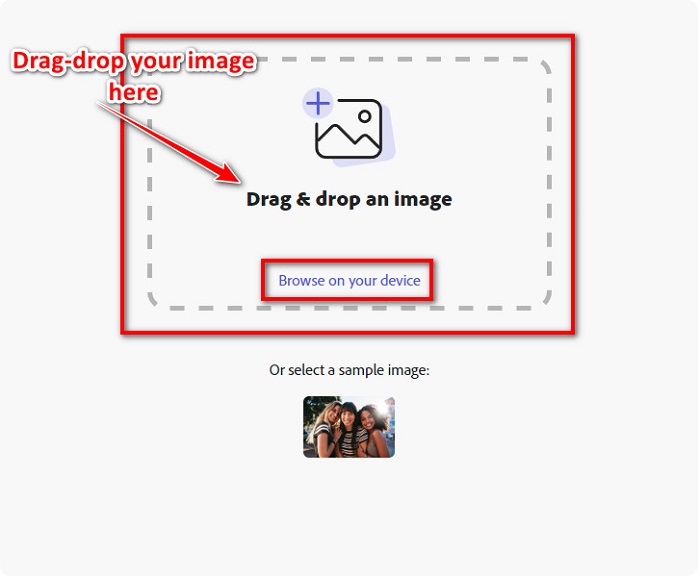
Step 3. Lastly, choose where you want to resize by clicking the drop-down arrow beside Resize for. And then, select your preferred size on your image's left side of the interface. You can also manually resize your image by holding and dragging the slider below the size presets.
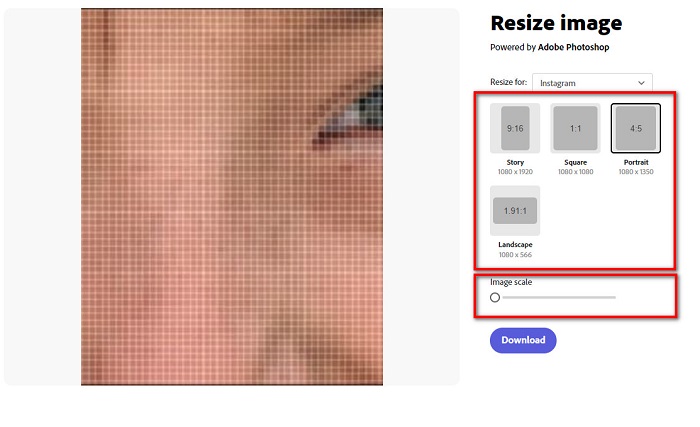
Step 4. Click the Download button to download your resized image.
Parte 2. Como redimensionar a imagem usando o Adobe Photoshop Offline
Apesar disso, é bom usar uma ferramenta online porque permite economizar espaço no seu dispositivo, mas ainda é a melhor escolha usar uma ferramenta offline. A maioria dos redimensionadores de imagens offline contém muitos recursos de edição. Além disso, a vantagem de usar ferramentas offline é que você não precisa acessar a internet para redimensionar sua imagem. Nesta parte, apresentaremos o melhor redimensionador de vídeo offline.
Adobe Photoshop is the best photo editing application that you can have on your PC. This photo editing app has many tools and functions that you can use to edit your images. In addition, you can use this tool to resize any image. This app allows you to enhance digital images, drawings, paintings, and animations that you can use for business purposes. Moreover, many professionals use this image editing application because of its functions and the quality it produces.
Além disso, você pode usar este aplicativo para adicionar texto, criar 3D e adicionar nitidez à sua imagem. Mas a desvantagem do Adobe Photoshop é que você deve comprar o aplicativo antes de usá-lo. E também é difícil de usar, especialmente para iniciantes. No entanto, este aplicativo vale o seu preço, e você certamente vai gostar de usar este aplicativo.
Como redimensionar imagens usando o Adobe Photoshop offline:
Step 1. Download Adobe Photoshop on your device. Then, follow the app’s installation process, and run it on your device.
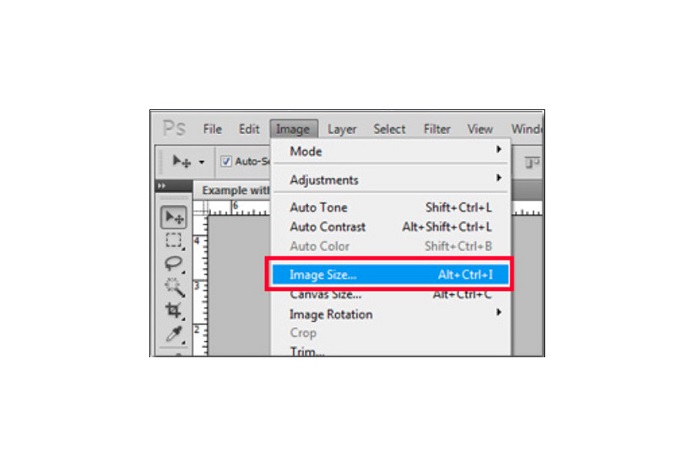
Step 2. Open your image on Photoshop, then go to the Image at the top left of the interface. Then, select Image Size.
Step 3. Next, a new window will prompt, where you will click the box next to Constrain Proportions.
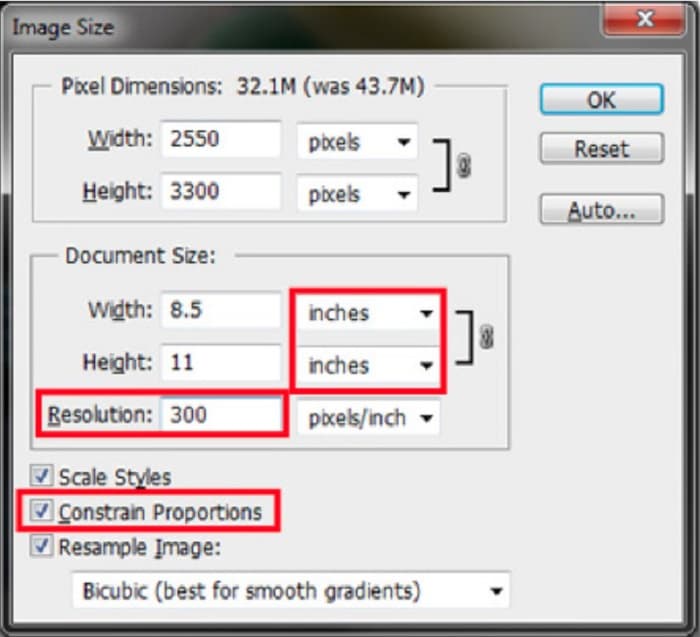
Step 4. And under the Document Size, select the inches for your measurement unit. Ensure that the resolution is not lower than 200 pixels per inch.
Step 5. Type the width and the height that you prefer for your image. And then tick the OK button to save the changes.
Step 6. Finally, save your file on your computer.
Now that you learned how to resize an image using the best Adobe photo resizer, we will show you an alternative image resizer to use.
Parte 3. Alternativa ao Adobe Photoshop para redimensionar imagens
Como o Adobe Photoshop não é uma ferramenta amigável, procuramos uma alternativa que você possa usar para redimensionar sua imagem. Portanto, apresentaremos um aplicativo de software que você pode baixar no seu dispositivo Windows ou Mac. Também ensinaremos como redimensionar uma imagem usando este aplicativo definitivo.
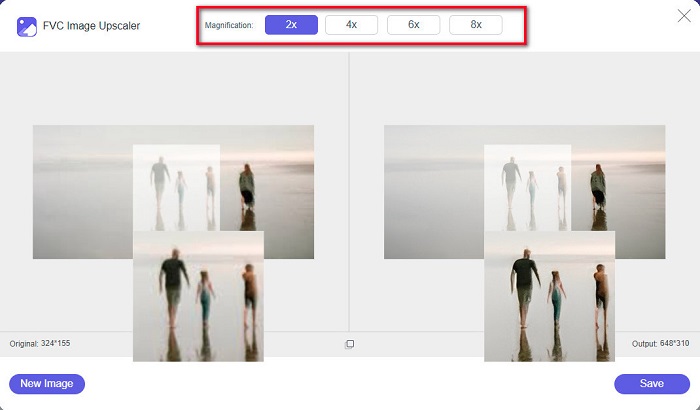
FVC Free Image Resizer is another powerful online image resizer that you can use if you want to resize your image. You can also use image resizer applications to fix the quality of your photo, and that’s what FVC Free Image Resizer does. This online tool can upscale your image for up to 2x, 4x, 6x, and 8x magnification. Additionally, it supports all image formats, such as JPG, JPEG, PNG, and BMP. What’s even great about this application is its easy-to-use software interface. Moreover, it uses AI technology that automatically detects the blurry part of an image, then enhances it.
Como redimensionar uma imagem usando o FVC Free Image Upscaler:
Step 1. Search for FVC Free Image Upscaler on your browser, then go to the app’s main page. Press the Upload Photo button on the main user interface to upload the image you want to resize.

Step 2. After uploading your image, select the magnification you want for your photo. You can select between 2x, 4x, 6x, and 8x. The greater the number, the better the quality.
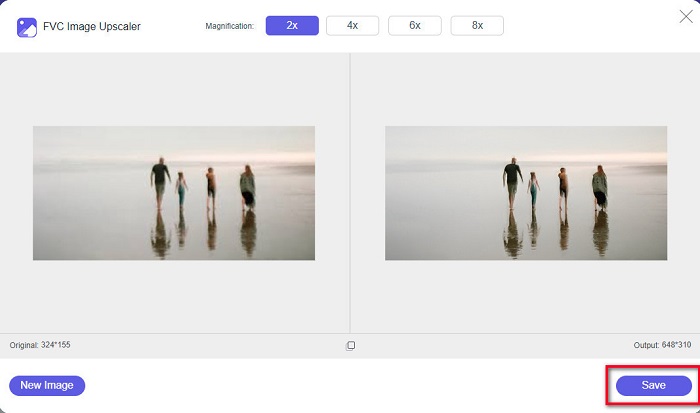
Step 3. And then, click the Save button to save your output on your device.
Parte 4. Perguntas frequentes sobre como redimensionar imagem no Adobe Photoshop
A Adobe redimensiona imagens sem perdas?
Usando o Adobe Photoshop, você pode redimensionar suas imagens sem perder qualidade. Além disso, produz saídas de alta qualidade.
Quais formatos de arquivo são compatíveis com o Adobe Photoshop?
O Adobe Photoshop aceita quase todos os formatos de imagem conhecidos, como JPG, JPEG, PNG, BMP, TIFF, EPS, PDF e muito mais.
Qual é o preço do Adobe Photoshop?
Você pode comprar o Adobe Photoshop por $19,99 por mês. Você pode usar sua avaliação gratuita de 30 dias para testar o aplicativo primeiro.
Conclusão
Now that your query about Adobe resize images has been solved, you can resize an image using Adobe Express or Adobe Photoshop. Whichever application you choose among the above mentioned tools, you can successfully resize your image. But if you want an easier and more efficient way to resize and enhance an image, then use FVC Free Image Upscaler.
-
 Como melhorar a nitidez da imagem online e offline com 4 maneiras fáceis
 Existem muitos métodos que você pode fazer se quiser tornar uma imagem mais nítida. Discutiremos abaixo as melhores e mais fáceis maneiras de aprimorar imagens online e offline.
-
 Restauração de fotos antigas online e offline [etapas fáceis]
 Quer restaurar uma foto antiga? Com essas ferramentas, você conhecerá o processo de restauração de fotos antigas. Leia este post para aprender os métodos mais simples.
-
 Como redimensionar fotos para o Facebook [Passos rápidos e fáceis]
 Se você está tendo problemas para carregar uma imagem de tamanho grande no Facebook, temos uma solução para você. Termine este artigo para saber como redimensionar fotos para o Facebook.
