


 Video Converter Ultimate
 Gravador de ecrã
 Reparo de vídeo
 Secure Download
3 métodos eficientes para converter MP4 em AMV em seu Windows e Mac com facilidade
Quando você deseja enviar alguns vídeos MP4 grandes para o seu smartphone, como um filme grande, pode não haver espaço de armazenamento suficiente. Para converter MP4 em arquivo AMV, você pode usar o algoritmo de compactação avançado para obter um vídeo muito menor. Se você precisa converter os vídeos online, ou ajustar e editar os vídeos com um determinado tamanho, você pode aprender mais sobre os 3 conversores MP4 para AMV mais eficientes no artigo.

Parte 1: Como converter MP4 para AMV online
If you just need to convert a simple MP4 to AMV with ease, FVC Free Online Video Converter is a versatile online video converter, which is compatible with MP4, AMV, AVI and more other files. It also enables to tweak the video and audio settings, and even enables you to convert the files without watermark, or other restriction.
- 1. Converta MP4 para AMV, AVI, MKV e mais outros vídeos com qualidade original.
- 2. Ajuste a taxa de quadros, qualidade de vídeo, codec de vídeo, qualidade de áudio e muito mais.
- 3. Fornece uma interface de usuário fácil para converter os arquivos AMV em apenas 3 etapas.
- 4. É um método seguro e estável para converter os arquivos sem marca d'água.
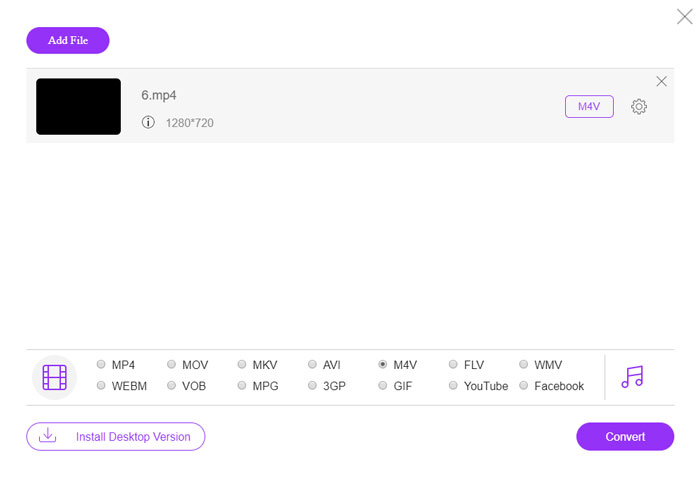
Step 1. Head to the online MP4 to AMV converter on any browser, you can click the Add File to Convert button to install the video converter for the first time. You can also load the MP4 files to the program.

Step 2. Choose the AMV as the output format from the bottom. Of course, you can also tweak the video and audio settings, such as video encorder, video resolution, video bitrate, frame rate and more to get a desired video.

Step 3. After that, you can click the Convert button to start converting MP4 to AMV accordingly. It takes a few seconds to get the desired file, and then you can transfer the video to your smartphone accordingly.
Parte 2: Como converter MP4 em AMV com o VLC Media Player
O VLC Media Player é um dos mais populares conversores de MP4 para AMV. Ele também fornece alguns recursos básicos de conversão e edição de vídeo. Além disso, você também pode visualizar a saída de vídeo AMV após a conversão. Basta verificar o processo detalhado abaixo.
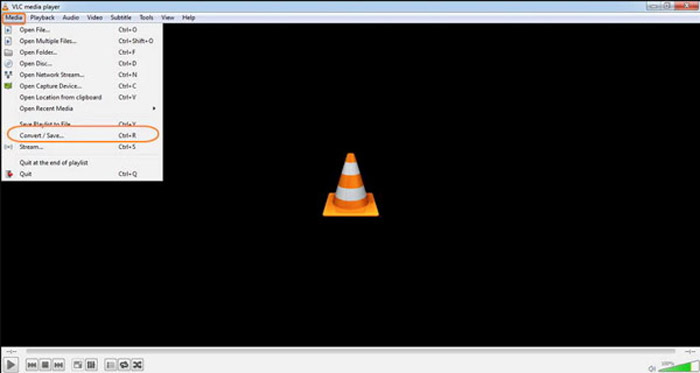
Step 1. Open VLC Media Player on your computer, go to the Media menu and choose the Convert/Save option. Click the Add option to the right of the File Selection list on the File tab and browse the MP4 files.
Step 2. Click the Convert/Save button to continue. Go to the Convert windows, you can select the AMV as the output format. Click the Edit Selected Profile button to tweak the video and audio settings.
Step 3. Click the Browse option and choose a location and filename for the output file. After that, you can click the Start button to convert MP4 files into AMV accordingly on your computer.
Parte 3: Melhor método para converter MP4 em AMV com facilidade
FVC Video Converter Ultimate is an all-in-one MP4 to AMV converter on both Windows and Mac. It not only converts the video formats, but also enables you to adjust the different video and audio parameters, add subtitles/audio tracks, and even edit the converted video files with ease.
- 1. Converta MP4 para AMV e mais outros formatos de vídeo com qualidade original.
- 2. Ajuste a taxa de quadros, a qualidade do vídeo, a taxa de bits, o codec de vídeo e muito mais.
- 3. Fornece vários recursos de edição de vídeo para girar, cortar, ajustar filtros, etc.
- 4. Aceleração de hardware avançada para converter o vídeo com velocidade 70x mais rápida.
Free DownloadFor Windows 7 or laterSecure Download
Free DownloadFor MacOS 10.7 or laterSecure Download
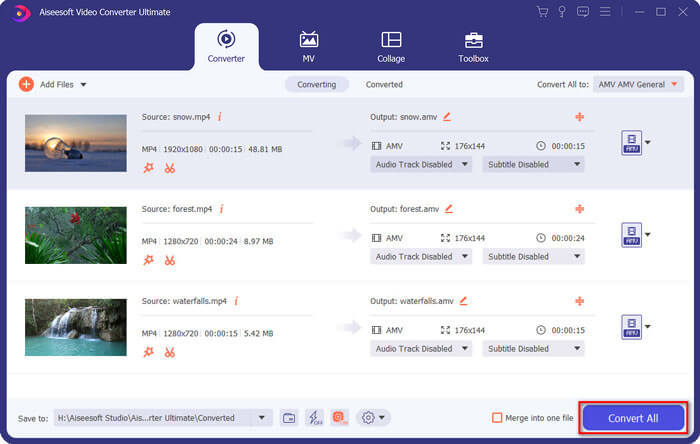
Step 1. Download and install the MP4 to AMV converter, launch the program on your computer. Choose the Convert button and click the Add File option to load the MP4 files, or directly drag multiple MP4 files to this program.

Step 2. Click on the format icon on the right side of the video file and choose the AMV as the output format. You can also click the Gear icon to adjust the video and audio settings, or even edit the video/adjust filters with ease.

Step 3. Once you are satisfied with the output AMV, such as the video size, you can click the Convert All button to start the MP4 to AMV conversion. After that, you can transfer the AMV files to another device.
Parte 4: Perguntas frequentes sobre a conversão de arquivos MP4 em AMV
1. O que é o formato de arquivo AMV?
O arquivo AMV é conhecido como arquivo Anime Music Video. É normalmente usado por dispositivos portáteis de reprodução de mídia na China. O formato de vídeo AMV é caracterizado por baixa resolução, que tem uma resolução de vídeo entre 94x64 e 160x120. Ao converter MP4 para AMV, você pode enviar mais vídeos para o seu smartphone com facilidade.
2. Como reproduzir arquivos AMV no smartphone e no computador?
Ao converter arquivos MP4 em AMV, como reproduzir os arquivos de vídeo no smartphone ou computador? Na verdade, você pode simplesmente pegar o AMV como uma variante do formato AVI, que é viável na maioria dos reprodutores de mídia. Se você precisa reproduzir os arquivos AMV em seus dispositivos iOS, você pode usar o VLC Media Player ou outro reprodutor de mídia.
3. Quais são as diferenças entre AMV e MP4?
MP4 é um dos formatos de vídeo usados com mais frequência que pode ser usado para dispositivo e serviço de streaming online. AMV é uma variante do Motion JPEG, com tabelas de quantização fixas em vez de variáveis. Ao converter MP4 para AMV, você pode compactar o vídeo e economizar mais espaço de armazenamento, especialmente para transferir os vídeos para dispositivos.
Conclusão
Qual é a melhor escolha para converter MP4 para AMV? Basta aprender mais detalhes sobre os melhores métodos do artigo. Se você precisa converter e compactar os vídeos online sem software extra, o FVC Free Online Video Converter é a solução definitiva que você pode levar em consideração.
-
 AVI VS MP4 - Qual é o melhor (qualidade / compactação / tamanho do arquivo ...)
 Qual é o melhor formato de vídeo, AVI ou MP4? Se você deseja obter uma comparação detalhada, você pode verificar este artigo AVI VS MP4. Você pode saber as diferenças e semelhanças entre AVI e MP4 em muitos aspectos.
-
 Os 10 principais softwares MP4 Player para Windows e Mac (gratuito e pago)
 Leia e obtenha o seu melhor MP4 player com as recomendações dos 10 softwares mais recentes para MP4 video player. Você pode reproduzir arquivos de vídeo MP4 no Windows e Mac sem problemas, sem atrasos.
-
 Como converter MP4 em WMV para Mac / Windows
 Esta postagem mostra como converter vídeo MP4 para o formato WMV no Mac ou Windows. Também ofereceremos várias opções, incluindo software de desktop e conversores on-line baseados na web. Pronto para conhecer as melhores ferramentas de conversão de MP4 em WMV?
