


 Video Converter Ultimate
 Gravador de ecrã
 Reparo de vídeo
 Secure Download
Como redimensionar uma imagem no PowerPoint sem degradar a qualidade
Lately, many people present everything digitally rather than in the traditional way, even before the pandemic. As we strive for the future, everything can become easier with the help of technology and software for presenting the business, visual aids, ideas, sales, etc., and you can all do them on Powerpoint. You can have this presenter on your device for its purpose—furthermore, many users are looking for a way to resize the image in this presenter. Are you willing to learn how to resize a picture in PowerPoint? Keep reading this article as we cover the information you need to know about this topic.

Parte 1. Como redimensionar uma imagem no PowerPoint usando 2 maneiras eficazes que você pode usar [individualmente e vários]
Ao ajustar o comprimento e a altura da imagem em cada slide, você pode definir uma dimensão exata ou alterar a proporção arrastando o quadro. Embora você possa fazer isso aqui naturalmente, alguma distorção ocorre quando o tamanho da imagem é alterado. Portanto, se você quiser saber como redimensionar imagens em vários slides no PowerPoint ou individualmente, siga as etapas que adicionamos abaixo. Siga-o de acordo e você o redimensionará em menos de um minuto.
3 maneiras de redimensionar a imagem no PowerPoint [individualmente e em lote]
1. Resize Image by Dragging the Frame
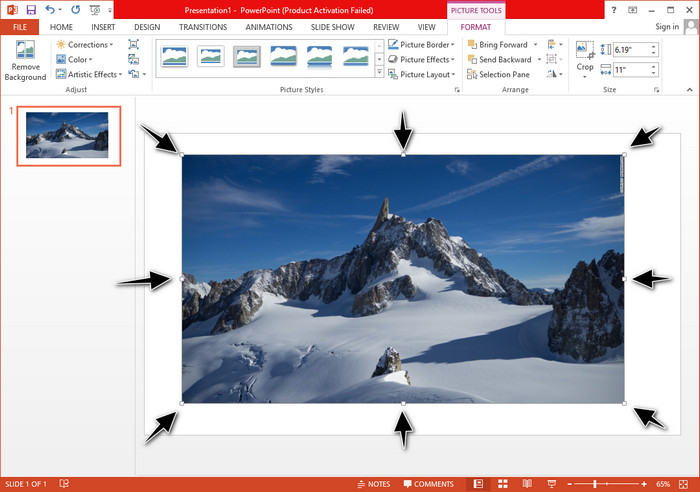
Depois de carregar a imagem no PowerPoint, você verá pequenos pontos nela. Esses pontos na imagem são ajustáveis, o que significa que você pode redimensionar livremente a foto de acordo com sua especificação. Depois de alterar o comprimento, a altura não seguirá o mesmo que ajustar o tamanho.
2. Resize Image by Changing the Height and Length
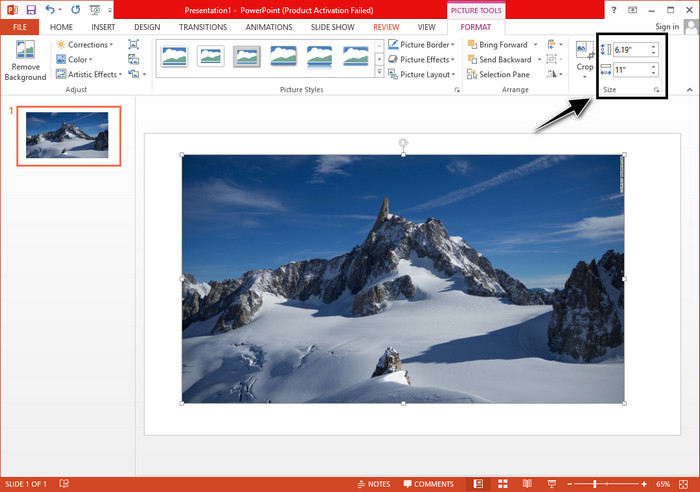
Ao carregar a imagem no PowerPoint, clique na guia Formato para alterar a imagem para um tamanho específico. Na parte superior, você pode adicionar sua altura e comprimento exatos. No entanto, depois de alterar uma medida, a outra será ajustada automaticamente porque a proporção principal está ativa.
3. Resize Image as a Batch on Powerpoint
What should you do to change multiple images on a single PowerPoint slide? To do it, you will need to upload the photos on the slide. Once you’ve uploaded various images on the slide, you must press and hold Control, then tick every picture you want to resize. Follow what resizing option you want to use that we introduce above; drag the frame or change the numerical value.
Parte 2. Como redimensionar uma imagem no PowerPoint sem distorcer gratuitamente [Serviço da Web]
How to resize a picture in PowerPoint without distorting it? You can use the FVC Free Image Upscaler to automatically resize the photo you upload that you want to use on a PowerPoint presentation. Despite being an online tool, its performance is better than the PowerPoint resizer because it creates PPI to prevent the blurriness of the image even though you have to resize it. Are you wondering, or do you want to use this tool and start resizing your image? In that case, follow the succeeding steps we include as we teach you how to use this tool as easy as possible.
Advantages of Resizing a Photo Using the FVC Free Image Upscaler:
◆ You can use this photo resizer for free without quality loss.
◆ Ele suporta uma ampla variedade de formatos que você pode carregar.
◆ Possui uma poderosa tecnologia de IA que pode ajudá-lo a redimensionar qualquer foto.
◆ Você pode acessar esta solução da Web em qualquer mecanismo de pesquisa que tenha em sua área de trabalho.
◆ Não há necessidade de instalação ou download antes de usá-lo.
Passos sobre como redimensionar sem distorcer usando o FVC Free Image Upscaler:
Step 1. Open the website of this resizer by clicking this link.
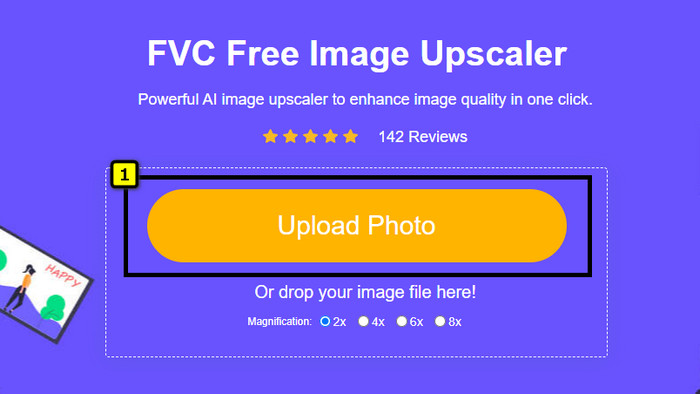
Step 2. When the website is opened, click the Upload Photo to add the photo you want to resize and use it on your PowerPoint presentation.
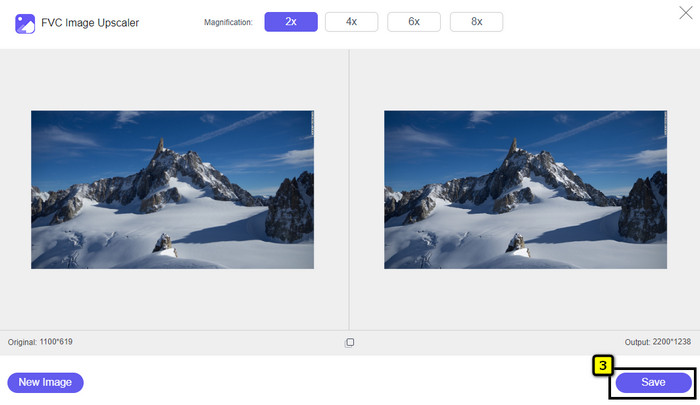
Step 3. After uploading the image, wait for it to load up. Select the Magnification you want to apply to your image by choosing the options such as 2x, 4x, 6x, or 8x.
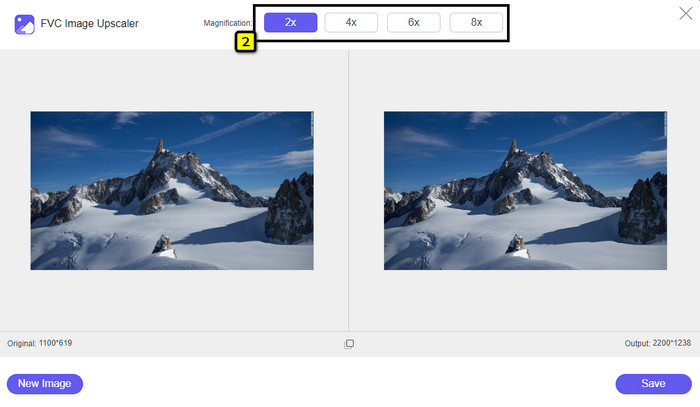
Step 4. Click Save to export the resized image you change here. As easy as that, the resized image on your local drive without any distortion or blurriness added.
Parte 3. Perguntas frequentes sobre como redimensionar uma imagem no PowerPoint
Qual é o comprimento e altura máximos de uma foto para Powerpoint?
Ao redimensionar a imagem na dimensão máxima do Powerpoint como widescreen, você pode definir o pixel para 1280 x 720 px. Mas ao exibi-lo na tela, você precisará seguir a proporção de 16:9, que é 1920 x 1080 px.
Existe algum atalho para redimensionar a foto no PowerPoint?
Para alterar a altura da imagem, você deve segurar a tecla Shift, depois clicar na seta para cima para aumentar e na seta para baixo para diminuir a altura da mesma. Para quem quiser alterar a largura da imagem, você pode segurar a tecla Shift novamente, depois pressionar a seta para a direita para aumentar a largura e a seta para a esquerda para diminuir a largura de acordo com sua preferência.
Por que minha imagem ficou embaçada depois de redimensioná-la no PowerPoint?
Quando você está prestes a redimensionar a imagem no PowerPoint, a imagem foi esticada e há uma chance de que a imagem fique desfocada. Mas se você deseja um editor de imagens capaz de criar pixels enquanto altera a dimensão, pode evitar ter uma imagem pixelizada no PowerPoint.
Posso usar GIFs para PowerPoint?
Sim, você pode usar GIFs em todos os slides do PowerPoint. No entanto, quando a dimensão GIF não for favorecida no tamanho desejado, você precisará redimensioná-la. E o resultado do GIF redimensionado ficou embaçado ou pixelizado.
Conclusão
To wrap it up, you can learn the three techniques for resizing the image on PowerPoint by following the tutorial we add in this post. Though you can easily do it on the presenter, there are times that it produces distortion when the image dimension is changed. You can solve this problem using the online tool we added because it doesn’t distort any resized images here. With the steps we add, you can learn how to resize the image on FVC Free Image Upscaler.
-
 Melhor aplicativo de redimensionamento de fotos online, offline, Android e iPhone
 Quais são os melhores aplicativos de redimensionamento de fotos? Clique na página para conhecer os cinco principais aplicativos de redimensionamento de fotos mais poderosos que você pode usar para aprimorar ou redimensionar seu arquivo.
-
 Como redimensionar imagem – Adobe Resize Image [Online e Offline]
 Se você estiver procurando por redimensionamento de imagem da Adobe, temos a solução para você. Veja este post completamente para saber como redimensionar imagens usando o Adobe no seu PC.
-
 Como redimensionar fotos para o Facebook [Passos rápidos e fáceis]
 Se você está tendo problemas para carregar uma imagem de tamanho grande no Facebook, temos uma solução para você. Termine este artigo para saber como redimensionar fotos para o Facebook.
