


 Video Converter Ultimate
 Gravador de ecrã
 Reparo de vídeo
 Secure Download
Um guia passo a passo sobre como fazer a aceleração de velocidade no seu computador
Are you searching for a way to speed ramping? Many people search for tools that can help them gradually change the speed of their videos or movies. Speed ramping a video is popular to many video editors because it dramatically impacts videos. However, not many applications have a speed ramping feature that you can use. But don’t worry, because there is a famous video editing software that you can use to do a speed ramping. Continually read this guidepost to learn how to do speed ramping.

Parte 1. O que é rampa de velocidade
O Video Speed Ramping é popular entre muitos editores de vídeo, especialmente ao criar filmes. Mas afinal, o que é aceleração de velocidade?
A aceleração da velocidade é ajustar a velocidade do seu vídeo gradualmente para ter um grande efeito cinematográfico no seu vídeo. Além disso, você pode colocá-lo como aceleração e desaceleração do seu vídeo. Imagine um cenário em que um vilão está tentando atirar no herói em um filme. Você pode aumentar a velocidade quando a bala for disparada para criar um efeito cinematográfico significativo.
Resumindo, o aumento de velocidade altera a velocidade do seu vídeo com melhor controle dos quadros-chave para criar efeitos poderosos. Além disso, é uma função de edição de vídeo padrão que você pode fazer no seu vídeo. Então, leia a próxima parte de forma abrangente se você quiser aprender como fazer aumento de velocidade em seu vídeo.
Parte 2. Como fazer o Speed Ramping no Premiere
O Adobe Premiere é um dos softwares de edição de vídeo mais excelentes que você pode usar se quiser acelerar o seu vídeo. O Adobe Premiere tem muitas funções de edição que você pode usar para editar ou aprimorar seu arquivo de vídeo. Além disso, pode produzir saídas poderosas com alta resolução e qualidade. Além disso, oferece ângulos multicam ilimitados que são benéficos se você acelerar o seu vídeo. E desde a atualização mais recente, importar e exportar vídeos para o seu dispositivo é mais gerenciável.
Além disso, o Adobe Premiere é um ótimo aplicativo se você deseja um programa com velocidade responsiva. Muitos profissionais preferem usar o Adobe Premiere para editar vídeos ou filmes porque possui muitas ferramentas organizacionais necessárias para edição de vídeo. Além disso, este programa pode ser baixado em todas as plataformas de mídia cruzada, incluindo Windows e Mac.
Como fazer uma rampa de velocidade no Adobe Premiere:
Step 1. Download and install Adobe Premiere on your computer. After installing the program, open it on your device. The main thing you must do is to import the video file you want to speed ramp. You can click and drag your video from your files to your project window to import it.
Step 2. Next, drag the clip to the Timeline to generate a sequence in place. Then, Adobe Premiere will automatically create a sequence with the necessary settings you need for speed ramping.
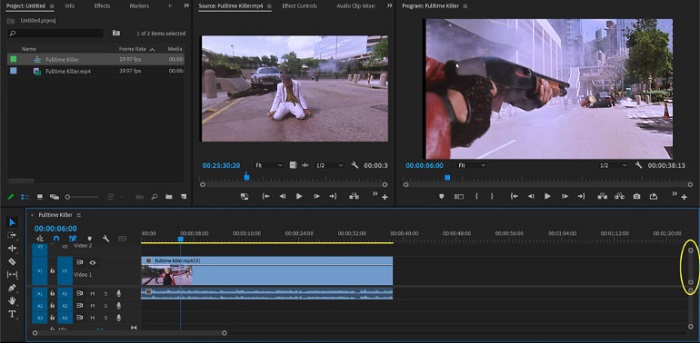
Step 3. And then, select the part where you want to do the speed ramp. One of the ways that you can do to isolate the part you want to speed ramp is by setting in and out points. Press Command + K to cut the moment. Another method is using the razor blade tool to split the clip into portions.
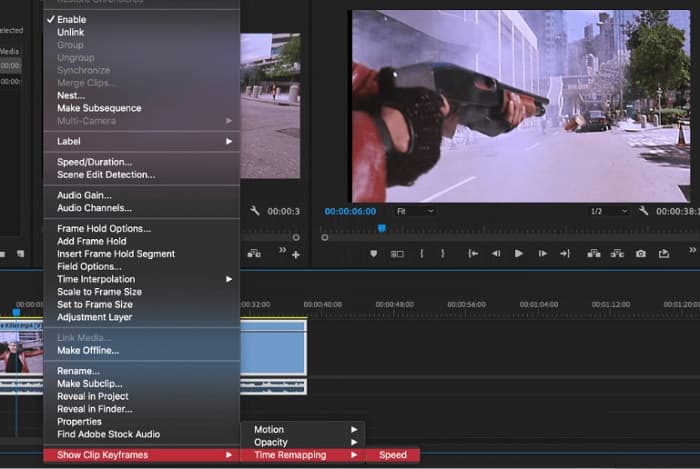
Step 4. For the next step, we will create keyframes. But before we set the keyframes, we need to make sure that the keyframes are visible. Right-click your video clip and select Show Clip Keyframes,> Time Remapping > Speed.
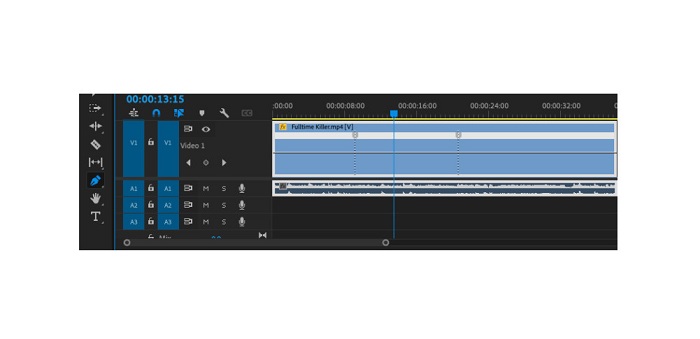
Step 5. And on the Toolbar, select the Pen tool. Then, click the white line across your video clip to create a keyframe. You need two keyframes to perform speed ramping on your video. Set the first keyframe where you want to start the speed ramp and the other where you want to end the ramp.
Step 6. Now, we will adjust the speed of the part you want to speed ramp. Click the white line between the keyframes you set, and drag the white lines up or down. Drag up to speed up and drag down to slow down your video.
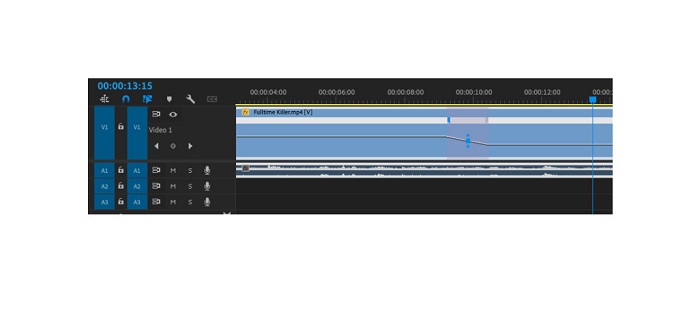
E esse é o tutorial que você precisa saber se deseja acelerar um vídeo no Adobe Premiere.
Parte 3. Maneira mais fácil de fazer rampa de velocidade
Embora o Adobe Premiere possa produzir resultados incríveis com alta qualidade, não é uma ferramenta amigável para iniciantes. Portanto, se você é novo em rampas de velocidade, é melhor procurar uma maneira alternativa. Felizmente, encontramos este ótimo aplicativo que você pode usar para acelerar um vídeo. Para saber mais sobre este aplicativo, leia as descrições abaixo.
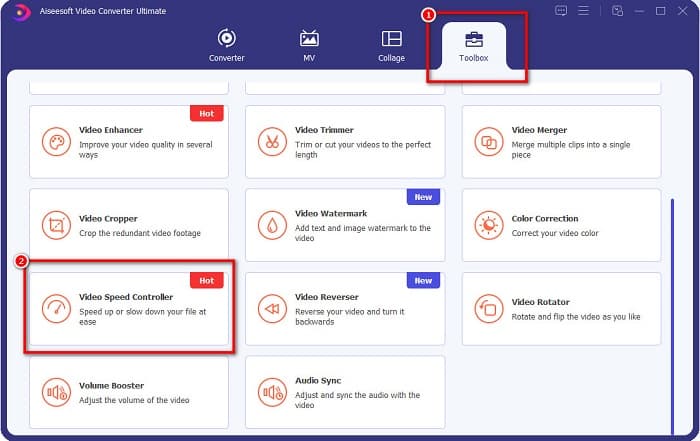
Video Converter UItimate is an excellent software with many advanced editing features. You can use this software if you want to speed ramp a video. Moreover, it has an easy-to-use interface, making it easy for beginners. Also, it supports all video formats, like MP4, AVI, MOV, MKV, VOB, WMV, M4V, WebM, and 1000+ more. It contains many editing features, such as a video speed controller, video merger, video watermark remover, color correction, and more from the Toolbox.
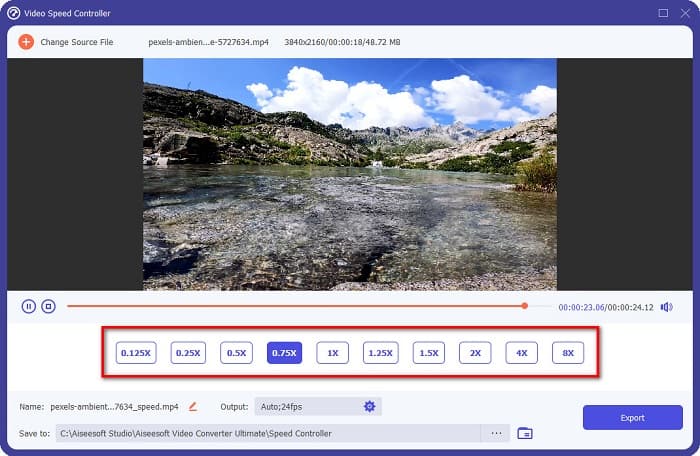
Além disso, ao usar seu controlador de velocidade de vídeo para acelerar um vídeo, você pode escolher entre suas predefinições de velocidade. O que é ainda melhor sobre o Video Converter Ultimate é sua interface de processamento rápido, tornando-o conveniente para muitos usuários. Você pode baixar este aplicativo em todas as plataformas, incluindo Windows, Mac e Linux. E se você quiser usar o controlador de velocidade de vídeo do Video Converter Ultimate, siga o guia simples abaixo.
Como acelerar um vídeo usando o Video Converter Ultimate:
Step 1. First, download the app on your computer by clicking the Download button below. After downloading and installing the app, run it on your device.
Free DownloadFor Windows 7 or laterSecure Download
Free DownloadFor MacOS 10.7 or laterSecure Download
Step 2. And then, on the application’s main interface, go to the Toolbox panel and select the Video Speed Controller feature.
Step 3. To upload the video you want to speed ramp, click the plus (+) sign button or drag and drop your file to the plus sign box.

Step 4. And on the next interface, select the video speed that you want for your video. You can choose between 0.125x, 0.25x, 0.5x, 0.75x, 1x, 1.25x, 1.5x, 2x, 4x, and 8x.
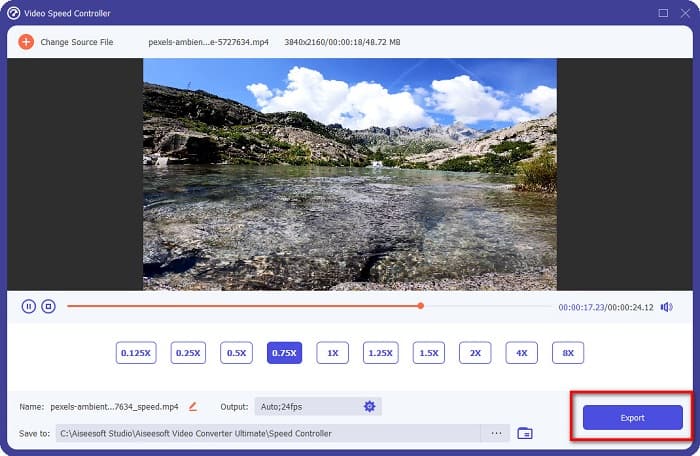
Step 5. Finally, if you are done editing the speed of your video, click the Export button to save your output on your device.
Relacionado a:
How to Speed Up Video in After Effects [Best Speed Up Tool]
How to Speed Up Video in Sony Vegas [Easy Steps]
Parte 4. Perguntas frequentes sobre Speed Ramping
Você pode acelerar a filmagem no seu iPhone?
Sim. Se você quiser aumentar a velocidade em um iPhone, pode usar o aplicativo iMovie. O iMovie é um aplicativo de edição de vídeo conhecido para iPhone que permite acelerar ou desacelerar um vídeo com seus vários intervalos.
O Adobe Premiere é gratuito?
Não. O Adobe Premiere não é um aplicativo gratuito. Você deve comprar o aplicativo por US$20,99 por mês se quiser usá-lo. Mas você pode baixá-lo gratuitamente com uma avaliação gratuita de 7 dias.
Posso acelerar a rampa no CapCut?
CapCut é um aplicativo de edição de vídeo onde você pode acelerar o seu vídeo. Usando sua ferramenta de curva de velocidade, você pode editar a velocidade do seu vídeo acelerando ou diminuindo a velocidade.
Conclusão
Speed ramping is a great way to create a unique cinematic effect on your video. Also, if you are a professional in video editing, Adobe Premiere is the best tool for speed ramping. However, if you want to download a free app to do a video speed ramp, Video Converter Ultimate is the application for you.
-
 Como acelerar o vídeo no Premiere Pro e com suas alternativas
 Quer saber como usar o Premiere Pro para acelerar um vídeo? Então você está no artigo certo, pois fornecemos etapas e outras alternativas acessíveis.
-
 Maneira fácil de fazer um vídeo em câmera lenta no Windows Movie Maker
 Você quer dar um efeito dramático em seu vídeo para enfatizar ou pelo menos fazer um clipe se destacar do resto em câmera lenta, e você não sabe como? Continue lendo este artigo para saber mais.
-
 2 maneiras fáceis de como acelerar um vídeo no TikTok
 Quer saber o segredo de como acelerar o vídeo no TikTok? Então leia este artigo para ter a ideia de como fazer e saber quais são as outras 2 ferramentas que vão te ajudar.
