


 Video Converter Ultimate
 Gravador de ecrã
 Reparo de vídeo
 Secure Download
Processo completo sobre como usar o GIMP para redimensionar imagens
Redimensionar uma imagem é essencial quando se trata de editar uma imagem. Às vezes, você precisa alterar a altura e a largura da imagem para obter o tamanho preferido. Além disso, o redimensionamento de uma imagem é feito por outros editores de fotos para reduzir o tamanho de sua imagem ou aumentar a qualidade. Felizmente, encontramos um aplicativo que permite redimensionar uma imagem.
GIMP is an online tool manipulation software where you can edit your image. In addition, GIMP enables you to change the height and width of your image, increasing the quality of your image. Therefore, if you want to use GIMP to resize an image, check this article now.

Parte 1. Como usar o GIMP para redimensionar imagens
O GIMP é uma plataforma de aplicação de manipulação gráfica que permite aos designers gráficos criar excelentes resultados. Ele permite que os usuários criem elementos de design, imagens com script, ícones e muito mais. Além disso, é um aplicativo gratuito e de código aberto que você pode usar em quase todas as plataformas de mídia, como Windows, Mac e Linux. Muitas pessoas recomendam este aplicativo ao procurar uma alternativa ao Adobe Photoshop.
E apesar de ter uma interface mais fácil que o Photoshop, algumas pessoas ainda estão tendo dificuldade em usar o GIMP. O que é ainda mais interessante sobre o GIMP é que ele permite que você edite os pixels da sua imagem. E se você estiver procurando o melhor redimensionador de imagem, considere o GIMP como sua preferência.
Nesta parte, apresentaremos a você dois métodos para usar o GIMP para redimensionar imagens (dimensões e tamanho).
Como usar o GIMP para redimensionar as dimensões da imagem
Step 1. First, download the GIMP application on your device and install it. After installing, open the app on your device. And then, open the image on GIMP.
Observe que quando você abre sua imagem no GIMP, a imagem será ampliada para que a imagem inteira caiba na tela de imagens. Você verá o tamanho atual da sua imagem no canto superior direito da sua janela.
Step 2. To resize the dimensions of your image, go to Image, then select the Scale Image dialog. And on the Scale Image dialog, you can change the Width and Height of your image. Type your preferred dimension size and proceed to the next step. Besides the height and width of your image, you will see a chain indicating that the height and width of your image are chained to each other, which means when you change the height, the width will follow.
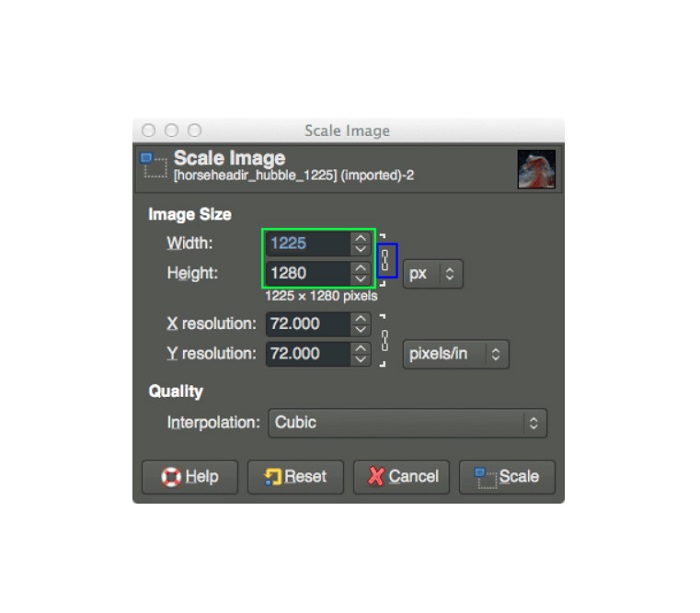
Step 3. Once you are done altering the size of your photo’s dimension, you can now move to export your image. To export your image, go to File > Export. And to export your output with a new file name, go to File > Overwrite, then name your file.
Como usar o GIMP para redimensionar imagens sem perder qualidade (tamanho do arquivo):
Neste tutorial, usaremos uma imagem JPEG porque esse tipo de formato é uma compactação com perdas, o que significa que ao compactar o tamanho dessa imagem, sacrificaremos parte de sua qualidade. Mas usando o GIMP, é possível redimensionar sua imagem sem afetar sua qualidade.
Step 1. Using the same image above, we will resize the image to 200px wide and export the file with varying JPEG compression levels. You will observe in the example below that at a quality setting of 80, the file size of your image is smaller than at 100 while having almost the same quality.
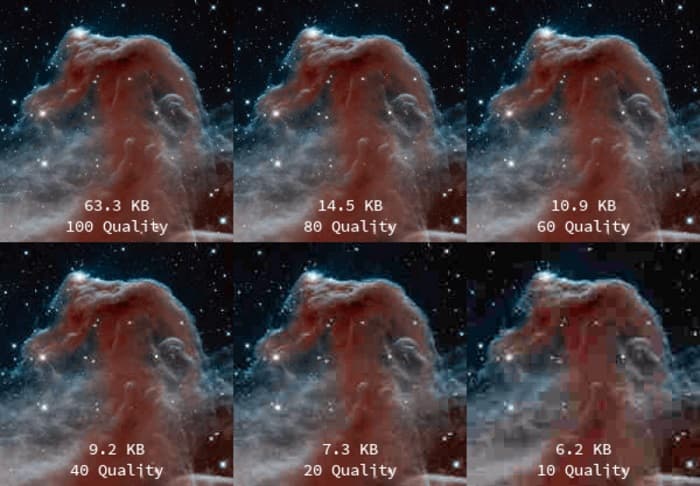
Step 2. When you are done modifying the size of your image, we will now export your output. Click the File button and select Export.
Step 3. On the Export Image tab, enter the new name of your image. If you worry about what format your output will be saved in, GIMP automatically exports the original file format. In our example, you will see that the output format is still .jpg.
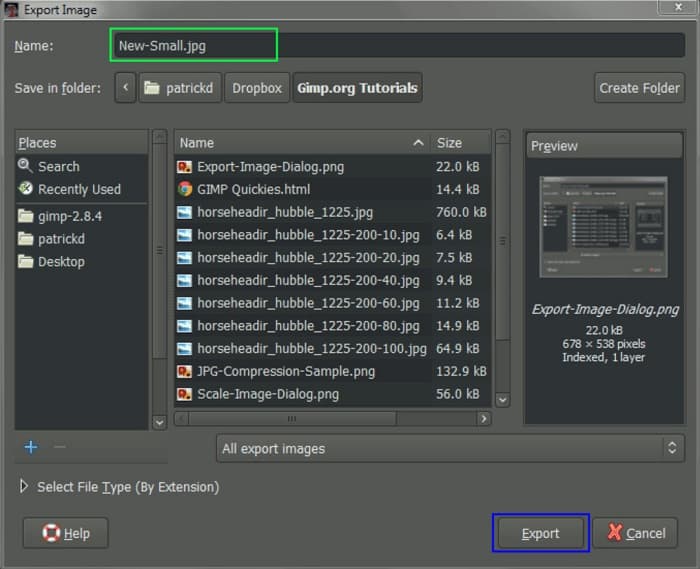
Step 4. After clicking the Export button, the Export Image as JPEG tab will prompt, where you will change the quality of the image you are exporting. If you also have the Show preview in the image window, you can tick the box and see the preview of your image. You will also see the File size information so that you will know the resulting file size of your image.
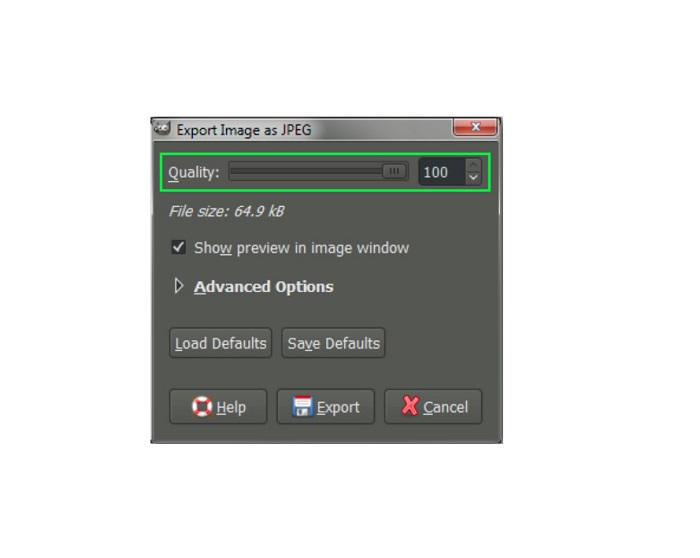
Step 5. And finally, tick the Export button to export your image and save it on your device.
E é assim que você pode usar o GIMP para redimensionar a dimensão e o tamanho do arquivo da sua imagem. Você pode fazer mais edições em sua imagem, como girar uma imagem, virar uma foto e recortar sua imagem. Leia a próxima parte se você ainda deseja uma opção para redimensionar sua imagem ou melhorar a qualidade de suas fotos.
Parte 2. Alternativa ao GIMP
O GIMP está entre os aplicativos de edição de fotos mais padrão que muitos profissionais usam. No entanto, alguns usuários têm dificuldade em usar este software para editar fotos, como redimensionar imagens. E se você está entre os usuários que desejam usar um aplicativo mais simples, temos a solução para você.
FVC Free Image Upscaler is a free online application with a simple user interface, making it a beginner-friendly tool if you are searching for the best image upscaling tool to enhance the quality of your image. It uses an AI upscaling process, automatically detecting the blurry parts of your image and enhancing it. Moreover, you can improve your photo with up to 8x magnification. It also supports the most common image formats, such as JPEG, JPG, PNG, and BMP. And unlike other editing applications, FVC Free Image Upscaler can resize your image without losing its quality. So, if you want to use this tool to resize and enhance your image, follow the easy steps below.
Como redimensionar a imagem sem perder a qualidade alternativa do GIMP:
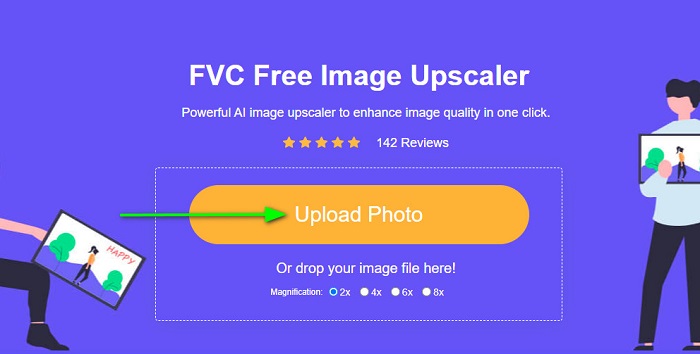
Step 1. Open your web browser and search FVC Free Image Upscaler on the search box. You can also click the link directly to the main page. And on the software’s main user interface, click the Upload Photo button to launch the app on your device.
Step 2. Then, tick the Upload Photo button on the main user interface to add the photo you want to resize/upscale.
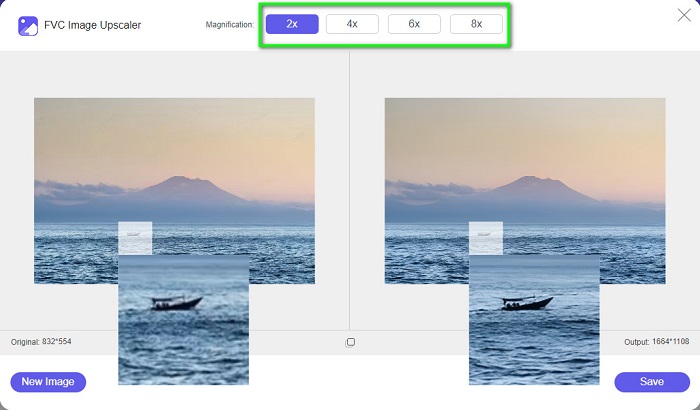
Step 3. After uploading your file, select among the magnification presets. You can select between 2x, 4x, 6x, and 8x. Then, you can check the preview of your output by sliding your cursor on the image.
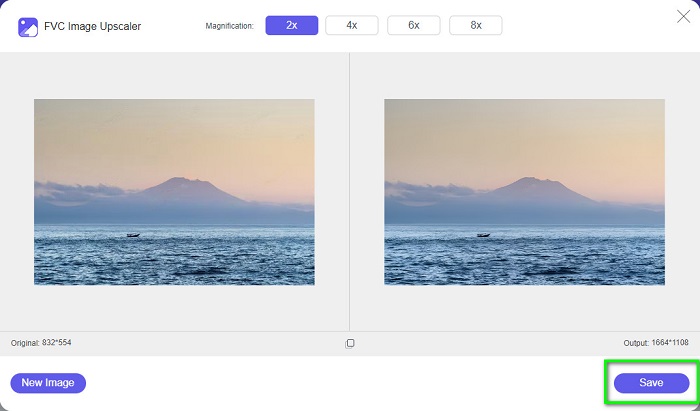
Step 4. Lastly, hit the Save button at the bottom right corner of the interface to save your output on your device.
Related to:
How to Optimize Image for the Web Using the Best Solutions [Quick]
3 Ways to Resize the Picture for Twitter Without Losing Quality
Parte 3. Perguntas frequentes sobre como usar o GIMP para redimensionar imagens
O GIMP tem uma versão online?
Sim. O GIMP não é apenas um aplicativo de edição de fotos offline; também tem uma versão online. No entanto, o GIMP online não contém todos os recursos, como a versão para desktop do GIMP.
O GIMP é o melhor Photoshop gratuito?
O GIMP não é comparável ao Photoshop. O Photoshop ainda é o software de edição de fotos mais excelente para desktops. No entanto, o GIMP é uma das melhores alternativas para o Adobe Photoshop.
O GIMP suporta arquivos PNG?
Sim. O GIMP permite que você salve suas saídas em JPEG, JPG, PNG e outros formatos.
Conclusão
And that’s the process of how to use GIMP to resize images. Although GIMP has a complex interface, following the steps we provided above, you can resize your image's dimensions and size. But if you like to use a free online image resizer that can enhance the quality of your image, use FVC Free Image Upscaler.
-
 6 Maneiras de Reize uma Imagem na Web e Offline [100% Working]
 Com o tutorial que adicionamos aqui, agora você pode redimensionar facilmente uma imagem com base no tamanho preferido. Aprenda como fazer aqui!
-
 Revisão factual do PicResize, você deve saber disso 2022
 Quer saber se PicResize é a melhor opção na edição de imagem? Leia este artigo enquanto analisamos a ferramenta geral.
-
 Tudo o que você precisa saber sobre o Waifu2x e a alternativa
 Precisa saber mais sobre o Waifu2x? Este artigo fornece as informações que precisam ser destacadas neste aplicativo e sua alternativa.
