


 Video Converter Ultimate
 Gravador de ecrã
 Reparo de vídeo
 Secure Download
As maneiras mais excelentes de como ampliar uma imagem para impressão
Enlarging a picture can be done in two ways. You can enlarge a photo by upscaling it or by increasing the pixels of your image. Another way of enlarging a picture is by changing the actual size or the dimension of a photograph. And in this guidepost, we will show you these two ways to enlarge a photo. Depending on your needs, you will surely know the answers to your query. Read this guidepost to learn how to enlarge an image to print, online and offline.

Parte 1. Ampliar Imagem Sem Perder Qualidade Online para Impressão
Parece complicado quando você ouve pela primeira vez sobre a ampliação da qualidade de uma imagem. Mas, depois de ler este post, certamente será fácil para você. Existem vários aplicativos que podem ajudá-lo a ampliar sua imagem. Mas o problema é que são tantos que fica difícil escolher um. Felizmente, encontramos um aplicativo que pode ajudá-lo a ampliar uma imagem de forma fácil e gratuita.
FVC Free Image Upscaler is an amazing photo enlarging application you can use online. The good thing about online applications is that you do not need to download them, which allows you to save storage space. You can enlarge your picture using this online tool by 2x, 4x, 6x, or 8x magnification. Additionally, it uses an AI technology upscaling process that automatically detects an image's low-quality part, then enhances it.
Além disso, os iniciantes podem usar facilmente este aplicativo porque possui uma interface de usuário intuitiva. Além disso, possui um efeito de visualização que permite verificar os resultados de sua saída antes de salvá-la. O FVC Free Image Upscaler é gratuito para uso em todos os navegadores da web, como Google, Firefox e Safari.
Como ampliar uma imagem para impressão usando FVC Free Image Upscaler
Step 1. Go to your web browser and search FVC Free Image Upscaler on your search box. You can click this link to be led to the main page directly.
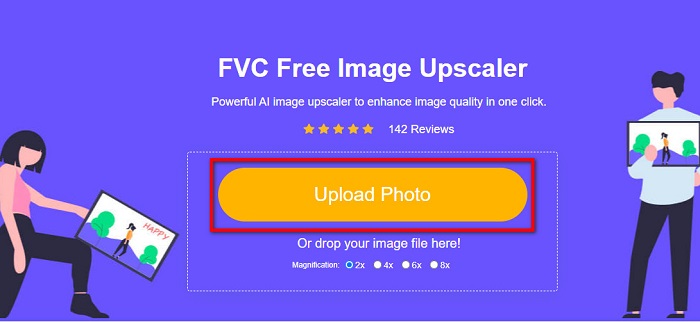
Step 2. And on the main user interface, tick the Upload Photo button to add the image you want to enlarge. You can also do the drag-drop process to upload your image.
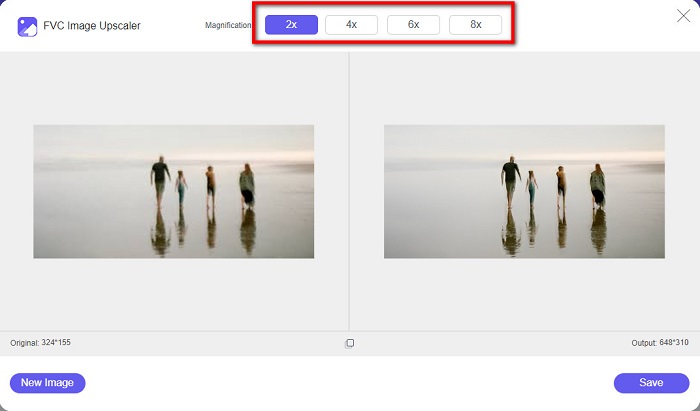
Step 3. Once your file is uploaded, you will be directed to another interface. Select the magnification that you prefer for your image. You can choose between 2x, 4x, 6x, and 8x. The lower the quality of your image, the higher the magnification you must choose.
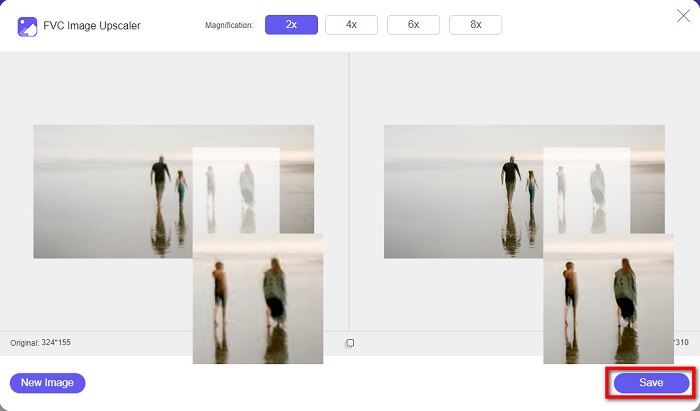
Step 4. Hover your cursor on the left image to view the result of your enlarging. See the changes? Click the Save button at the lower right corner of the interface to save your output on your device.
E essas são as etapas fáceis sobre como ampliar uma imagem para impressão on-line usando FVC Free Image Upscaler. Fácil como torta, certo? Mas se você quiser ampliar uma foto alterando as dimensões de sua imagem, leia a próxima parte.
Parte 2. Como ampliar uma imagem no Photoshop sem perder a qualidade
Você provavelmente já se deparou com este aplicativo ao pesquisar como ampliar uma foto. E o Adobe Photoshop é o aplicativo de edição de fotos mais eminente da Internet. Adobe Photoshop é usado principalmente por profissionais que costumam editar imagens para publicar em diferentes plataformas. Com as ferramentas e recursos deste aplicativo, você certamente pode produzir resultados incríveis. Mas você sabia que também pode ampliar uma imagem com o Adobe Photoshop? Sim, você leu certo. Também é uma ferramenta adequada para expandir fotos sem perder qualidade. Com o Adobe Photoshop, você pode ampliar sua imagem alterando a resolução ou inserindo manualmente a largura e a altura da imagem. Embora o Adobe Photoshop seja um aplicativo profissional, seu recurso de ampliação é simples de usar. Sem mais delongas, essas são as etapas para ampliar uma imagem usando o Photoshop sem perdas.
Step 1. First and foremost, download Adobe Photoshop on your computer. It is available on almost all operating systems, like Windows and macOS. Once the application is installed on your device, import the image you want to enlarge.
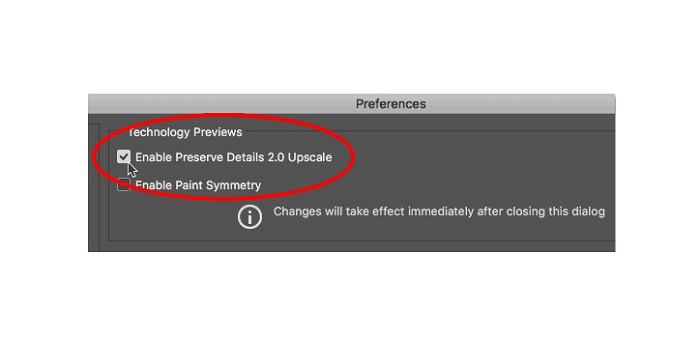
Step 2. Next, enable Preserve Details 2.0. If you are using a Windows computer, go to the Edit panel in the Menu Bar. If you are using a Mac device, go to the Photoshop CC menu, choose Preferences, and click the Technology Previews button. This will prompt the Preferences dialogue box to the Technology Previews option. Tick the box beside Enable Preserve Details 2.0 Upscale. And then, hit OK to close the dialogue box to the Technology Previews option.
Step 3. Next, open the Image Size dialogue box by going to the Image menu and select the Image Size option.
Step 4. When enlarging or upscaling an image in Photoshop, we want to adjust the image's physical dimension, or in other words, we desire to add or remove pixels. Therefore, make sure that the Resample is selected.
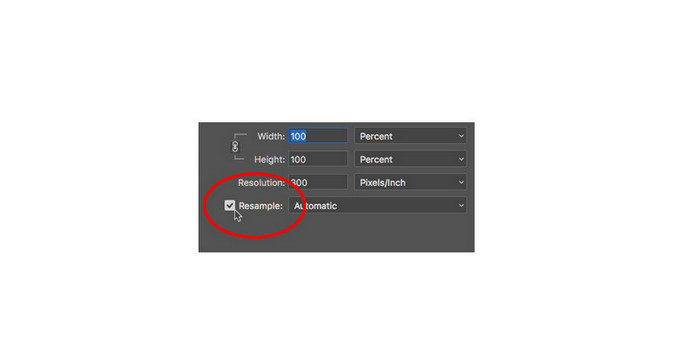
Step 5. Afterward, change the height and width of your photo by entering your preferred dimensions for your image. In a default mode, the width and height are linked together, so if you change the width of your image, the height will follow accordingly.
Step 6. And lastly, change the Resample Method to Preserve Details 2.0. The default Resample Method is set to Automatic. But, Photoshop will not choose it when the Resample is set to Automatic. Therefore, change the Resample by clicking Automatic, then select Preserve Details 2.0.
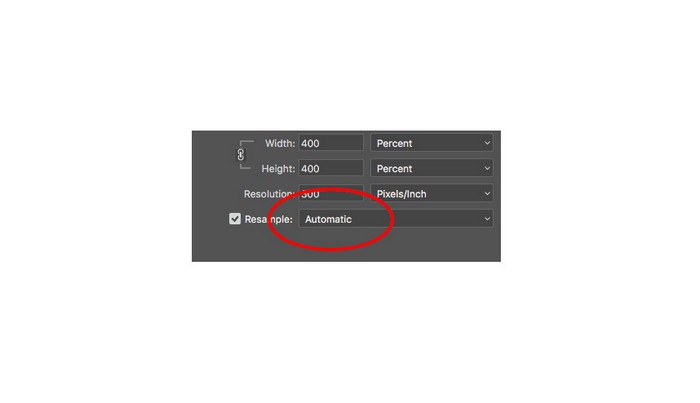
Step 7. Now it’s time to preview the results. After selecting Preserve Details 2.0, the preview tab on the left will update and show you what your upscaled image will look like. Drag your image using your mouse inside the preview window to see the different parts of your image.
Seguindo esses passos, com certeza você aprenderá como ampliar uma foto para impressão sem perder a qualidade.
Related to:
Top 7 Best Online and Offline Photo Enlargers
Top 4 Offline and Online GIF Enlargers You Must Not Miss
Parte 3. Perguntas frequentes sobre como ampliar imagens sem perder a qualidade
Posso aumentar o tamanho do arquivo JPG online?
You can change the file size of your JPG image using FVC Free Image Upscaler. Just increase the magnification to 6x or 8x to enlarge the size of your JPG image.
O Adobe Photoshop suporta arquivos PNG?
Sim. Os arquivos PNG são suportados por muitas plataformas, incluindo o Adobe Photoshop. Você pode importar quase todos os formatos de arquivo de imagem com o Adobe Photoshop, como PNG, JPG, JPEG, BMP e WebP.
A ampliação da minha imagem afeta o tamanho do arquivo?
Sim. O tamanho do arquivo de sua imagem aumenta porque você está ajustando o número total de pixels de sua imagem ou o número de pixels em cada polegada. Mas o tamanho do arquivo também será menor quando você diminuir a largura e a altura da imagem.
Conclusão
And those are the methods on how to enlarge an image without losing quality. Either of the two methods, online or offline, you can enlarge your image without compromising its quality. But if you want an easier way to enlarge a picture, we recommend using FVC Free Image Upscaler, a user-friendly application.
-
 Como redimensionar imagem no Illustrator com 2 maneiras diferentes
 Aprenda as melhores maneiras de redimensionar uma imagem no Illustrator. Para começar, baixe e abra o aplicativo Adobe Illustrator no seu PC e siga estas etapas simples.
-
 6 Maneiras de Reize uma Imagem na Web e Offline [100% Working]
 Com o tutorial que adicionamos aqui, agora você pode redimensionar facilmente uma imagem com base no tamanho preferido. Aprenda como fazer aqui!
-
 Melhores maneiras de redimensionar fotos no seu iPhone gratuitamente e sem instalação
 Redimensionar uma foto no seu iPhone pode ser difícil de aprender. Felizmente, este artigo fornece um tutorial sobre como alterar facilmente a dimensão das imagens.
