


 Video Converter Ultimate
 Gravador de ecrã
 Reparo de vídeo
 Secure Download
100% Maneiras gratuitas de compactar o tamanho do arquivo M4V de GB para MB
O formato de arquivo M4V, semelhante ao MP4, é um ótimo contêiner de vídeo produzido pela Apple. Você pode reproduzir arquivos M4V em quase todos os reprodutores populares, como iTunes, QuickTime, VLC Media Player, RealPlayer e muito mais. Mas às vezes você pode achar que seu vídeo M4V é muito grande para armazenar ou compartilhar. Nessa situação, você precisa reduzir o tamanho do arquivo.
If you don’t know how to compress M4V, you can try the options below.

Parte 1. Como compactar M4V online gratuitamente
Como mencionamos, pode ser um pouco difícil editar e compartilhar um grande arquivo de vídeo no YouTube, Facebook, Instagram ou outros sites de streaming. Porque esses sites geralmente têm uma limitação de tamanho estrita no vídeo que você envia. Além disso, arquivos grandes podem ocupar muito espaço em seu computador, unidade de disco, telefone, unidade flash, cartão de memória, etc.
Therefore, when you have a large M4V file, you’d better shrink the size with a professional video compressor. If you are looking for a free program, why not try FVC Free Video Compressor? It is completely free to use. What’s more, it is an online compressing tool, which means you can compress any video to the desired size without installing huge software on your computer.
Você pode usá-lo em qualquer navegador convencional, como Google Chrome, Mozilla Firefox e Microsoft Edge. E não haverá marca d'água adicionada ao vídeo compactado. Você ainda pode desfrutar do vídeo com alta qualidade de imagem.
Aqui estão as etapas sobre como compactar grandes arquivos M4V online.
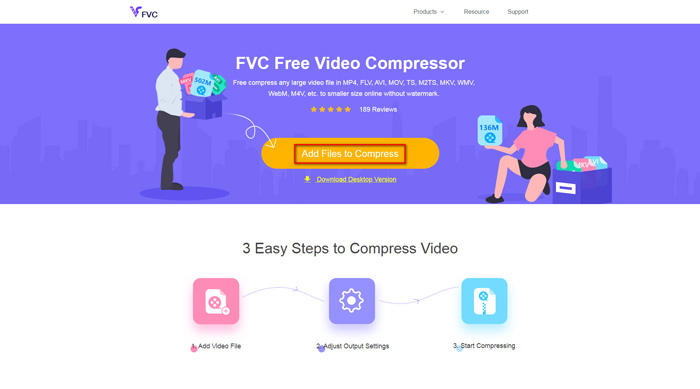
Step 1. Go to the website of FVC Free Video Compressor on your browser. You will see an Add Files to Compress button in the banner. Click it and follow the instruction to download and install the FVC launcher on your computer.
Step 2. After that, you need to select the M4V file you want to compress. Then you can move the slider behind the Size box to adjust and find the exact file size you want effortlessly. You can also change the resolution and bitrate separately according to your needs.
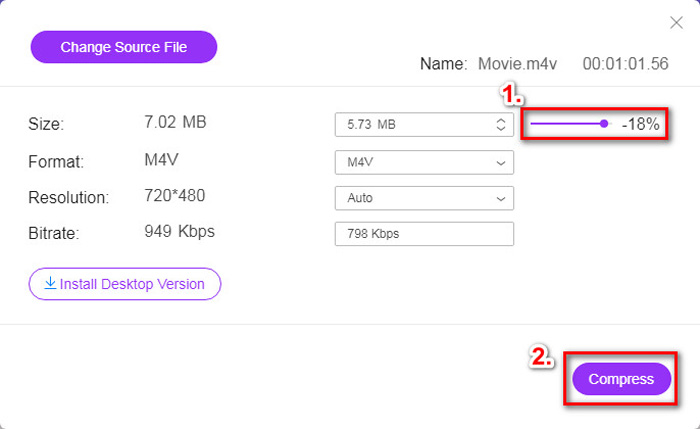
Step 3. If you want to compress M4V to MP4, then you should choose MP4 as the output format here. If not, you can click Compress in the right corner directly. Select a folder to save the compressed video and wait for a few seconds to get the wanted video.
Parte 2. Como reduzir o tamanho do arquivo M4V no Mac / Windows
As M4V is a format developed by Apple, you can also use Apple’s default player, QuickTime Player, to compress M4V files on Mac. Also, QuickTime Player offers a Windows version for PC users. But you should notice that the latest version for Windows is QuickTime 7.7.9 which is released in 2016. So, if what you want is a newly released program, you can try FVC Free Video Compressor that can even handle 4K videos.
De qualquer forma, siga os passos abaixo para reduzir o tamanho do arquivo M4V no QuickTime.
Step 1. Open the M4V file waiting to be compressed with QuickTime.
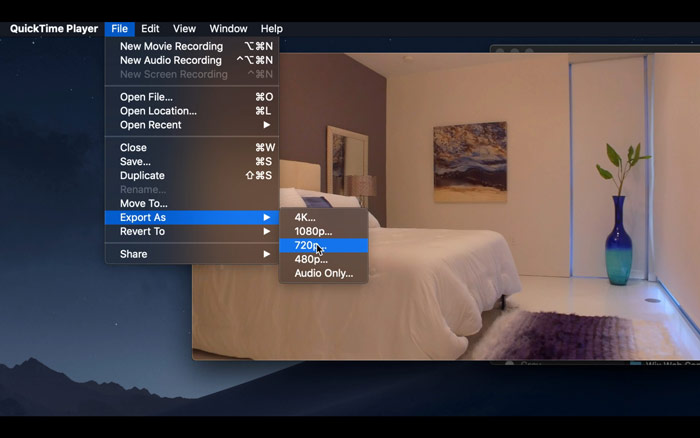
Step 2. Locate the File menu in the upper left corner. Click it and find the Export As option from the list. Then pick a resolution that is lower than the original video to compress the video. After all, we don’t want to increase the size here.
Step 3. If you don’t want to change the saving path, you can straight click Save. Please wait patiently to export the video.
Parte 3. Perguntas frequentes sobre compressão de M4V
1. Posso apenas renomear M4V para MP4?
No, if what you mean is to convert M4V to MP4 by renaming the suffix to .mp4. Because their encoding is not the same. You should rely on a more professional tool to convert M4V to MP4.
2. O YouTube aceita o formato M4V?
Infelizmente, o YouTube só oferece suporte a um número limitado de formatos de arquivo que não incluem M4V. Portanto, se você deseja enviar seu vídeo M4V para o YouTube, deve convertê-lo para um formato compatível com o YouTube, como MP4.
3. Como mesclar vários vídeos M4V em um?
If you have several M4V video files that need to be combined into one, you can try FVC Free Online Video Merger to merge various video files.
Conclusão
Now you have 2 simple and free ways to compress M4V file. If you are a Mac user, you can use QuickTime Player to reduce the video size. But if you are not satisfied with fixed resolutions QuickTime provides or you are using a Windows PC, you can give FVC Free Video Compressor a shot.
-
 Conversor M4V para MP3 - 4 melhores métodos para extrair MP3 de arquivos M4V
 Quando você deseja extrair o áudio MP3 de vídeos M4V com facilidade, você pode aprender mais sobre os 4 melhores conversores de M4V para MP3 para obter os arquivos de áudio desejados do artigo.
-
 4 maneiras de converter filmes QuickTime em MP4 gratuitamente no telefone / computador
 Leia e obtenha 4 maneiras de converter vídeos QuickTime em MP4 gratuitamente em seu telefone ou computador. Você pode alterar o formato do arquivo de MOV para MP4 no Windows / Mac / iPhone / Android / online com facilidade.
-
 4 melhores conversores MP4 para M4V para transformar vídeos MP4 em M4V com facilidade
 Quando precisar alterar arquivos MP4 para M4V, você deve aprender mais detalhes sobre as diferenças entre os dois formatos, bem como os melhores conversores MP4 para M4V no artigo.
