


 Video Converter Ultimate
 Gravador de ecrã
 Reparo de vídeo
 Secure Download
Procedimentos mais fáceis usando o Pixlr para remover marcas d'água
If you are here to learn how to use Pixlr to remove watermarks from your photos, then you are in the right article. Personally, it is irritating to get a picture with a watermark on it, so it is better to remove them. From the start to the end part of this post, you will learn many things, not only using the Pixlr application but also using excellent alternatives to eliminate the watermarks from your photos. So if you are here to get your problem to solve, you can continue reading this article and learn some tutorials to remove annoying watermarks from your images.

Parte 1: Remova marcas d'água de fotos usando o Pixlr
Pixlr is an editing tool you can use to enhance your pictures. Also, it offers various templates to make your photo beautiful and unique. Aside from these functions, don’t you know Pixlr can remove watermarks from your images? Yes! You’ve heard it right! Pixlr can instantly eliminate any disturbing objects you don’t want from your photo, including watermarks, stickers, emojis, text, and more. In addition, this online software is free, so you don’t need to consider any payments or subscriptions. However, using Pixlr is not that easy. It has many options you might encounter and complicated procedures, which makes it unsuitable for non-professional users. To use this application, you must watch tutorials or get guidance from advanced users. Also, it is a web-based software, so it is necessary to have a fast internet connection; otherwise, it won’t perform well. Follow this simple tutorial below to remove watermarks using Pixlr.
Step 1: To use Pixlr, you have first to visit the website of Pixlr. Then, click the Open Image button to upload a photo with a watermark you want to eliminate. You can also insert the image from the URL.

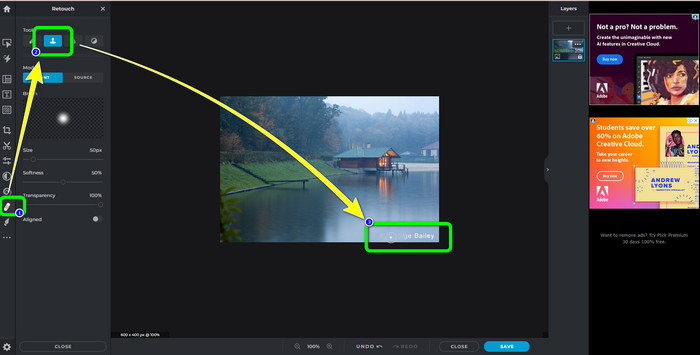
Step 2: After uploading your desired image, select the Retouch button at the left side of the interface. Then the tools will show up. Select the Clone Stamp tool. After selecting it, you can already click the watermark area using your mouse to erase watermarks.
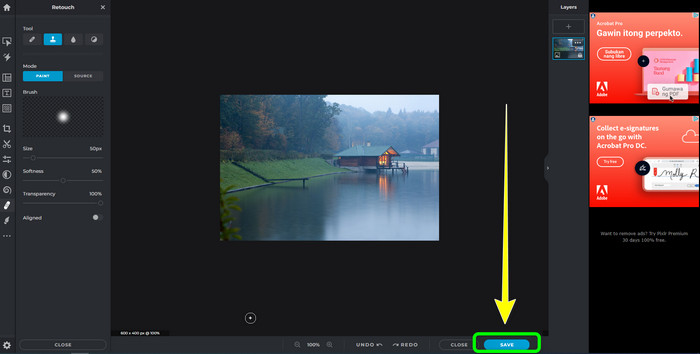
Step 3: If you have already removed all the watermarks you want to eliminate, click the Save button. Then save it to your desired location.
Parte 2: Excelentes alternativas Pixlr para apagar marcas d'água de fotos
Removedor de marca d'água gratuito FVC
As you can see, utilizing Pixlr is difficult, especially for beginners. If you want a more straightforward watermark remover, the best alternative we can offer you is the FVC Free Watermark Remover. This online software has simple methods and an interface, which is perfect for beginners. This application can easily delete all unwanted objects from your photos, such as watermarks, logos, date stamps, etc. This is also 100% free, and you can remove multiple watermarks from your photos.
Mas espere, há mais. FVC Free Watermark Remover oferece duas maneiras de remover marcas d'água. A primeira maneira é usando as ferramentas de remoção de marca d'água. Essas ferramentas são Pincel, Laço e Poligonal. Você pode usar essas ferramentas para destacar e remover marcas d'água de sua foto. A segunda maneira é usando a Ferramenta de Recorte. Se a área da marca d'água estiver na borda da sua foto, basta recortá-la com o mouse. Se você quiser um exemplo de remoção de marcas d'água usando esses dois métodos, siga as etapas abaixo.
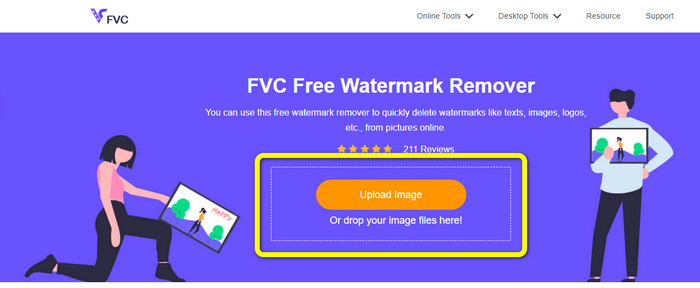
Step 1: Open your browser and visit the FVC Free Watermark Remover website. Afterward, select the Upload Image button and upload your desired photo with a watermark.
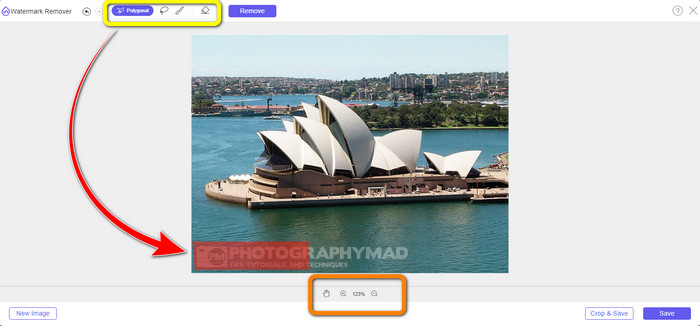
Step 2: After that, you can use watermark remover tools like Polygonal, Lasso, and Brush. Also, you can use the Eraser tool to erase excess highlights. You can also use the magnifying tool under your photo to zoom in and out to see the small watermarks.
Step 3: In this part, when you are done highlighting all the watermarks from your photo, you can already remove them by clicking the Remove button. Then, wait for the removal process.
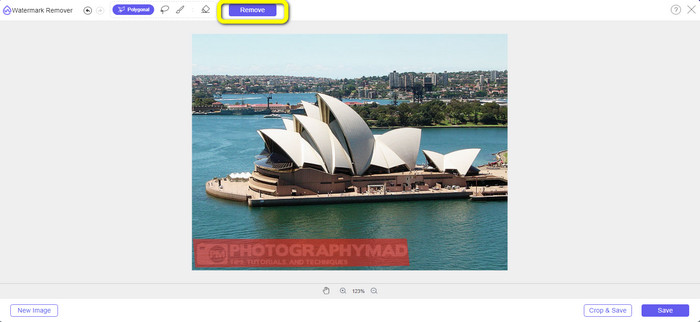
Step 4: Now, we can already proceed to the last step. After wiping out all watermarks from your photo, click the Save button to download your final output.
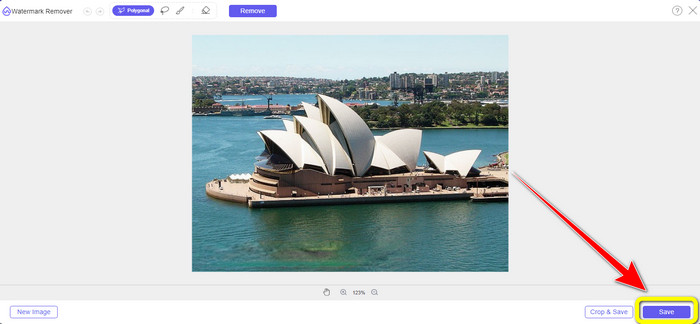
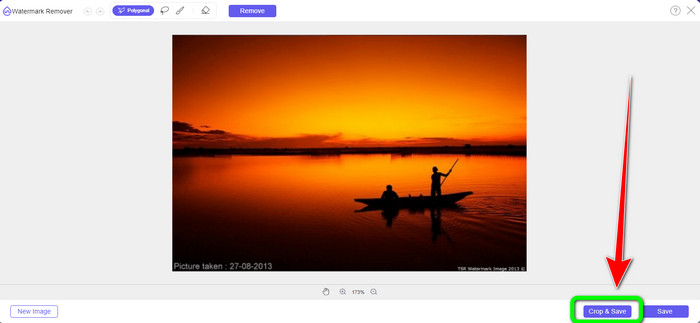
Step 5: Another way to remove the watermark is by using the cropping tool. Select the Crop & Save button after inserting the image file.
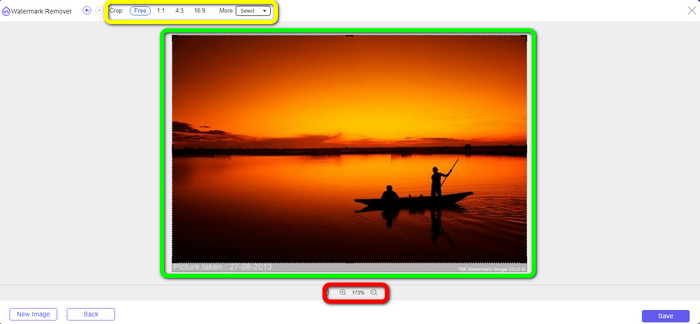
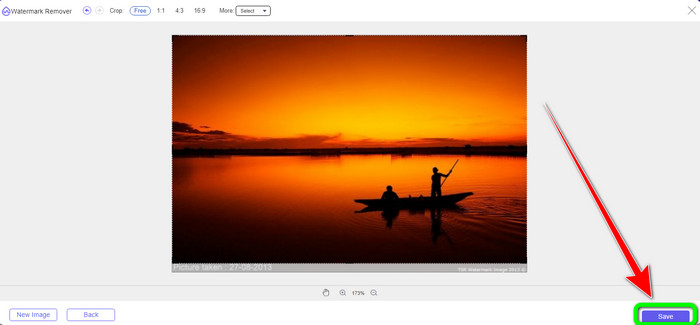
Step 6: In this step, you can already crop your photo to eliminate watermarks by moving your mouse while clicking the edge of the photo. As you can see in the yellow box, you can find many options on how you want to crop your photo. On the red box, you can scale up or down the photo.
Step 7: For the final step, when you are done cropping your photo, click the Save button to save the file. Then you can open it to see the photo without a watermark.
Removedor de marca d'água.io
Another easier way to remove a watermark from a photo is to use Watermark Remover.io. This online application is much simpler than Pixlr. It has a straightforward interface and basic steps, even a new user can operate this easily. It can also remove multiple watermarks at once. The best thing here is that it supports multi-colored, which means even if the watermarks have a different color, it can still remove them instantly.
Mas, infelizmente, o Watermark Remover.io tem recursos limitados. Em um mês, o máximo de imagem que você pode enviar é de apenas 50 imagens. Além disso, pode oferecer apenas 25 GB de armazenamento, o que não é suficiente. Além disso, se você deseja que este aplicativo tenha um bom desempenho, você deve ter uma conexão rápida com a Internet.
Siga as etapas abaixo para excluir marcas d'água de sua foto.
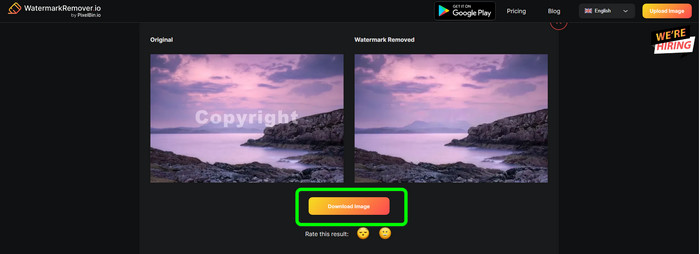
Step 1: Visit the Watermark Remover.io website using your browser. Then, click the Upload Image button. It will automatically remove the watermarks from your photo, so wait for the process.

Step 2: If the watermarks from your photo are already gone, click the Download Image button to save it on your computer. You can use this tool to remove Alamy watermarks from photos.
Parte 3: Perguntas frequentes sobre como remover marcas d'água usando o Pixlr
1. Qual é o melhor removedor de marca d'água gratuito?
The best watermark remover you can use for free is FVC Free Watermark Remover. This application can eliminate all irritating objects from your photo without paying a penny.
2. Como adiciono uma marca d'água no Pixlr?
Você precisa fazer login na sua conta Pixlr. Em seguida, vá para “Pixlr Editor” e inicie-o. Depois disso, clique em “Criar nova imagem”. Então você já pode criar uma marca d'água na sua foto e definir a altura e a largura da sua foto.
3. O Pixlr é uma ferramenta legal?
Definitivamente sim! Pixlr é um aplicativo legítimo. Todos os seus recursos são permitidos e autorizados a utilizar. Assim, você pode operar este aplicativo online sem se preocupar.
Conclusão
It is truly satisfying to view a photo without watermarks, right? This is the best reason why this article shows you how to use Pixlr to remove a watermark. Also, we introduced you to other online tools you can use that have easier ways. But if you want helpful and practical software, you can use FVC Free Watermark Remover.
-
 3 melhores maneiras de remover marcas d'água de imagens PNG
 Descubra estes três melhores métodos para remover marcas d'água de PNG online. Leia este post e deixe suas imagens limpas e mais agradáveis aos olhos de seus espectadores.
-
 Maneiras diretas de remover marca d'água de JPG online
 Vamos descobrir as melhores táticas para remover marcas d'água de JPG online usando aplicativos eficazes. Siga este artigo para aprender os procedimentos.
-
 Guias completos para remover facilmente marcas d'água iFunny
 Descubra o removedor de marca d'água iFunny mais excepcional para você. Além disso, aprenda esses métodos simples para remover marcas d'água iFunny de suas fotos
