


 Video Converter Ultimate
 Gravador de ecrã
 Reparo de vídeo
 Secure Download
Procedimentos detalhados para converter arquivos AVI para o formato M4V
The multimedia container format AVI, which stands for Audio Video Interleaved, is a feature of the Windows video software. It allows simultaneous playback of audio and video data combined into a single file. With its unique capabilities, including synchronized control and real-time display, AVI quickly rose to the top of the most utilized video formats. But if you want to play your video on your Mac, you must convert AVI to M4V because M4V is an Apple format that can play on iTunes, Apple QuickTime Player, and iOS devices. You may occasionally want to convert.avi files on a Mac to a universal format like M4V. In this situation, converting AVI to M4V is advised to function correctly on the Mac OS. We will show you the best methods to convert AVI to M4V using online and offline applications.

Parte 1: Introdução ao AVI e M4V
| AVI | M4V | |
| Nome do arquivo | Audio Video Interleave | Vídeo MPEG-4 |
| Extensão de arquivo | .avi | .m4v |
| Descrição | O formato de arquivo AVI é um dos contêineres multimídia mais populares já criados. A sigla AVI, que significa áudio e vídeo intercalado, foi inicialmente disponibilizada ao público pela Microsoft em 1992 como um componente de sua estrutura multimídia, “vídeo para Windows”. Um arquivo AVI com a extensão de nome de arquivo.avi pode ter conteúdo de vídeo e áudio sincronizado porque é um formato de contêiner. Assim, os autores podem editar e codificar sequências de áudio e vídeo ou sequências de vídeo usando o padrão. | A Apple criou a extensão de arquivo M4V, que é notavelmente semelhante à extensão de arquivo MP4, para o conteúdo da loja iTunes. Os dispositivos Apple são os únicos que podem reproduzir arquivos M4V. Para reproduzir em dispositivos Apple, outros formatos de vídeo como MP4 e MOV podem ser convertidos para M4V. A principal distinção entre os formatos de arquivo M4V e MP4 é que o primeiro suporta DRM-Copyright Protection, que proíbe a violação de direitos autorais de violação de conteúdo de mídia. O computador deve conceder permissão ao fazer login na conta do iTunes para comprar o arquivo de mídia para reproduzir um arquivo M4V protegido por DRM. No entanto, se os arquivos não estiverem protegidos por DRM, o usuário pode simplesmente renomear a extensão do arquivo M4V para MP4 para torná-lo compatível com dispositivos que não sejam da Apple. |
| Desenvolvido por | Microsoft | Apple Inc. |
| Programas Associados | VLC Media Player Apple QuickTime Player Adobe Premiere Pro 2020 Windows Media Player | KMPlayer Reprodutor de Mídia Clássico Reprodutor de zoom \VLC Media Player |
| Categoria de arquivo | Vídeo | Vídeo |
| Tipo MIME | vídeo/x-vídeo | vídeo/x-m4v |
Parte 2: Melhor maneira de converter AVI para M4V
You want to convert AVI to M4V for free? You can use FVC Free Video Converter Online. This tool can easily convert your AVI file format to M4V. Also, it supports more video formats, such as FLV, MP4, MOV, WMA, and more. Also, if you plan to convert multiple AVI files into different file formats, you can use this application because it offers a batch conversion process. You can also edit your videos before converting, like changing their frame rate, resolution, and bit rate. In addition, FVC Free Video Converter Online can convert audio files like MP3, AAC, AC3, FLAC, etc.
Recursos
◆ Converta vários formatos de arquivo de vídeo, como M4V, AVI, MP4, MOV, VOB, FLV, WMV, etc.
◆ Pode alterar a resolução, taxa de bits e taxa de quadros do vídeo.
◆ Converta arquivos de áudio como MP3, AAC, AC3, FLAC, etc.
Siga os guias simples abaixo para converter AVI para M4V facilmente.
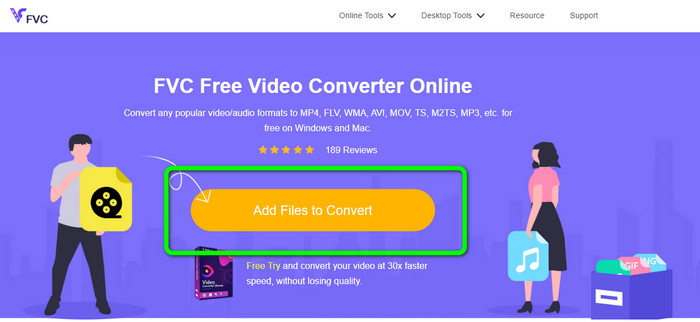
Step 1: First, open your browser and visit the FVC Free Video Converter Online website. Press the Add Files to Convert button to upload your AVI file.
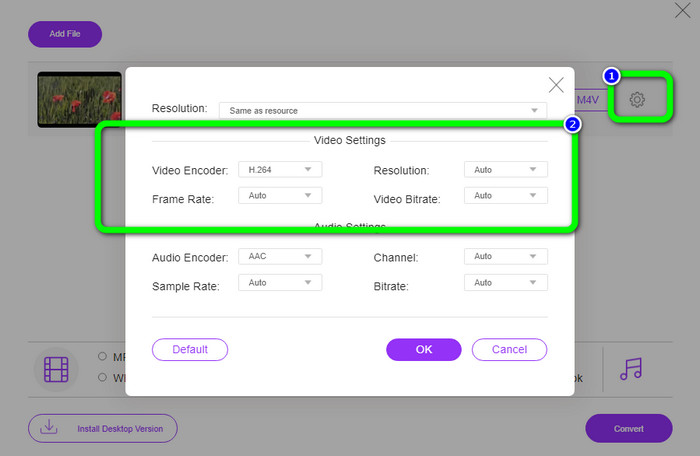
Step 2: If you desire to change your video’s resolution, frame rate, and bit rate, click the Settings icon on the left part of the interface. If you are done changing them, press OK.
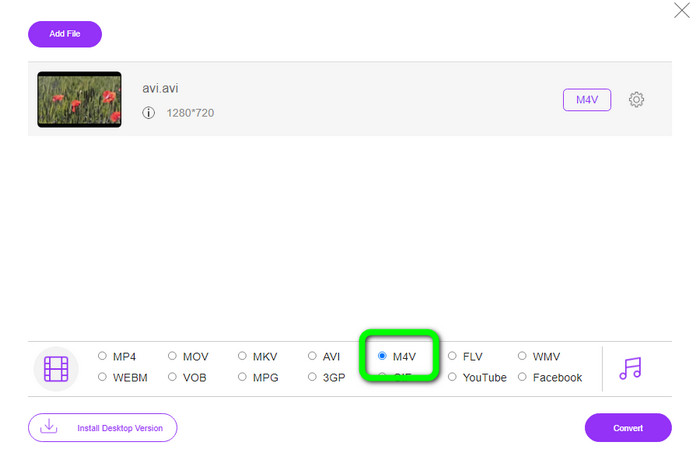
Step 3: Then, on the lower part of the interface, select the M4V file as your output format.
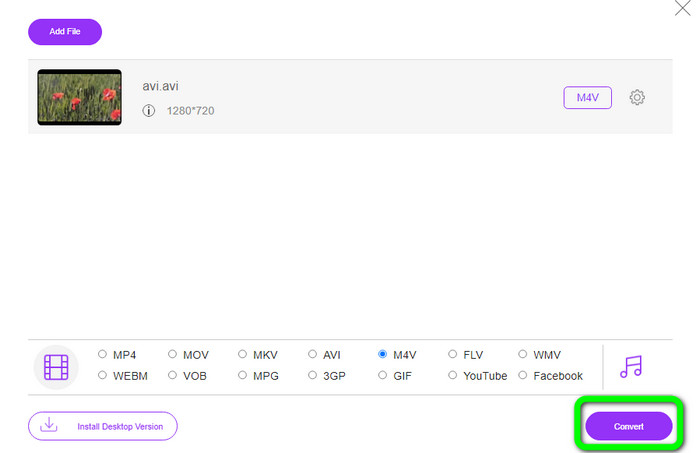
Step 4: Lastly, to save your video file, click the Convert button. Wait for the conversion process and download your final output.
Parte 3: Método fácil para converter AVI para M4V no Windows e Mac
Another excellent converter you can use is FVC Video Converter Ultimate. This tool can convert AVI to M4V on Windows. It can convert your files instantly because it has an ultra-speed conversion process, which is 30x faster. Also, you can convert multiple files at once because it enables batch conversion. In addition, it has a basic method with an intuitive interface that is perfect for beginners. Moreover, this offline tool is not only accessible on Windows. It is also available on Mac. Furthermore, you can also make some changes to your videos while converting. You can edit your videos by enhancing them, cutting them, adding filters, and more.
Features
◆ Converte mais de 100 arquivos de vídeo, incluindo M4V, MP4, AVI, FLV, MKV, MOV, VOB, WMV e muito mais.
◆ Fazer uma colagem com modelos e filtros gratuitos está disponível.
◆ Oferece criador de videoclipes.
◆ Edit videos using a video enhancer, trimmer, watermark remover, compressor, etc.
◆ Converta formatos de arquivo de imagem, como BMP, JPG, PNG, etc.
◆ Acelerar e desacelerar um vídeo.
Use os guias detalhados abaixo para saber como converter AVI para M4V no Windows e Mac usando o FVC Video Converter Ultimate. Usaremos a versão do Windows.
Step 1: Download the FVC Video Converter Ultimate on your Windows or Mac by clicking the download button.
Free DownloadFor Windows 7 or laterSecure Download
Free DownloadFor MacOS 10.7 or laterSecure Download
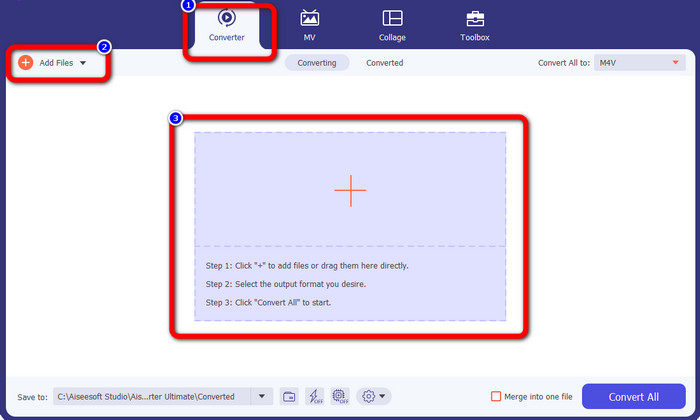
Step 2: Go to the Converter panel after opening the application. Then, you have three options to insert your AVI file. First, you can click the Add File button on the second box. The second option is to click the Plus sign on the third box. And lastly, drop the file directly into the center.
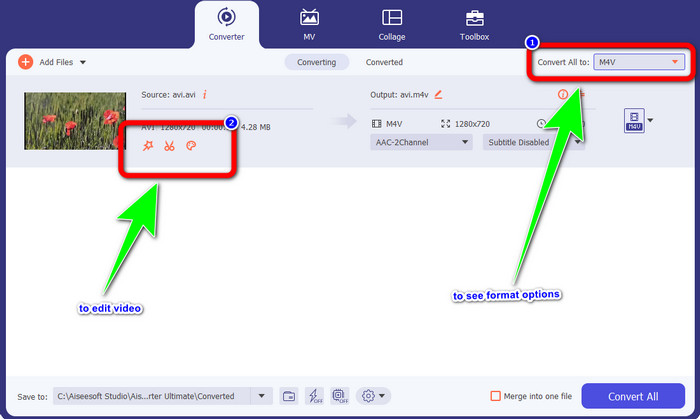
Step 3: After adding your AVI file, click the Convert All to button to see the format options, and select the M4V file format. Then, if you want to edit your video, you can go to the second box. You can use the tools to edit your video, like adding filters, rotating and cropping videos, cutting, and more.
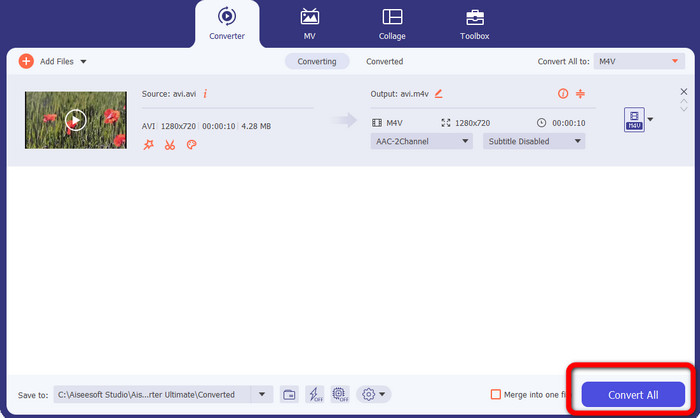
Step 4: For the final step, click the Convert button. Wait for the fast conversion process and save your converted video.
Parte 4: Como converter AVI para M4V usando o Handbrake
Handbrake is another converter to convert AVI to M4V for free. It can convert several files like WEBM, M4V, MP4, MKV, etc. With the guide of this tool, you can easily convert many files. However, Handbrake is complicated to use. You need to have enough knowledge about this converter. Also, its installation process is confusing. You must do many procedures before utilizing it, which is time-consuming for users.
Step 1: Download the Handbrake on your computer.
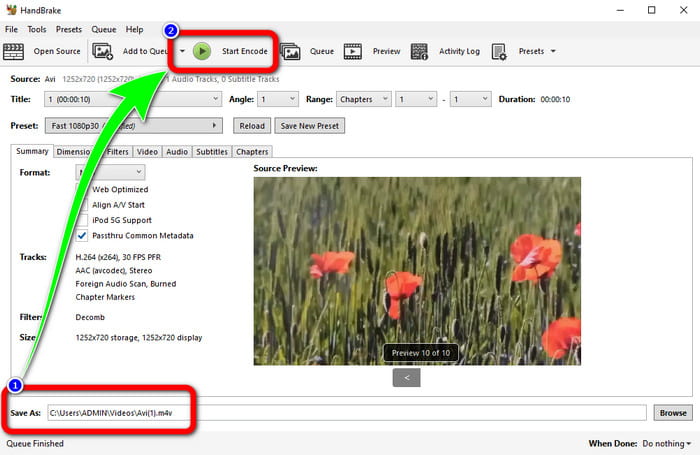
Step 2: Select the AVI file format you want to convert.
Step 3: Go to format and select the M4V. Then start the conversion process by clicking the Start button.
Parte 5: Perguntas frequentes sobre a conversão de AVI para M4V
1. Como converter AVI para M4V no Mac?
Você pode usar o FVC Video Converter Ultimate. Este conversor pode facilmente converter seu AVI para M4V usando seu Mac.
2. Qual é o tamanho de um arquivo AVI?
Como os vídeos AVI não são compactados, eles ocupam mais espaço no disco rígido. Por exemplo, uma única hora de gravação de vídeo AVI 352x288 pode usar até 33 GB (3300 MB) de espaço no disco rígido.
3. O arquivo AVI é universal?
Yes. Although more modern formats like MP4, MOV, or WMV have supplanted the AVI format, individuals still use AVI because of how portable it is. Almost any computer or gadget can play AVI files.
Conclusão
This guidepost shows you the excellent methods to convert AVI files to M4V using the three converters. But, if you want an ultra-fast conversion process, use FVC Video Converter Ultimate. And if you want a more straightforward method, use the FVC Free Video Converter Online.
-
 Os 5 principais players M4V para Windows / Mac / Android / iOS que você deve conhecer
 Quando você não consegue reproduzir seus vídeos M4V no QuickTime Player, você deve aprender mais com os 5 excelentes players M4V para Windows, Mac, Android e iOS deste artigo
-
 AVI VS MP4 - Diferenças e semelhanças entre os formatos AVI e MP4
 Qual é o melhor formato de vídeo, AVI ou MP4? Se você deseja obter uma comparação detalhada, pode verificar este artigo AVI VS MP4. Você pode conhecer as diferenças e semelhanças entre AVI e MP4 em muitos aspectos
-
 3 Programa de conversão de vídeo usado para converter iTunes M4V para AVI no Mac
 Não tem ideia de como converter MKV para um formato AVI? À medida que continuamos lendo este artigo, conheceremos as 3 ferramentas que podem ajudá-lo a converter este formato de arquivo
