


 Video Converter Ultimate
 Gravador de ecrã
 Reparo de vídeo
 Secure Download
Maneiras excepcionais de converter arquivos MOV para M4V em seus dispositivos
If you want to learn how to convert MOV to M4V file format, you are in the right article. We will introduce you to excellent and helpful converters for converting various files, especially MOV to M4V. Also, you will learn the differences between these files. If you want to know more, cherish your time reading this article.

Parte 1: Diferença entre MOV para M4V
| MOV | M4V | |
| Nome do arquivo | Apple QuickTime Movie | Arquivo de vídeo do iTunes |
| Extensão de arquivo | .mov | .m4v |
| Descrição | O contêiner de vídeo MPEG-4 conhecido como formato multimídia the.mov é frequentemente conectado ao framework QuickTime da Apple. Com o lançamento inicial do QuickTime em 1991, o formato de arquivo de filme é mais comumente creditado com a introdução de filmes coloridos completos para o Macintosh. Isso foi antes que o computador pessoal e o sistema operacional Microsoft Windows tivessem algo comparável. Múltiplas sequências de dados ou faixas divididas em áudio, vídeo, efeitos e legendas semelhantes a texto são suportadas por este formato de filme. Um arquivo de recurso termina em .mov. | A extensão do arquivo M4V é muito semelhante à extensão do arquivo MP4 e foi criada pela Apple especificamente para o conteúdo visto na loja iTunes. Os produtos Apple são os únicos que suportam M4V. Os codecs de vídeo MP4 e MOV podem ser convertidos para M4V para reprodução em dispositivos Apple. A principal distinção entre M4V e MP4 é que o M4V fornece proteção de direitos autorais DRM, que proíbe os direitos autorais de conteúdo audiovisual. O computador precisa de permissão para reproduzir um arquivo M4V protegido por DRM e faz isso fazendo login na conta do iTunes usada para comprar o arquivo de vídeo. Para tornar os arquivos compatíveis com dispositivos que não sejam da Apple, o usuário só precisa renomear a extensão do arquivo M4V para MP4 se os arquivos não estiverem protegidos por DRM. |
| Desenvolvido por | Apple Inc. | Apple Inc. |
| Categoria de arquivo | Vídeo | Vídeo |
| Programas Associados | Power DVD Apple QuickTime Player Roxio Criador VLC Media Player | Reprodutor de zoom Reprodutor de Mídia Clássico KMPlayer VLC Media Player |
| Tipo MIME | vídeo/tempo rápido | vídeo/x-m4v |
Parte 2: Melhor Maneira de Converter MOV para M4V Usando o Mac
How to convert MOV to M4V using Mac? The best answer is Video Converter Ultimate. This application is one of the most excellent converters you can use. You can add almost all video formats here because it supports 100+ video file formats, including MP4, FLV, AVI, M4V, MOV, VOB, MTS, SWF, and more. Also, it has an understandable procedure for converting your MOV file, which is suitable for the non-professional user. In addition, this converter is accessible not only on Mac but also on Windows. This way, you can tell that this converter is reliable. Furthermore, there are other things you can do on your MOV file aside from converting. You can use this application if your MOV video has an annoying watermark. Using the watermark remover tools, you can quickly eliminate watermarks from your MOV videos. Also, if you plan to add some filters to your videos to make them pleasing to the eyes of the viewers, then you can still rely on this application. It means that you can do many things using the FVC Video Converter Ultimate.
Features
◆ Converta vários formatos de vídeo, como MP4, AVI, FLV, WMV, MKV, VOB, M4V, MOV, etc.
◆ Crie uma colagem com filtros e modelos disponíveis.
◆ Faça um videoclipe.
◆ Oferece ferramentas de edição para aprimorar vídeos, como controlador de velocidade de vídeo, aprimorador, cortador, aparador, rotador, etc.
◆ Converta vários formatos de imagem como BMP, JPG, PNG, etc.
◆ Oferece conversão em lote.
Siga as etapas básicas abaixo para converter MOV para M4V gratuitamente usando a versão Video Converter Ultimate para Mac.
Step 1: Click the Download button below to download the Video Converter Ultimate. Then, launch the application when the installation process is done.
Free DownloadFor Windows 7 or laterSecure Download
Free DownloadFor MacOS 10.7 or laterSecure Download
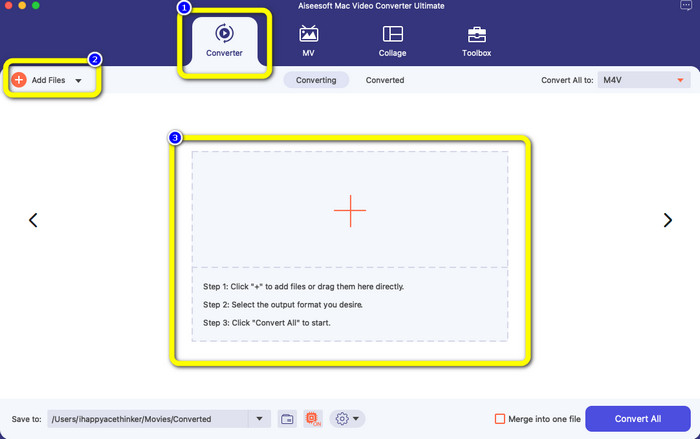
Step 2: On the upper interface, select the Converter option. After that, click the Add File button or the + sign to add your MOV file. You can also drop your MOV video file in the box.
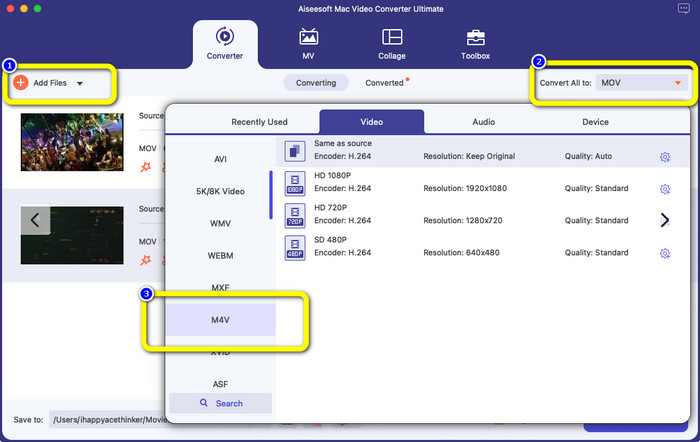
Step 3: You can still add more files, especially if you want batch conversion. Click the Add File button. Then, to convert them into an M4V file format, go to the Convert All to button and select the M4V file format. You can also choose your desired resolution.
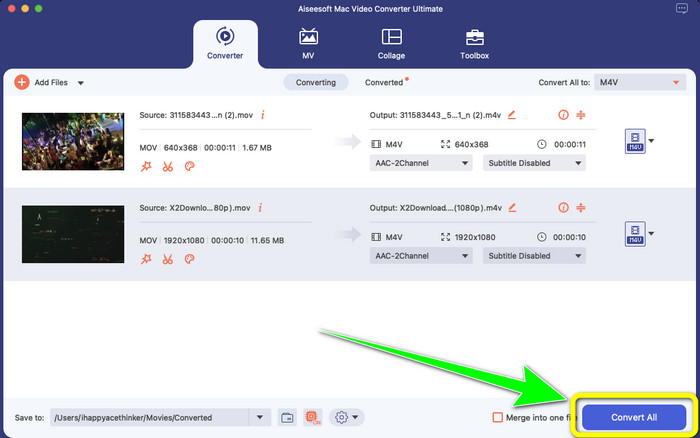
Step 4: After that, to save your video, click the Convert All button. Wait for the conversion process. And that’s it! Your MOV video is done converting into an M4V file.
Parte 3: 2 métodos para converter MOV para M4V no Mac
Usando o QuickTime
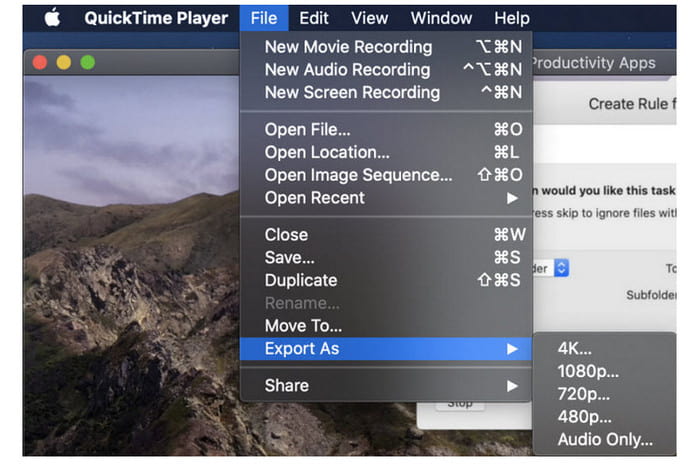
Em máquinas Mac anteriores, o aplicativo integrado é o QuickTime. A opção Exportar no QuickTime é boa para converter arquivos de vídeo MOV em arquivos M4V em um Mac, que é uma ferramenta útil quando você precisa fazer isso para reproduzi-los em um iPhone, iPad ou Apple TV. Os vídeos .mov podem ser compactados e convertidos em 480p, 720p ou 1080p usando a opção Exportar. Em versões mais recentes do macOS, o QuickTime não é compatível. Para obter um código de registro para ativar o recurso de conversão, você deve pagar à Apple. Siga as etapas para converter MOV para M4V usando o QuickTime.
Step 1: Open the MOV file on QuickTime. Then, select the File menu at the top and choose Export.
Step 2: Numerous options are available under the Export menu, including 480p, 720p, 1080p, iPad, iPhone, iPod touch, Apple TV, iTunes, and Audio Only. Choose iPad, iPhone, iPod touch & Apple TV when converting MOV to M4V for iPhone, Apple TV, or other Apple devices, and a new window allowing you to select size based on where you will view your video.
Step 3: Give the converted video file a name. The video file extension should be.m4v. When everything is ready, press the Save button at the bottom. Set a location where you want to keep your file.
Step 4: Lastly, click the Save button once again to export the .m4v file. To stop the converting process at any point, click the X button in the progress bar. It also enables you to convert AVI to M4V.
Usando o iTunes
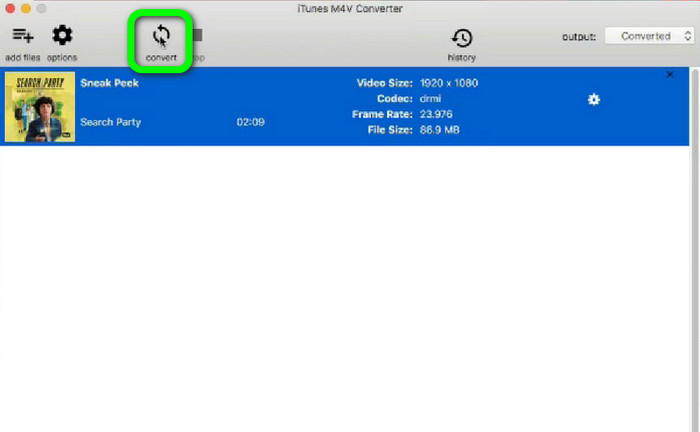
Deseja converter MOV para M4V usando o iTunes? Então, você pode seguir os guias detalhados abaixo. O iTunes é outro conversor em que você pode confiar. No entanto, tem um processo complicado e as opções são muito confusas.
Step 1: Open iTunes. Select the Movies in the library and add the MOV file.
Step 2: Go to the Advanced menu, and select Convert Selection for Mac.
Step 3: Then, change the video extension to M4V.
Step 4: Then go to File > Convert. Wait for the conversion process and save your video in your library.
Parte 4: Excelente Maneira de Converter MOV para M4V Online
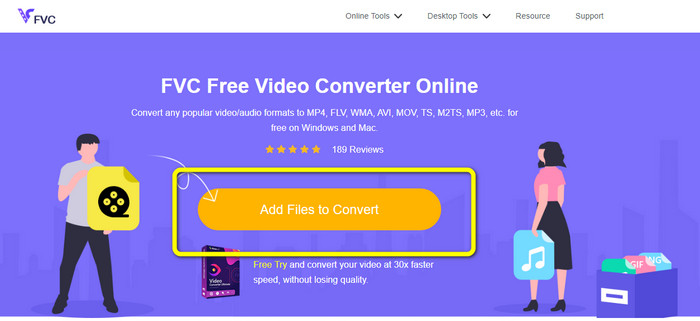
To convert MOV to M4V online, you can use FVC Free Video Converter Online. This converter can convert files instantly. Also, this software allows you to convert multiple files at once. In addition, it supports various video and audio file formats, such as AVI, VOB, MP4, 3GP, AAC, AC3, MP3, FLAC, and more. You can use the simple steps below to convert MOV to M4V easily.
Step 1: Go to the FVC Free Video Converter Online website. Then, click the Add Files to Convert to add your MOV file.
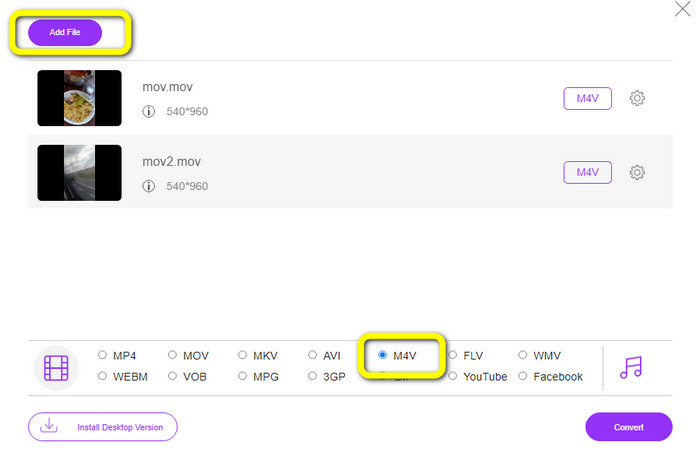
Step 2: To add multiple files, click the Add File button. Then, go to the format options and select the M4V file format.
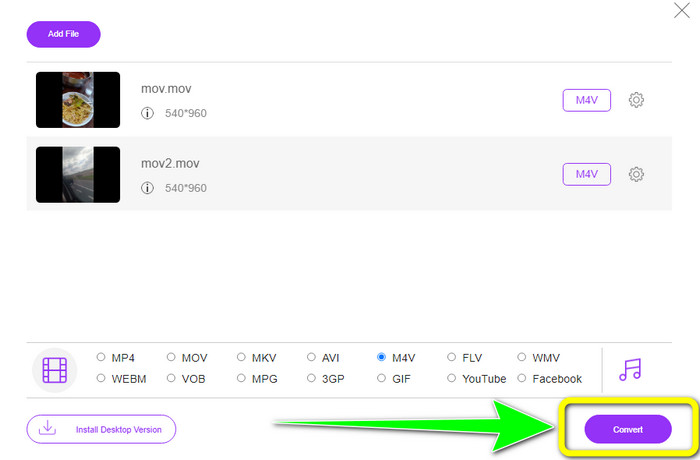
Step 3: Hit the Convert button to convert MOV to M4V. Then, save your file in your desired location. You can use this tool to convert MOV to MKV too.
Parte 5: Perguntas frequentes sobre a conversão de MOV para M4V
Qual é melhor em qualidade, MOV ou M4V?
M4V é melhor em qualidade. O formato M4V é preferível se você assistir ao filme em um dispositivo móvel, como um iPhone, iPad ou iPod, porque quase todos os dispositivos móveis podem reproduzir esse formato. Os arquivos M4V não devem ter nenhuma dificuldade de compatibilidade em comparação com os arquivos MOV.
Qual é a vantagem de um arquivo MOV?
O MOV é um formato de arquivo prático porque pode armazenar vários componentes de mídia em um pequeno espaço, incluindo áudio e vídeo. Ele retém as informações, para que você possa modificar rapidamente o arquivo, se necessário, sem precisar reescrever.
Por que o MOV é tão grande?
Os vídeos feitos com seu iPhone, iPad ou Mac serão salvos no formato .mov. Os arquivos MOV são feitos para preservar os detalhes que a câmera registra; eles são maiores e mais adequados para edição.
Conclusão
Based on the information above, these are the best ways to change MOV to M4V file format. Some of them are confusing to utilize and need to activate a code. If you want a simple way to convert your files, use FVC Free Video Converter Online.
-
 Maneiras fáceis de converter MTS para M4V sem esforço
 Você já desejou converter seu arquivo MTS para M4V sem encontrar nenhum problema? Acesse este artigo. Fornecemos procedimentos detalhados que você pode seguir.
-
 Aprenda como converter VOB para M4V [offline e gratuito]
 É possível converter VOB para M4V? Saiba a resposta lendo este guia, pois você aprenderá os melhores métodos para tentar converter VOB em M4V instantaneamente.
-
 Aprenda a converter WMV para M4V no Windows e Mac
 Sabemos que você deseja converter WMV para M4V simplesmente com o melhor conversor. Nesse caso, mostraremos os melhores métodos que você pode tentar para converter seus arquivos.
