


 Video Converter Ultimate
 Gravador de ecrã
 Reparo de vídeo
 Secure Download
Como converter WebP para PNG: as formas mais adequadas para você
Google developed WebP to display web images using an excellent compression system. This lessens their size by up to a third compared to the traditional JPEG and PNG formats. It can keep its quality after compression. The trouble is that some image editors, even paid ones, don't support WEBP. This means you can't open the WebP image files you download to your desktop if you want to reuse and edit them. One of the best solutions is to convert WebP to other formats like PNG. Almost all browsers and image editing software support PNG files. So you can upload your image anywhere you want. In this case, this article has the best method for you to convert your WebP to PNG. Read this post as we show you the most reliable image converters you can use.

Parte 1: WebP vs. PNG
| Formato de arquivo | WebP | PNG |
| Extensão de arquivo | .webp | .png |
| Desenvolvido por | Grupo de Desenvolvimento PNG | |
| Nome completo | Imagem no Site | Gráfico de Rede Portátil |
| Descrição | As imagens na web podem ser compactadas sem perdas e com perdas usando o WebP Formato de imagem. Web designers podem usar WebP para gerar gráficos mais ricos e compactos que aceleram a web. Em comparação com os PNGs, as imagens WebP sem perdas são 26% menores em tamanho. | Gráfico de rede portátil ou PNG é para armazenar imagens digitais e gráficos da web. Além disso, há fotos com fundos transparentes. Juntamente com JPEG, TIFF, GIF e EPS, o PNG é um dos tipos de arquivos de imagem mais usados. |
| Compressão | Com perdas e sem perdas | Sem perdas |
| Programas/Navegadores Associados | Google Chrome, Internet Explorer, Microsoft Edge, Mozilla Firefox | Photoshop, Microsoft, GIMP, Paint, FastStone Image Viewer, Google Chrome, Internet Explorer |
Parte 2: Melhores métodos para converter WebP em PNG online
Como converter WebP para PNG usando FVC Free Image Converter
FVC Free Image Converter is one of the amazing online tools you can use to convert WebP to PNG. This online image converter can convert any image file format to PNG. The image formats supported by this tool include JPG, PNG, JPEG, TIFF, BMP, WEBP, ICO, and more. It also offers a straightforward layout and clear options. This way, experts and amateurs can convert photos using this online converter. All browsers support FVC Free Image Converter, Including Google, Firefox, Microsoft Internet Explorer, Safari, etc. Additionally, FVC Free Image Converter offers free photo conversion. Unlike other converters, there won't be any intrusive ads while converting image files. It also guarantees the high caliber of the photograph. You can maintain the appearance of the original image even after conversion. FVC Image Converter also offers batch conversion. You can convert a large number of pictures at once. To convert the image to a JPG, simply follow the short instructions below.
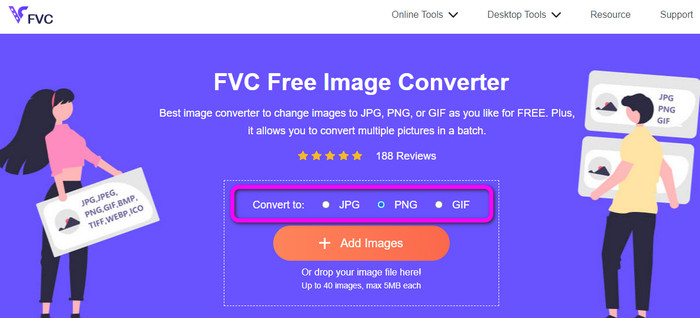
Step 1: First and foremost, open your browser and navigate to the official website of FVC Free Image Converter. Select your desired output format from the Convert to option, which is the PNG format.
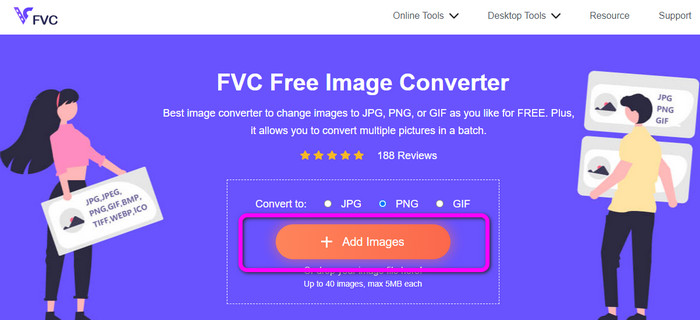
Step 2: Click the Add Images button to upload the WebP image you want to convert. You are allowed to upload multiple images if you want. Open the image from your computer folder. After the uploading process, it will proceed to the conversion process automatically.
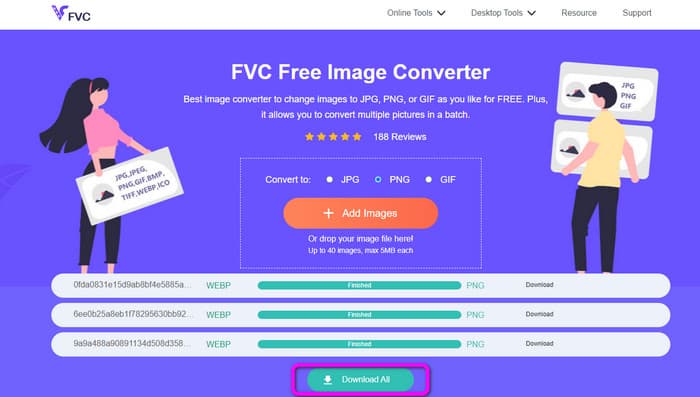
Step 3: For your last and final step, click the Download button on the side to save them one by one. But, if you want to download all of them in a single process, click the Download All button. After saving, you can already open your converted images on your computer.
Como converter WebP para PNG usando o Convertio
Another way to convert WebP to PNG is using Convertio. This WebP to PNG converter can convert your WebP files to PNG format. Additionally, it offers an easy-to-understand user interface. Thus, both experts and novices can use this converter. This tool also has a batch conversion process. So, you can convert many image files at once. Also, the converting process is quicker than other converters. File conversion is possible without taking too much time. Additionally, Convertio is accessible through all browsers. Google, Edge, Explorer, and more programs are among them. Furthermore, this online image converter offers extra functions. Videos, audio, documents, and more can also be converted to this converter. But, there are certain restrictions on the accessible version of this tool. You can only upload files with a maximum file size of 100MB. Then, if you plan to do a batch conversion process, the maximum number of images you can upload is two. If you plan to upload many images in a single click, purchasing a subscription plan is the best thing to do. Lastly, you need an internet connection to use the tool.
Step 1: Go to your browser and search for Convertio. After that, click the Choose Files button. When the computer folder shows up on the screen, select the WebP images you want to convert and open it.
Step 2: Go to the format options after uploading the WebP image/s. Select the PNG file as your output format.
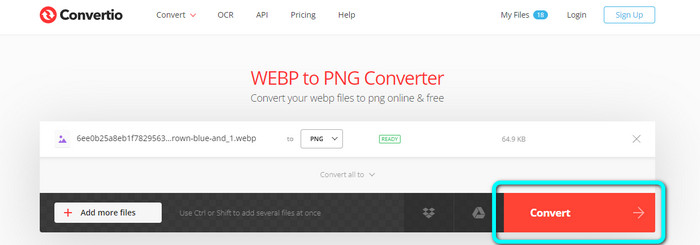
Step 3: When you are done selecting the PNG file, click the Convert button. Then, wait for the conversion process. Click the Download button to save your converted images on your desktop.
Como converter WebP para PNG usando Online-Convert
Online-Convert is another image converter online you can trust when converting WebP to PNG. It supports various image formats, including JPG, BMP, GIF, TIFF, and more. The conversion process is too easy. It only requires three steps to convert the WebP image file to PNG format. This way, all users can operate this converter, especially beginners. In addition, Online-Convert is available in all browsers. It includes Google, Firefox, Edge, Explorer, and more, making it convenient. Also, it offers a batch conversion process to convert multiple images at once. However, when using the free version, you can only upload a maximum of 3 images per batch. The file size limit is only 25MB. Also, the conversion process is too slow, which is time-consuming. In that case, get the paid version if you want to experience great features without limitations.
Step 1: Go to the Online-Convert website on your browser. Click the Choose File button to upload the WebP image. You can upload up to 3 images when doing a batch conversion process.
Step 2: When uploading is done, click the Start button. This way, the conversion process will begin.
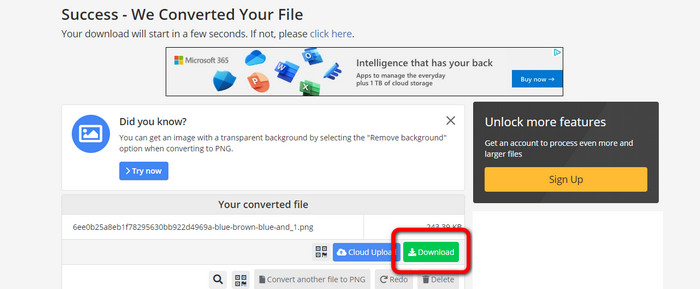
Step 3: Click the Download button to save and save your converted image.
Parte 3: Maneiras práticas de converter WebP em PNG offline
Converta WebP para PNG usando o Video Converter Ultimate
You can use Video Converter Ultimate if you prefer converting your WebP to PNG offline. It can convert your files instantly because it has a fast conversion process. Also, you can convert multiple files simultaneously with its batch conversion feature. In addition, it supports various image file formats. It includes JPG, BMP, TIFF, GIF, SVG, and more. Video Converter Ultimate offers a simple conversion process, making it suitable for all users. This way, whether you are a new user or not, you have the capability to operate this converter. Moreover, You can download this offline converter on both Mac and Windows so that it will become convenient for users. This is also a free-to-download program. It means that you don’t have to pay to access the converter. One of the best things about this converter is you can save your converted images without any unnecessary watermarks. That way, you can get your images clean and satisfying. Follow the simple steps below to convert WebP images to PNG formats efficiently.
Step 1: Download the Video Converter Ultimate on your Windows or Mac. After that, proceed to the installation process and launch the converter. If you want to access the converter easily, click the Download button below.
Free DownloadFor Windows 7 or laterSecure Download
Free DownloadFor MacOS 10.7 or laterSecure Download
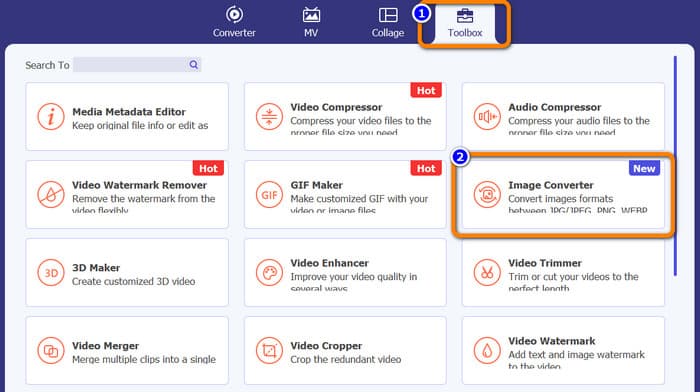
Step 2: After launching the image converter, navigate to the Toolbox panel. Select the Image Converter tool below. Another interface will show up after clicking it.
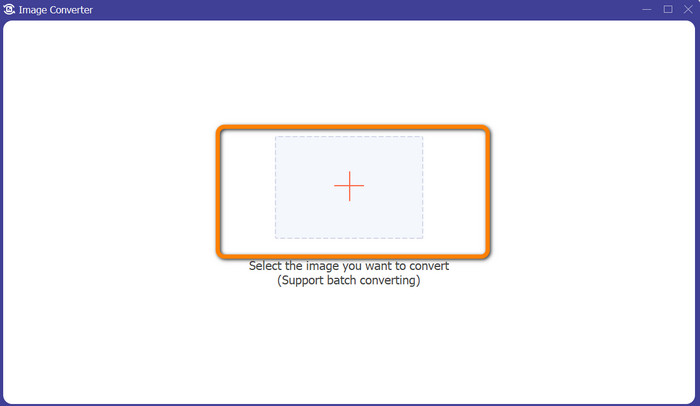
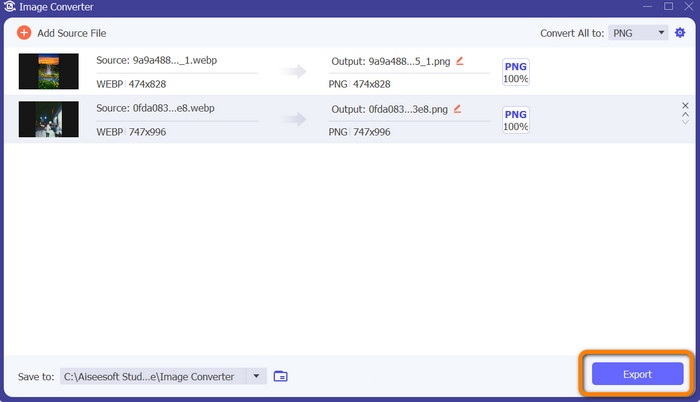
Step 3: Click the Plus sign button on the center interface. When the computer folder pops up, select the WebP images you want to convert, and open it. Click the Add source file button to add more image files.
Step 4: After adding the files you want to convert, click the Convert All to option in the upper-right corner of the interface. Then, select the PNG format.
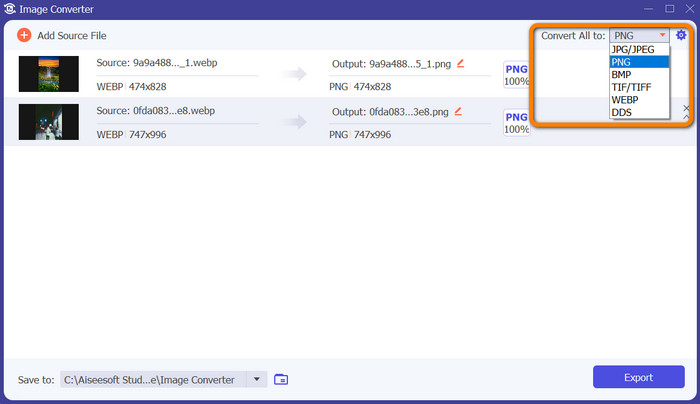
Step 5: The last step is to click the Export button on the lower-right corner of the interface. When the export process is done, you can now open your converted images from your computer. You also can use this software to convert WebP to JPG.
Parte 4: Perguntas frequentes sobre a conversão de WebP para PNG
1. Como converter WebP para PNG no Microsoft Paint?
Converting WebP to PNG format is simple as long as you know the proper process. Launch MS Paint by selecting it from the Start menu by typing Paint into the Windows search box. Then select Paint from the results list at the top of the page. Open Paint by selecting File > Open from the menu that appears. Choose the WEBP image file you wish to convert from your computer's file system, then click Open. Once the WEBP image has loaded in Paint, select File from the menu and click Save as. JPEG Picture should be chosen in the side menu. Enter a filename and the folder where you wish to save the converted image when the Save As box appears. Click Save after making sure JPEG is chosen.
2. Como abrir imagens WebP no GIMP?
No GIMP, abra arquivos de imagem WebP. Gimp-web é o nome do plug-in do GIMP necessário para abrir uma imagem WebP. Graças a este plugin, o novo formato de imagem WebP pode ser usado para carregar e salvar arquivos. A boa notícia é que este plug-in pode ser acessado em todos os sistemas operacionais populares. Inclui Mac, Linux e Windows.
3. Quais são as vantagens do WebP?
Existem quatro vantagens principais do WebP. Ele pode aumentar o desempenho do site, economizar mais largura de banda, aumentar a otimização do mecanismo de pesquisa e mostrar imagens de alta qualidade.
Conclusão
These are the four excellent methods you can try to convert WebP to PNG file formats. But, if you want a free image converter with simple procedures, use FVC Free Image Converter.
-
 Tutoriais passo a passo sobre como converter ICO para PNG
 Clique neste guia para aprender os métodos mais fáceis de converter ICO em PNG. Vamos descobrir os conversores de ICO para PNG para procedimentos online e offline.
-
 Métodos mais simples para converter SVG para PNG
 Saiba como alterar seu arquivo de imagem de SVG para PNG usando conversores de imagem úteis. Leia este guia para aprender tudo o que você precisa saber sobre a conversão.
-
 Maneiras completas de converter JPG para PNG online e offline
 Procurando métodos úteis para converter o formato de arquivo JPG para PNG? Este guia tem a resposta que você precisa. Para descobrir esses métodos, leia o artigo.
