


 Video Converter Ultimate
 Gravador de ecrã
 Reparo de vídeo
 Secure Download
Maneiras profissionais de como converter imagens em vetores
The best graphics format for logos and drawings is vector graphics. It is a result of their distinct curves and lines. Additionally, instead of using pixels, equations are used to construct them. It can use any size to rescale vectors without sacrificing clarity. The user needs to be able to convert photos to vectors. The good news is that you are able to learn everything you need to know online, thanks to the abundance of tools and lessons available. Designers and marketers must learn how to work with the widespread file type known as vector pictures. After all, billboards and other forms of advertising favor this format. There are numerous techniques for transforming images into vectors. If you want the best way to convert images to vectors, then there is a reason for reading this guide post.

Parte 1. O que é um Vetor de Imagem?
Uma imagem de computador com pontos, linhas e curvas é chamada de imagem vetorial. Com base em equações matemáticas, é usado para criar várias formas. Cada equação matemática tem qualidades únicas, como cor, espessura, curva e muito mais. Por causa disso, uma imagem vetorial pode ser ampliada e ampliada ou reduzida sem perder os detalhes da imagem. Isso implica que as linhas, curvas e pontos permanecem suaves independentemente do tamanho ou grau de zoom na imagem. Nunca haverá bordas borradas ou irregulares na arte. Os logotipos geralmente são arquivos vetoriais. Além disso, as cores são divididas em formas distintas. Tão simples quanto clicar em um botão simplifica a alteração das cores desses gráficos.
Parte 2. Melhor maneira de vetorizar uma imagem
Como vetorizar uma imagem no Illustrator
If you want to vectorize your images, then you can use Illustrator. This program allows you to vectorize an image perfectly. It has complete tools and options that you need. Also, it supports almost all the most common image formats to add any images. You can add JPG, BMP, PNG, EPS, TIFF, and more. However, you must purchase the program if you want to use it daily. Illustrator can only offer you a few days free trial version. Also, it has a confusing installation process. You will find it hard to operate if you are a beginner. You need to ask for assistance for advanced users if you want to vectorize your images on Illustrator. Additionally, the program has complicated options. It is necessary to study the program first before using it. Also, when vectorizing an image, it has lots of processes. See the procedure below to learn how to vectorize an image.
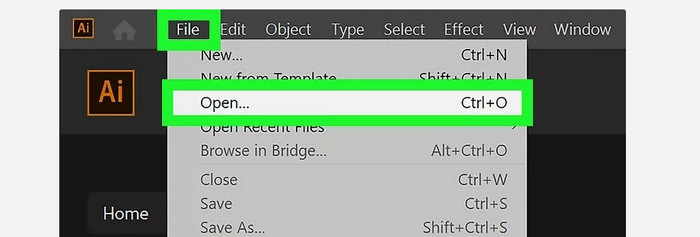
Step 1. Download Illustrator on your desktop. You can use the free trial version if you want. After the installation process, launch the program. Go to the File > Open menu to add the image you want to vectorize.
Step 2. In a newly appeared window, check the Preview box to view your image in vector format in real-time.
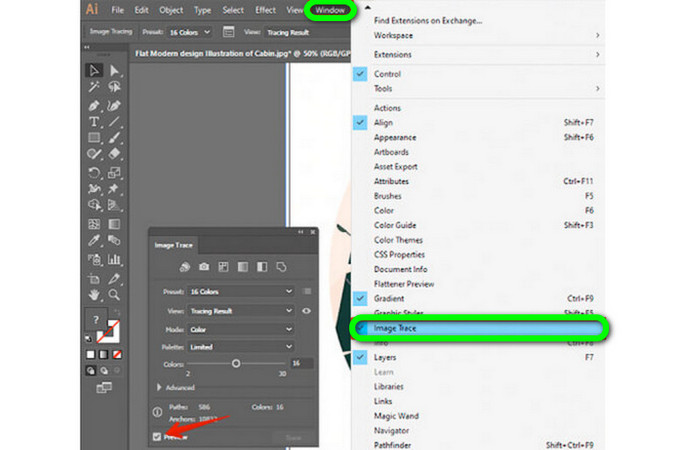
Step 3. Selecting the mode is the next step in understanding how to vectorize in Illustrator. Locate the Mode drop-down option in the Image Trace panel, then select the mode that best fits your design from the list. Grayscale, black and white, or color are all possible modes.

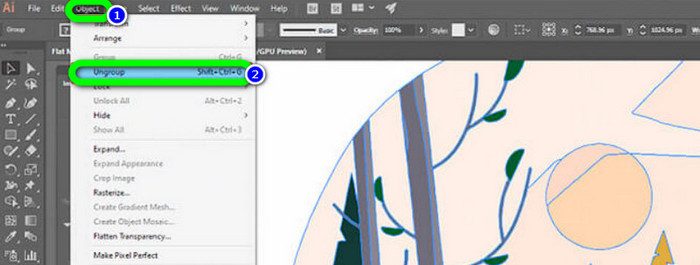
Step 4. Right-click on your image after that. Choose Ungroup from the dropdown menu on the Object tab. Shift+Ctrl+G/Shift+Cmd+G key combinations can also be used if you prefer shortcuts for easier access. Your color shapes will be divided into parts due to this operation.
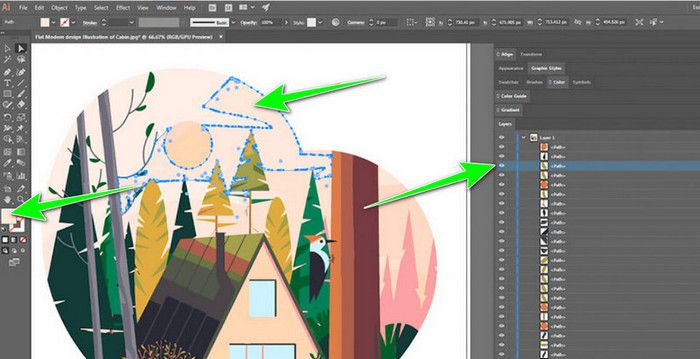
Step 5. You can freely alter the image once your conversion is finished. Select > Same > Fill Color after clicking on a shape to delete any color groups you'd want.
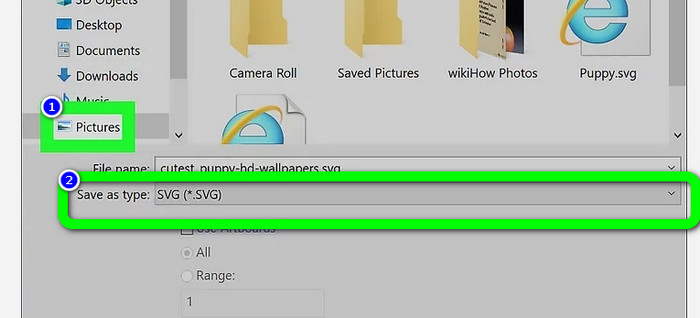
Step 6. Lastly, save your image as a vector file. Go to the File > Save as option. Then, select the SVG file format.
Como vetorizar uma imagem no Photoshop
Adobe Photoshop is good at vectorizing an image. It has effective methods making it easy for all users. Also, you can vectorize an image with a few steps. In addition, Photoshop is also capable of editing images. If you want to edit images before saving them, you can do so. However, Photoshop has some drawbacks. It only offers a 7-day free trial. Then, after the trial version, you must pay for the subscription plan. The installation process is also time-consuming.
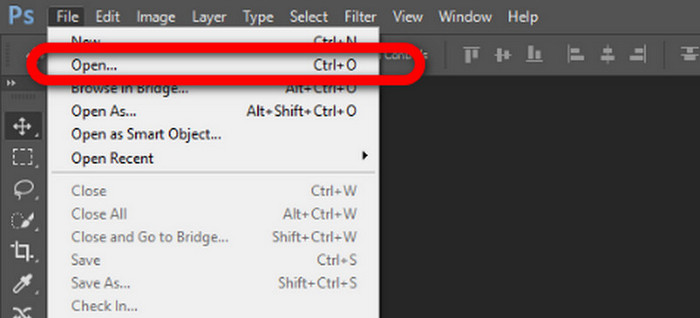
Step 1. Launch Adobe Photoshop on your computer. Then, go to the File menu and select the Open option to add the image you want to vectorize.
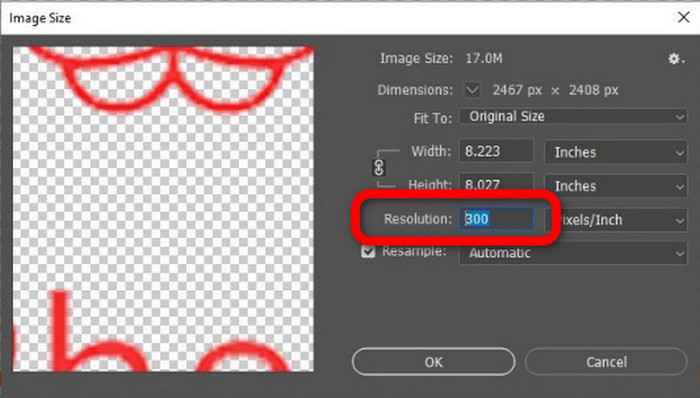
Step 2. Press the Ctrl + Alt + I on your keyboard to see the Image Size window and turn the resolution to 300.
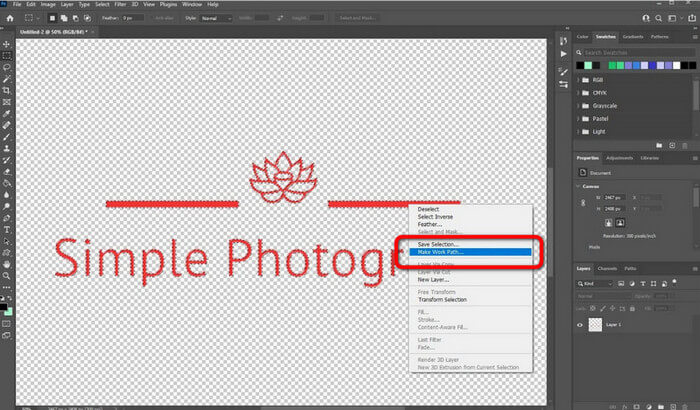
Step 3. Move the cursor above the selection, choose the Marquee Tool from the tools panel, and right-click. Choose the Make Work Path option from the menu after that.
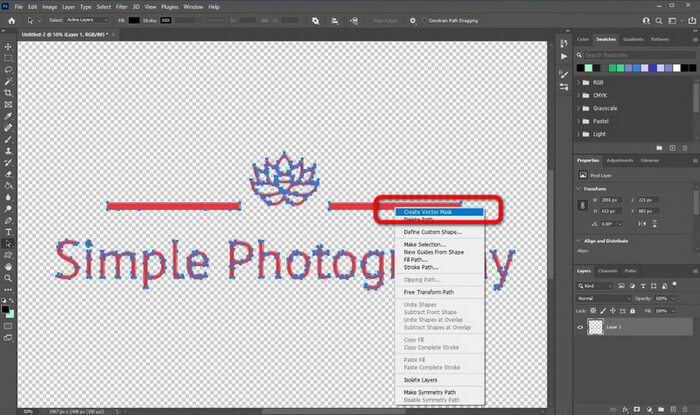
Step 4. Then, press the Ctrl + A on the keyboard to switch on the Direct Selection tool. After that, right-click the image and select the Create Vector Mask option. This way, it will create a vector mask over the layer.
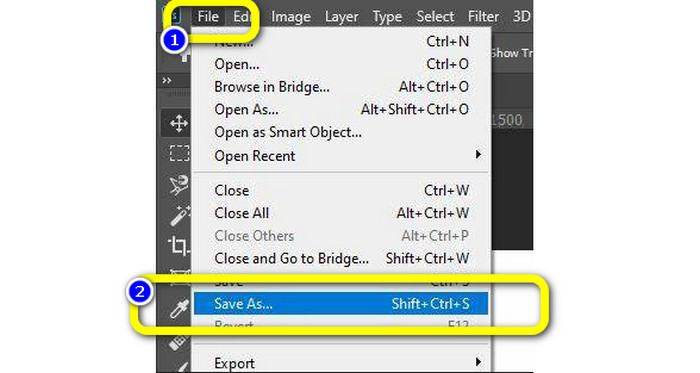
Step 5. To save the vectorized image, navigate to the File menu and select the Save as option.
Parte 3. Como converter imagens vetoriais
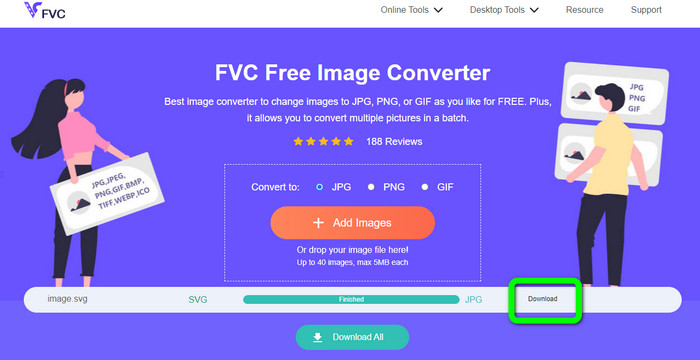
An excellent online image converter is FVC Free Image Converter. It can convert vector graphics into other formats like JPG and PNG. The user interface is excellent. You can concentrate on file conversion because it contains no distracting ads. Additionally, installing this converter is not necessary. It is directly controllable through your browser. Additionally, the image quality will be the same as the original file after conversion. It provides an easy-to-follow UI and instructions, which is ideal for users. Also, it is possible to convert several image files. This picture converter has the capability of batch conversion. Moreover, you can download numerous converted files with a single click. Also, it accepts input files in various extra formats, such as PNG, BMP, TIFF, and GIF. This tool's lack of annoying advertisements is one of its positive aspects. Doing so can ensure that your end product is pleasing to use and view. Using FVC Free Image Converter, your privacy is protected. It won't save your data after saving the image.
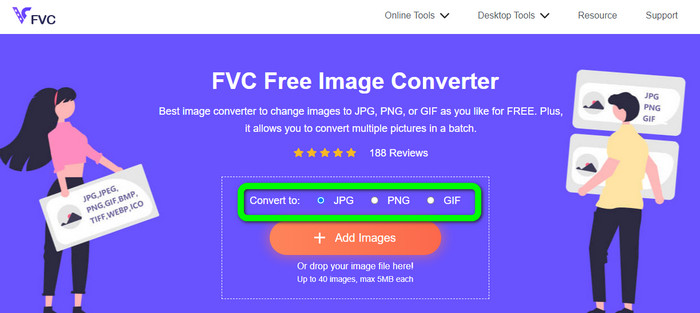
Step 1. Go to the website of FVC Free Image Converter. Go to the convert option and select your desired output format.
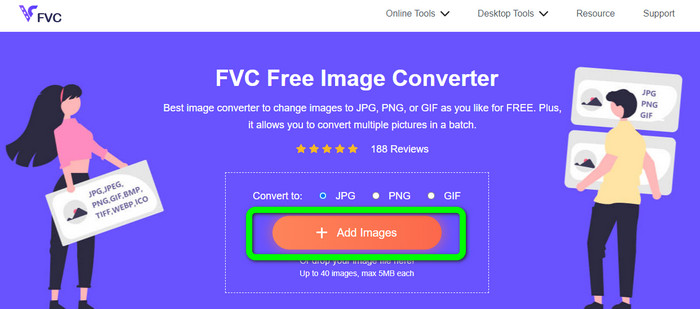
Step 2. Click the Add Images button to upload the vector image. You can drop the image into the box.
Step 3. After uploading the vector image, the tool will convert the image automatically. Then, after the conversion process, click the Download button.
Relacionado a:
Trouble-Free Methods to Convert Images to Black and White
Best Ways on How to Convert Images to Links [Full Methods]
Parte 4. Perguntas frequentes sobre a conversão de imagens em vetores
1. Quais são os diferentes usos das imagens vetoriais?
Existem muitas razões pelas quais você precisa usar arquivos vetoriais. Se você planeja imprimir imagens, é melhor colocar a imagem em um arquivo vetorial. Além de impressão, também é perfeito para animação. Os usuários usam isso para imagens quadro a quadro que requerem menos poder de computação. Além disso, alguns designers usam imagens vetoriais para outdoors e comerciais.
2. Quais são os principais tipos de formatos de imagens vetoriais?
Os principais formatos de imagens vetoriais são Scalable Vectors Graphics (SVG), Windows Metafile (WMF), Adobe Illustrator Artwork (AI), Encapsulated PostScript (APS) e Portable Document Format (PDF).
3. Sempre preciso de um arquivo vetorial se tiver feito um trabalho de design?
Nem sempre. Existem maneiras de usar diferentes formatos de arquivo. Mas se você precisa ou não de arquivos vetoriais depende do tipo de trabalho que você fez. No final, se você tiver feito o trabalho de design, discuta seus formatos de arquivo com seu designer. Dessa forma, você pode coletar ou gerar os arquivos adequados, caso não estejam disponíveis.
4. Como converter qualquer imagem em uma silhueta vetorial preto-branco?
Para converter a imagem em preto e branco, você pode usar o Photoshop. Vá para o menu Arquivo e selecione a opção Abrir para adicionar a imagem. Em seguida, na interface superior, clique no menu Imagem. Selecione Ajustes > Limiar. Em seguida, a janela Limiar será exibida. Em seguida, clique em OK.
Conclusão
Vector images are great when using it for commercials, billboards, and more. Because of that, the article taught you the best methods on how to vectorize an image. Also, you learned how to convert vector images to other formats like JPG and PNG. If you want to vectorize an image and convert images to other formats, use FVC Free Image Converter.
-
 Maneiras fáceis de entender para converter PSD para PNG ou JPG
 Esta postagem fornecerá etapas gerenciáveis para converter PSD para JPG ou PNG. Existem vários conversores que você pode usar para converter seus arquivos. Leia mais para descobrir.
-
 Maneiras testadas de converter TGA para PNG de maneira fácil, mas profissional
 Confira estes guias para saber como converter TGA para PNG usando conversores de imagem online. Clique no artigo para descobrir todos os detalhes da conversão de imagens.
-
 Tutoriais incomparáveis para converter imagens para o formato SVG
 Deseja converter suas fotos para o formato de arquivo SVG? Então, esta postagem fornecerá excelentes conversores que você pode usar online, offline e em dispositivos móveis.
