


 Video Converter Ultimate
 Gravador de ecrã
 Reparo de vídeo
 Secure Download
Principais redimensionadores de vídeo para alterar os vídeos para um tamanho perfeito para o seu projeto
Os redimensionadores de vídeo são softwares que permitem que as pessoas alterem o tamanho e a forma dos arquivos de vídeo. Uma das coisas mais comuns que os redimensionadores de vídeo podem fazer é recortar vídeos. Isso significa retirar partes do quadro de vídeo para criar um novo tamanho de quadro menor. Isso pode ser útil para várias coisas, como otimizar o conteúdo de vídeo para diferentes dispositivos ou plataformas de mídia social, cortar partes indesejadas do quadro ou combinar vários vídeos cortados para fazer novas composições.
Video editors, people in charge of social media, and people who make content regularly need to resize videos. Video content is becoming more and more popular, so video resizers are now a must-have for anyone who works with video files often. If you share the same predicament who wants to maximize the abilities of video resizers, then this article is for you. Check out handpicked programs to resize videos.

Parte 1. Os redimensionadores de vídeo mais poderosos com várias funções
Se você gosta de redimensionadores de vídeo poderosos que podem fazer o trabalho de recortar vídeos no Windows e no Mac OS, pode contar com as seguintes ferramentas. Esses programas garantem o resultado e a produção de qualidade. Sem mais delongas, dê uma olhada nos redimensionadores de vídeo abaixo.
1. Video Converter Ultimate
FVC Video Converter Ultimate is a popular software tool offering a range of video conversion and editing features, including resizing and cropping videos. This program makes it easy to resize videos to different aspect ratios and resolutions with a range of preset options. The software supports all major video formats, including MP4, AVI, MKV, and more, and you can resize multiple videos simultaneously.
Além disso, o recurso de corte de vídeo do FVC também é altamente eficaz, permitindo que os usuários removam facilmente partes indesejadas de um quadro de vídeo. Isso pode ser útil para várias finalidades, como remover letterboxing, redimensionar vídeos para diferentes proporções ou remover elementos indesejados do quadro. Escusado será dizer que também funciona como um alterador de proporção. Enquanto isso, você pode dar uma olhada em seus principais recursos para sua leitura.
Key Features:
◆ Redimensionamento de vídeo para diferentes resoluções.
◆ Saída de alta qualidade.
◆ Processamento rápido e em lote.
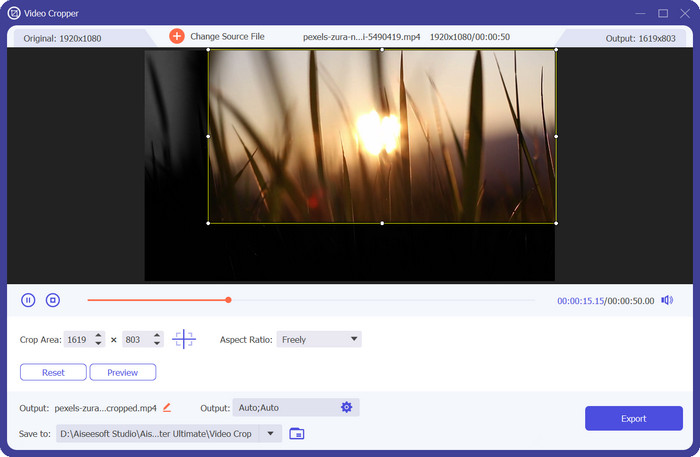
Step 1. To start using FVC Video Converter Ultimate to crop your videos, you must download and set up the program on your computer. Just click the Free Download button for your operating system and follow the on-screen instructions to install the program.
Free DownloadFor Windows 7 or laterSecure Download
Free DownloadFor MacOS 10.7 or laterSecure Download
Step 2. Once the program is set up, you can open it and click on the Toolbox tab to get to the toolbox.
Step 3. From there, choose Video Cropper to open the tool for cropping. Click the plus sign in the upload area of the Video Cropper option to add a video to crop.
Step 4. The next step is to choose the aspect ratio for your video. The best proportion for Snapchat is 9:16. (vertical). Below the video preview is a dropdown menu where you can choose the aspect ratio you want.
Step 5. Click the Export button in the bottom right corner of the interface to save your cropped video file once you're happy with it. Then, you can send it to your followers or post it on Snapchat to show your friends how great you are at editing videos.
2. Estreia
Com o Premiere Pro, os usuários podem cortar vídeos para criar novas composições, remover elementos indesejados do quadro ou redimensionar vídeos para diferentes plataformas ou dispositivos. O software suporta todos os principais formatos de vídeo e oferece uma variedade de opções predefinidas para redimensionar e cortar, bem como ferramentas avançadas para personalizar o quadro de corte e visualizar os resultados em tempo real. Além disso, oferece outros recursos úteis, como correção de cores, efeitos especiais avançados e edição de áudio. Você também pode aprender como alterar o tamanho do quadro no Premiere, pois este programa oferece suporte a esse recurso. Agora, descubra como recortar um vídeo no Premiere abaixo e conheça seus principais recursos.
Key Features:
◆ Funciona como um alterador de resolução de vídeo.
◆ Editar e misturar faixas de áudio.
◆ Oferece uma ampla gama de efeitos especiais.
Aqui estão as etapas sobre como alterar a proporção no Premiere ou em vídeos de corte:
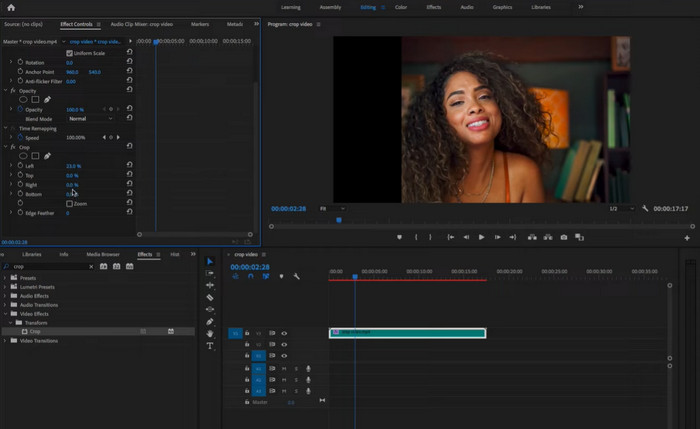
Step 1. Import your video clip into Premiere Pro by clicking File > Import and selecting your video file. Drag your video clip from the Project panel to the timeline.
Step 2. Select the video clip on the timeline by clicking on it. Go to the Effects Control panel, located in the top-left corner of the interface.
Step 3. Look for the Motion effect in the Effects Control panel and click on the triangle to expand it. Adjust the Scale setting to resize your video. This will adjust the size of the entire video frame.
Step 4. To crop the video, click on the Crop effect in the Effects Control panel and expand it. Use the sliders to adjust the amount of cropping you want for each side of the video frame. You can also enter specific values in the text boxes to get more precise control over the cropping.
Step 5. Preview your cropped video by playing it on the Program Monitor. If you're not happy with the output, adjust the cropping values until you achieve the desired look. When you're finished, export your cropped video by clicking File > Export and selecting your desired output format and settings.
3. Da Vinci Resolve
O DaVinci Resolve é um software de edição de vídeo abrangente que oferece recursos avançados para editores de vídeo e coloristas profissionais. Um dos recursos de destaque do DaVinci Resolve são seus recursos de corte precisos e flexíveis, que permitem aos usuários ajustar o enquadramento e a proporção de seus vídeos com facilidade.
Além de seus recursos de recorte, o DaVinci Resolve oferece vários outros recursos poderosos, incluindo correção de cores, edição de áudio e efeitos especiais avançados. Esteja você editando um longa-metragem, criando conteúdo de mídia social ou produzindo um vídeo corporativo, o DaVinci Resolve oferece as ferramentas e a flexibilidade de que você precisa para alcançar sua visão. Você pode aprender mais sobre esta ferramenta através dos principais recursos e guia sobre como recortar vídeo no DaVinci Resolve.
Key Features:
◆ Ajuste o enquadramento e a proporção.
◆ Suporta os principais formatos de vídeo.
◆ Efeito visual de fusão para composição, rastreamento 3D e codificação.
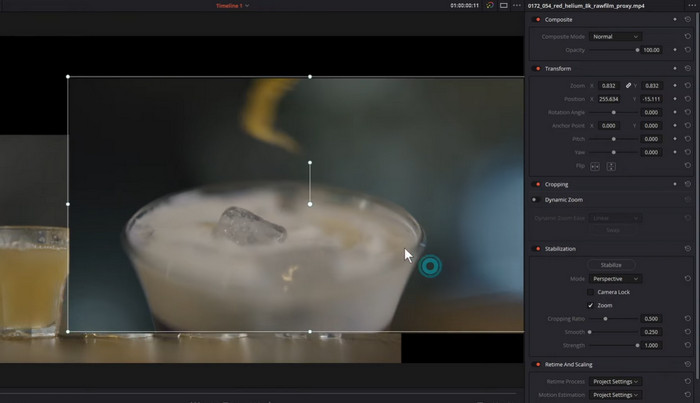
Step 1. Open DaVinci Resolve and create a new project. Import your video clip into the Media Pool by hitting the Import button and selecting your video file.
Step 2. Drag your video clip from the Media Pool to the timeline. Select the video clip on the timeline by clicking on it. Next, go to the Inspector panel on the right-hand side of the interface.
Step 3. In the Inspector panel, click on the Crop button to reveal the cropping controls. Adjust the cropping handles to remove unwanted portions of the video frame. You can also use the sliders in the Inspector panel to adjust the crop values numerically.
Step 4. Preview your cropped video by playing it in the viewer. If you're unhappy with the results, adjust the cropping values until you achieve the desired look.
Step 5. When you're finished, export your cropped video by clicking on the Deliver tab at the bottom of the interface. Select your desired output format and settings, then click the Add to Render Queue button to export your video.
4. Efeitos posteriores
O Adobe After Effects é um software de edição de vídeo líder do setor, conhecido por sua versatilidade e recursos poderosos. Seus recursos de corte estão entre seus recursos de destaque, permitindo que os usuários ajustem o enquadramento e a proporção de seus vídeos com precisão e facilidade. Com o After Effects, os usuários podem cortar seus vídeos para remover partes indesejadas do quadro, ajustar a proporção para caber em telas diferentes ou até mesmo criar composições de vídeo exclusivas. Seja você um editor de vídeo profissional, um designer gráfico em movimento ou um amador, os recursos de corte do After Effects o tornam uma ferramenta indispensável para edição e composição de vídeo.
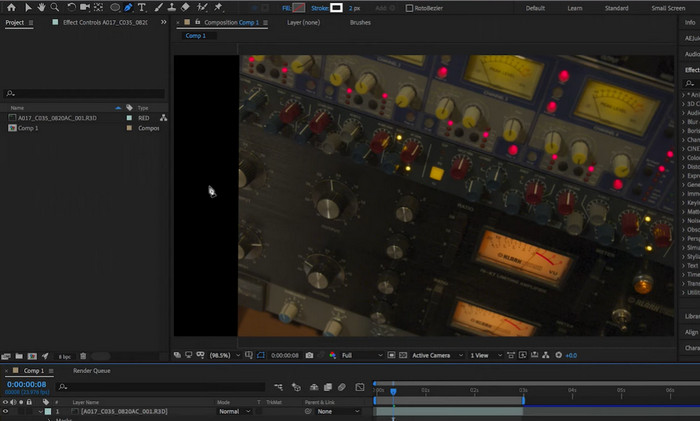
Step 1. Open After Effects and create a new composition. Add your video clip to the project by clicking on File > Import > File. Select your video file and click Open.
Step 2. Drag the video clip from the Project panel to the timeline. Select the video layer by clicking on it in the timeline. In the Effect Controls panel, tick on the Motion dropdown to reveal the Motion controls.
Step 3. Adjust the Scale and Position values to crop the video to your desired size and position.
Step 4. You can also crop the video using the Crop effect. To do this, go to Effect > Video Effects > Transform > Crop. Drag the Crop effect onto your video layer.
Step 5. Use the Crop Left, Crop Right, Crop Top, and Crop Bottom sliders to adjust the crop values in the Effect Controls panel. Preview your cropped video by playing it in the Composition panel.
Step 6. When you're finished, export your cropped video by going to Composition > Add to Render Queue. Select your desired output format and settings, then click on the Render button to export your video. That is how to crop videos in After Effects.
5. Final Cut Pro
Se você quiser aprender a recortar um vídeo no Mac, o Final Cut Pro é um poderoso software de edição de vídeo projetado exclusivamente para usuários de Mac. Com sua interface intuitiva e recursos avançados, o Final Cut Pro torna mais fácil para os usuários criar vídeos de nível profissional, desde clipes curtos até filmes completos. Com ele, você pode trabalhar em uma postagem de mídia social ou em uma obra-prima cinematográfica. As ferramentas de recorte do Final Cut Pro oferecem uma variedade de opções para obter a composição perfeita.
Portanto, se você for um usuário de Mac que deseja criar vídeos de alta qualidade com precisão e facilidade, os recursos de corte do Final Cut Pro o tornam uma ferramenta indispensável para obter resultados de nível profissional. Além disso, veja como alterar a resolução do vídeo no Final Cut Pro e seus principais recursos.
Key Features:
◆ Suporta plug-ins de terceiros.
◆ Ferramentas robustas de edição de áudio e vídeo.
◆ Ferramentas avançadas de edição de vídeo.
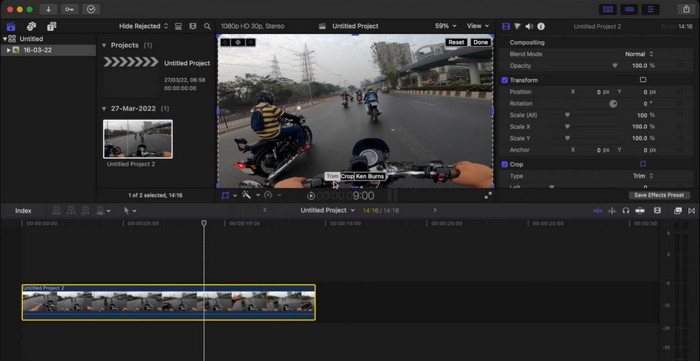
Step 1. Launch Final Cut Pro and open the project that contains the video clip you want to crop. Select the video clip in the timeline by clicking on it.
Step 2. Click on the Crop button located in the top-left corner of the Viewer window. Alternatively, you can press Command+4 on your keyboard to open the Crop tool.
Step 3. Use the handles around the video frame to adjust the crop. You can also manually enter values for the crop size and position in the Crop Inspector window.
Step 4. To adjust the aspect ratio of the cropped video, go to the Video Properties section of the Crop Inspector window and select the desired aspect ratio from the dropdown menu.
Step 5. Preview the cropped video by playing it in the Viewer window. If you're satisfied with the result, you can save the changes.
Step 6. To save the cropped video, go to File > Share and select your desired output format and settings. Finally, click on the Share button to export the cropped video.
Parte 2. Ferramentas gratuitas de redimensionamento de vídeo
É verdade que as ferramentas anteriores ajudam você a cortar as laterais do vídeo ou remover as partes indesejadas de um vídeo. No entanto, eles podem ser um pouco desafiadores para navegar. No entanto, existem mais outros programas que se adaptam às suas preferências. Portanto, pesquisamos e escolhemos alternativas fáceis que você também pode querer conferir.
1. iMovie
With iMovie, you can trim, crop, and add effects to your videos, as well as adjust their color, sound, and speed. You can also add text, transitions, and music to your videos and even create stunning movie trailers with pre-designed templates. And thanks to its seamless integration with other Apple products and services, iMovie makes it easy to share your videos on social media, iCloud, or directly to your Apple devices. You can learn more about this program by checking out its key features and guidelines on how to use it. To use iMovie to crop videos, see the sweets below.
Key Features:
◆ Incluir vários modelos de título.
◆ Adicione transições suaves entre videoclipes.
◆ Trailers de filmes pré-concebidos.
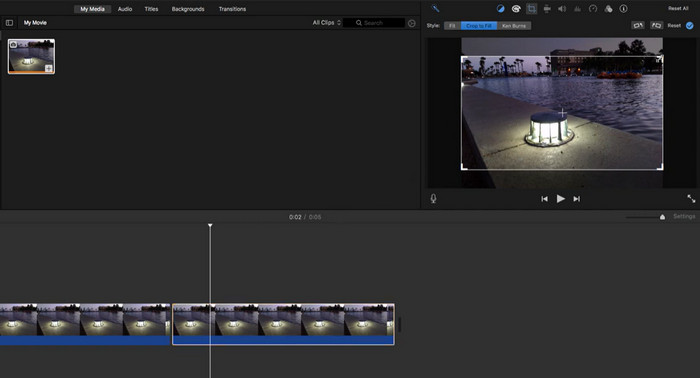
Step 1. Open iMovie on your Mac. Import the video you want to crop by going to File > Import Media and selecting the video file.
Step 2. Move the video clip into the timeline at the bottom of the iMovie interface by dragging and dropping it there. By clicking on the video clip in the timeline, you can choose it.
Step 3. Click the Crop button in the preview window's upper right corner. The button is shaped like a square with two arrows pointing in the same direction.
Step 4. A cropping rectangle will cover the video clip. You can choose the part of the video you want to keep by dragging the edges of the rectangle.
Step 5. You can also move the rectangle by clicking on it and dragging it to where you want it. Once you have chosen the part of the video you want to crop, click Done to apply the crop.
Step 6. Play back the cropped video in the preview window to see how it looks. If you're happy with the crop, save your project by clicking File > Save and then export the cropped video by clicking File > Share.
2. VLC
O VLC Media Player é um reprodutor de mídia versátil com muitos recursos usados por milhões de pessoas em todo o mundo. O VLC Media Player é o reprodutor de mídia mais conhecido porque é fácil de usar e possui todas as ferramentas necessárias para reproduzir, transmitir e até editar vídeos. Mas o VLC Media Player é mais do que apenas um editor de vídeo. Ele também oferece suporte a vários formatos de mídia, incluindo áudio, vídeo e streaming, e pode reproduzir praticamente qualquer tipo de arquivo. Além disso, é gratuito e de código aberto,
Key Features:
◆ Suporta múltiplas plataformas.
◆ Controles de reprodução avançados.
◆ Grave e converta mídia.
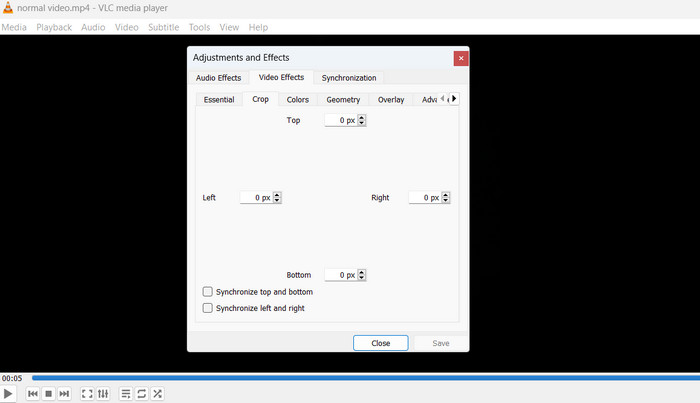
Step 1. To know how to VLC crops videos, click Media from the top menu of VLC Media Player. Click Open File and choose the video file you want to crop.
Step 2. Once the video is playing, go to the top menu bar and click on Tools. Then click on Effects and Filters. Click on Video Effects, and then click on Geometry.
Step 3. By checking the Crop box, the cropping feature will be turned on. Use the sliders next to Crop to change the area that will be cropped. You can also type the pixel numbers into the boxes by hand.
Step 4. When you're happy with how you've cropped the picture, click Close to save the changes. Lastly, save the cropped video by going to the top menu bar, clicking on Media, selecting Convert/Save, and then choosing the folder and file format.
3. Freio de mão
Handbrake is an exceptional open-source video transcoder that allows users to convert, compress, and even crop their videos easily. This free software boasts an impressive array of features that make it a popular choice for amateur and professional videographers. Moreover, Handbrake offers a wide range of video editing tools, such as trimming, resizing, adding subtitles, changing the frame rate, and cropping. This makes it a complete solution for video editing. The software is also easy to understand and use. Its clean, simple interface makes it easy for beginners and experts to find their way around. Look into the steps and learn how to utilize Handbrake to change the size of videos.
Key Features:
◆ Ajustes de qualidade de vídeo.
◆ Exportação de fila.
◆ Configurações de codificação avançadas.
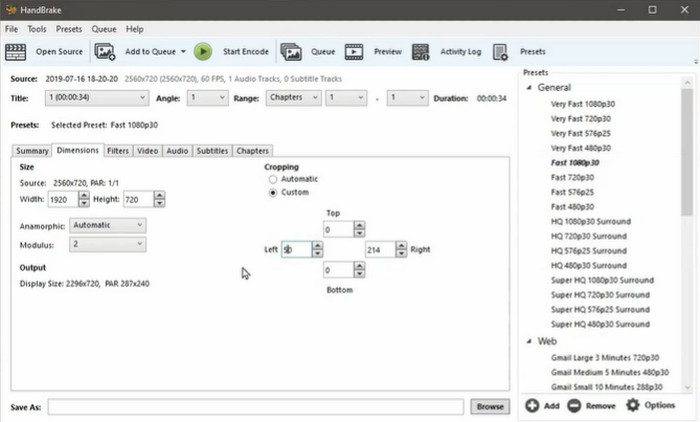
Step 1. Download and install Handbrake from the official website. Next, open Handbrake and click on the Open Source button to load the video file you want to crop.
Step 2. After the video is loaded, select the Crop tab on the right-hand side of the window. In the Crop section, use the sliders to adjust the cropping area or manually input the pixel values.
Step 3. Once you're satisfied with the cropping, click on the Start button to begin the transcoding process.
Step 4. After the transcoding is complete, your cropped video will be saved in the specified destination folder.
4. OpenShot
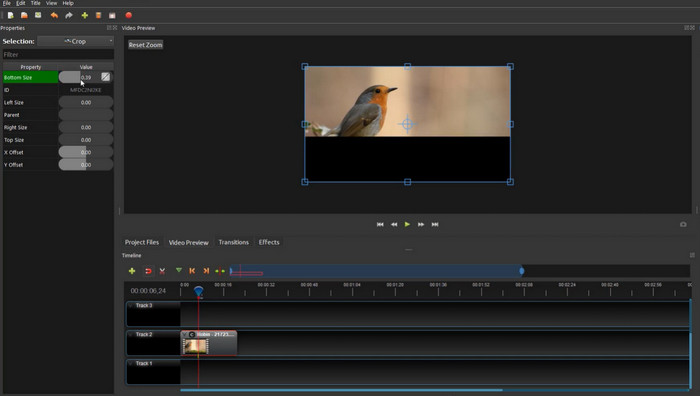
O OpenShot é um software gratuito e de código aberto para edição de vídeos. Possui uma ampla gama de recursos e ferramentas que podem ser usadas para criar e editar vídeos. Ele funciona com os sistemas operacionais Windows, macOS e Linux e é feito para ser fácil de usar, mesmo para pessoas que nunca editaram vídeos antes. No geral, o OpenShot é um programa de edição de vídeo poderoso e flexível que oferece aos usuários uma ampla gama de ferramentas e recursos para criar e editar vídeos que parecem feitos por profissionais. Como software de código aberto, também é de uso gratuito. Isso o torna uma ótima opção para pessoas com orçamento limitado para edição de vídeo.
Key Features:
◆ Possui várias trilhas e camadas.
◆ Possui um editor de títulos embutido.
◆ Vem com ferramentas de animação 3-D.
Para uma experiência prática, você pode seguir o guia sobre como recortar um vídeo no OpenShot abaixo:
Step 1. You can get OpenShot from the official website and install it. Start up OpenShot and start a new project.
Step 2. Click Import Files and then choose the video file you want to crop. Drag the video file from the Project Files section to the Timeline section. In the Timeline section, right-click on the video file and choose Properties.
Step 3. Select the Crop tab in the Properties window. To change the cropping area, use the sliders or type in the pixel values.
Step 4. Once you're happy with the cropping, click the Export Video button to send the video somewhere else.
Parte 3. Qual deles escolher
Para ajudá-lo a selecionar o redimensionador de vídeo certo de acordo com suas necessidades, fornecemos um gráfico de comparação abaixo.
| Ferramenta | Qualidade | Rapidez | Interface de usuário | Processamento em lote |
| Video Converter Ultimate | Boa | Rápido | Intuitivo | sim |
| Pré estreia | Boa | Rápido | Profissional | sim |
| Da Vinci Resolve | Boa | Rápido | Profissional | sim |
| Depois dos efeitos | Boa | Rápido | Profissional | sim |
| Final Cut Pro | Boa | Rápido | Profissional | sim |
| iMovie | Boa | Rápido | Simples | sim |
| VLC | Média | Rápido | Simples | Não |
| Travão de mão | Boa | Lento | Simples | sim |
| OpenShot | Média | Lento | Simples | sim |
Parte 4. Perguntas frequentes sobre redimensionadores de vídeo
Posso usar um redimensionador de vídeo para alterar a proporção do meu vídeo?
Sim, muitos redimensionadores de vídeo permitem alterar a proporção de um vídeo. Pode ser útil se você precisar redimensionar seu vídeo para uma plataforma ou dispositivo específico.
Como alterar a proporção no Resolve?
Você pode alterar a proporção de um vídeo selecionando o clipe na linha do tempo, acessando o painel Inspetor no lado direito e ajustando os valores de Escala ou Corte na seção Dimensionamento. Você pode esticar ou comprimir o vídeo horizontalmente ou verticalmente para alterar a proporção.
Posso recortar vídeos no Apresentações Google?
Não é possível recortar vídeos diretamente no Google Slides. Embora o Google Slides permita adicionar vídeos à sua apresentação, é principalmente uma ferramenta e não oferece recursos avançados de edição de vídeo, como corte.
Conclusão
Video resizers are powerful tools that allow you to resize videos, change their aspect ratios, and convert them to different file formats. While many video resizers are available, each utility has its strengths and weaknesses. By comparing different video resizers and choosing the one that best meets your needs, you can ensure that your videos are optimized for the platforms and devices you want to share.
-
 5 dos melhores redimensionadores de GIF disponíveis em todas as plataformas [2023]
 Quer conhecer os redimensionadores de GIF que você pode usar? Nesse caso, as informações fornecidas abaixo falarão sobre os redimensionadores que você pode usar em seus GIFs em todas as plataformas.
-
 Corte facilitado: como cortar vídeo do TikTok para engajamento total
 Aprenda a recortar seus vídeos do TikTok com nosso tutorial simples! Você pode criar vídeos visualmente mais atraentes com apenas alguns toques e deslizar.
-
 Corte facilitado: como cortar vídeo do TikTok para engajamento total
 Aprenda a recortar seus vídeos do TikTok com nosso tutorial simples! Você pode criar vídeos visualmente mais atraentes com apenas alguns toques e deslizar.
