


 Video Converter Ultimate
 Gravador de ecrã
 Reparo de vídeo
 Secure Download
Como converter FLAC para MP3: guia para compressão de áudio de alta qualidade
Do you want to avoid your high-quality FLAC audio files taking up too much space on your device? Converting them to the widely compatible MP3 format can solve this problem without sacrificing much sound quality. In this guide post, we'll walk you through the process of converting FLAC to MP3, step by step. We'll cover everything from the best tools and tips for an efficient conversion to how to preserve as much quality as possible during the process. Enjoy your favorite tunes on any device without worrying about storage space.

1. FVC Video Converter Ultimate
FVC Video Converter Ultimate is a comprehensive video conversion software that converts not only various video formats but also supports audio conversion. It is an all-in-one solution for converting, downloading, editing, and burning videos and audio files. In addition to its video conversion capabilities, FVC Video Converter Ultimate can convert audio files between various formats, including FLAC to MP3 conversion. It offers support to a wide range of audio formats, such as WAV, AAC, M4A, WMA, and many others. To learn how to use this FLAC to MP3 converter, follow the steps below.
Step 1. Get the program installed
First, you have to have the program installed on your computer. To do so, tick one of the Free Download buttons to download the tool. After that, follow the setup wizard to have it installed. Then, launch it on your computer to see its actual interface.
Free DownloadFor Windows 7 or laterSecure Download
Free DownloadFor MacOS 10.7 or laterSecure Download
Step 2. Add a FLAC or MP3 file
Se você deseja converter MP3 para FLAC ou vice-versa, adicione um arquivo de áudio pressionando o botão de sinal de mais na interface principal. Você pode selecionar um ou mais arquivos de áudio como desejar. Depois, você deve ver a miniatura na interface principal.
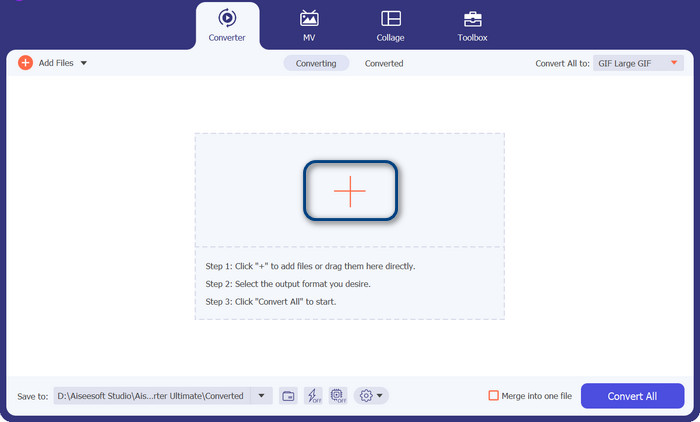
Step 3. Specify the output format
Now, tick on the Profile menu in the upper right side menu of the tool. Once revealed, select the Audio tab and look for MP3. To convert from MP3 to FLAC, choose the FLAC format as the output file. Optionally, you may edit the output settings according to your preference.
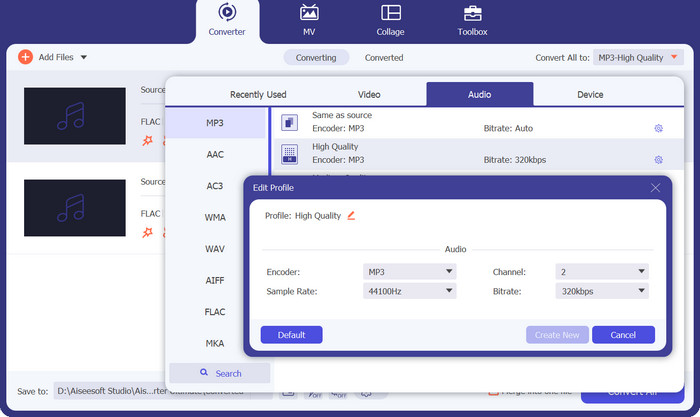
Step 4. Convert to FLAC
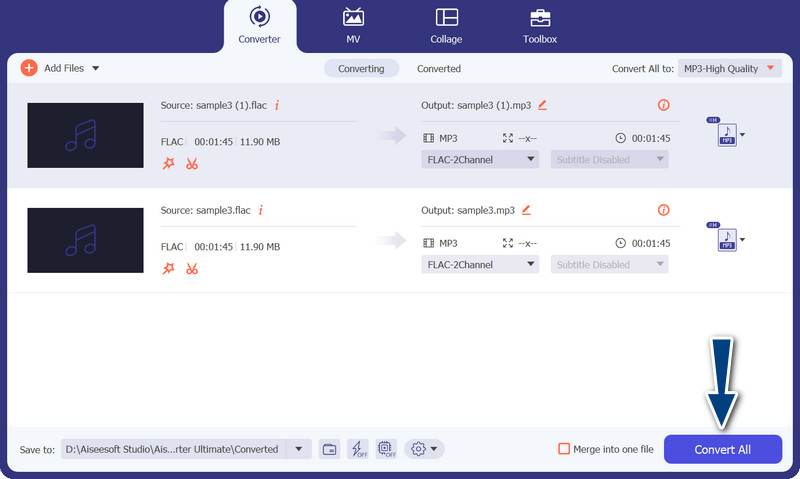
This time, set the output folder where you wish to store the output files. It is located at the bottom-most part of the interface. Tick on it and specify the output folder. Now that everything is set, hit the Convert All button to begin converting. That is how you use this MP3 converter to FLAC or FLAC to MP3 converter.
Prós
- Ele fornece uma interface amigável e ferramentas fáceis de usar para conversão.
- O software inclui recursos para edição de vídeos.
- Velocidade de conversão rápida sem comprometer a qualidade.
Contras
- É um conversor FLAC para MP3 pago.
- A qualidade da conversão pode variar dependendo da fonte.
2. Conversor de Vídeo Gratuito Online
If you are looking for a free program and learn how to convert FLAC to MP3 online, you should consider using Free Video Converter Online. From the title itself, it helps the users to convert their video or audio files without any cost at all. Also, it gives you the freedom to edit the output according to one's preference. On top of that, the conversion speed does not lack behind. As long as you have internet access, you can expect to get your desired output. Find out how this FLAC to MP3 converter free tool works by checking out the step-by-step guide below:
Step 1. Open a web browser and go to the preferred online video converter.
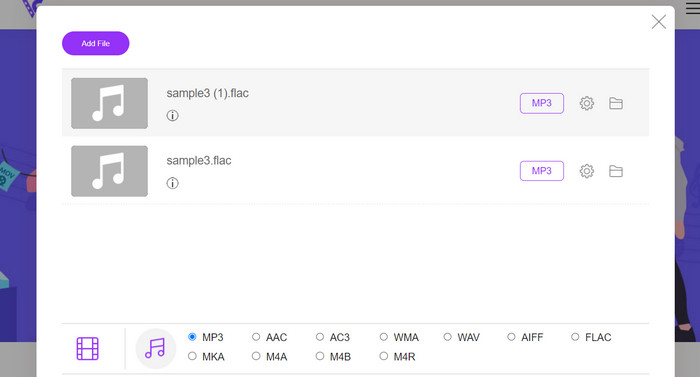
Step 2. By clicking the Add Files to Convert you can upload the FLAC file you wish to convert from FLAC to MP3.
Step 3. From the list of possible formats, select MP3 as the output format under the Audio format menu. Then, choose the MP3 file's desired bitrate or output quality.
Step 4. To start the converting process, click the Convert button. A few minutes may pass while you wait for the conversion to finish, depending on the file size and the speed of your internet connection.
Prós
- Acesse o melhor conversor gratuito de FLAC para MP3 a qualquer momento.
- Requer conhecimento técnico mínimo.
- Ele pode economizar tempo e espaço de armazenamento em um computador.
Contras
- Ele não oferece o mesmo nível de personalização que o software de desktop.
- Exige uma conexão de internet estável e rápida.
Parte 2. Converter FLAC para MP3 ou MP3 para FLAC no celular
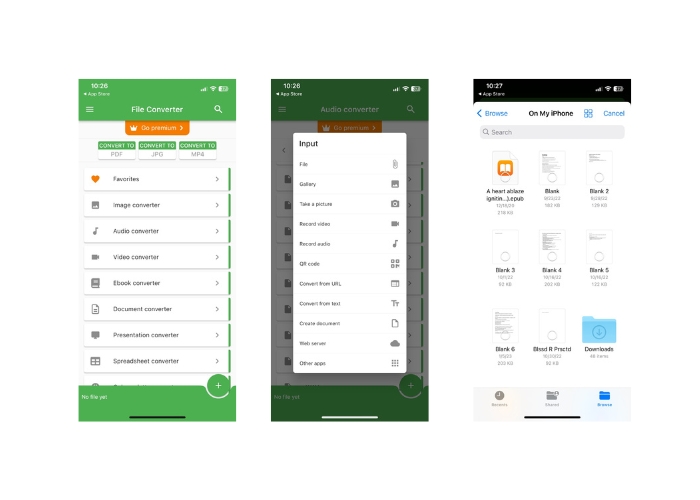
O File Converter é um aplicativo móvel gratuito disponível para dispositivos iOS que permite converter vários formatos de arquivo, incluindo arquivos de áudio e vídeo. O aplicativo fornece uma interface simples e fácil de usar que permite converter arquivos sem a necessidade de nenhum software adicional. O aplicativo oferece suporte a uma ampla variedade de formatos de áudio e vídeo, incluindo FLAC, MP3, WAV, M4A e muito mais.
Isso significa que você pode converter facilmente seus arquivos de áudio e vídeo de um formato sem problemas. Um dos recursos de destaque do File Converter é sua capacidade de converter em lote FLAC para MP3. Isso significa que você pode converter vários arquivos de uma só vez, economizando tempo e esforço.
Step 1. From the App Store, download and install the File Converter application. Open the app, then select the Audio option.
Step 2. From the list of available audio conversion choices, pick FLAC to MP3.
Step 3. To add the FLAC files you want to convert, use the + button. You can change the conversion settings after adding the files if you so choose. The output quality, bitrate, and other options are all programmable.
Step 4. To begin the conversion process, tap the Convert button one last time. The converted MP3 files will be stored locally on your device.
Prós
- Ele pode converter vários arquivos de uma só vez.
- O processo de conversão é relativamente rápido.
Contras
- Tem um limite de tamanho de arquivo de 250 MB.
- Não fornece opções avançadas.
Further Reading:
WAV to MP3 – Top 5 Free Converters to Convert WAV to MP3
Top 3 FLAC Metadata Editors on Mac and Windows [Updated 2023]
Parte 3. Perguntas frequentes sobre a conversão de FLAC e MP3
Posso converter FLAC para MP3 no Mac?
Sim você pode. Se você tiver o iTunes instalado no seu Mac, poderá usá-lo para converter arquivos FLAC em MP3. Simplesmente importe os arquivos FLAC para o iTunes, escolha os arquivos que deseja converter e vá para Arquivo > Converter > Criar Versão MP3. Os arquivos MP3 convertidos serão salvos na sua biblioteca do iTunes.
O Audacity pode converter em lote FLAC para MP3?
Sim, o Audacity pode converter arquivos FLAC em lote para MP3 no Mac. Para fazer isso, primeiro abra o Audacity e crie uma cadeia de edição que inclua os comandos de exportação múltipla. Nas caixas de diálogo Exportar vários, defina o tipo de arquivo como Arquivos MP3 e configure as opções de exportação de MP3 ao seu gosto.
A conversão de FLAC para MP3 afetará a qualidade do áudio?
Sim, a conversão de FLAC para MP3 envolve alguma perda de qualidade de áudio, pois o MP3 é um formato de compactação com perdas. No entanto, com um bom codificador e configurações adequadas, você pode minimizar a perda de qualidade e ainda obter um arquivo MP3 com som decente.
Conclusão
FLAC to MP3 conversion can be a convenient way to make large audio files more manageable while still preserving decent sound quality. With so many tools available for the job, including desktop software and mobile apps, users can easily find a suitable solution that fits their needs. However, it's essential to note that converting from a lossless to a lossy format like MP3 will inevitably result in some loss of audio quality, and users should consider the pros and cons of different conversion methods before proceeding. Overall, with proper care and attention to detail, converting FLAC to MP3 can be an effective way to manage large audio files.
-
 Download do MP3 Player - 10 melhores players de música MP3 gratuitos de 2023
 Qual é o melhor reprodutor de música MP3? Como coloco música em um MP3 player? Como fazer o download do reprodutor de música MP3? Esta postagem oferece uma análise detalhada dos 10 melhores MP3 players gratuitos para Windows PC e Mac.
-
 Tutorial prático sobre como converter vídeos para o formato MP3
 Está tendo problemas para converter vídeos em MP3? Então, você deve confiar neste artigo enquanto investigamos qual conversor fornece a melhor conversão.
-
 5 cortadores de MP3 para cortar qualquer áudio facilmente [2023 atualizado]
 Você precisa de um cortador de MP3 para cortar o áudio? Nesse caso, leia este artigo porque fornecemos as ferramentas nas quais você pode confiar que facilitam o corte do áudio.
