


 Video Converter Ultimate
 Gravador de ecrã
 Reparo de vídeo
 Secure Download
Como redimensionar GIFs utilizando programas confiáveis e atualizados
GIFs are a popular type of image, but sometimes there are elements present that are not suitable for media consumption like black bars, small screen-size ratio and many more. As a result, many users want to find a program where they can easily resize their GIFs. This is where GIF resizing programs come in handy. Check out our compilations of apps and tips on how to use these apps for GIF resizing. This will help users like you to further more understand and give you a background of the applications.

Parte 1: Por que redimensionar um GIF
Redimensionar um GIF é uma tarefa divertida e terrível ao mesmo tempo. Sem a disponibilidade de aplicativos ou programas para uso, simplesmente otimizar GIFs é uma tarefa impossível. Então, por que redimensionar seu GIF? Um GIF tem uma proporção de tamanho fixa quando criado, por isso, quando alguém te envia um GIF, ele pode até não caber bem na sua tela ou ter baixa qualidade. É por isso que muitos usuários redimensionam seus GIFs online.
Tips for Resizing GIFs:
◆ Use aplicativos e software confiáveis
◆ Conheça o resultado desejado
◆ Nunca produza uma contagem de pixels inferior a 720×1280p
Parte 2. Como redimensionar um GIF na área de trabalho usando aplicativos eficazes
1. Video Converter Ultimate
Video Converter Ultimate is the ultimate tool for any task you imagine. This app provides a stress-free resizing of any GIF without losing image pixel quality and provides a good pixel-ratio recommendation. It gives the best optimized animated GIFs that you want to resize. Therefore, it is a reliable and convenient application that you can use to edit your GIFs.
Step 1. Acquire and Install the app
First of all, download the program by clicking the Free Download button provided below. Once the download is complete, install it on your computer. Just click the link according to your device. After installing, familiarize with the application to easily browse through the tool.
Free DownloadFor Windows 7 or laterSecure Download
Free DownloadFor MacOS 10.7 or laterSecure Download
Step 2. Launch the Tool
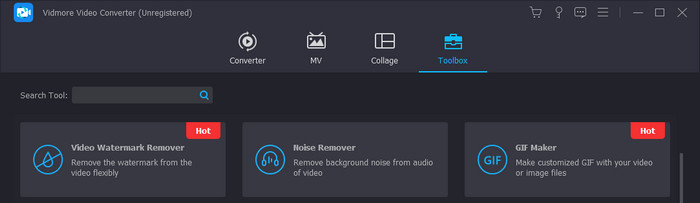
Open your Video Converter Ultimate app on your PC, then click the Toolbox option. And select GIF Maker or you can simply search it. By choosing this option, it will enable users to resize a GIF effortlessly.
Step 3. Select Process
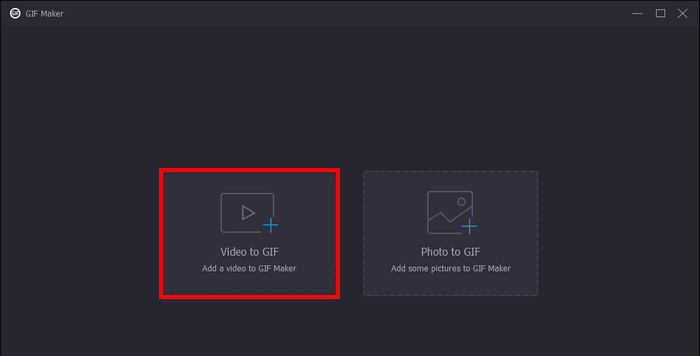
After clicking GIF Maker, you can now choose which process you want to do. Select Video to GIF. This will enable you to import your GIF file for resizing. Import your files by choosing them from your directory folder.
Step 4. Resize and Generate GIF
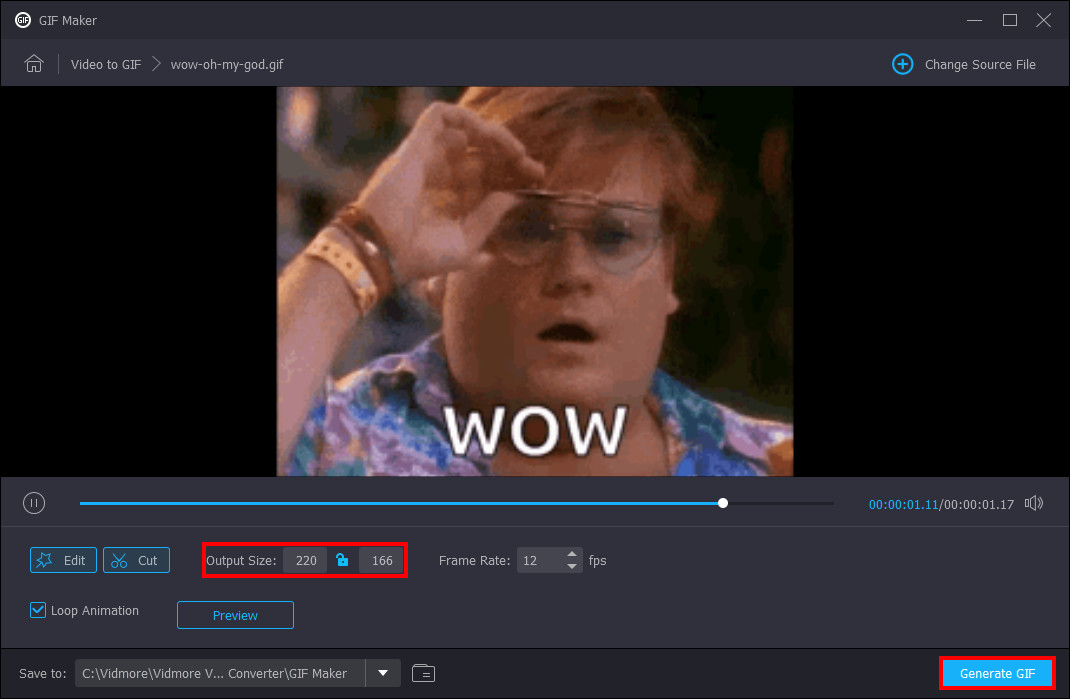
Finally, you are now able to toggle your GIF size. Resize it by inputting your desired size into the size panel below your GIF. After resizing your GIF, you can now save and generate your GIF. Just click the Generate GIF button on the bottom-right corner of your application.
2. Photoshop
Photoshop é um aplicativo feito para edição e desenho de imagens. E agora, os usuários também estão usando o Photoshop para redimensionar e recortar imagens. Este aplicativo também pode criar GIFs com tamanhos de arquivo menores para melhor gerenciamento de disco.
Step 1. After opening your computer, right-click your GIF File select open with and click Photoshop.
Step 2. Then, select your images. Finally, click Ctrl + T on your keyboard. Apply your desired size for your GIF by dragging its size.
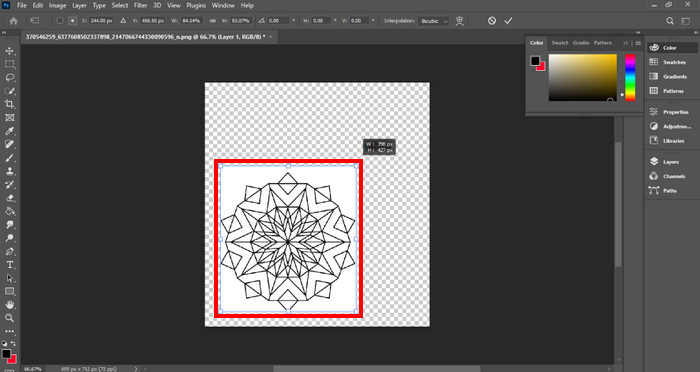
Step 3. After resizing your GIF, just select OK to apply all the changes made.
3. Visualização
Preview é um aplicativo pré-instalado no sistema operacional Mac. Feito para edição e visualização. A visualização ainda possui ferramentas para tornar os GIFs com tamanhos de arquivo menores. É exclusivo apenas em laptops e desktops Mac.
Step 1. Upon launching your Mac, open your file by right-clicking it. After that, click Open With and select your Preview app.
Step 2. After importing your GIF, select Tools from the top bar menu and select Adjust Size to resize your animated GIF. Here, you can toggle the Width and Height of your GIF. Edit according to your preference.
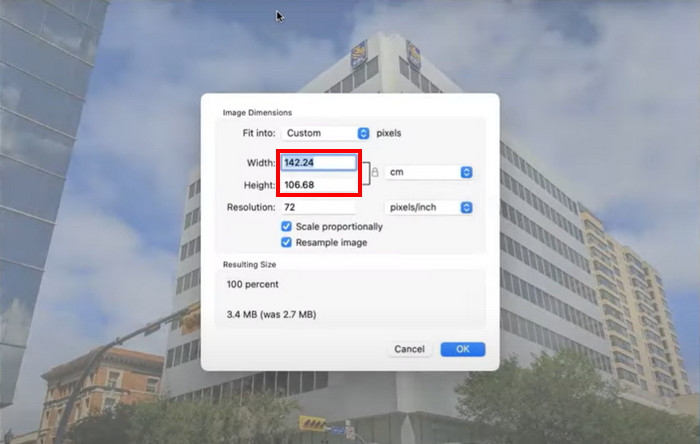
Step 3. Click OK to apply all the changes you want. Then, click cmd + S to save your edited GIF.
Parte 3. Como diminuir um GIF com as 5 principais ferramentas online gratuitas
1. EZGIF
Este programa é um programa online benéfico para quem não tem espaço suficiente em seus dispositivos. Mas pode ser um incômodo para usuários que não têm internet em casa. EZGIF vem com ferramentas de redimensionamento e efeitos que podem alterar e redimensionar GIFs com apenas alguns cliques. Equipado com ferramentas avançadas de corte que tornarão seu processo de edição muito mais eficiente.
Step 1. Upon opening the link, you will see options related to GIFs. Click Resize, this will enable you to upload your photo. Click the Upload button after selecting your files.
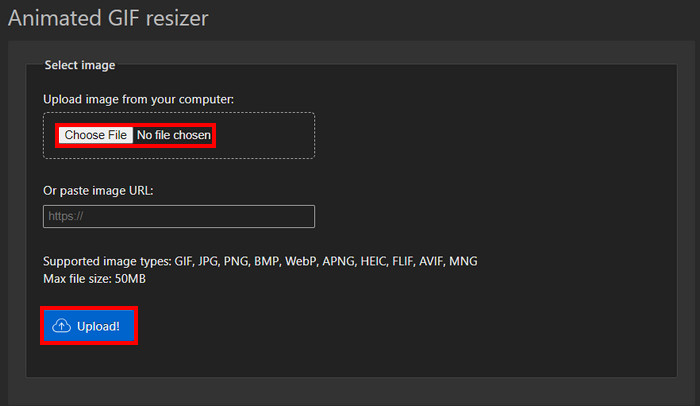
Step 2. After uploading your GIFs, you can now edit and manipulate the size of your GIF. Just enter your desired size on the Width and Height panel.
Step 3. When you are finished editing your GIF, you are now able to download your GIF. Just click Convert, and it will automatically download your GIF.
2. Veed.io
Veed.io é um programa baseado na web que pode reduzir o tamanho dos GIFs com apenas alguns cliques de um botão. Fornece efeitos exclusivos que os usuários podem aplicar aos seus arquivos GIF. Os usuários se divertirão editando neste programa baseado na web.
Step 1. Upon entering the site, there will be a big Try It button, click it. This will lead you to another page where you will be able to upload your GIF.
Step 2. Upload your file by clicking the big Upload button. This will lead you to your directory folder where you can select your GIF.
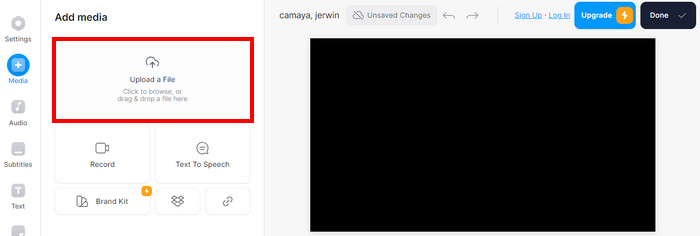
Step 3. To resize your gif, toggle the slider near your photo. After toggling your desired size for your GIF, you can now download your GIF by clicking Done and Download.
3. Tela
Canva é uma ferramenta online que vem com vários modelos para GIFs e apresentações. O redimensionamento de arquivos GIF ficou mais fácil com o software que o acompanha. Compactado com vários modelos que redimensionam GIFs.
Step 1. Open canva on your browser and then click Create Design to create a new design. After that import your GIF you want to resize by clicking Upload File.
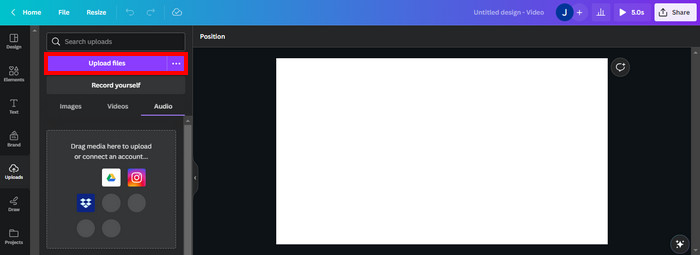
Step 2. In this part, Canva will show the settings you can toggle to edit your GIF. Click Resize to see and select which are the available size options for your GIF.
Step 3. After selecting your GIF size, you can now apply the size by clicking Done. This will lead to another tab where you can download the GIF by clicking the Download button on the upper right corner.
4. RedKetchup - Redimensionador de GIF
RedKetchup é criado como uma ferramenta baseada na web que pode redimensionar e alterar tamanhos de GIF para criação de conteúdo. Repleto de ferramentas úteis para redimensionar GIFs, é uma ferramenta confiável e conveniente para redimensionar GIFs.
Step 1. When entering the site, you are met with the tools available on this site. Click Image Resizer, this tool will allow you to free resize your GIF.
Step 2. After selecting Image Resizer, click Upload to upload your GIF. This will lead you to another folder where you can see your GIF files.
Step 3. After uploading your GIF, scroll down and you will see a panel where you can enter your desired size. Enter your desired size.
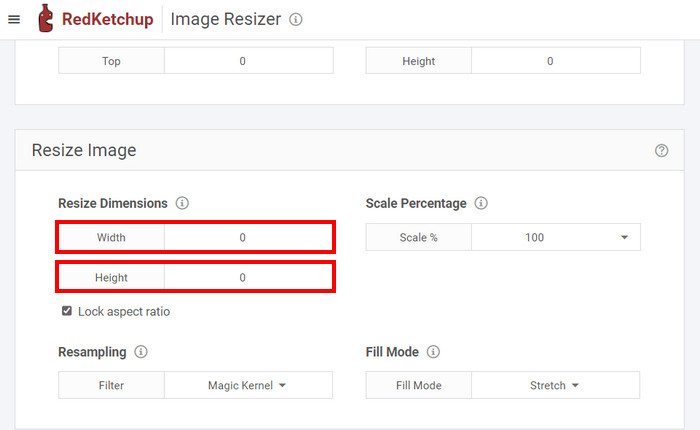
Step 4. After altering the size of your GIF, you can now download it by scrolling to the bottom. Now click Download to download your GIF.
5. Iloveimg.com - Redimensionar GIF
Iloveimg.com possui um utilitário que ajuda você a aprender como otimizar o tamanho do arquivo GIF. É um programa exclusivo da Internet que você pode usar para modificar o tamanho das imagens GIF.
Step 1. Upon opening the online site, the tools available on this site are presented. Click Resize Image to resize your GIF.
Step 2. In this part, you can upload your GIF file by clicking Select Image. This will cause another folder window to open and will have you choose your GIF file to upload.
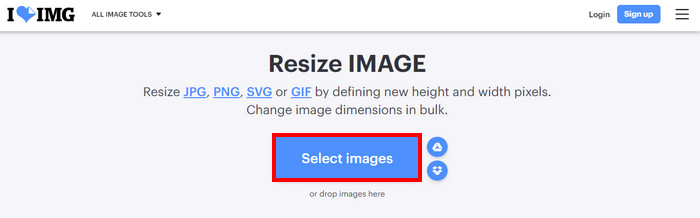
Step 3. After uploading, resize your GIF by entering your desired size onto the Width and Height panel on the right side. To download your file, click Resize Images.
Parte 4. Como redimensionar GIFs no iPhone e Android
1. GIF Mini: Editor de GIF
GIF Mini: GIF Editor é um aplicativo confiável para redimensionar e compactar GIFs. Este aplicativo está disponível no Android e consiste em muitas ferramentas confiáveis para criar e manipular GIFs que podem ser usadas para redimensionar um GIF para emoji de discórdia.
Step 1. Upon opening the application, you will see your files from your gallery. Select your GIF you want to resize.
Step 2. After selecting your file, you will click the Pencil Icon on the top-right corner of your app. This will show the size of your picture and enable you to resize. Click the size of your GIF and enter your desired size.
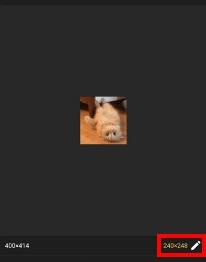
Step 3. After resizing, you can now save. Click the Save button.
2. Editor GIF rápido - cortar, redimensionar
Quick GIF Editor é um aplicativo exclusivo em dispositivos IOS. Compilado com opções de edição rápida onde uma IA pode remover o fundo do seu GIF com um conjunto exclusivo de ferramentas. Os usuários não terão que procurar um tutorial online sobre como diminuir o tamanho de um GIF.
Step 1. Open your app and Click Select Image. This will import your selected image.
Step 2. Resize your photo by clicking the Width and Height Panel below your photo. Resize until satisfied.
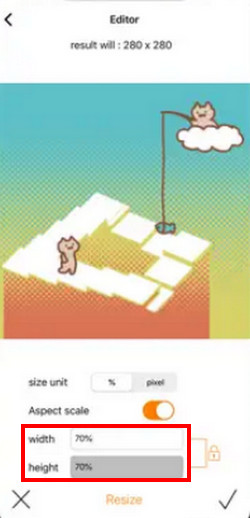
Step 3. Finally, you are ready to save your GIF. Click the Save/Upload button on the upper-right corner of the app.
Further Reading:
Choose the Best GIF Cropper Online and Offline to Crop GIFs [2023]
[Free & Paid] GIF Speed Changer: Hot Picks of 2023
Parte 5. Perguntas frequentes sobre como redimensionar um GIF
O iPhone possui atalhos para redimensionar GIFs?
Não, mas você pode baixar um aplicativo para redimensionar seus GIFs.
Qual é o melhor tamanho de GIF para Discord?
128×128 pixels é o melhor tamanho de GIF para Discord. Exceder isso não é possível porque esse também é o tamanho máximo para GIFs no Discord.
Como o redimensionamento afeta o tamanho do arquivo de um GIF?
Redimensionar seu GIF pode ter resultados diferentes em relação ao tamanho do arquivo. Se você estiver ampliando um GIF, ele poderá aumentar o tamanho do arquivo, mas diminuir sua qualidade. Embora reduzi-lo possa diminuir o tamanho do arquivo.
O que acontece se eu redimensionar um GIF com transparência?
Teria a mesma transparência, mas teria uma cobertura de transparência menor se fosse reduzida. A mesma coisa ocorreria se você aumentasse a escala.
Qual é o tamanho ideal de GIF para usuários da web?
O melhor tamanho de GIF é 720p e o menor tamanho recomendado é 480p.
Conclusão
Resizing a GIF has been a major part of people using the internet. It can be a troublesome task when starting out trying to edit your first GIF. That is why this article was created. So that people who want to edit their GIFs would know that it is possible to resize a GIF in Photoshop or Video Converter Ultimate.
-
 Tutorial para compactar GIF e reduzir o tamanho do arquivo com alta qualidade
 Aqui estão duas maneiras fáceis de compactar GIF. Você pode usar o FVC Free Online Video Compressor e o Photoshop para reduzir o tamanho do arquivo GIF em diferentes aspectos.
-
 As 3 principais maneiras de adicionar filtros em GIF com os melhores editores de GIF [Favoritos]
 Você quer saber como adicionar um filtro ao GIF para torná-lo melhor? Neste blog, você aprenderá facilmente as diferentes técnicas para adicionar filtros aos seus GIFs.
-
 Os 4 principais ampliadores de GIF offline e online que você não deve perder
 Este post é para você que está procurando os melhores ampliadores de GIF. Listamos os ampliadores de GIF online e offline de melhor desempenho para o seu computador.
