


 Video Converter Ultimate
 Gravador de ecrã
 Reparo de vídeo
 Secure Download
Como cortar um GIF: visão geral das ferramentas e guia passo a passo
GIFs are a popular and loved form of expression online; they're creative, funny, and entertaining, but while some GIFs do portray our thoughts, sometimes the GIF is too long or only a tiny segment captures our precise expressions. The solution? Edit and trim it. Let's discover quick and easy ways to trim a GIF file with various tools using our complete guide with detailed tool comparison and app overview to help you find what works best for you.

Parte 1. Melhores métodos para cortar GIFs em uma área de trabalho
1. Video Converter Ultimate
If you want to upgrade your photos and videos, Video Converter Ultimate is the perfect software. It gives plenty of pretty themes and templates, plus handy tools to edit and personalise their video files. But can you trim a GIF using Video Converter Ultimate? Of course, to use Video Converter Ultimate to trim GIFs, follow these easy steps.
Step 1. Get the app and install it
Firstly, use your preferred browser to search Video Converter Ultimate and click the first link. Then press the Free Download button to start downloading the installer. Once the installer is downloaded, run it and install the application.
Free DownloadFor Windows 7 or laterSecure Download
Free DownloadFor MacOS 10.7 or laterSecure Download
Step 2. Open and Search Video Trimmer Tool
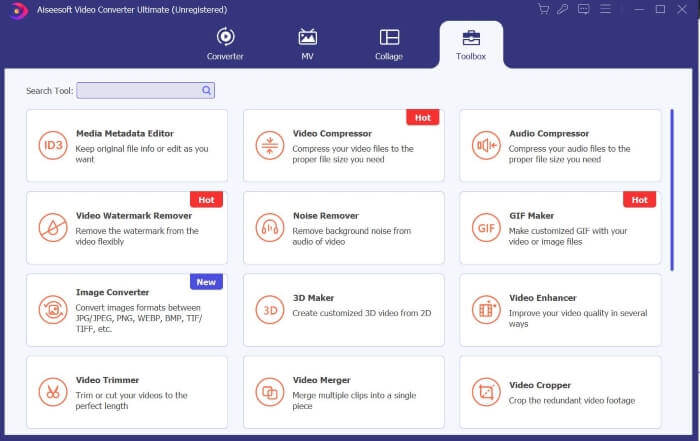
Next, run the app. Then, locate and click Toolbox on the menu panel to see the valuable tools Video Converter Ultimate offers. You can search and click Video Trimmer in the search box above or look for it manually in the list.
Step 3. Upload your Files
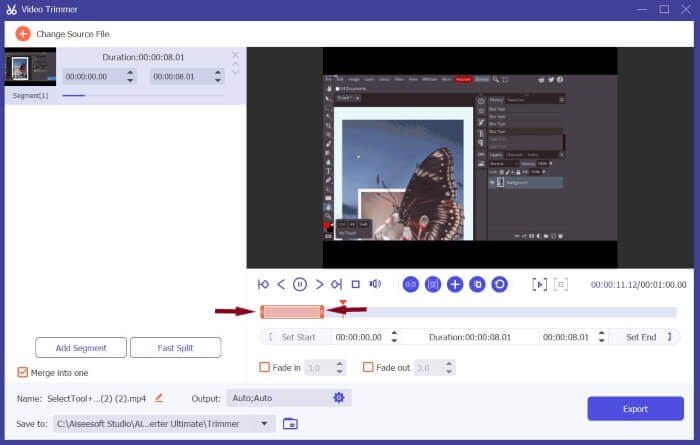
Click the Plus icon to load the file you wish to trim. Once your file has been loaded, you can cut or trim your GIF file by dragging or sliding the trimming bar to the segment of the GIF that you want to cut.
Step 4. Set the Format to GIF and Download
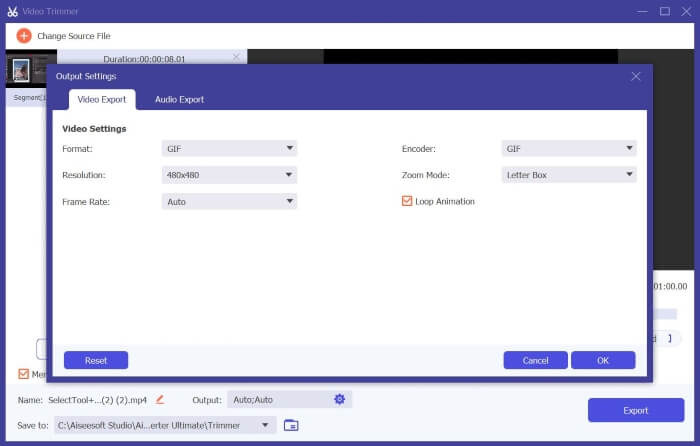
Locate Output, click its settings, and set the format to GIF. After your modifications, click OK to save your changes and press Export to save your trimmed file, and that's it.
2. Conversor de Vídeo Movavi
Movavi Video Converter é uma ferramenta robusta e confiável de edição e conversão que permite modificar e converter seus arquivos de vídeo ou foto em qualquer formato. Ele fornece aos usuários ferramentas funcionais como AI Upscaling para melhorar e elevar seus vídeos. Embora seja uma plataforma de conversão, também pode ser usada para cortar GIFs, e veja como.
Step 1. Search Movavi Video Converter using your preferred browser and select the first link that appears. On the homepage, click Download for Free to download the installer. Run the installer, accept the terms, and press Install.
Step 2. Next, after installing the app. Drop files or press the Add icon to load your files. Once your files are finished loading, locate and click Edit to start trimming your files.
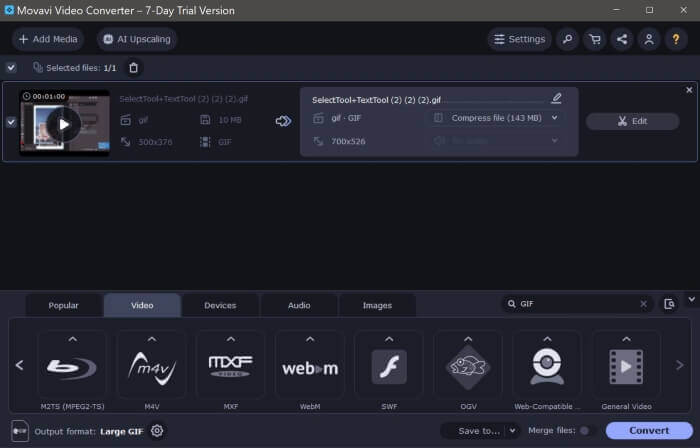
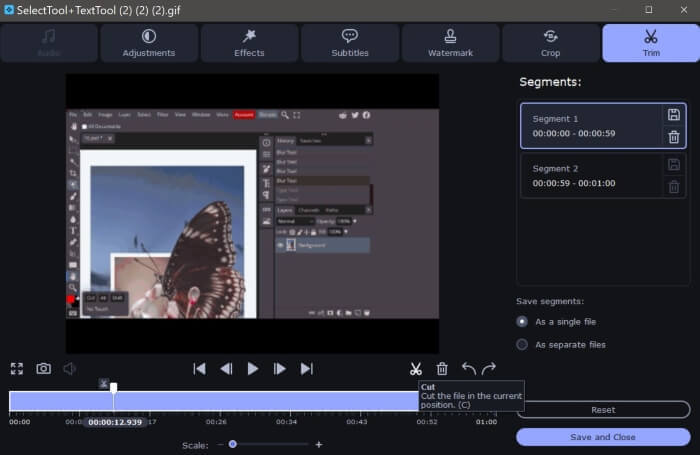
Step 3. Afterward, locate and use the Scissor icon, which is the cut tool, to trim your GIF into your desired segments. Then, delete unwanted parts by selecting the video segment and pressing the Bin icon.
Step 4. Lastly, press Save and Close when you're satisfied with your changes. Then, set your output format to GIF and click Convert. If you're using the free version, a message box will appear. Press Convert with Restrictions to download your GIF file for free, and that's it. You can now use your trimmed animated GIF.
Movavi Video Convert vs. Video Converter Ultimate
Para otimizar totalmente essas ferramentas para atender às suas necessidades, seja para edição de vídeo ou GIF, aqui está uma comparação rápida e abrangente para descobrir a que melhor se adapta a você.
| Conversor de Vídeo Movavi | Video Converter Ultimate | |
| Facilidade de uso | Fácil de navegar e usar | Interface intuitiva e moderna. Fácil de usar para iniciantes. |
| Compatibilidade de plataforma | Possui versões para Windows e Mac, mas não uma versão móvel. | Ele também fornece versões para Windows e Mac para download pelos usuários, mas não possui uma versão móvel. |
| Recursos | Ele também oferece ferramentas básicas e úteis de edição e conversão. | Ele fornece ferramentas e recursos valiosos para ajudar os usuários a editar e converter vídeos com rapidez e facilidade. |
| Qualidade de saída | Saída de vídeo satisfatória, mas a marca d'água é colocada no meio do vídeo, o que o torna intrusivo. | Saída de excelente qualidade e sem marcas d'água. |
Parte 2. Como cortar GIF online
1. EZGIF
Quer criar e personalizar arquivos GIF com facilidade? EZGIF pode ser o ideal para você. EZGIF é uma das plataformas de edição de GIF mais populares que oferece ferramentas de conversão, ferramentas de corte, ferramentas de corte e ferramentas de otimização para aprimorar seus arquivos GIF. Aqui estão algumas diretrizes sobre como cortar GIFs usando EZGIF.
Step 1. Open your preferred browser and search EZGIF. Click the top link on the search results. Then, locate and press Crop in the menu panel. Then, click the Browse button, select your files, and press Upload.
Step 2. After uploading your files, click the Cut button to trim the animated gif. Scroll down to locate Cutting options and opt to cut by time (seconds). Next, set the Start and End points to the seconds you want to cut the GIF, then click Cut Duration.
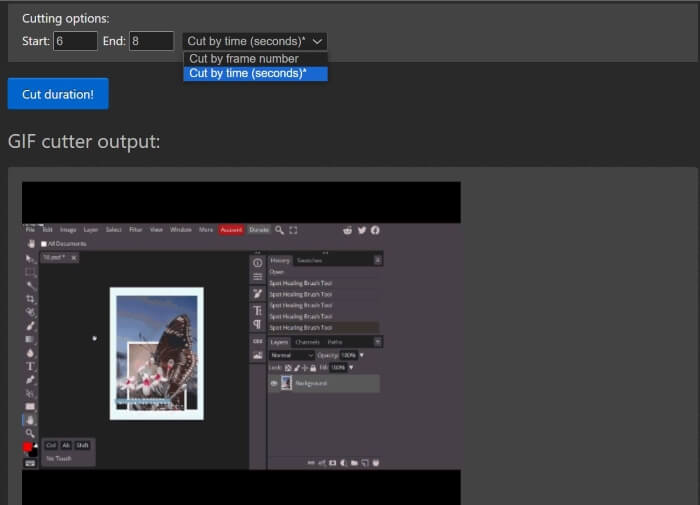
Step 3. EZGIF will display a preview of your Output; you can edit the Start and End points until satisfied. Click Save to download your files, and that's it. You've successfully trimmed your GIF.
Prós
- EZGIF possui uma interface fácil de navegar
- EZGIF também fornece uma explicação e guia sobre como cortar GIFs na parte inferior da página usando seu aplicativo web.
- Fornece ferramentas substanciais para personalizar GIFs.
Contras
- Você precisa saber exatamente qual segundo, intervalo de tempo e quadro de imagem específicos deseja cortar.
- É impraticável; com esta ferramenta, você precisará de uma abordagem de tentativa e erro.
2. VEED.IO
Veed.io é uma ferramenta poderosa com vários kits de ferramentas avançados; oferece ferramentas úteis, como gerador de legendas e vídeos, além de muitos modelos e temas. Se você está procurando uma maneira descomplicada e infalível de cortar GIFs, Veed.io é a ferramenta para você. Veja como usar o Veed.io para elevar seus arquivos GIF.
Step 1. Using your favourite browser, search Veed.io and click the top link. Once redirected to Veed.io's homepage, you must Sign In with Google, Apple, or Email. Press Sign In to access your account.
Step 2. After that, locate and click Create Project and Upload files to load the files you wish to trim.
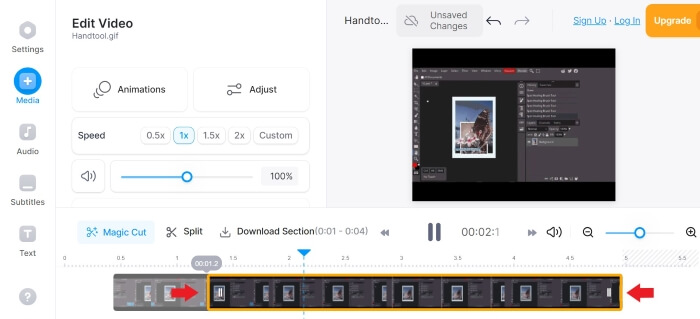
Step 3. Next, to trim an animated GIF, you can automatically click Magic Cut to segment your GIF files into engaging videos, or you can drag the left and right sides of the trimming bar to trim your GIF. Once you are satisfied with the output video, click Done and Export.
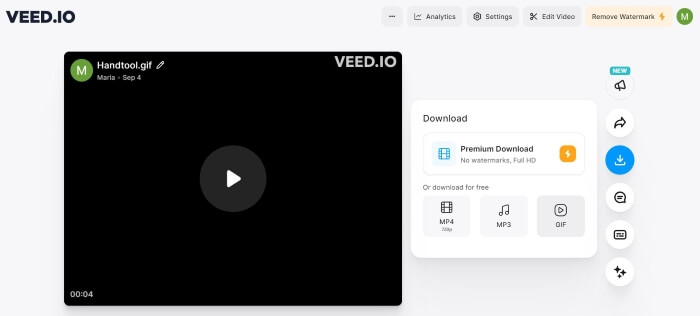
Step 4. After exporting, click the Download icon and set the format to GIF to download and save your file in GIF format, and there you go. You now have your trimmed GIF.
3. Kapwing
Se você deseja personalizar seus GIFs com ferramentas de IA e recursos avançados. Kapwing combina melhor com você. Ele fornece ferramentas de IA fáceis de usar, modelos populares, ferramentas de edição e geradores de vídeo para facilitar sua jornada de edição de GIF e vídeo. Aqui estão algumas diretrizes para cortar GIFs com Kapwing:
Step 1. Search for Kapwing GIF Trimmer using your preferred browser and click the link at the top of the search results. Then, press Get Start and sign up or create your account; you can sign up through Google, Facebook, or Email.
Step 2. To start, click Create New Project and press Add Media to upload your files. Next, scroll down until you see Duration, and select your preferred Duration. Then, locate and press the Open Timeline button.
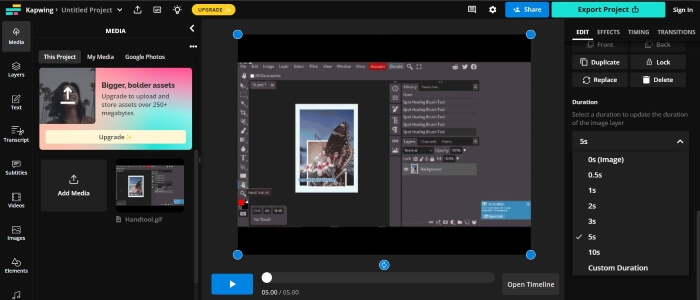
Step 3. Move and Drag the playhead where you want to cut, then press Split. Once they are split, to remove unwanted parts, left-click and press Delete, then edit until you are satisfied.
Step 4. Locate and click Export Project, set the format to GIF, and edit the resolution and compression level. Then press Export as GIF. Wait a few minutes for Kapwing to export your file, and click Download to save your file. There you go. You now have your trimmed GIF with just a few clicks.
Prós
- Kapwing é relativamente conveniente, especialmente para editores de vídeo iniciantes.
- Existem muitas ferramentas e recursos de IA para escolher para facilitar a edição de vídeo.
Contras
- Oferece uma maneira mais complexa de cortar GIFs.
- O processo de corte de GIF pode precisar de esclarecimentos, especialmente para novos usuários. Você deve entrar ou criar uma conta para usar o Kapwing e baixar seus resultados.
Parte 3. Como cortar um GIF no Android
1. GIPHY
Giphy é uma das principais fontes e melhores criadores de GIF online e móveis. Ele fornece aos usuários adesivos, temas, modelos e outras ferramentas valiosas para criar e decorar GIFs. Veja como você pode cortar GIFs usando o aplicativo móvel do GIPHY.
Step 1. From your app store, download and install the Giphy app. Open the app, then choose the file you want to trim from your phone's camera roll or gallery.
Step 2. Drag the slider to the beginning and end points of the segment you wish to keep.
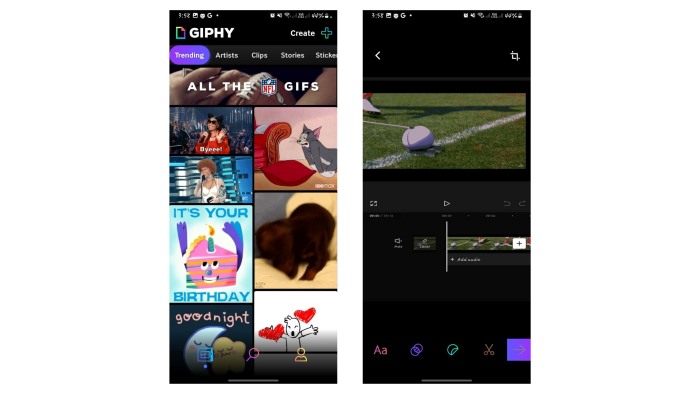
Step 3. After making your alterations, click the Next button and make any necessary changes to suit your preferences, and that's it. You can now share your trimmed GIF with GIPHY.
Prós
- Muitos modelos e ferramentas para ajudá-lo a editar.
- Fácil de usar e navegar.
Contras
- Você deve baixar o aplicativo para acessar as ferramentas.
- Você deve se inscrever.
2. Cortador de vídeo on-line
Quer cortar GIFs usando seu telefone Android? O Online Video Cutter é útil quando você deseja cortar um pequeno arquivo de vídeo; não requer instalação; você só precisa da internet e de um navegador para acessá-lo e usá-lo. Para utilizar o Online Video Cutter para cortar GIFs usando seu telefone, siga estas diretrizes:
Step 1. With your Android phone, search Online Video Cutter on your preferred browser. Click the top link in the search results. To upload your files, press Open File and select the file you wish to trim.
Step 2. Once your file has loaded, you can trim your GIF file by dragging the right and left sides of the trimming bar. Once you've made your desired changes, press Save.
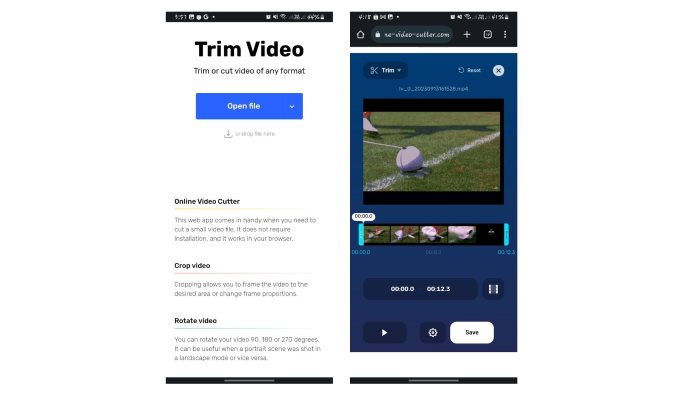
Step 3. Afterward, click Save to download your file into your default downloads folder.
Prós
- Processo de corte muito simples e rápido.
- Com esta ferramenta você pode escolher a qualidade e o formato do arquivo de saída.
- Plataforma cruzada, o que significa que você pode usá-lo em qualquer dispositivo.
Contras
- Você só pode cortar ou cortar o vídeo usando o Online Video Cutter. Você não pode editar, personalizar ou adicionar efeitos usando este aplicativo da web.
Further Reading:
Best 10 GIF Compressors for Desktop and Online Users
How to Split GIFs and Customize Favorite Animated GIF Files
Parte 4. Perguntas frequentes sobre como cortar GIFs
Por que o GIPHY não me deixa cortar meu GIF?
Embora o aplicativo da web ainda não tenha um recurso de corte. O aplicativo móvel do GIPHY pode cortar e compartilhar seus GIFs online.
Posso usar as ferramentas para cortar GIFs no meu iPhone?
Claro que você pode. Você pode usar outros aplicativos ou sites de terceiros como os acima para cortar GIFs no seu iPhone.
Posso combinar vários GIFs em um GIF?
Claro que você pode. Video Converter Ultimate permite combinar vários GIFs em um usando o recurso Mesclar como um só.
Posso cortar GIFs sem perder qualidade?
Sim você pode. Você pode usar as ferramentas confiáveis enumeradas acima para cortar GIFs sem perdas e melhorar sua qualidade.
Cortar um GIF reduz o tamanho do arquivo?
Boa pergunta. O tamanho do arquivo de um GIF é proporcional ao seu comprimento. Portanto, cortar o GIF em segmentos menores reduz o tamanho do arquivo.
Conclusão
Trimming and personalising your GIFs is one way to elevate your online experience and there's a lot of platforms and software that allow you to trim your files with ease.
Trimming GIFs is made easy with these convenient tools online, on a desktop, or your mobile phone. Choose what's best for you.
-
 As maneiras invencíveis de adicionar texto GIF (todas as plataformas)
 Fique conosco e aprenda maneiras divertidas de adicionar texto a um GIF gratuitamente. Ao ficar, você aprenderá as soluções que deve utilizar para realizar esse processo.
-
 Etapas fáceis e rápidas sobre como girar e inverter GIF [2023]
 Você deseja girar e inverter o GIF criado online, mas só tem alguns minutos para editá-lo e enviá-lo antes do prazo. Não se preocupe; este artigo irá ajudá-lo a girar e virar GIFs em menos de um minuto.
-
 Revisão abrangente de recursos e alternativas do Ezgif
 Se você usa o Ezgif e ainda não sabe o que está na manga. Esta análise do Ezgif irá ajudá-lo com essa preocupação. Continue lendo para saber mais.
