


 Video Converter Ultimate
 Gravador de ecrã
 Reparo de vídeo
 Secure Download
Como tornar um vídeo mais escuro para os vídeos do seu projeto
When it comes to video production, one frequently used technique is to darken specific areas of the footage. This process can be done for several reasons, such as to create a mood or atmosphere, draw focus to a particular part of the screen, or help hide imperfections. One of the primary reasons to darken video is to add drama and tension to a scene. By reducing the exposure and increasing the contrast, shadows are intensified, and highlights are minimized, giving the footage a more ominous and foreboding feel. This process can be particularly effective in horror movies or thrillers, where the audience is meant to feel on edge. For your project video, you must learn this technique with the detailed guides below.

Parte 1. Como escurecer vídeo offline
1. Video Converter Ultimate
Video Converter Ultimate is a powerful application and video editing utility that can give you what you need. Need help reducing the brightness of your project video? This tool contains a feasible way to lessen the brightness of the appearance of your video. It comes with an advanced video utility, a Video Enhancer that automatically adjusts the brightness and contrast of the project video. It analyzes the file internally and adjusts the contrast to provide better lighting on the file as if it were captured in a low-light environment or setting. You can check the guidelines below to learn the detailed guide to using this app.
Step 1. Download the App
Begin enhancing and modifying your video file by getting the software on your PC. Click the Free Download presented below this step. Get its file installer and run the file on your computer.
Free DownloadFor Windows 7 or laterSecure Download
Free DownloadFor MacOS 10.7 or laterSecure Download
Step 2. Import Video
The following step is to launch the app and add the video you need to enhance. Go to the Toolbox option, where all advanced features are located. Select the Video Enhancer feature to access its dialogue box. Import the file by hitting the + icon.
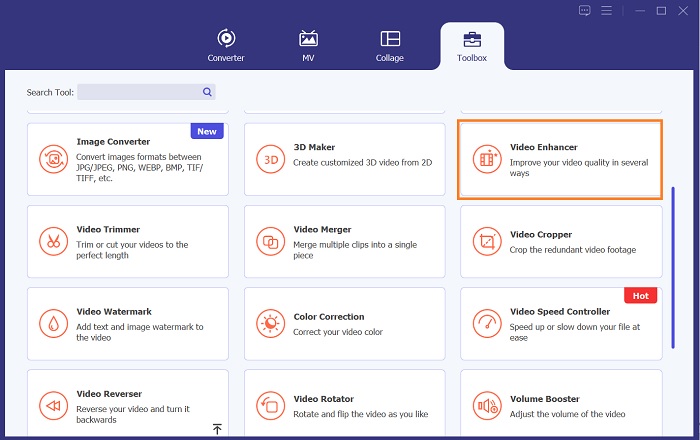
Step 3. Finalize the Process
Afterward, once the chosen video is imported, four options will appear on your screen. Select the Optimized Brightness and Contrast menu to process the video automatically. Then, the video will be exported to the designated output folder. Locate the file and play it to check the contrast of the project video.
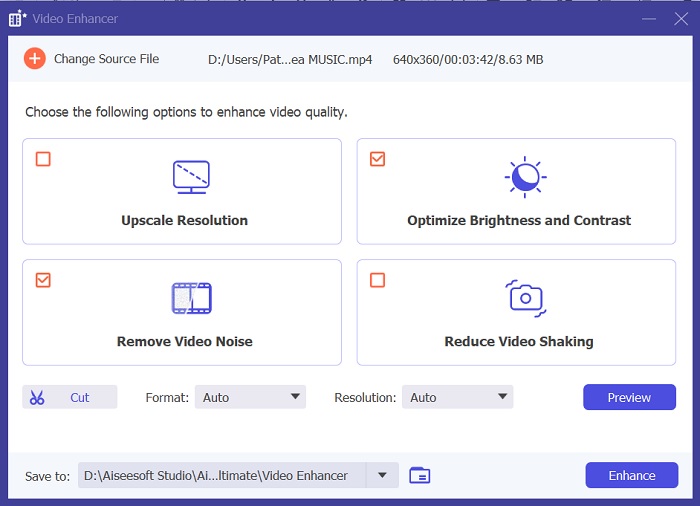
2. Adobe Premiere Pro
Premiere Pro é um software utilitário de vídeo inovador que se tornou a escolha preferida de muitos editores de vídeo profissionais, com sua interface intuitiva, integração perfeita com outros produtos Adobe e recursos robustos. Um dos principais benefícios do Premiere Pro é a capacidade de processar uma ampla variedade de formatos de vídeo, de SD a HD, 4K e muito mais. Esse recurso facilita o trabalho com filmagens de várias fontes, incluindo câmeras, dispositivos móveis e drones. Caso haja necessidade de ajustar a iluminação do seu vídeo, o Adobe Premiere Pro é de grande ajuda com seu recurso Lumetri Color Panel, que pode ajustar o contraste e o brilho de um arquivo. Além disso, o Premiere Pro oferece ferramentas avançadas de correção de cores, recursos de edição de áudio, efeitos visuais e muito mais.
Step 1. To edit brightness on Premiere Pro, you must download the app on your PC. You can search its file installer on its main web page and get its firmware to install the app. Launch the tool and import the video file by hitting the Import button.
Step 2. Open the Lumetri Color panel by clicking on the Color tab in the top left corner of the screen. In the Lumetri Color panel, you will see various color correction options. To adjust brightness, locate the Basic Correction section. You can use the Exposure slider to change the clip's brightness here. Drag the slider to the right to increase brightness or to the left to decrease brightness.
Step 3. Lastly, hit or click the Export button to save the file. Please wait for the video to render and locate it in the tool's output folder. Play and preview the changes on the project video and see if it fits your liking.
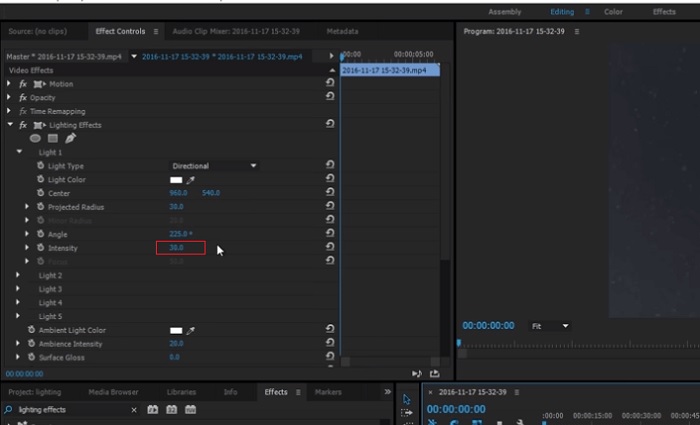
3. Adobe After Effects
Ao ajustar o brilho no After Effects, vários recursos são úteis. Em primeiro lugar, o efeito Níveis pode ser usado para ajustar o brilho e o contraste. Este efeito permite definir pontos em preto e branco, o que ajuda a garantir que sua imagem não fique muito desbotada ou muito escura. Você também pode usar o efeito Curvas para ajustar o brilho e o contraste de partes específicas do vídeo. Este recurso pode realçar detalhes nas sombras ou realces. Outro recurso útil é o efeito Exposição, que permite alterar o brilho e o contraste de toda a imagem. Este efeito também inclui opções para ajustar gama e deslocamento, o que pode ajudá-lo a ajustar a aparência da sua imagem.
Step 1. The initial step to edit video appearance on After Effects is to get the tool's firmware and install it on your PC. You can download or acquire it from Adobe's official website and run its file installer. Then, launch the app and navigate its features.
Step 2. Next is to import the video by going to the File option and hitting the Import option. Locate your video and tap it to add it to the video editing. After that, go to the Windows tab and hit Effects and Presets. There will be a tracking box that will appear where you can search for the Levels option.
Step 3. Lastly, hit the Auto Level and drag and drop it to the video you need to lessen the brightness on your project clip. Hit the Export option to save the modifications. You can also use different presets to adjust the brightness of your file. Go to the output folder to preview and check the modified project video.
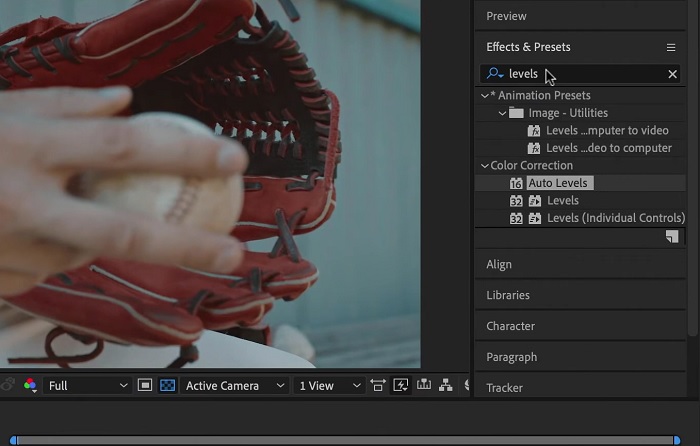
4. Resolução DaVinci
Quando se trata de modificação de vídeo, Davinci Resolve é um poderoso software e utilitário de vídeo que oferece uma variedade de recursos de edição para melhorar a qualidade de sua filmagem. Uma das técnicas de edição mais comuns é escurecer um vídeo, o que pode afetar drasticamente o visual. Um dos recursos favoritos do usuário deste software de edição de vídeo é a capacidade de gradar facilmente as cores das imagens. O software possui uma ampla gama de ferramentas de gradação de cores que autorizam os usuários a revisar a aparência da filmagem para corresponder a uma visão artística. Ele também vem com um painel de linha do tempo no qual os usuários podem fornecer um melhor processo de edição. Davinci Resolve torna esse processo fácil e eficiente com suas ferramentas avançadas.
Step 1. The initial guide on adjusting the exposure of a video using DaVinci Resolve is to get the tool on your PC. Download the app on its official website and run the file installer to acquire it. Then, launch the video editing app and check its features to familiarize yourself with its editing utilities.
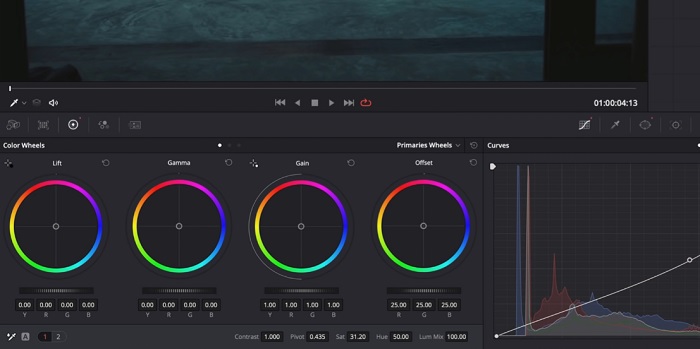
Step 2. To darken a video with Davinci Resolve, import the video to a file by clicking the File option and accessing the Import file button. Then, you can use the software's color grading tools. Select the clip you want to darken in the timeline, then open the Color page.
Step 3. From there, you can use the Lift, Gamma, and Gain controls to adjust the brightness and contrast of the clip. Afterward, hit and select the Export button to save the changes made to the video project. Access the output folder to preview the file.
Parte 2. Como escurecer vídeo online
Você está cansado de usar softwares de edição de vídeo mais volumosos para ajustar um simples videoclipe no seu PC? Pois bem, o Clideo pode ser uma grande ajuda como alternativa à edição de vídeo, pois consome muito espaço do computador. Esta ferramenta online permite aos usuários acessar facilmente seu painel de linha do tempo e importar vídeos para sua API sem a necessidade de instalar ou fazer login em uma conta. Os usuários podem enviar diretamente o arquivo de vídeo que precisam editar, e a ferramenta online analisará e fornecerá recursos de edição para ajustar e aprimorar a aparência do clipe do projeto. Você pode verificar o guia detalhado abaixo sobre como usar este aplicativo online completamente.
Step 1. To adjust the brightness on Clideo, access the app on your web browser. Launch the main interface and start uploading your video clip to the platform by hitting the Choose File. Select the video you need to edit and import on the online tool.
Step 2. Next, select the Adjust option from the menu below the video player. This method will use several editing tools, including an option to adjust brightness. Drag the brightness slider left or right to decrease or increase the brightness, respectively.
Step 3. You can also use the auto-adjust button to adjust the brightness automatically. Once you are satisfied with the brightness level, click the Apply icon or button to save your changes. Finally, download your edited video by clicking the Export option.

Further Reading:
Video Filter: Enhance Your Video with Filters and Effects on Desktop
5 Amazing YouTube Movie Makers | Create Excellent Movie Contents
Parte 3. Perguntas frequentes sobre escurecer vídeo
Como escurecer um vídeo em um iPhone?
Existem diferentes softwares que você pode usar e instalar em seu dispositivo móvel que podem ajustar a exposição do clipe do seu projeto. Você também pode usar uma ferramenta online que pode ajudá-lo a ajustar vídeos diretamente no seu smartphone. Clideo é recomendado porque pode ser acessado em navegadores web, incluindo Safari e outros compatíveis com dispositivos Apple.
Como você escurece um vídeo no iMovie?
Ajuste as configurações de brilho e contraste para escurecer um vídeo no iMovie. Você também pode adicionar uma sobreposição ou filtro escuro ao vídeo para torná-lo mais escuro. Outra opção é ajustar os níveis de exposição para deixar o vídeo mais escuro. Experimente essas configurações até obter a aparência desejada para o seu vídeo.
Por que você iria querer escurecer um vídeo em um iPhone?
Escurecer um vídeo pode ser útil em muitos cenários, como melhorar a qualidade geral do vídeo, aumentar o contraste ou criar um determinado clima ou atmosfera.
Conclusão
After trying different methods, this article found that darkening a video on a PC can be pretty straightforward. You'll need to use video editing software such as Video Converter Ultimate, Adobe Premiere Pro, Da Vinci Resolve, and After Effects to achieve this. Once you have the software installed, you can easily modify the exposure of your video to achieve the desired darkened effect. However, it's vital to ensure that the video is light to the point where it's difficult to see the details. With these tips on how to fix a video that is too bright, you can successfully darken your video and create a visually appealing final product.
-
 Guia definitivo para alterar a resolução de vídeo disponível em plataformas cruzadas
 Precisa alterar a resolução de vídeo do vídeo? Em caso afirmativo, aprenda as diferentes maneiras de alterar facilmente a resolução do vídeo que você está assistindo.
-
 O que é marca d'água em um vídeo e como adicioná-la ou removê-la
 Você quer saber o que é uma marca d'água, quais tipos diferentes e a razão pela qual os fotógrafos adicionam uma? Bem, tudo que você precisa fazer é ler este artigo.
-
 Como cortar arquivo MP4 sem perder a qualidade do vídeo [2023]
 Aprenda como cortar MP4 com etapas fáceis fornecidas apenas para você. Portanto, mantenha o ritmo porque apresentamos a você o melhor das melhores ferramentas de corte que você pode usar.
