


 Video Converter Ultimate
 Gravador de ecrã
 Reparo de vídeo
 Secure Download
Tutorial sobre como capturar tela GIF em seu computador
The online space has undeniably turned most of our activities to be executed virtually. Whether you are preparing for a meeting, creating a presentation, or even want to reach a thousand people by teaching them how to cook a meal, recording your screen is an efficient solution to capture all the necessities. However, recording screen with a native tool on your device, like the Xbox Game Bar tool and QuickTime screen recorder, poses limits on maximizing your screencasting needs. In this post, we have curated top-tier software that capture screen to GIF to the next level.

Parte 1: Como gravar tela em GIF no Windows/Mac gratuitamente
1. Gravador de tela livre FVC
With just a few clicks, recording your screen is within your reach through FVC Free Screen Recorder. This online solution offers a wide range of basic screen recording needs, leaving astonishing remarks among its users. FVC Free Screen Recorder can grab your screen activities like games, videos, and online conferences without laying any watermark on your output. Moreover, it's enabled to catch your computer screen activities along with the system and microphone sound. This way, you can leave your device on the record and play it when needed. Below, we have created a guide on how to record a GIF on Mac and Windows using FVC Free Screen Recorder.
Step 1. Land on the Best Online Screen Recorder
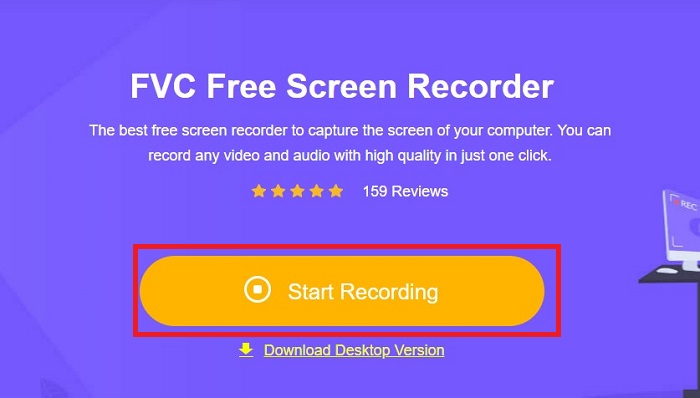
Open your device's search engine and type the FVC Free Screen Recorder on the search bar. Once the tool is activated, click the Start Recording button at the center to access the recording tools.
Step 2. Set the Recording
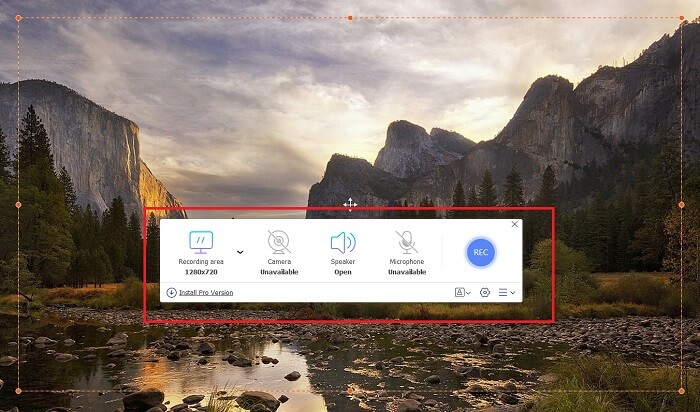
Set your recording requirements on the Recording Area, System Sound, and Camera. Once all requirements are met, hit the REC button to initiate the screen recording.
Step 3. Annotate with Recording
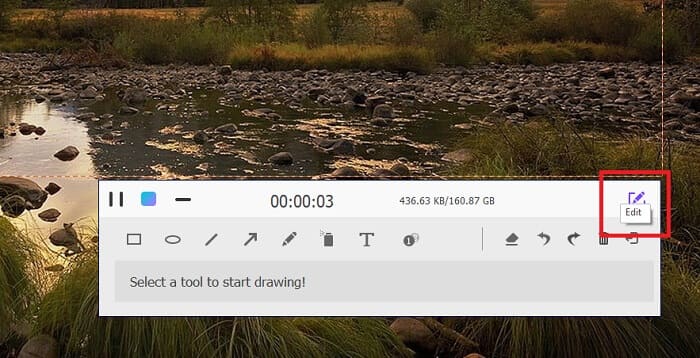
Após a contagem regressiva de 3 segundos, você estará gravando sua tela. Se você precisar adicionar anotações como texto, formas, realces e caneta, clique no botão Editar no canto inferior esquerdo da caixa de gravação.
Step 4. Save Output
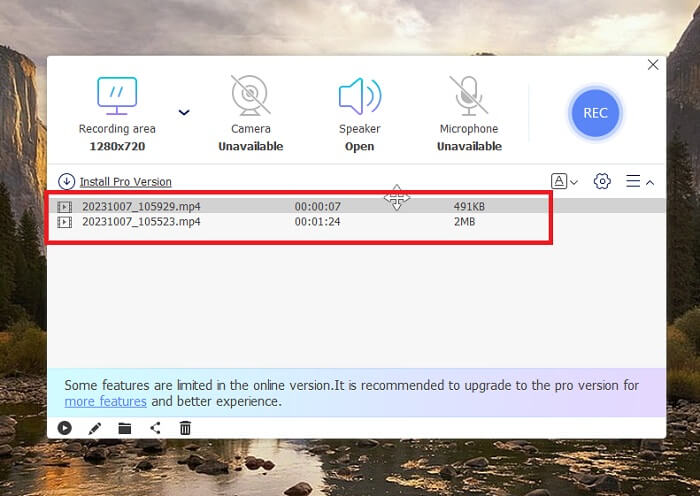
To save your captured video, hit the Stop button of the FVC Free Screen Recorder. After the saving process, you will be directed to the Recorded panel of the tool. You can also tick the Folder button to access the local directory of your output.
Features:
◆ Este programa é uma ferramenta de primeira linha para adicionar anotações em tempo real durante o screencasting.
◆ O FVC Free Screen Recorder oferece formatos de saída altamente compatíveis, incluindo MP4 e WMV.
◆ Esta ferramenta fornece um efeito picture-in-picture para sobrepor uma webcam na tela.
◆ Esta ferramenta é um software de screencasting sem limite de tempo.
2. Captura do Chrome - ferramenta de captura de tela e GIF
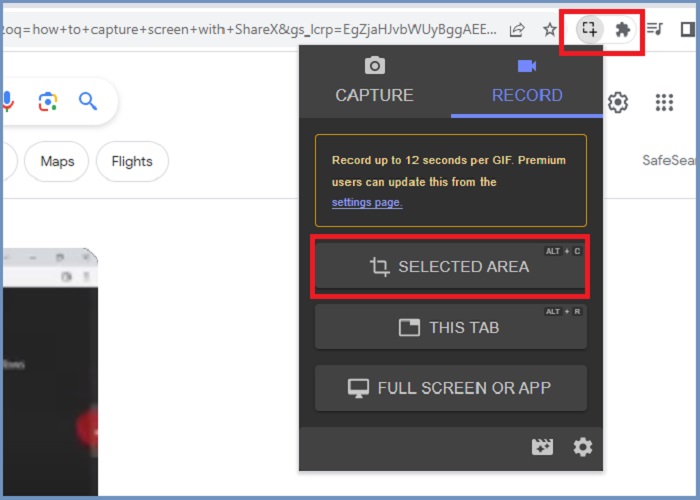
Chrome Capture é uma ferramenta de extensão do Google que transforma a gravação de tela em GIF. Este aplicativo de navegador da web permite capturar sua tela em áreas selecionadas, uma guia ou atividades em tela inteira. Além disso, o Chrome Capture é a melhor opção para capturar capturas de tela de página inteira da web, para que você obtenha todas as informações necessárias. Vários usuários ficam viciados nesta ferramenta por causa de sua interface fácil de usar e recursos intuitivos, como ferramentas de corte e anotação. O ChromeCapture torna a gravação de tela menos complicada, oferecendo teclas de atalho para fazer uma captura de tela ou interromper a gravação em si. Crie um GIF a partir da gravação de tela usando o Chrome Capture seguindo o guia abaixo.
Step 1. First, open the page you wish to capture on your Google Chrome. Afterward, click the Chrome Capture icon on the extension tools at the top right corner of your search engine.
Step 2. Now, go to the record tab of Chrome Capture and choose your preferred recording type, such as the selected area, tab, or complete. Once your choice is clicked, the recording will start. If you are done, hit the Stop button to proceed to the saving process.
Step 3. To create a GIF from the screen recording, click the Save button and choose GIF as your output file. You may also change the file name for faster retrieval.
Features:
◆ O Chrome Capture oferece formatos de saída como WebM e GIF.
◆ Esta ferramenta facilita o compartilhamento online de seus vídeos gravados.
◆ A ferramenta Editar do programa permite adicionar texto, desenhar setas, alterar a velocidade das gravações e muito mais.
Parte 2: Como gravar e editar gravações GIF no Mac e Windows
1. CompartilharX
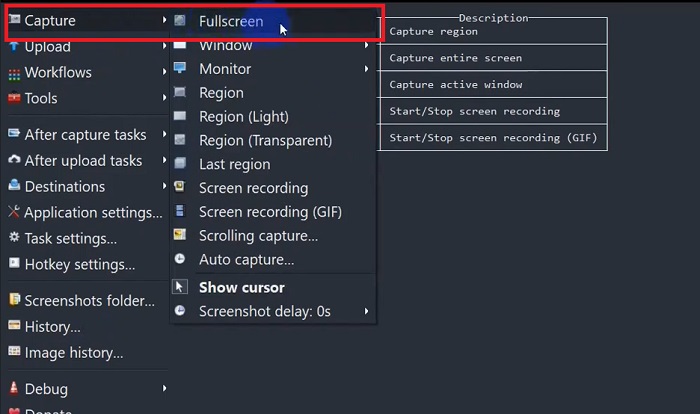
Em termos de ter um capturador de tela eficiente e ao mesmo tempo gratuito, o ShareX continua na lista. Esta ferramenta é uma ferramenta de gravação de tela de código aberto para sistemas operacionais Windows. Além disso, oferece uma gravação de região personalizada, onde você pode escolher uma área específica da tela para capturar. Além disso, o ShareX possui a ferramenta de captura de rolagem, permitindo aos usuários fazer uma captura de tela do conteúdo de uma só vez, em vez de várias capturas de tela. Se você quiser saber como o ShareX funciona para gravar janelas GIF, aqui está um tutorial passo a passo.
Step 1. First, open ShareX on your Windows device. Then, go to Capture and select your preferred recording type.
Step 2. Once the selection box appears, move your cursor to highlight the region of your screen you want to capture. Afterward, click Start.
Step 3. After recording, hit the Stop button. Afterward the screen recording options will reappear for you to select your Video and Audio output formats. Finally, hit the Download button to locate the recorded file on your computer.
Features:
◆ Oferece teclas de atalho especiais para controlar facilmente sua atividade de gravação de tela.
◆ ShareX permite aos usuários converter a gravação de tela em GIF.
◆ A ferramenta possui três tipos de captura de tela em qualquer região: retângulo, elipse ou mão livre.
2. Grave
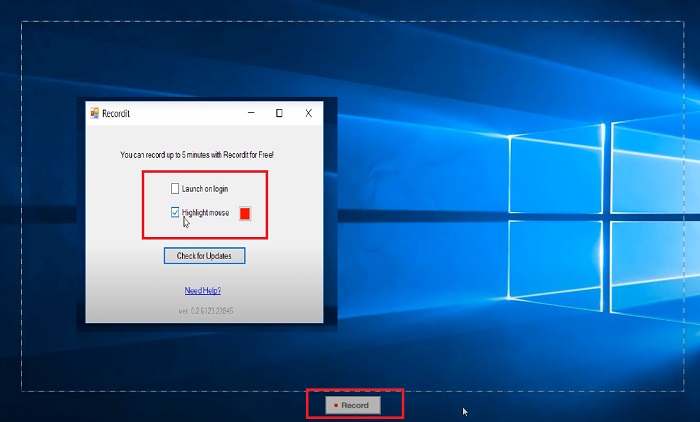
Recordit é outro software exemplar que permite capturar suas atividades na tela. Esta ferramenta é uma ferramenta de gravação baseada em GIF e é compatível com dispositivos Windows e Mac. Porém, a avaliação gratuita do programa só pode gravar até no máximo cinco minutos, e você terá que atualizar para a versão premium do software para superar essa limitação. Agora vamos aprender como fazer captura de tela GIF com o programa.
Step 1. After installing Recordit on your device, you will see its icon on the System Tray.
Step 2. Next, wait for the tool to display on your screen. Drag the screen to record, and once set, click Start to record.
Step 3. Finally, hit the Stop button once your recording is finished. Click GIF to locate your output with a GIF file extension on the setting.
Features:
◆ Recordit fornece um registro histórico de suas gravações de tela recentes e anteriores.
◆ Esta ferramenta permite que os usuários personalizem suas atividades de gravação de tela em diferentes regiões.
3. Tela para GIF
Outro screengrabber que você não deve abandonar é a ferramenta ScreentoGIF. Como o nome sugere, este software permite aos usuários criar diretamente um GIF a partir de suas gravações de tela. Além disso, é considerada uma ferramenta de código aberto, o que significa que você não precisa gastar nenhum dinheiro para obtê-la. ScreenToGIF pode capturar imagens e exportar sua saída para PNG, PSD e vídeo. Claro, se você deseja compartilhar seu arquivo GIF online, o ScreenToGIF pode carregá-los facilmente no Imgur e no Gfycat.
Step 1. Open ScreenToGIF on your device to record GIF Mac or Windows.
Step 2. To start capturing your screen, go to the Toolbox of the tool and select Recorder. Next, move the crosshair icon to a specific area to capture.
Step 3. Afterward, press F8 on your keyboard to stop the recording.
Features:
◆ Permite que uma sobreposição de webcam grave você e sua tela simultaneamente.
◆ Usando o Sketchboard você pode gravar seus desenhos em tempo real.
Further Reading:
A Step-by-step Guide on Converting MP4 to GIF on Desktop or Online
5 Best Ways to Change Image to Animated GIF [Updated 2023]
Parte 3: Perguntas frequentes sobre gravação de tela em GIF
O Mac possui ferramentas integradas para transformar a gravação de tela em GIF?
Em termos de gravador de tela integrado, os dispositivos Mac oferecem um no aplicativo QuickTime. No entanto, as saídas gravadas são definidas em MOV por padrão e você pode precisar de software de terceiros para convertê-las em GIF.
Existe alguma ferramenta para gravar GIFs no iPhone e Android?
Definitivamente sim! Os dispositivos iPhone e Android Mobile vêm com um gravador de tela nativo. Eles também podem capturar o som do sistema e sua voz por meio de um microfone.
O ScreentoGIF é seguro?
Com certeza, ScreenToGIF é um software gratuito em dispositivos Windows e está livre de software malicioso.
Você pode definir um GIF para a tela inicial do Mac?
Setting a GIF file as your Mac home screen is possible without needing another app. You only need to Open your Settings > System Preferences > Desktop and Screen Saver, and choose the available GIFs.
A tela de bloqueio do Windows pode ser um GIF?
A maior parte do papel de parede do Windows é estática, ao contrário dos dispositivos Mac. Você pode precisar de um aplicativo de terceiros, como o Lively Wallpaper, para iniciar um papel de parede GIF no seu dispositivo Windows.
Conclusão
Whether you want to record screen to GIF or a static one, add annotations and a webcam overlay, your screencasting mission is downright possible with the abovementioned tools. Online solutions are best for a standby recording. Still, offline software is highly recommended if you want to overcome unwanted interruptions and lags on your internet connectivity.
-
 Cortar GIF: as melhores ferramentas online, de desktop e móveis para cortar um GIF
 Quer capturar uma parte de um GIF para transmitir com precisão suas emoções e reações? Aqui, vamos descobrir e otimizar várias ferramentas para cortar GIFs animados.
-
 Os 6 principais aplicativos GIF incríveis para iPhone em 2023 (avaliações)
 Esta postagem irá guiá-lo pelos melhores aplicativos de criação de GIF para iPhone e computadores. Confira e saiba o que eles têm a oferecer.
-
 Programas de criação de GIF 3D de primeira linha que você não vai querer perder
 Ter que encontrar e avaliar cada aplicativo 3D GIF Maker que você vê pode ser demorado. Felizmente, compilamos uma lista que você pode ler.
