


 Video Converter Ultimate
 Gravador de ecrã
 Reparo de vídeo
 Secure Download
Como melhorar as cores em vídeos: maneiras incríveis de experimentar
Adding a touch of artistry to your videos is more than manipulating video transitions and special effects. Sometimes, only changing the color of a particular object or background can create a huge difference. For this reason, most people prefer to change the color of a video by adding filters to their stories or by picking a reliable video editor to do the job. If you have old footage on your digital storage, bring it into the workflow using the ultimate video editors in the market.

Parte 1: Alterar a cor de um vídeo
FVC Video Converter Ultimate is not only best for converting audio and video files into another format. This multi-functional tool also works best in editing video clips, making them more crispier and presentable. The video editor of the program does not only cover basic editing tools but also allows users to enjoy advanced features like laying in special effects, filters, adding water, subtitles, and more. On top of that, this tool is adorned by many because it is lightweight and straightforward. You can learn how to enhance color in video using FVC Video Converter Ultimate in four simple steps.
Step 1: Install Video Converter Ultimate
Launch the program first on your device by selecting the Download button below. Follow the installation process prompted by the Wizard. Once done, familiarize yourself with the program's interface.
Free DownloadFor Windows 7 or laterSecure Download
Free DownloadFor MacOS 10.7 or laterSecure Download
Step 2. Import the Clip
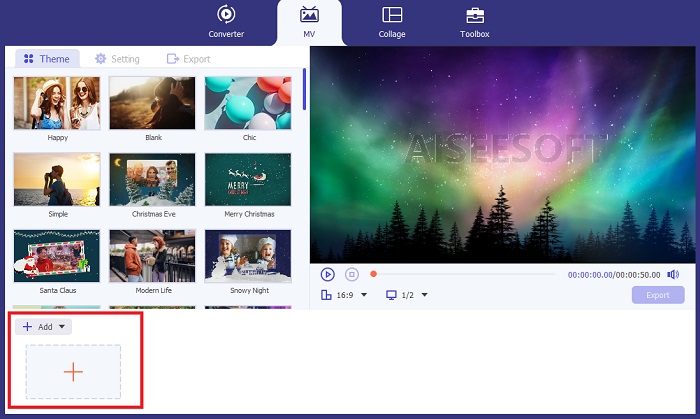
Go to the MV section of Video Converter Ultimate to process the color change. Click the Plus button, choose the target file from the local folder, and wait for it to appear on the Timeline.
Step 3. Adjust Video Color
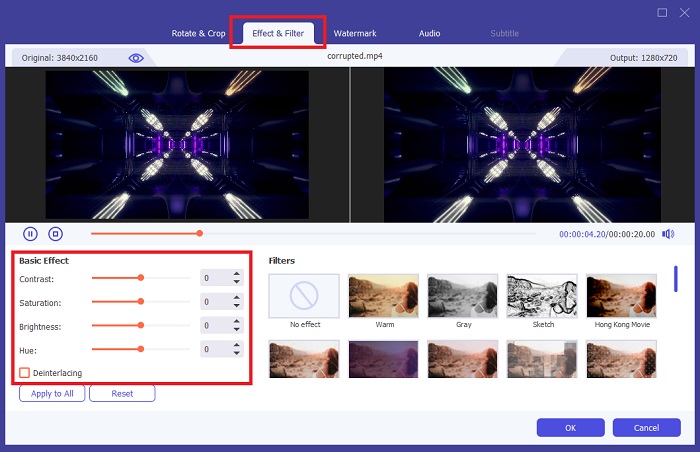
On the Timeline section, turn to your clip and clip the Magic button beside the clipping tool. Another window will appear, and click the Effect and Filter tab. Suppose you wish to change the video color by adding a filter. In that case, you may pick from the many selections available on the tool. On the other hand, you can manually change color by going to the Basic Effect section and adjusting the Color Settings.
Step 4. Save the Output
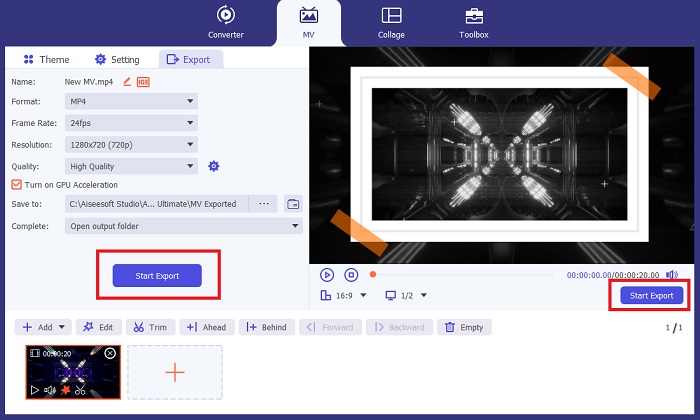
Finally, hit the Apply to All button to save your changes. To save your work in the local folder, click the Export button, add a file name, and set the resolution of your output ad, then hit Start Export.
Prós
- Oferece vários formatos de vídeo e áudio para garantir alta compatibilidade.
- O FVC Video Converter pode renderizar saídas de alta qualidade com resolução de 1080p até 8k.
Contras
- O Editor de Vídeo está limitado a ferramentas básicas de edição.
- Não pode ser instalado em sistemas operacionais Linux.
Parte 2: Adobe Premiere Pro altera a cor do vídeo
Aqueles que trabalham em uma produção profissional devem confiar fortemente em um conjunto avançado de editores de vídeo como o Adobe Premiere Pro. Em fluxos de trabalho de pós-produção, este programa pode ajustar a cor do vídeo de um objeto específico ou de todo o vídeo usando a ferramenta Efeito de filtro. Ao alterar o contraste e a saturação da cor do objeto selecionado, o Adobe Premiere trabalha a seu favor, deixando sua saída pronta para visualização de conteúdo em plataformas de mídia social.
Por outro lado, esta ferramenta é profissional como trocador de cores de vídeo e com atividades básicas de edição de vídeo. Se você deseja conhecer as técnicas para alterar a cor do vídeo no Adobe Premiere, aqui está o que você precisa fazer.
Step 1. Begging by starting a new project in the tool. Launch Adobe Premier Pro, click File > Import and upload the video you wish to edit to do this.
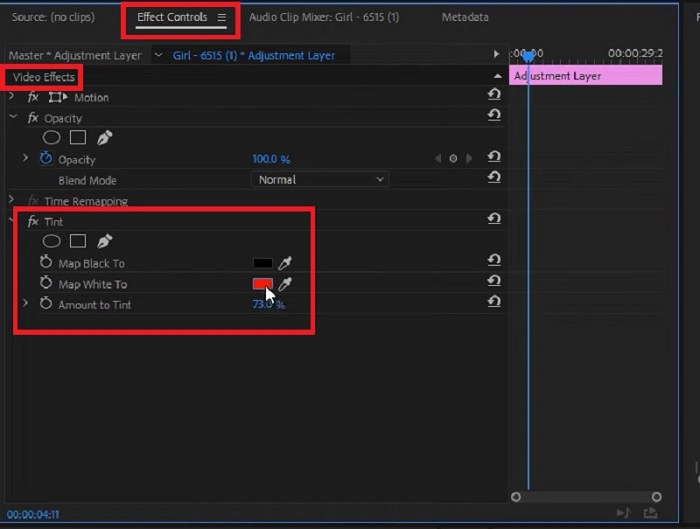
Step 2. Afterward, press the F7 on your keyboard to access the Effects panel. On the search field, type Change to Color, choose Video Effects > Color Correction > Change to Color, and drag the effect on the timeline.
Step 3. Next, select the Eyedropper on the Change to Color panel and move it towards the object on which you wish to adjust the video color. Once you select the area you want to change, transform the color selection on the Hue settings.
Prós
- Esta ferramenta é uma excelente solução para clipes que necessitam de edição avançada.
- Ele pode mudar de cor com diferentes gradientes de cores e precisão.
Contras
- Operar a ferramenta de edição de vídeo requer enormes habilidades técnicas.
- O programa é caro em comparação com seus concorrentes.
Parte 3: Vídeo de mudança de cor do After Effects
Talvez você precise considerar o After Effects quando desejar alterar a cor de uma filmagem. Este programa é mais um editor criado pela Adobe, que é uma excelente opção para renderizar animações gráficas e vetores em 2,5 dimensões. Muitos profissionais normalmente usam o Adobe After Effects ao renderizar uma saída para aplicativos da Web, filmes e até programas de televisão. Por mais promissor que possa parecer, esta ferramenta ajuda você a ajustar a cor do vídeo usando os diferentes métodos do programa. Mas para este tutorial, você pode alterar um fundo de vídeo específico usando o efeito de preenchimento.
Step 1. First, import your clip on the After Effects timeline by going to File > Import.
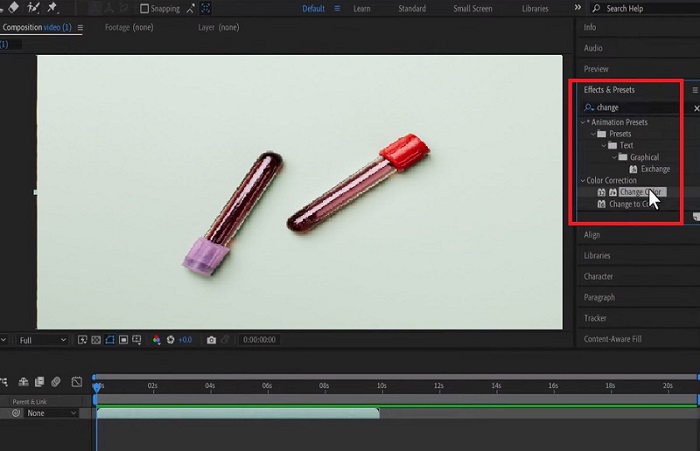
Step 2. Afterward, head to the Effects and Preset section on the left corner of the program and click Color Correction > Change Color. Once you are done, wait for the Eye dropper icon to pop and drag it toward the object you wish to change.
By this time, you will see the Set color on the Change Color box, which will match the current color of the object you have chosen.
Step 3. Finally, move the color settings on the Effect Controls panel, such as the Hue, Lightness, Saturation, Tolerance, and Softness, until your desired color is attained.
Prós
- Este trocador de cores de vídeo é um programa fácil de usar para iniciantes.
- A seleção de cores na ferramenta de edição também é numerosa.
- O After Effects é compatível com os sistemas operacionais Windows e Mac.
Contras
- O custo da ferramenta é caro.
Further Reading:
Top 3 Ways on How to Colorize Video (All Platform Edition)
What’s Behind the Video Color Correcting Palette? The Ulitmate Guide
Parte 4: Perguntas frequentes sobre maneiras de ajustar a cor do vídeo
Por que o Instagram muda a cor do meu vídeo?
Instagram é um aplicativo de mídia social que permite compartilhar seus vídeos por meio de rolos ou carregá-los diretamente em suas linhas do tempo. Porém, esta plataforma só pode alterar o vídeo através de filtros de vídeo. Dessa forma, você pode visualizar o vídeo em um tom de cor diferente.
Existe um aplicativo para mudar a cor dos olhos nos vídeos?
Absolutamente sim! Alguns aplicativos podem ajudá-lo a alterar a cor dos olhos em um vídeo no celular de algumas maneiras simples. O YouCam Video pode fazer esse trabalho e está disponível na App Store e na Play Store.
Como posso mudar a cor das minhas roupas em um vídeo?
Ao usar um editor de vídeo, você pode alterar a cor de suas roupas ou de qualquer objeto com precisão, isolando o objeto usando a ferramenta de seleção. Assim que os objetos estiverem destacados, vá até a ferramenta EyeDropper e escolha a cor da qual deseja alterar a cor do seu objeto. Depois disso, você pode ajustar os detalhes para atender às suas preferências e requisitos, ajustando Matiz e Saturação.
Você pode mudar a cor de um vídeo online?
Existem muitas ferramentas online que podem ajudar a ajustar rapidamente a cor de um vídeo, como o editor de vídeo online VEED.IO. Esta ferramenta é gratuita e permite fazer edições básicas. Ajuda a alterar a cor do vídeo colocando um filtro. No entanto, as ferramentas online geralmente são incapazes de alterar um objeto específico em um clipe, o que pode ser uma desvantagem se esse for o seu objetivo.
Conclusão
Seamless tools bring seamless results. In this walkthrough, you have learned the advanced editing features of Adobe and After Effects. When you plan to adjust video color with these tools, learning the technicalities of each video editor suite is a must to achieve your desired outcome. However, suppose you are looking for a user-friendly tool that can be an alternative. In that case, FVC Video Converter Ultimate is what you should go for.
-
 Os cinco principais corretores de cores de vídeo que você deve ter em 2025
 Precisa de ajuda sobre como corrigir a cor do seu vídeo? Não procure mais porque temos a ferramenta certa para você. Clique aqui para se aprofundar nessas ferramentas.
-
 Como alterar a tonalidade do vídeo? Explorando as possibilidades criativas
 Neste post escrito, reunimos as possíveis soluções que podem ajudar e orientar os entusiastas de vídeo na alteração da tonalidade das cores em projetos de vídeo.
-
 Filtro de vídeo: aprimore seu vídeo com filtros e efeitos na área de trabalho
 Quais são os melhores filtros de vídeo? Como adicionar filtros de vídeo? Todas as suas dúvidas terão resposta neste post. O que você está esperando? Clique aqui.
