


 Video Converter Ultimate
 Gravador de ecrã
 Reparo de vídeo
Como enviar vídeos reproduzíveis no Discord – a maneira certa
It is not a common issue for Discord users to experience sending and uploading unsuccessful videos. This problem is due to some limitations of this tool. If you’re one of them, here’s all you need to know on how to send playable videos on Discord and what to bear in mind when doing so. Also, in this article, you will learn what to do in sending videos that are not compatible with the supported formats and size limit by this tool. Now, let’s learn and eventually send videos on Discord in the right way!

Parte 1. Quais são os requisitos para enviar vídeos no Discord
Discord é uma plataforma de comunicação versátil onde as pessoas podem conversar, conversar e até enviar vídeos. É como um espaço virtual onde comunidades, incluindo jogadores e outros grupos de interesse, podem se reunir. Você pode criar servidores e ingressar em qualquer um deles, e nesses servidores você pode digitar mensagens, falar com sua voz e até fazer videochamadas. O Discord é conhecido por ser fácil de usar e versátil, o que o torna popular para todos os tipos de grupos e discussões online.
Enquanto isso, o upload de vídeos no Discord é de alguma forma limitado por vários motivos. Então, para enviar vídeos no Discord, aqui estão os requisitos básicos que você precisa seguir:
Video Length: Discord allows users to upload videos of up to 8 minutes and 16 seconds in length. Any video exceeding this limit will need to be trimmed or edited before uploading.
Video Format: This tool supports a variety of video formats, including MP4, MOV, AVI, and FLV. However, it is recommended to convert your video to MP4 format for optimal compatibility.
Video File Size: It has a maximum file size limit of 100 MB for users with Discord Nitro and 8 MB for free users. If your video file exceeds this limit, you will need to compress or reduce its size before uploading with a video compressor for Discord. There are various online tools and software available for this purpose.
Video Quality: This tool recommends a resolution of 720p (1280x720 pixels) or 1080p (1920x1080 pixels) for video uploads.
Aspect Ratio: Also it supports both standard 4:3 and widescreen 16:9 aspect ratios for videos. However, it is recommended to use the widescreen aspect ratio of 16:9 as it is more commonly used and provides a better viewing experience on modern devices.
Content Guidelines: When uploading videos to Discord, it is essential to comply with their content guidelines. Videos should not contain any explicit or offensive content, violate copyright laws, or infringe upon someone's privacy. Ensure that your video adheres to these guidelines to avoid any potential issues.
Parte 2. Como enviar vídeos reproduzíveis no Discord
Agora que você aprendeu os requisitos para enviar vídeos reproduzíveis no Discord. Nesta seção, você aprenderá como enviá-los.
Etapas para enviar vídeos reproduzíveis no Discord
Step 1. First, open the tool on your desktop and choose a Channel.
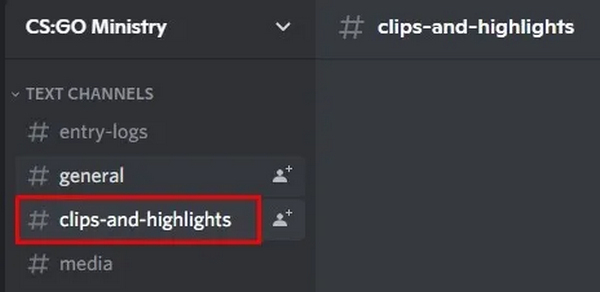
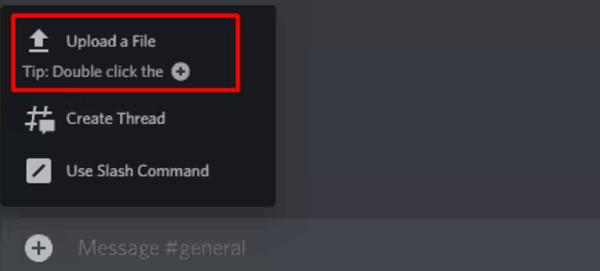
Step 2. In the bottom-left corner of the Discord Messaging Bar, click the Add button and choose Upload a File. You can also double-click the add button to open File Explorer directly.
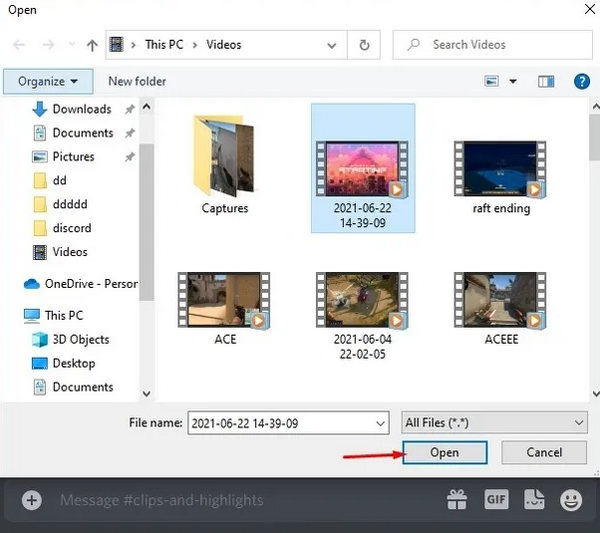
Step 3. Once File Explorer opens, locate the video you want to upload. Highlight the video and click the Open button.
Step 4. Optionally, you can edit your video attachment by clicking the Pencil icon. This feature is useful if the video contains spoilers for a movie or TV show.
Step 5. Press Enter in the Discord messaging bar to upload the video. You’ll see the progress as the video uploads.
Step 6. Once the video finishes uploading, members of that channel will be able to watch the embedded video.
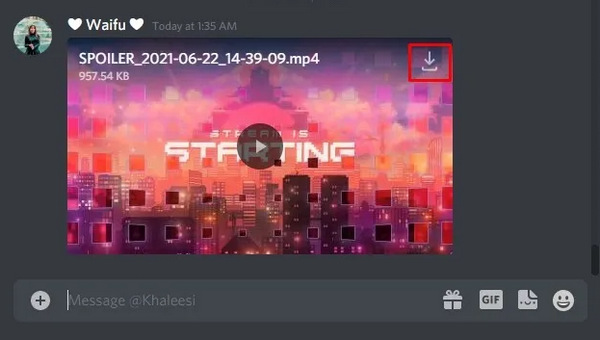
Step 7. Additionally, your friends and other members can download the video by clicking the Download icon.
Como consertar vídeos do Discord que não podem ser reproduzidos
If the downloaded videos from Discord are not playing, you can fix them by using a video repair tool like FVC Video Repair. This tool fixes common video issues, it is versatile and supports the most popular video formats to ensure compatibility. So, whether it is corrupted, lost data, glitchy, or showing error messages, this tool can resolve them.
Para usar o FVC Video Repair, siga estas etapas simples:
Step 1. Download and install the program on your device.
Free DownloadFor Windows 7 or laterSecure Download
Free DownloadFor MacOS 10.7 or laterSecure Download
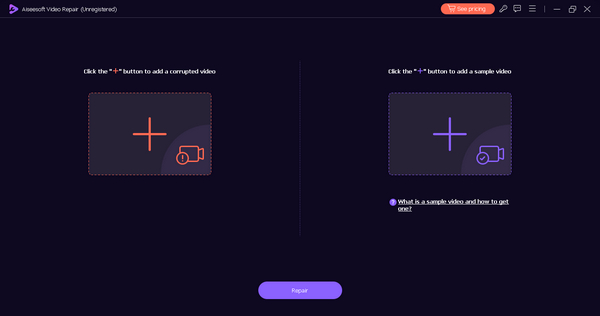
Step 2. Next, add the video that was downloaded from Discord by clicking the Red Plus button. While, click the Blue Plus button to add the sample video.
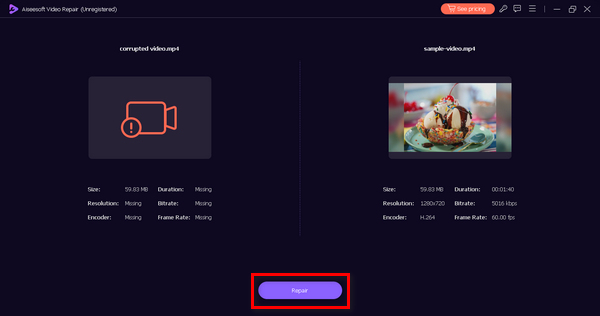
Step 3. After that, click the Repair button to repair the video.
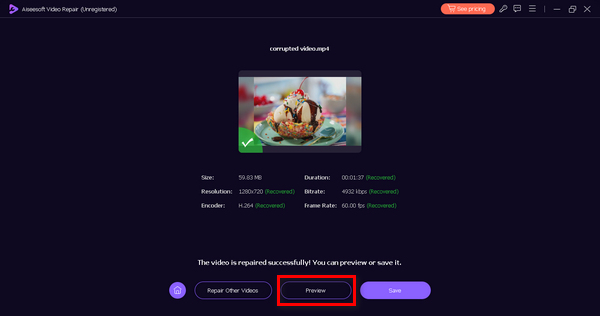
Step 4. Lastly, you can check the video by previewing it. You just have the Preview button, and when you think the repair is successful, you can save it by clicking the Save button.
Como fazer um vídeo do Discord reproduzível para compartilhamento
Meanwhile, if you can’t post a playable video on Discord because the format is not supported or the size is too big, we recommend you use FVC Video Converter Ultimate. This versatile tool can help your videos convert into your desired formats for Discord, compress them and enhance their qualities to meet Discord requirements. All these tools are great collaborators when sending or uploading videos on Discord, so don’t miss a chance not to have them because they are essential in mitigating the issues in sending and uploading on the said tool.
Para usar o FVC Video Converter Ultimate, aqui está o guia:
Step 1. First, head to their website, download the program, and install it on your computer.
Free DownloadFor Windows 7 or laterSecure Download
Free DownloadFor MacOS 10.7 or laterSecure Download
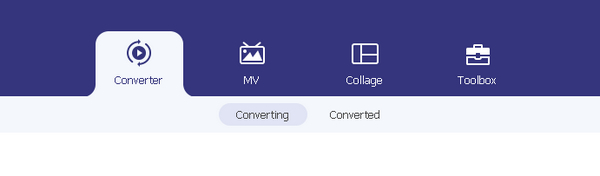
Step 2. Now, You’ll see the converter tab, MV, collage, and toolbox tab. Among those four, select one that you wish to use.
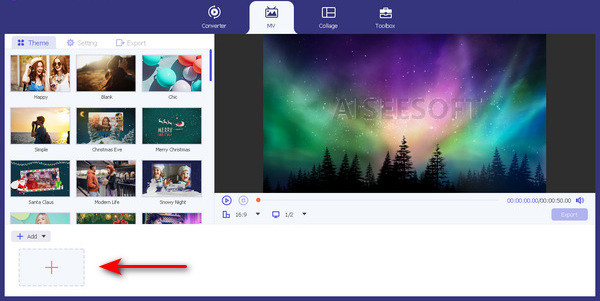
Step 3. Now, click the Add File button to add pictures or videos.
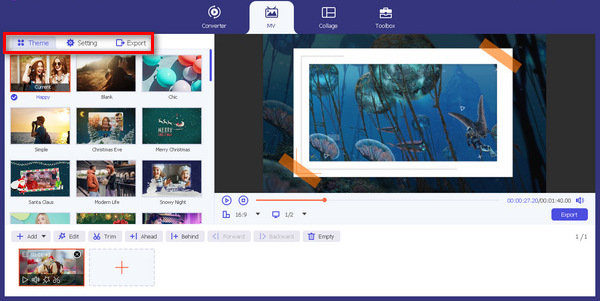
Step 4. Unleash your creativity by exploring the theme, the template, adjust the video length, and other editing features.
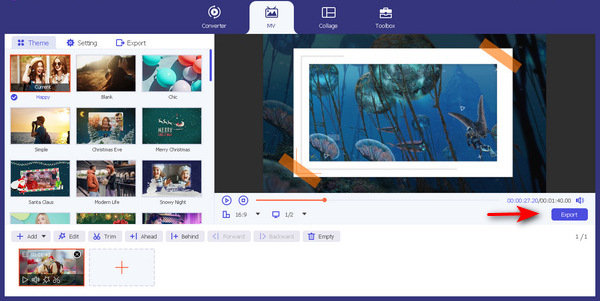
Step 5. Lastly, If you’re done, select the Discord supported formats (MP4, MOV, AVI, and FLV.), and click the Export button.
Depois disso, você pode enviar e compartilhar seu vídeo no Discord para uma reprodução suave.
Parte 3. Perguntas frequentes sobre o envio de vídeos reproduzíveis no Discord
Você pode baixar vídeos do Discord?
Sim. Os usuários podem baixar vídeos do Discord. Basta clicar no ícone de download associado ao vídeo e ele será salvo no seu dispositivo.
Você pode enviar vídeos no bate-papo do Discord?
Sim. Você pode enviar vídeos no bate-papo do Discord. Basta seguir o guia detalhado fornecido nesta postagem. Além disso, lembre-se dos requisitos para envio e upload de vídeos reproduzíveis em seu canal Discord.
O Discord censura o vídeo enviado?
O Discord possui diretrizes de conteúdo e padrões da comunidade para garantir um ambiente seguro. Embora não censure necessariamente os vídeos, pode tomar medidas contra conteúdo que viole os seus termos de serviço, o que inclui material explícito ou proibido.
Como excluo um vídeo que enviei no Discord?
Para excluir um vídeo que você enviou no Discord, clique com o botão direito no vídeo no chat ou canal e selecione a opção de excluir. Alternativamente, você pode ir até o arquivo no canal, clicar nos três pontos ao lado do vídeo e escolher a opção excluir.
Existe um limite para o tamanho dos vídeos que posso enviar no Discord?
Discord imposes file size limits for uploads. Free users typically have an 8 MB limit, while users with Discord Nitro enjoy a higher limit of 100 MB. Keep within these limits when uploading videos or else you can use video converter tools like FVC Video Converter Ultimate to compress the videos that you intend to send.
Conclusão
Discord is a very useful tool that anyone can use today. However, using it, especially on the side of sending and uploading playable videos, one must take note of the requirements that this platform needs. But these aren’t really a problem. You can do something with its video size limitations, formats, and qualities by using a video compressor and video repair tools. Now that you know how to send playable videos on Discord the right way, keep all the information in mind.
-
 Meus vídeos não estão sendo reproduzidos, o que devo fazer para corrigi-los
 Preso com vídeos que não estão sendo reproduzidos e você não sabe como corrigi-los? Você está no caminho certo para resolver seu problema. Aqui está tudo o que você precisa saber.
-
 Soluções rápidas para corrigir o erro 150 de impossibilidade de reprodução de vídeo
 Você já encontrou a frustrante incapacidade de reproduzir o erro de vídeo 150 durante sua experiência de exibição de vídeo? Não se preocupe porque nós explicamos como consertar isso.
-
 Discord GIF Resizer: Como corrigir o erro não é possível redimensionar GIF no Discord
 Os usuários do Discord têm dificuldades para enviar GIFs devido às restrições de tamanho do arquivo. Confira esta postagem para dicas sobre como redimensionar GIFs para Discord.
