


 Video Converter Ultimate
 Gravador de ecrã
 Reparo de vídeo
Causas e soluções de erro de codec de vídeo não suportado
Have you ever gotten into a situation when you tried to play a video on your media player or TV but had an error stating “video codec not supported”? Don't be surprised if the error occurs even on your other videos, like the recorded ones. The fact is that even if you have already restarted your device or re-played the video, it still won't play. So, what precisely does this video error mean, why does it occur, and are there reasonable solutions for it? Generally speaking, the problem of unsupported codecs on the video is already widespread. Fortunately, this article aims to provide the reasons behind this error and solutions. Thus, by implementing the given solutions, you can successfully resolve the codec not supported problem, ensuring your seamless and enjoyable video playback experience.

Parte 1. O que e por que ocorre o erro de codec de vídeo não suportado
O que é um erro de codec de vídeo não compatível
O erro que indica o erro sobre o codec de vídeo é um problema com o compressor-descompressor do vídeo. Codecs, que significa compressor-descompressor, são tecnologias responsáveis pela codificação e decodificação de dados de áudio e vídeo. Conseqüentemente, o problema de não conseguir reproduzir um codec de vídeo não suportado geralmente aparece quando um dispositivo ou reprodutor de mídia encontra um arquivo de vídeo com um codec incompatível com o reprodutor ou dispositivo.
Por que ocorre o erro de codec de vídeo não compatível
To say something further, discuss the reason why the error occurs, then read along this part. As previously mentioned, this kind of error occurs when the video player or platform encounters a video file encoded with a codec that the device cannot interpret. In other words, if your device or media player lacks the necessary components to decode the video file. Additionally, the discrepancy in codec support typically arises due to differences in software, licensing limitations, or firmware. For example, suppose a video file is encoded with the H.265 or HEVC codec. In that case, it may not be compatible with a media player device or application designed to handle only H.264 or older codecs.
Além do codec de vídeo não ser suportado pelo player, a falta do codec de áudio também pode ser uma das causas do erro.
Parte 2. Como corrigir codec de vídeo não suportado
Solução 1. Use um reprodutor de mídia alternativo
If you're facing struggles playing your video files on your specific video player, the best and quickest solution is to try the videos with an alternative media player. You can find several excellent video players, such as VLC, Windows Media Player, QuickTime, and many more. Each media player is capable of handling a wide range of major video formats and codecs seamlessly. However, you must be aware that you might still encounter unsupported video format errors even with a new video player. But substantially, using a media player one after the other can help you fix video codecs that are not supported.
Solução 2. Atualize seu reprodutor de mídia atual
Se você é fiel ao seu reprodutor de mídia atual e não deseja substituí-lo, pelo menos atualize-o para a versão mais recente. As atualizações dos reprodutores de mídia frequentemente incluem compatibilidade aprimorada com uma variedade de codecs de vídeo. Aqui estão alguns guias de instruções sobre como atualizar determinados reprodutores de mídia em seu computador.
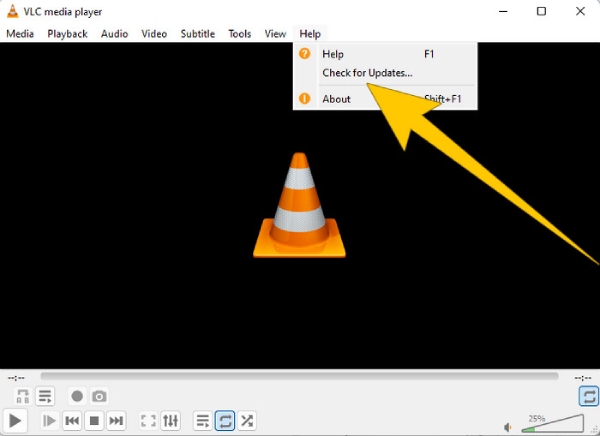
For VLC Media Player
Step 1. Open your media player.
Step 2. Go to the Help menu tab.
Step 3. Select the Check for Updates selection
For Windows Media Player
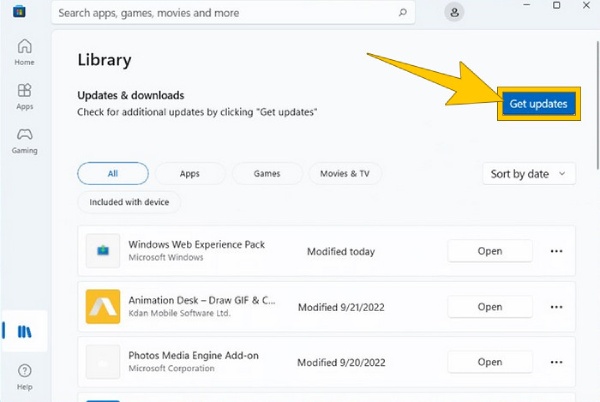
Step 1. Head to your Microsoft Store.
Step 2. Access the Library to see the list of your apps.
Step 3. Then click the Get Updates button to begin an installation of the updates for your apps, which includes the Windows Media Player.
Solução 3. Converta o vídeo em outro formato
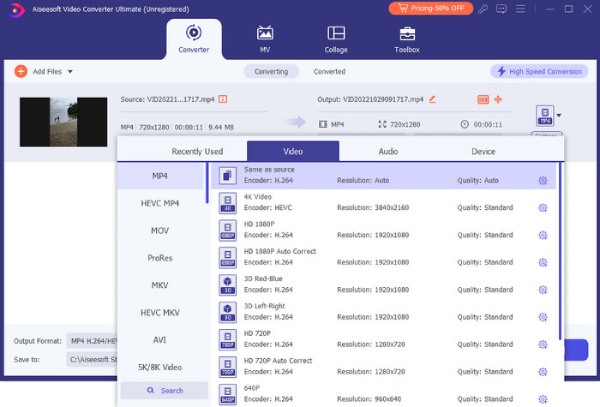
If your video codec is not supported on Samsung, for example, then the issue may stem from an incompatible video file format. In such cases, transforming the video format into other formats that Samsung or your particular device supports can be a practical solution. Hence, if you are looking for the best video converter to help you, the FVC Video Converter Ultimate is what we highly recommend. This is because of the fantastic features it offers you, from its super fast conversion, even for batch videos, to the tons of options on editing tools and types of formats.
Free DownloadFor Windows 7 or laterSecure Download
Free DownloadFor MacOS 10.7 or laterSecure Download
Solução 4. Corrija o arquivo de vídeo não suportado
If converting a file is not your thing, then consider fixing the video instead. Because we cannot disregard the fact that if the video file is unplayable, it may be corrupted. In such cases, consider employing a video fixing tool like FVC Video Repair to solve the issue. This repair tool can help you fix your video files in just seconds after initiating the process. It lets you upload and repair your file without any hassle. The kind of process this video repair tool has makes it extra remarkable to use. Furthermore, it offers a preview option, where you can examine your video file before saving it after the fixation. How do you fix the codec issue using FVC Video Repair? Follow the steps below.
Step 1. Freely install the tool by clicking the Download button below.
Free DownloadFor Windows 7 or laterSecure Download
Free DownloadFor MacOS 10.7 or laterSecure Download
Step 2. Launch it and begin the process by clicking the Add buttons on the interface. To upload the corrupted video, click the red one. Then, go for the purple one to upload a sample video.
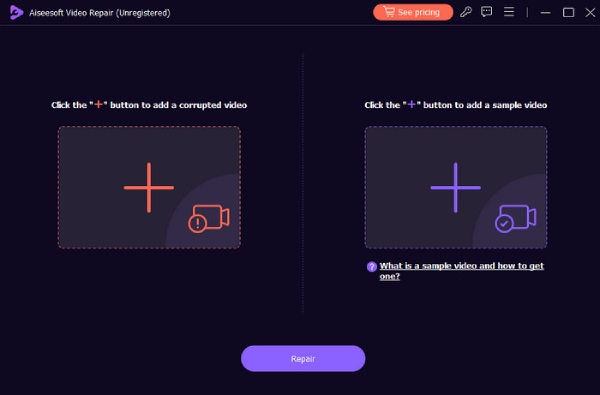
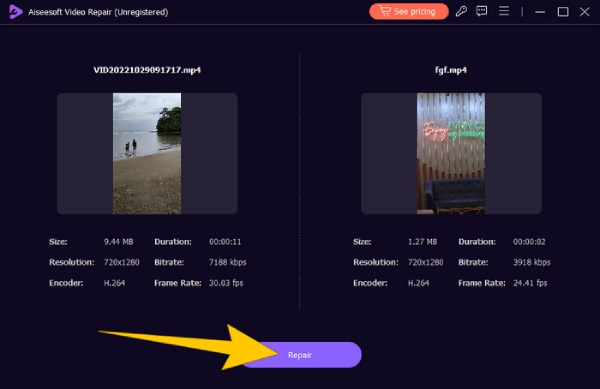
Step 3. When the videos are loaded, hit the Repair button.
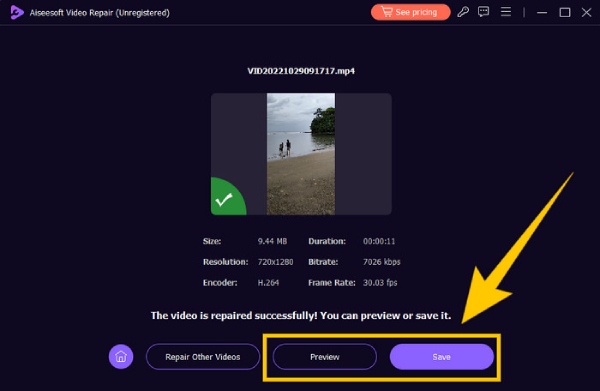
Step 4. After that, you may click the Preview button if you wish to examine the fixed video. Otherwise, click the Save button to export the output.
Parte 3. Perguntas frequentes sobre erros de codec de vídeo
Como faço para corrigir um arquivo de vídeo não suportado?
Para corrigir o arquivo de vídeo com segurança, use uma ferramenta de conversão de vídeo para transformar o formato não suportado em um formato compatível. Ou use uma ferramenta de correção de vídeo.
Como faço para converter codecs de vídeo?
Para converter o codec de vídeo, você pode converter o vídeo em um formato que use um codec diferente com a ajuda de uma ferramenta de conversão.
Como encontro o codec de um vídeo?
Check the properties of the video file to see what codec it uses. You can find many free codecs for your Windows player, such as the MKV codec for Windows Media Player.
Conclusão
Dealing with video errors such as the “Video codec not supported” is quite frustrating. But thanks to the solutions prepared for you above, you can face the issue with your head up. We've highlighted four common fixes, especially the fixation of the unplayable video, with the help of FVC Video Repair.
-
 O que é o erro 0xc10100bf no vídeo e como corrigi-lo
 Seu vídeo não está sendo reproduzido por causa do erro 0xc10100bf e você está procurando maneiras de consertar isso? Neste artigo, você aprenderá o que é e como corrigi-lo.
-
 EaseUS Video Repair – Uma análise aprofundada em 2025
 Confira uma análise abrangente do EaseUS Video Repair. Saiba como este software versátil pode ajudá-lo a reparar vídeos corrompidos ou danificados de forma rápida e fácil.
-
 Revisão do Repair Video Master: aqui está tudo o que você precisa saber
 Corrija seus vídeos agora com Repair Video Master! Além disso, aprenda sobre seus recursos, benefícios e um guia rápido sobre como usá-los nesta análise abrangente.
