


 Video Converter Ultimate
 Gravador de ecrã
 Reparo de vídeo
 Secure Download
Soluções para vídeos que não reproduzem no Windows Media Player
Depurei tudo e estou prestes a assistir a um vídeo baixado usando o Windows Media Player, mas ele não reproduz. É uma situação muito irritante. Precisávamos encontrar uma solução imediatamente.
During our research, we found that many users have encountered videos not playing on Windows Media Player problem. After summarizing several common causes and corresponding solutions, we prepared this article.
Neste artigo, analisaremos essas causas uma a uma e apresentaremos cada método com etapas detalhadas. Esperamos que o guia detalhado e as melhores ferramentas aqui presentes ajudem você.

Parte 1. Corrigir formato de vídeo não suportado no Windows Media Player
Primeiramente, recomendamos que você verifique se o formato do vídeo é compatível com o Windows Media Player. O player atualmente suporta formatos de vídeo como AVI, MPG, MPEG, MOV, MP4, M4V, 3G2, 3GP, 3GPP, M2TS, ASF, WMA, WMV e WM. Se o seu vídeo não estiver em um dos formatos acima, o Windows Media Player não conseguirá reproduzi-lo.
Meu arquivo está no formato MP4, mas por que o vídeo não está sendo reproduzido no Windows Media Player?
É importante observar que o MP4 pode ser apenas um invólucro externo do seu arquivo. Os codecs dentro do vídeo podem estar em um formato não suportado pelo Windows Media Player. Nesse caso, você pode converter o arquivo diretamente para o formato universal MP4 H.264. Dessa forma, não importa qual dispositivo ou player você use para abri-lo, você não encontrará problemas de compatibilidade.
We recommend choosing FVC Video Converter Ultimate as your assistant. This program supports more than 1000 multimedia formats and also allows you to output your videos in a form suitable for the specified platform or device. Moreover, it is an all-in-one video editor. You can crop, rotate, compress, enhance, blend your videos, and even add various effects or filters to the screen.
Free DownloadFor Windows 7 or laterSecure Download
Free DownloadFor MacOS 10.7 or laterSecure Download
Veja como converter seu vídeo para MP4 com o FVC Video Converter Ultimate.
Step 1. Download and install FVC Video Converter Ultimate on your computer. Open it on your desktop and click Add Files to upload your video.
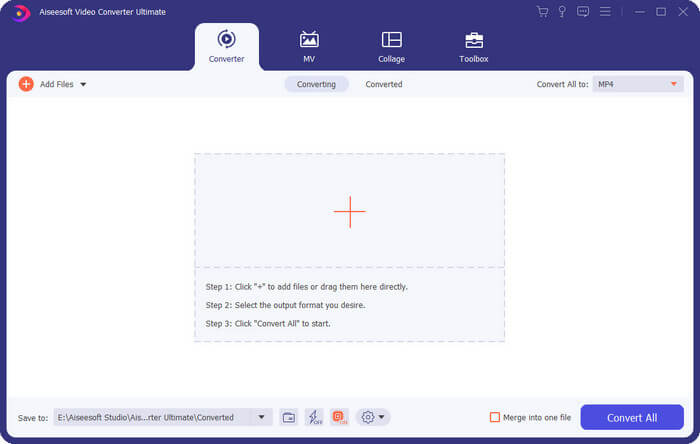
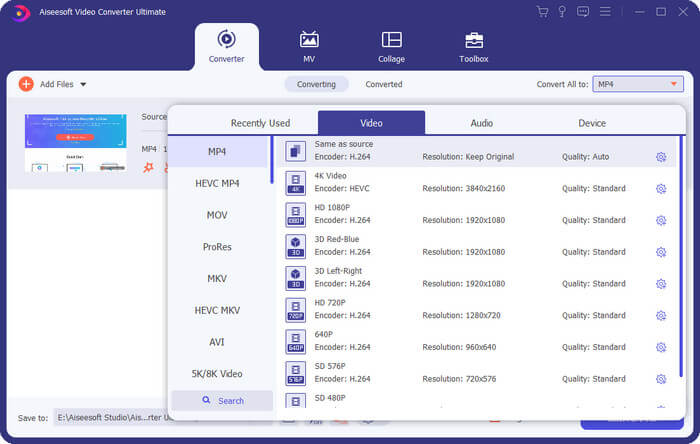
Step 2. Choose Convert All to. Drop down the format list and choose Video > MP4. Then, choose your target output resolution. Remember to select those who use a H.264 as codec..
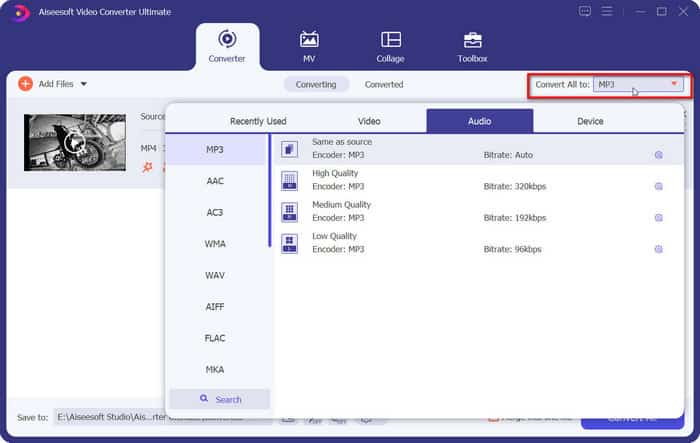
Step 3. Finally, click Convert All to start transforming.
Parte 2. Corrigir perda de codec de vídeo MP4 no Windows Media
Jogador
O problema de vídeo MP4 não ser reproduzido no Windows Media Player, como já mencionamos no artigo anterior, pode ser devido ao fato de o Windows Media Player não possuir os codecs necessários para reproduzir o vídeo. Se você não quiser alterar os parâmetros do seu vídeo, talvez possa considerar começar pelo ponto de vista do codec e baixar o codec ausente para o seu dispositivo. Após a melhoria, o Windows Media Player poderá ler o vídeo corretamente.
Veja como instalar um novo codec de vídeo MP4 para aprimorar seu Windows Media Player.
Esta seção mostrará como instalar o pacote de codec ausente, usando o Windows Media Player como exemplo.
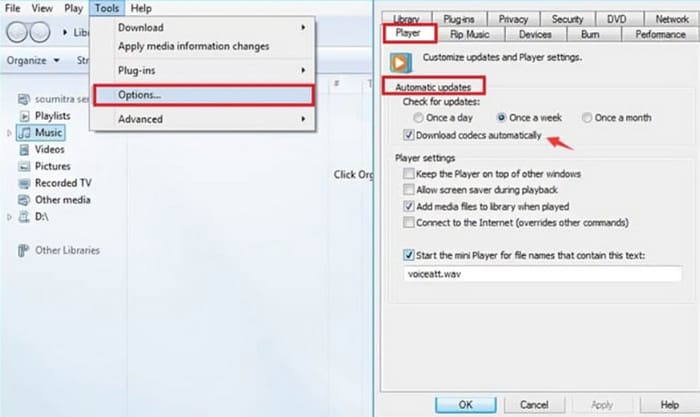
Step 1. Open Windows Media Player on your computer.
Step 2. Choose Tools > Options.
Step 3. When you see the Options window pop out, go to the Play tab. Choose Automatic Updates > Once a Day.
Step 4. Press OK to keep the adjustment. After that, the MP4 codec you need to play the file will be automatically downloaded to your Windows Media Player.
Se o codec desejado ainda estiver faltando, você pode acessar um site de codecs de terceiros, como o K-Lite, e baixá-lo. Mas, enquanto isso, tome cuidado e não baixe conteúdo que possa conter malware.
Parte 3. Corrigir vídeo MP4 corrompido no Windows Media Player
Sim, resolvi os problemas de formato e codec, mas meu Windows Media Player não está reproduzindo vídeos.
Don't worry, check if there is something wrong with the video file itself. A bad transfer process or an unstable storage path can cause your files to be damaged or even lose some of their data. Obviously, no player or device can read corrupted videos properly. We need to find a way to fix it.It's time for FVC Video Repair to come on board. This software supports repairing corrupted videos from any device. It doesn't matter if your file is too blurry, has laggy playback, or black screen, it can help you out. You just need to prepare a sample video similar to the original one for its reference. Please note that the sample video should be in the same format as the corrupted video and both should preferably come from the same device or platform.
Free DownloadFor Windows 7 or laterSecure Download
Free DownloadFor MacOS 10.7 or laterSecure Download
Veja como corrigir vídeos corrompidos com o FVC Video Repair.
Step 1. Get FVC Video Repair on your device. Click the red plus button to upload the broken video. Then, click the purple plus button to add your sample video.

Step 2. Once the two videos are uploaded, click Repair. The process will be over in seconds.
Step 3. When you see the result, press Preview to check it. If the video has been fixed successfully, click Save to download it.

Parte 4. Corrigir vídeo que não reproduz no Windows Media Player devido à alta resolução ou taxa de bits
Outro elemento que não pode ser ignorado é a clareza do vídeo. Se a qualidade do seu arquivo for 4K ou superior, você encontrará problemas de exibição de vídeo no Windows Media Player. Isso ocorre porque o player dificilmente é compatível com vídeos de alta resolução e, frequentemente, a reprodução não é suave ou apresenta lentidão.
At this point, we suggest you compress the video to 1080p or lower resolution and then try to play it in Windows Media Player to see if the problem has been solved.
Parte 5. Perguntas frequentes sobre vídeos que não reproduzem no Windows Media Player
Por que o Windows Media Player reproduz apenas som e não vídeo?
Quando isso acontece, os gatilhos são óbvios. Seu dispositivo não possui os codecs necessários para reproduzir o vídeo, o que impede o carregamento correto da imagem. Nesse caso, você pode baixar o codec ausente pelo Windows Media Player ou acessar o site do K-Lite para verificar.
Por que meu Windows Media Player não reproduz MP4?
First, see if your MP4 file is too high quality. If the resolution is over 4K, Windows Media Player may lag when playing it. If not, then consider that the codec of your video is not compatible with that MP4 player. You may consider converting the video to MP4 H. 264 form.
Existe uma maneira de corrigir vídeos com imagens distorcidas ou pixeladas?
Claro. Você pode escolher uma ferramenta profissional como o FVC Video Repair para reparar o arquivo de vídeo e tentar recuperar os dados e a integridade da imagem. Além disso, você também pode tentar converter o vídeo para outros formatos ou baixá-lo novamente.
Conclusão
The reasons for the videos not playing on Windows Media Player problem may be that the video formats are incompatible, your device lacks the necessary codecs, the video file is corrupted, or the video's definition is too high. For each of these four triggers, this article gives a corresponding solution. Among them, FVC Video Converter Ultimate and FVC Video Repair are definitely the assistants you should try. With these two tools at hand, you will be able to handle any video editing task independently.
Não deixe que problemas de reprodução de vídeo prejudiquem sua experiência de assistir vídeos. Corrija-os agora!
-
 Vídeo AI: Aqui estão as coisas que você precisa saber sobre!
 Você é um daqueles que se pergunta o que é vídeo de IA? Bem, nesta revisão, daremos tudo o que você precisa saber. Continue lendo!
-
 AVCHD vs. MP4: revisão de qual é melhor escolher
 Veja esta postagem AVCHD vs. MP4 e saiba qual formato de vídeo melhor combina com você. Cave mais para saber suas descrições, diferenças, etc.
-
 MP4 fragmentado: o que e como torná-lo um MP4 tradicional
 Você quer saber o que é MP4 fragmentado? Permita que esta postagem responda com as orientações sobre maneiras fáceis e especializadas de converter esse MP4 no tradicional.
