


 Video Converter Ultimate
 Gravador de ecrã
 Reparo de vídeo
Como cortar fotos no iPhone para redimensioná-las rapidamente
Cropping is a fundamental tool in photo editing to remove unwanted things from the overall visual of your photos. Learning and having complete mastery over it is an advantage to elevate and enhance composition in your photos for a much clearer portrayal of the story or message in one's photo. On the other hand, cropping photos on an iPhone is a different story, as iOS is known for its adaptive features and software interface, which sometimes make a task quite a hassle as iOS can be extra with the way how functionalities and commands are located in their devices. That's why this article exists, as you make changes in the visual impact of your photos by cropping, and doing it shouldn't be much of a hassle. Continue reading this article to find out the steps, ins and outs of cropping photos on the iPhone.

Parte 1. Como cortar fotos no iPhone
Você está entre aqueles novos usuários de iOS que têm problemas para realizar tarefas simples e demoram uma eternidade para descobrir? Quer saber como cortar uma foto do iPhone. Não se preocupe mais, pois listamos maneiras rápidas de recortar suas fotos usando o iPhone sem a necessidade de se estressar com isso.
Regular Steps
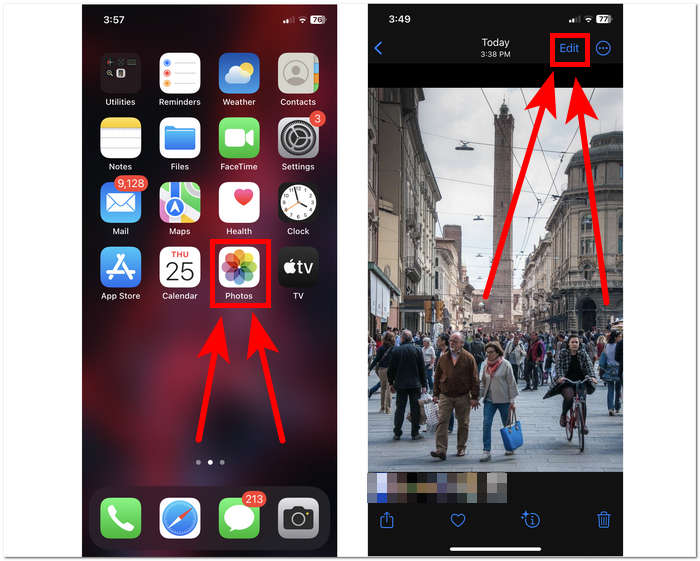
Step 1. On your iOS device, go to your Photos and select or go to the image you want to crop.
Step 2. Locate the Edit button on your upper-right corner screen and click on it.
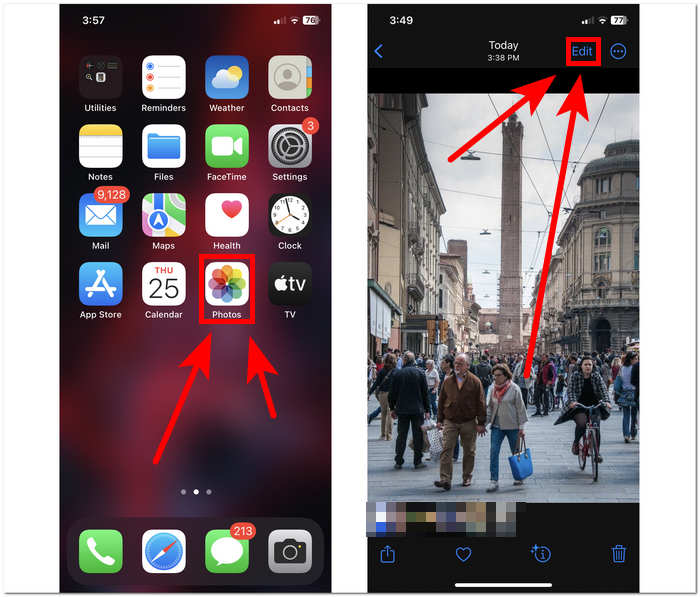
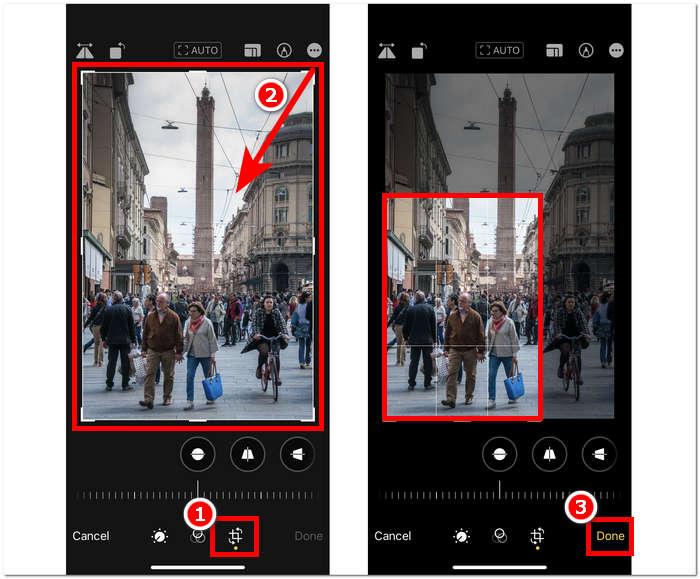
Step 3. In the Edit settings, locate and click on the Size settings in your lower screen.
Step 4. Once the rectangle corners appear, manually drag it to enclose the area you want to keep in your photos and once satisfied with it, proceed to click Done to save the changes in your photos.
Quick Crop Feature on iOS 17
Step 1. Navigate to your Photos app on your iOS device and either choose or locate the image you wish to crop.
Step 2. Using your two-finger, proceed to do an expand gesture.
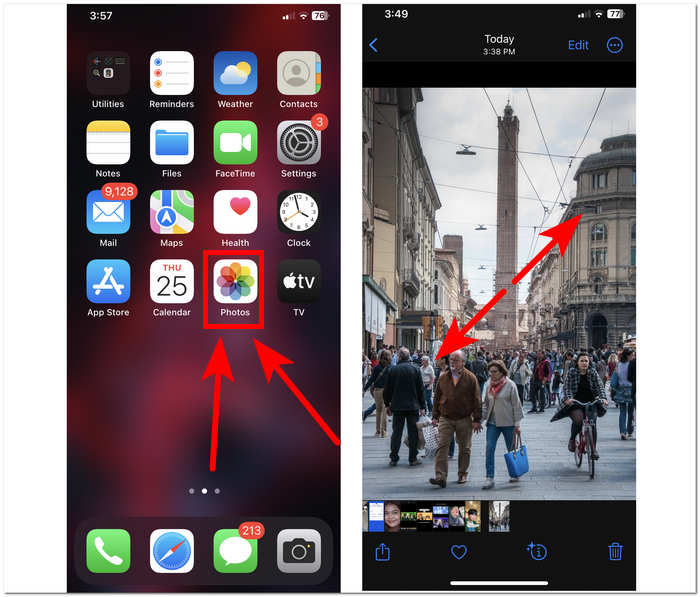
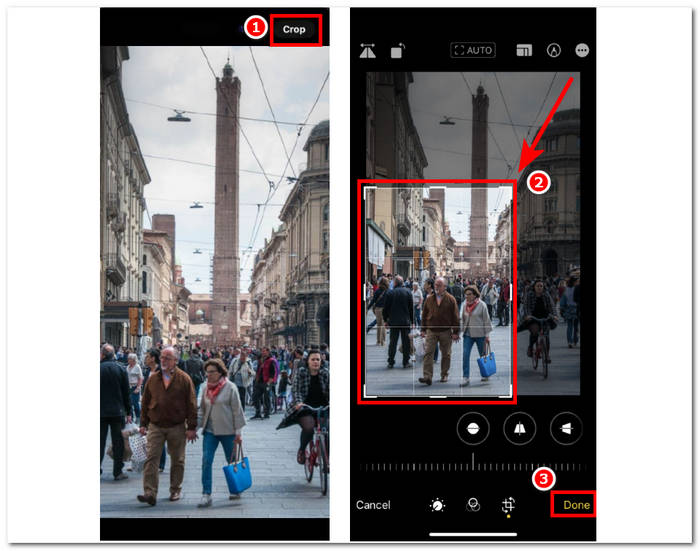
Step 3. A Crop button will then appear on your upper-left screen. Just click on it to proceed.
Step 4. When the rectangle corners appear, you can manually drag them to enclose the area you want to keep in your photos. Hence, proceed to click Done when you want to save your photos.
Automatic Crop Photos with iPhone Shortcut
Step 1. Go to the photo you want to crop on your iOS device, go to your Photos, and select the image.
Step 2. Find the Edit button in the upper-right corner of your screen and select it.
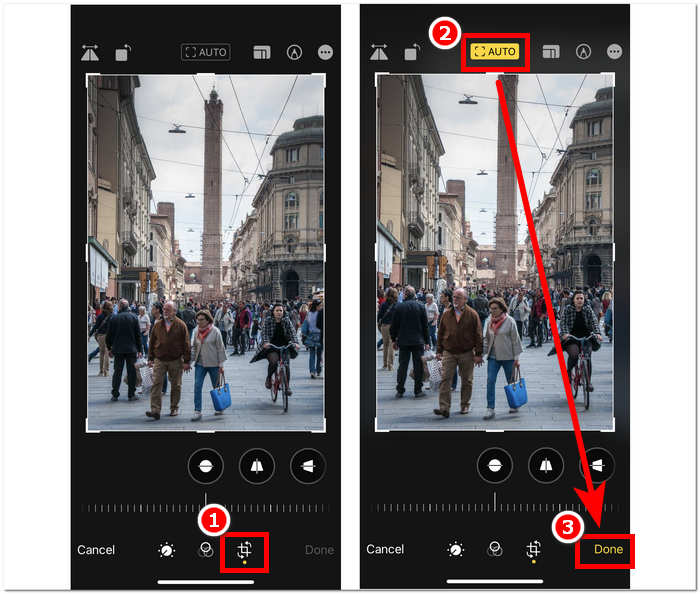
Step 3. In the Edit settings, find and select the Size settings located at the bottom of your screen.
Step 4. Locate the AUTO crop shortcut in your upper screen, click on it to automatically crop your image, and click Done to save your image.
A ferramenta de corte no iOS não precisa ser tão complicada quanto você pensa. O IOS oferece três maneiras, listadas acima; quer você use o corte normal, o corte rápido ou o atalho de corte automático de fotos do iPhone, todos eles funcionam perfeitamente. É apenas uma questão de preferência do usuário e conveniência de uso.
Parte 2. Como cortar rapidamente alguém de uma foto do iPhone
In the context of cropping your photos, users sometimes come across unwanted subjects or objects that are impossible to crop in your device's settings. That's why the use of third-party tools comes in handy. FVC Free Background Remover is one of the trusted web-based tools available on the internet today for a variety of reasons. One of those reasons is security and availability; by means of availability, FVC means all access to users across devices for free, and that includes your iOS devices. Its interface is easy to understand as it is created with a straightforward outlook in mind hence, it offers straightforward advanced features for removing unwanted subjects or backgrounds in your photos. To utilize the said free background remover tool in cropping Someone out in your photo, see the steps below.
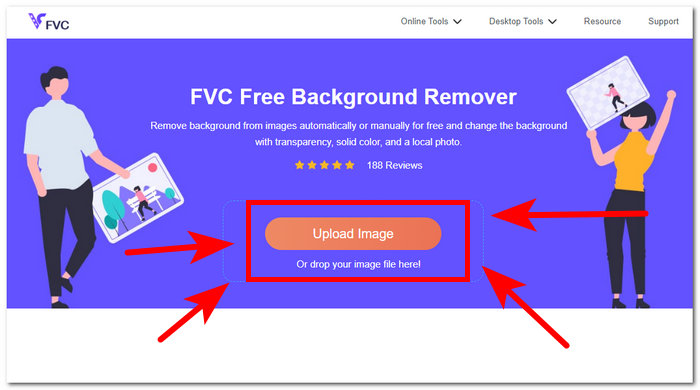
Step 1. Go to the FVC Free Background Remover website on your iOS device Safari browser and upload your desired image into the designated Upload Image field.
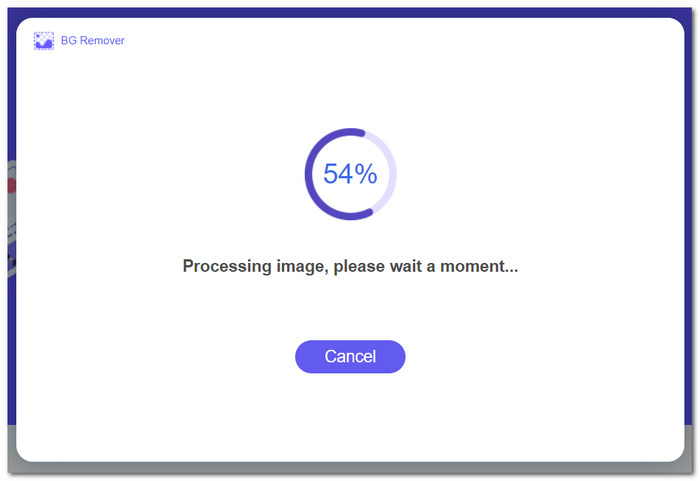
Step 2. Its AI will automatically process the image on which it thinks you want to remove.
Step 3. After FVC completes processing your photo, navigate to the Edit section at the upper part of the tool. Manually crop someone in your photos by dragging the corners to your desired space, including them in your photos.
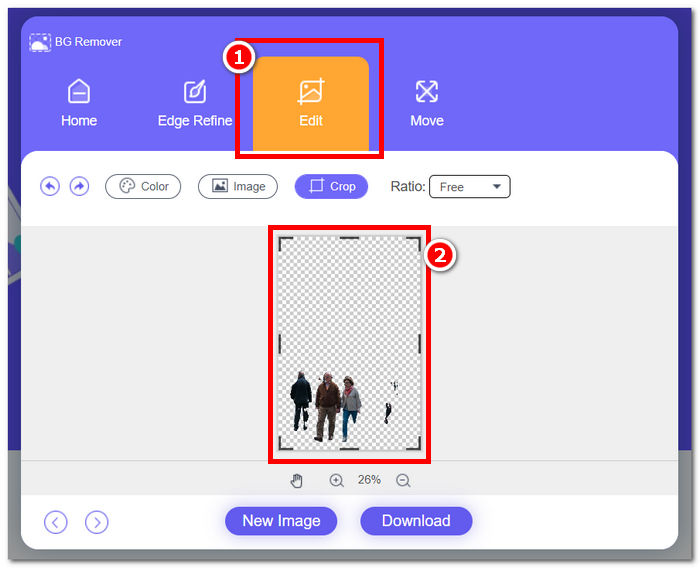
Step 4. Once satisfied, crop Someone out in your photo to save your image on your iPhone by clicking the Download button will save it.
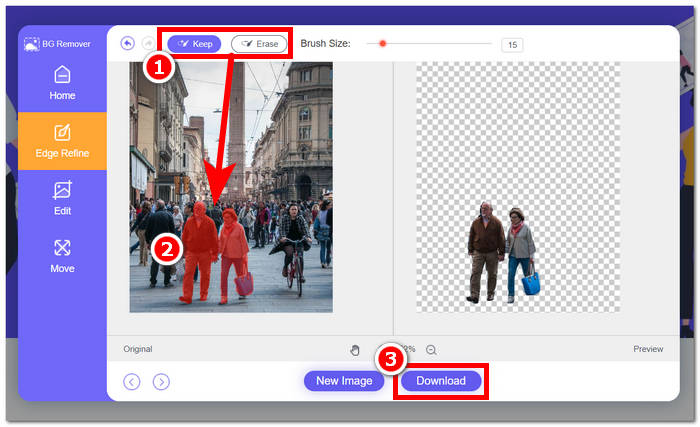
Never again ponder the question of how to crop someone out of a photo on an iPhone; instead, start finding out ways to effectively crop and remove someone in your photos either using your device's crop settings or photo resizer app, as both live up to what they offer.
Parte 3. Perguntas frequentes sobre como cortar fotos no iPhone
Onde está o botão de corte nas fotos do iPhone?
O botão de corte nas fotos do iPhone normalmente é encontrado na interface de edição. Depois de selecionar uma foto, toque na opção Editar e você verá o botão de corte, que se parece com um quadrado sobreposto a dois triângulos retângulos na parte inferior da tela.
Como impedir que o iPhone corte o papel de parede?
Para evitar que o seu iPhone corte automaticamente os papéis de parede, vá em Ajustes, depois em Papel de Parede e toque em Escolher um Novo Papel de Parede. Ao selecionar uma foto, ajuste o nível de zoom de acordo com sua preferência, garantindo que o papel de parede não seja cortado automaticamente. Você pode usar o gesto de pinçar para aplicar zoom para ajustar o tamanho do papel de parede.
O iPhone pode criar uma foto circular?
Embora o aplicativo Fotos nativo do iPhone não tenha um recurso direto para criar fotos circulares, você pode obter esse efeito usando aplicativos de terceiros com ferramentas de corte circular. Esses aplicativos permitem cortar suas fotos em um formato circular, proporcionando um resultado único e esteticamente agradável.
Posso manter a proporção original ao recortar?
Sim, ao cortar uma foto no seu iPhone, você pode manter a proporção original certificando-se de que a opção Restrição esteja habilitada. Isso garante que as proporções da imagem recortada permaneçam iguais às do original.
O corte reduz a qualidade da imagem?
Cropping itself doesn't necessarily reduce image quality on the iPhone. However, if you crop a photo significantly and then zoom in on the cropped area, you may notice a loss of detail, as the image is effectively being enlarged beyond its original resolution. It's essential to strike a balance between cropping for composition and maintaining the desired level of image quality. Also, if you find your image quality is lower after compressing, you can use a third-party image resolution enhancer tool to upscale it.
Conclusão
Finally, learning to crop photos on your iPhone is an essential ability that may dramatically improve the visual impact of your images. This does not just apply to iOS users but to the general use of cropping tools from other devices. The procedure may differ, but with the advice and easy steps shown in this article, you may easily convert ordinary photographs into visually spectacular masterpieces. Whether you like the classic cropping approach, the fast crop function in iOS 17, or the automated crop shortcut, iOS provides a variety of options to meet your needs and tastes. Followed by an FVC Free Background Tool that offers the same quality of not just cropping but also removing unwanted objects in your photos, making cropping photos in your iPhone much easier.
-
 9 principais removedores de fundo de imagem para resultados rápidos e precisos
 Experimente a rapidez e a precisão do apagador de imagens de fundo de alto desempenho. Diga adeus ao removedor de fundo complexo e adote nove maneiras eficientes hoje mesmo!
-
 Como remover o fundo da imagem: ferramentas descomplicadas
 Descubra seis ferramentas para remover o fundo de qualquer imagem sem esforço. Diga adeus à edição complicada e apague fundos de imagens com facilidade hoje mesmo!
-
 Como remover o fundo da imagem usando o GIMP
 Comece a usar o GIMP e o processo passo a passo de remoção de fundos de imagens. Descubra maneiras eficientes de criar imagens transparentes usando o GIMP hoje mesmo!
