


 Video Converter Ultimate
 Gravador de ecrã
 Reparo de vídeo
 Secure Download
4 maneiras de capturar tela no Windows Media Player
Windows Media Player is a popular player that lets you display all sorts of media. The player comes with features such as viewing photos, a music player, watching videos, and a music collection organizer. The usage of Windows Media Player helps users to do tasks dealing with media, and in this article, we shed light on how to screen capture in Windows Media Player. Playing a memorable scene from a movie, a snippet of a tutorial, or a funny moment using the player lets you have the freedom to screenshot and save these moments at your convenience. However, many users might not be aware of the built-in tools and techniques available for capturing screenshots within this versatile player. Browse your way through the end of this article to learn four easy and effective methods to screen capture in Windows Media Player, which includes the use of software, shortcut keys, a snipping tool, and its built-in tool empowering you to capture those moments with ease.

Parte 1. Como fazer uma captura de tela no Windows Media Player
Taking a screenshot in Windows Media Player is easy and should not consume your time in doing or learning about it. There are tons of ways to do it, and the recommended way to screenshot media players in Windows 11 or lower is the use of software tools like FVC picked Screen Recorder. This software is a versatile tool designed to meet the need for capturing screens of all types of media, particularly on Windows Media Player. With this software, users can perform on-screen tasks and record videos, audio, and games in one place, unlike other tools that focus on only one specific feature. Moreover, this software offers user-friendly, time-saving features. Its editing tools make it easy for users to edit their screenshots the moment they take them.
Step 1. Begin by downloading and installing this screenshot tool on your computer. Once the installation process is complete, open the software.
Free DownloadFor Windows 7 or laterSecure Download
Free DownloadFor MacOS 10.7 or laterSecure Download
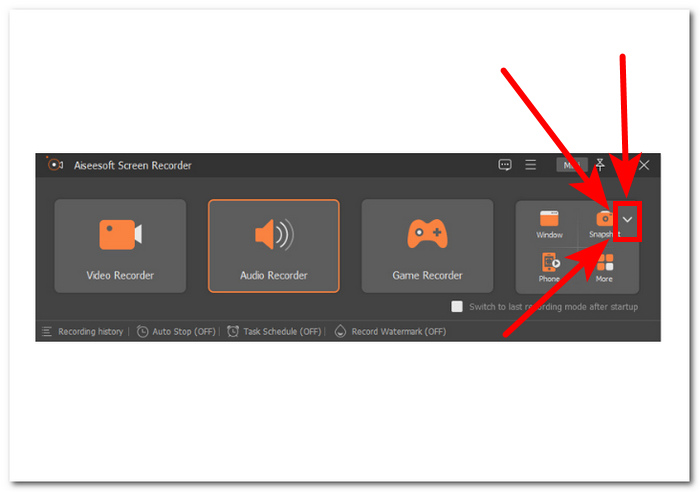
Step 2. Once the software is open, you will see an icon with a Snapshot arrow-down button located on the right side. Click on this button to proceed.
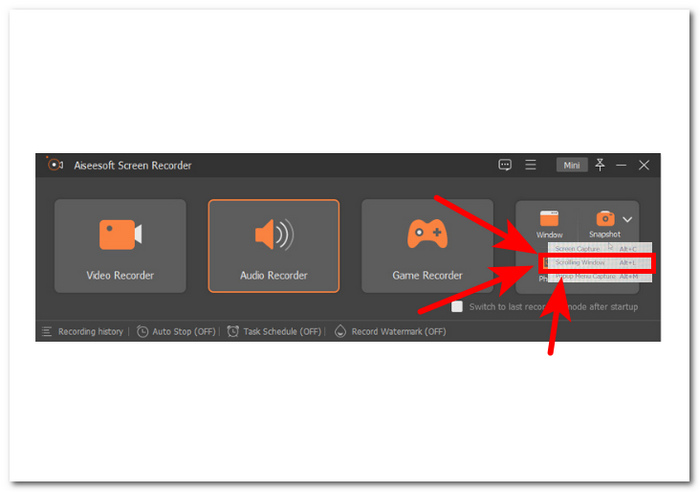
Step 3. Select the Scrolling Window option under the drop-down menu, Alternatively, shortcut Alt+L can be used on your keyboard.
Step 4. With the Scrolling Window option selected, the software will automatically take a screenshot. You can now scroll down to capture all the information you need. The software will capture the entire length of the page or document, allowing you to save or share it as needed.
O Screen Recorder recomendado pelo FVC é uma ferramenta confiável que pode ser usada para fazer uma captura de tela de um vídeo no Windows Media Player. Este software está disponível gratuitamente em dispositivos Mac e Windows, garantindo uma ampla base de usuários. Com sua variedade de recursos de gravação e captura de tela, esta ferramenta de captura de tela é perfeita para qualquer pessoa que precisa de uma ferramenta confiável e multifuncional para capturar a tela do computador.
Parte 2. Captura de tela no Windows Media Player com atalhos do Windows
Se você estiver usando o Windows Media Player e precisar fazer uma captura de tela, não será necessário baixar nenhuma ferramenta de terceiros. Para capturar imagens de um vídeo do Windows Media Player, você pode usar teclas de atalho para capturar de forma rápida e fácil uma captura de tela do vídeo que está assistindo. Essa pode ser uma ótima maneira de capturar uma imagem estática de um vídeo para referência ou compartilhar com outras pessoas. Basta usar as teclas de atalho apropriadas e sua captura de tela será salva para fácil transferência para um software de edição de documentos ou imagens.
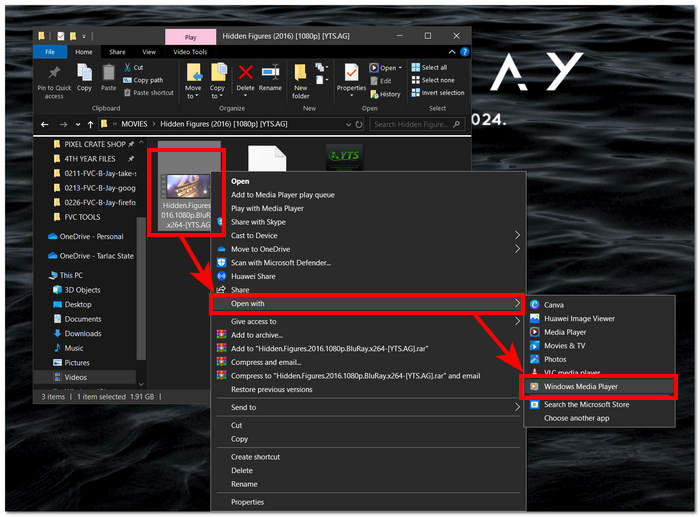
Step 1. To start, launch the Windows Media Player on your computer. Select the video you want to take a screenshot.
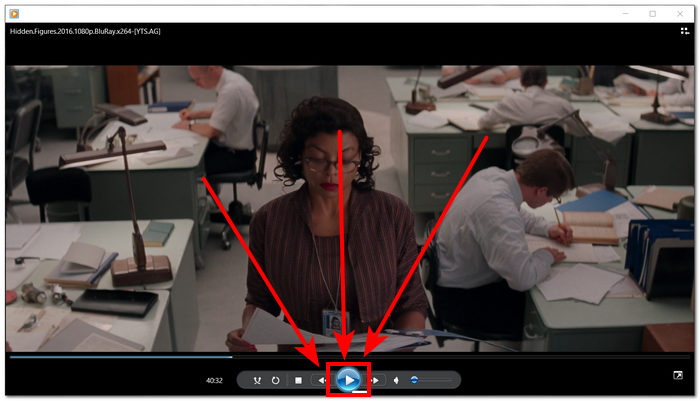
Step 2. When you reach the exact frame in the video that you want to capture as a screenshot, pause the video by clicking on the Pause button.
Step 3. Look for the PrtScn button on your keyboard and press it. This will screenshot the screen and save it as an image file. (How to take a screenshot without PrtSc?)
Step 4. The screenshot is automatically saved in your computer's default storage location. To find it, look for a pop-up window that says screenshot saved.
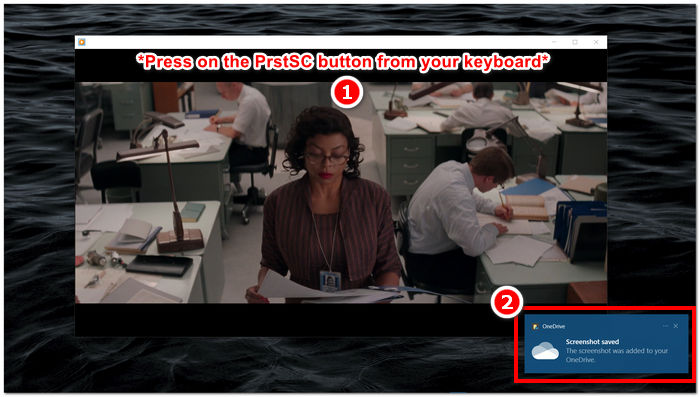
Ao fazer uma captura de tela no Windows Media Player, o uso de teclas de atalho pode economizar tempo dos usuários e eliminar a necessidade de usar uma ferramenta. Embora este método seja eficiente e benéfico para quem tem pressa, é importante observar que ele não permite nenhuma edição da captura de tela.
Parte 3. Como fazer uma captura de tela no Windows Media Player com a ferramenta de recorte
Se quiser fazer uma captura de tela enquanto reproduz um vídeo no Windows Media Player, você pode fazer isso facilmente, sem precisar instalar nenhum software adicional. A ferramenta Windows Snipping, que já está integrada em todos os dispositivos Windows, pode ser usada para fazer capturas de tela de qualquer parte da tela, incluindo a janela de reprodução de vídeo no reprodutor de mídia. Este recurso pode ser útil se você precisar capturar rapidamente uma imagem estática de um vídeo para referência ou para fins de compartilhamento.
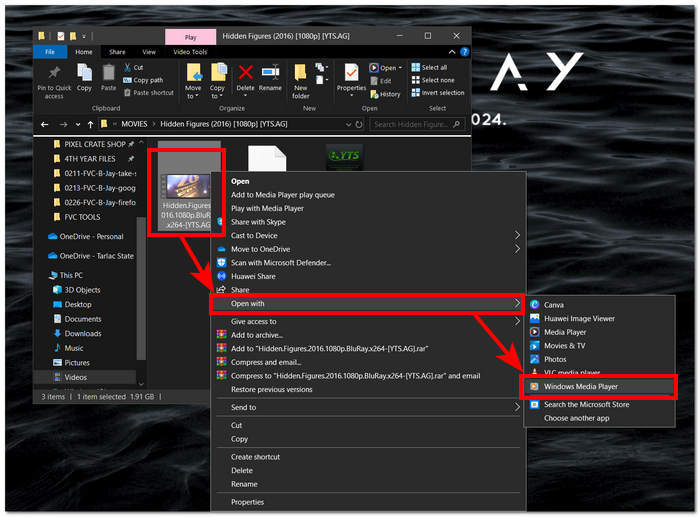
Step 1. Open the video you wanted to screenshot with Windows Media Player.
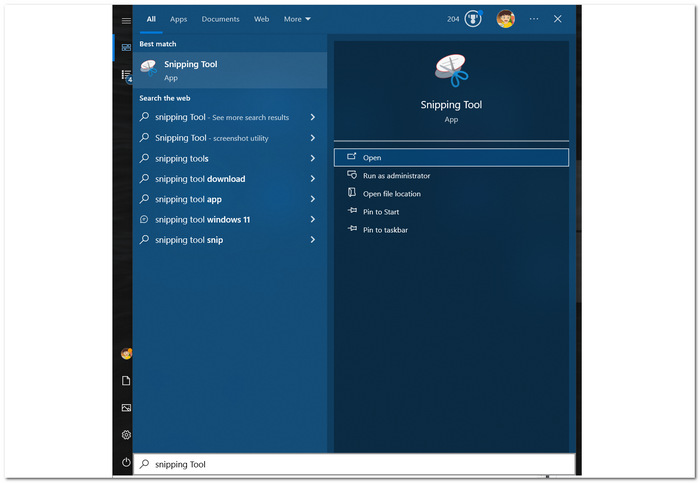
Step 2. Find the Snipping Tool on your Windows device by searching for it in the Start menu and then open it.
Step 3. On its interface, click on the Window Snip under the Mode section, then manually select the area you want to screenshot.
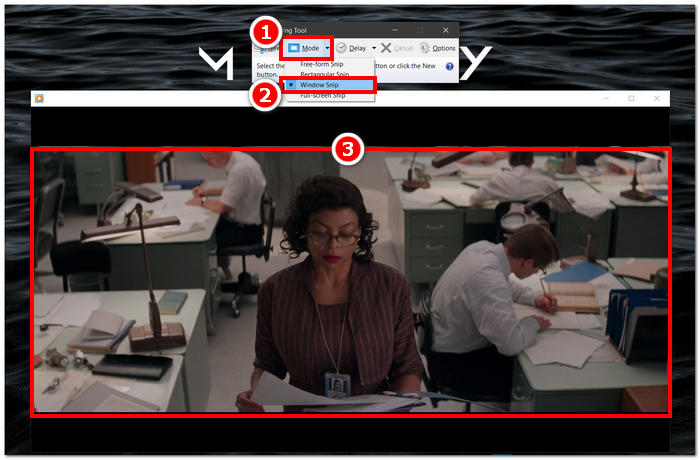
Step 4. After clicking on the area, a new window will open, allowing you to annotate and save to your computer.
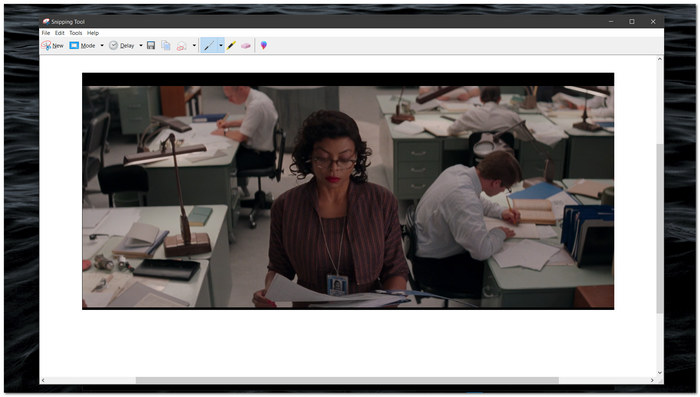
Capturar capturas de tela enquanto assiste a vídeos no Windows Media Player é fácil, graças aos recursos nativos da Ferramenta de Recorte do Windows. Ao aproveitar a ferramenta de recorte do Windows, os usuários podem aprimorar sua experiência de mídia e agilizar o processo de captura e compartilhamento de conteúdo de maneira integrada.
Parte 4. Como fazer uma captura de tela no Windows Media Player com sua ferramenta integrada
O Windows Media Player não vem com um recurso integrado, o que impede os usuários de fazer capturas de tela dentro do player. Porém, ainda existe uma tecla de atalho que pode ser usada, além das mencionadas acima, para fazer capturas de tela no Windows Media Player.
Step 1. To take a screenshot of a video playing in Windows Media Player, first open the video in the player.
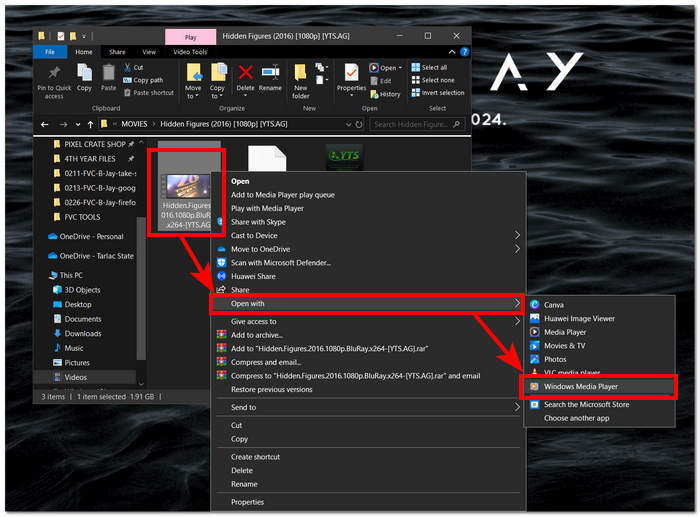
Step 2. You'll need to first Pause the player at the exact moment that you want to capture.
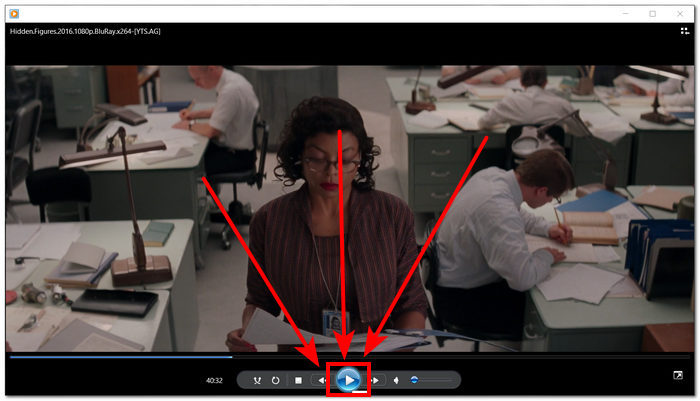
Step 3. To take a screenshot of a paused video on your computer, you can use the combination key of Windows Logo + Shift + S on your keyboard.
Step 4. After manually selecting the part you want to screenshot, it will be automatically saved to your clipboard. You can easily use it by pasting it into your desired email, messaging platform, or note-taking app.
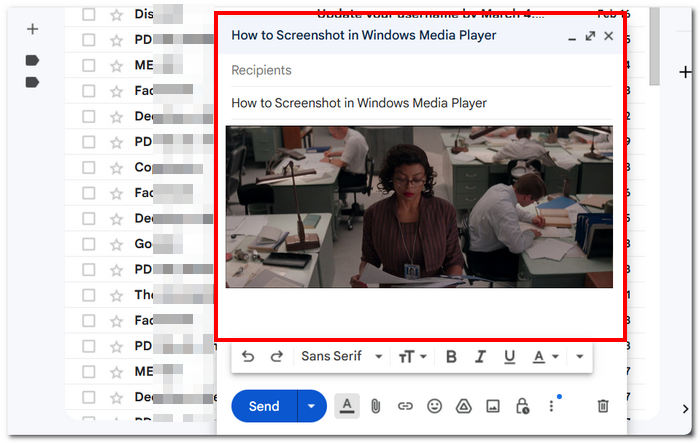
O Windows Media Player pode não ter um recurso integrado para fazer capturas de tela. No entanto, ao contrário da captura de tela do VLC, ainda é um reprodutor de mídia confiável e poderoso, considerando que é gratuito e pré-instalado no seu dispositivo.
Parte 5. Perguntas frequentes sobre como fazer capturas de tela no Windows Media Player
Posso fazer capturas de tela no Windows Media Player sem usar nenhum software adicional?
É possível capturar imagens no Windows Media Player sem qualquer software adicional. O Windows possui uma ferramenta integrada chamada Ferramenta de Recorte que permite fazer capturas de tela de qualquer parte da tela, incluindo a janela de reprodução de vídeo no Windows Media Player.
Posso personalizar as configurações da Ferramenta de Recorte para obter melhores capturas de tela?
A ferramenta de recorte oferece configurações personalizáveis, como modo padrão (por exemplo, recorte retangular, recorte de forma livre), atraso antes da captura e formato no qual as capturas de tela são salvas (por exemplo, PNG, JPEG).
Existe uma maneira mais rápida de fazer capturas de tela no Windows Media Player?
Existem ferramentas de captura de tela de terceiros disponíveis que oferecem recursos mais avançados e métodos mais rápidos para fazer capturas de tela. Se você precisa fazer capturas de tela com frequência ao usar o Windows Media Player, você pode explorar essas opções.
Posso capturar capturas de tela de vídeos reproduzidos no modo de tela inteira?
Sim, é possível usar a Ferramenta de Recorte para fazer capturas de tela mesmo enquanto os vídeos estão sendo reproduzidos em modo de tela cheia. Basta mudar para a Ferramenta de Recorte e capturar a área desejada da tela que contém o vídeo.
Qual é o método recomendado para fazer capturas de tela de alta qualidade no Windows Media Player?
O método recomendado para fazer capturas de tela de alta qualidade no Windows Media Player é usar o método de software. Esta ferramenta permite aos usuários selecionar e capturar áreas específicas da tela, incluindo a janela de reprodução do vídeo, garantindo clareza e precisão na captura de tela. Ao aproveitar os recursos da ferramenta de software, os usuários podem tirar capturas de tela nítidas e detalhadas sem esforço, sem a necessidade de software de terceiros.
Conclusão
We've explored the various methods of capturing screenshots in Windows Media Player, ranging from software-based solutions to built-in tools like the Snipping Tool and shortcut keys. These techniques are accessible and can empower users to preserve and share significant moments from their media experiences effortlessly. With the functionalities explored herein, users can seamlessly integrate screen capturing into their Windows Media Player usage and elevate their media interactions.
-
 Como fazer capturas de tela de rolagem no Firefox sem esforço
 Aprenda a rolar capturas de tela no Firefox para capturar páginas inteiras da web instantaneamente. Siga nosso tutorial passo a passo fácil para aprender como utilizar esse recurso.
-
 Como fazer capturas de tela no Samsung S23 na palma da sua mão
 Tudo o que você precisa saber sobre como fazer capturas de tela no Samsung S23, maximizando os recursos principais do dispositivo para uma experiência de captura de tela perfeita.
-
 Como fazer capturas de tela no Windows Media Player de maneira eficiente
 Descubra os métodos mais simples para capturar capturas de tela no Windows Media Player sem esforço. Eleve sua experiência de captura de tela com nosso guia completo.
