


 Video Converter Ultimate
 Gravador de ecrã
 Reparo de vídeo
 Secure Download
Como fazer capturas de tela no Samsung S23 como um profissional rapidamente
In today's digital landscape, smartphones have become indispensable. They serve as devices to capture priceless moments, store vital information, engage in meaningful conversations, and share amusing content with our loved ones. As such, knowing how to take screenshots of that moment is part of a universal experience. Smartphones like the Samsung Galaxy S23 are powerful devices that can do great things and are capable of much more than just taking screenshots. In this article, we'll take a look at various methods for taking Samsung S23 screenshots with flagship features; we'll equip you with the knowledge to maximize your device screen capture capabilities with precision and ease. What are you waiting for? Continue reading this article to elevate your screenshot game and unlock the full potential of your Samsung Galaxy S23 in no time!

Parte 1. Como fazer uma captura de tela no Samsung S23 com a ferramenta padrão
Capturar uma captura de tela em seu Samsung S23 é um processo simples. A ferramenta padrão fornecida pelo dispositivo facilita bastante a captura de tela. Assim como acontece com outros smartphones, a funcionalidade de captura de tela é baseada no uso do botão liga / desliga e das teclas de volume. Este recurso permite que você faça capturas de tela diretamente do seu telefone em questão de segundos.
Step 1. Open the App or go to the page you want to take a screenshot of.
Step 2. Press your phone's physical Power and Volume Down button at the same time to capture the screen.
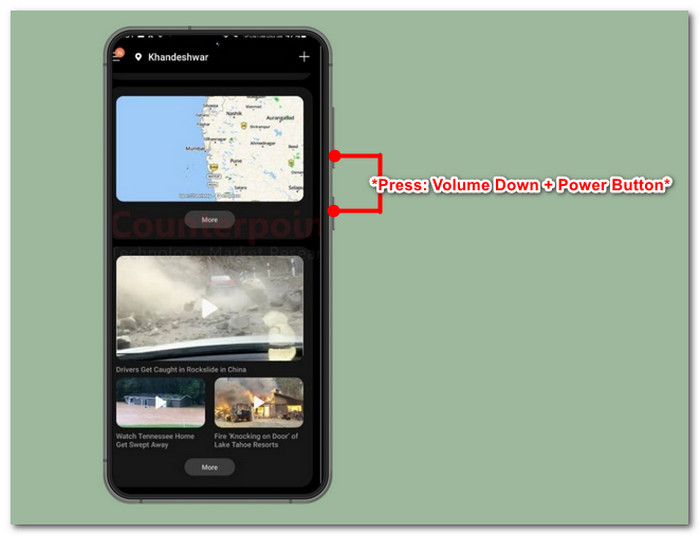
Step 3. You have successfully taken a screenshot using the default tool. To view your screenshot, go to your Gallery.
Este método é aplicado a todos os telefones Android para fazer uma captura de tela.
De combinações clássicas de botões a controles de gestos avançados, dominar a arte de capturar imagens em seu Samsung S23 usando a ferramenta padrão é muito fácil. Se você deseja salvar uma mensagem importante, capturar um momento memorável ou compartilhar conteúdo divertido com amigos, o Samsung S23 pode fazer isso.
Parte 2. Como fazer capturas de tela no Samsung S23 sem botão liga / desliga
Você não precisa necessariamente usar o botão físico. Existem outros métodos disponíveis, como tirar capturas de tela do próprio telefone. Isso pode ser conseguido usando Bixby ou Google Assistant, bem como gestos Palm Swipe. Nesta parte, focaremos especificamente em como usar o Palm Swipe para capturar sua tela.
Step 1. To be able to use the Palm Swipe screenshot, you must enable it first by going to your phone's Settings.
Step 2. In the phone Settings, go to the Advances features > Motion and gestures.
Step 3. Once you're in the Motion and gestures settings, enable the Palm swipe to capture.
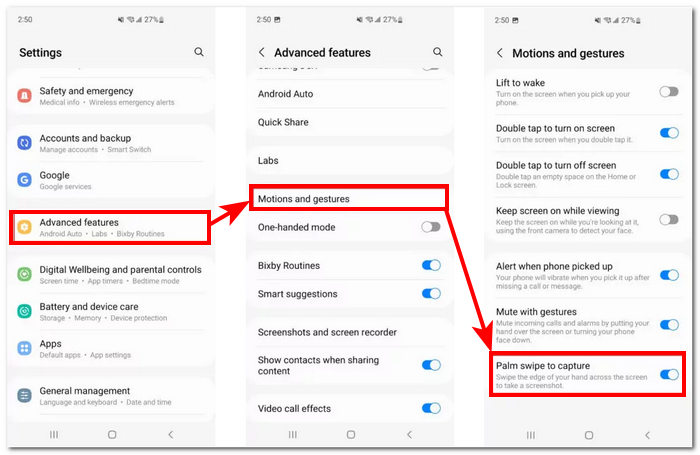
Step 4. Once you have enabled the feature to test it out, try swiping your palm across the edge of your screen.
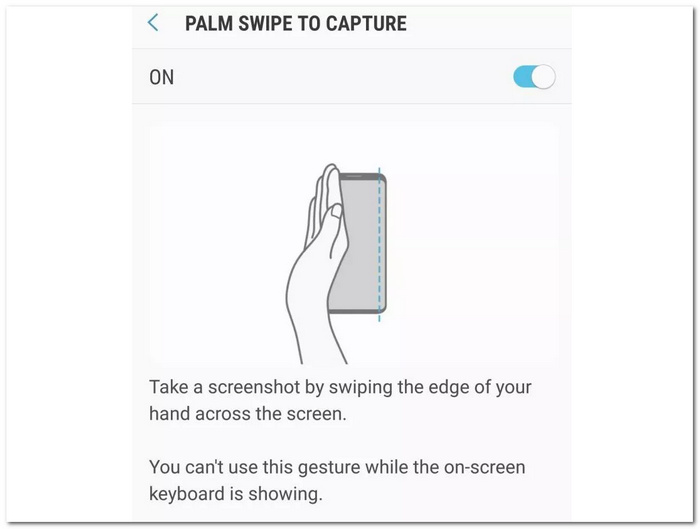
O recurso de gesto Palm Swipe para tirar capturas de tela pode não ser o preferido de todos, mas é uma adição cuidadosa da Samsung. Este recurso resolve o problema de não ser possível fazer uma captura de tela se o botão liga / desliga ou um dos botões de volume parar de funcionar. Portanto, esse recurso garante que a capacidade do usuário de fazer capturas de tela não seja comprometida.
Parte 3. Como fazer capturas de tela no Samsung S23 com software de desktop
Taking screenshots using desktop software is an interesting method to do when you want finer details and lots of control over your screenshots. Using your flagship Samsung S23, it is the right thing to do also to use software features of the same caliber as your device. This software is the FVC picked Screen Recorder. This software allows you to cast your smartphone's screen in your computer to screenshots or better screen record them as the software is good for taking screenshots, screen recording, audio, video, and games. When using this software to perform screen capture on the Samsung S23, it lets you have an advantage in adjusting the screenshot resolution, which goes hand in hand with the likes of flagship devices like the S23.
Step 1. Install phone screenshot software on your computer and launch the software once done installing.
Free DownloadFor Windows 7 or laterSecure Download
Free DownloadFor MacOS 10.7 or laterSecure Download
Step 2. Click on the Phone button from the interface, then select Android Recorder since you are using your Samsung S23 device.
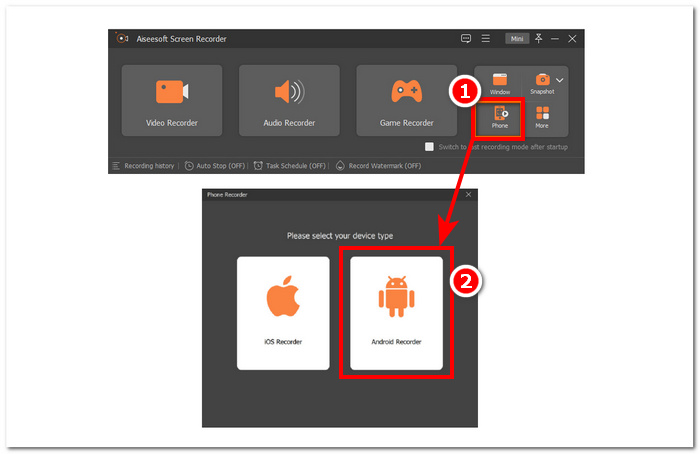
Step 3. Make sure that you have downloaded FoneLab Mirror on your smartphone and that both your Samsung S23 and computer are connected to the same WLAN to be able to mirror your phone screen to your computer.
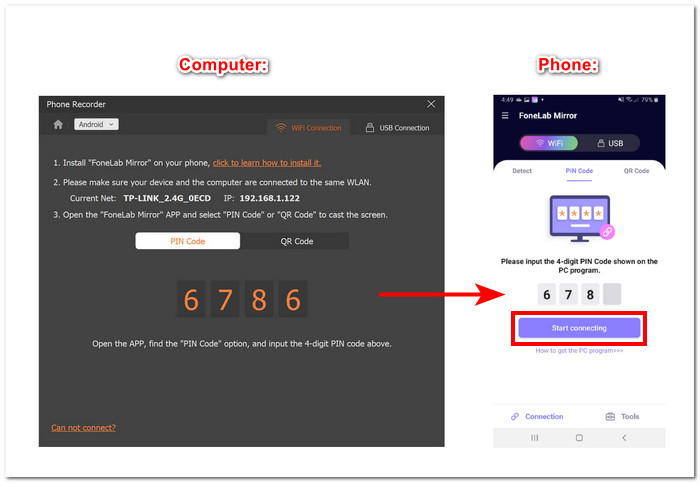
Step 4. Once you have successfully mirrored your screen, you can click the Snapshot button to take a screenshot of the screen of your Samsung S23.
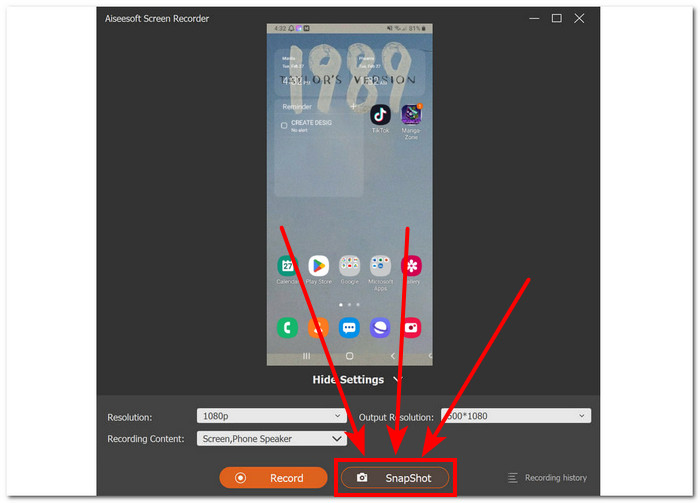
Screen Recorder turns out to be a reliable and professional tool to use when taking not just ordinary screenshots. This tool offers its users a high-output quality in every snapshot of its tools. While using the software, it also favors changing the resolution to avoid blurry output, which later can result in the use of an image size increaser tool to fix that problem.
Parte 4. Perguntas frequentes sobre como fazer capturas de tela no Samsung S23
Posso personalizar as configurações de captura de tela no meu Samsung S23?
Sim, você pode personalizar as configurações de captura de tela em seu Samsung S23. Você pode ajustar opções como onde as capturas de tela são salvas, se incluem uma visualização ou não e se capturam informações adicionais, como conteúdo rolável.
Como acesso as capturas de tela que fiz no meu Samsung S23?
Depois de fazer uma captura de tela, você pode acessá-la imediatamente no painel de notificação. Além disso, você pode encontrar todas as suas capturas de tela na pasta Capturas de tela do aplicativo Galeria ou no álbum Capturas de tela se estiver usando um gerenciador de arquivos.
Posso capturar capturas de tela de rolagem no meu Samsung S23?
Vários modelos Samsung S23 oferecem a capacidade de capturar imagens de rolagem. Para fazer essa captura de tela, você pode primeiro fazer uma captura de tela normal usando o método padrão. Em seguida, localize a opção Capturar mais ou um recurso semelhante que permitirá rolar e capturar conteúdo adicional que pode não estar visível na tela no momento da captura de tela inicial. Este recurso pode ser bastante útil na captura de páginas da web mais longas, bate-papos e outros conteúdos.
Por que meu Samsung S23 não faz capturas de tela?
Se o seu Samsung S23 não estiver fazendo capturas de tela, verifique se você está usando a combinação ou gesto correto de botões e se o software do seu dispositivo está atualizado. Se o problema persistir, tente reiniciar o dispositivo ou entre em contato com o suporte da Samsung para obter mais assistência.
Posso editar ou compartilhar capturas de tela diretamente após tirá-las no Samsung S23?
Depois de fazer uma captura de tela, você pode editá-la ou compartilhá-la rapidamente sem precisar navegar pela Galeria do seu dispositivo. Depois de fazer a captura de tela, uma notificação aparecerá na tela. Basta tocar na notificação e você será direcionado diretamente para a captura de tela. A partir daí, você pode fazer as edições necessárias ou compartilhá-lo com outras pessoas sem demora.
Conclusão
By understanding and maximizing the screenshot features on your Samsung Galaxy S23, you can capture and share memorable moments, important information, and amusing content with ease. This guide equips you with knowledge on utilizing the default button combinations and exploring advanced features like palm swipe gestures and desktop software solutions. With this information, you can elevate your screenshot game and unlock the full potential of your Samsung Galaxy S23 in no time!
-
 Como fazer capturas de tela em um laptop Toshiba sem esforço e de graça
 Descubra as três maneiras simples de fazer uma captura de tela em um laptop Toshiba e capturar todo o seu conteúdo favorito em seu laptop Toshiba gratuitamente.
-
 Como cortar capturas de tela no Mac [Guia para iniciantes de 2025]
 Não se contente com capturas parciais! Aprenda as etapas simples para fazer capturas de tela de rolagem no Mac. Capture páginas da web ou documentos inteiros com facilidade e em pouco tempo.
-
 Como fazer capturas de tela de rolagem no Firefox sem esforço
 Procurando maneiras de cortar capturas de tela no seu Mac? Nós ajudamos você! Neste artigo, aprenda os três métodos que você pode usar para redimensionar capturas de tela com facilidade.
